
HubSpot QuickBooks Pre-Connect Checklist
Every setting to fix before you click Install, the default sync filters, and the three errors that break most first weeks.
Download Now
If your sales team closes deals in HubSpot and your bookkeeper rebuilds the same invoices in QuickBooks, you're paying twice for the same work. Worse, your two systems slowly stop agreeing on who your customers are and what they owe you.
The HubSpot and QuickBooks integration fixes that. It's HubSpot's own app, and it syncs customers, products, invoices, and credit memos between HubSpot and QuickBooks Online, so the work gets done once.
This guide covers what the integration does, which CRM fits QuickBooks best, how to set up the HubSpot integration with QuickBooks using the configuration we recommend, and the mistakes that are hard to undo.
📋 Before you connect anything, grab the free HubSpot QuickBooks Pre-Connect Checklist. It covers every setting to fix before you click Install, the default sync filters, and the fixes for the most common errors, on a few pages you can hand straight to your team. Use it to set up a new connection or to audit one you already have.
Does HubSpot Integrate With QuickBooks?
Yes. HubSpot integrates with QuickBooks Online through its own free app, built by HubSpot and available on every HubSpot plan. It syncs contacts, products, invoices, and credit memos between the two systems, one-way or two-way.
Here's the short version before we get into the details:
- Works with: QuickBooks Online on Simple Start, Essentials, Plus, or Advanced.
- Doesn't work with: QuickBooks Desktop. Desktop users need a third-party connector.
- Cost: included on every HubSpot plan. Custom field mapping needs Data Hub Starter or higher.
- Where it lives in HubSpot: Settings > Integrations > Connected apps > QuickBooks Online.
- What it won't do: sync deals, refunds, processing fees, or deletions.
What Is a QuickBooks Integration?
A QuickBooks integration is a connection that moves data between QuickBooks and another business system automatically, so records like customers, products, and invoices don't have to be entered twice.
Not all integrations work the same way. Before you pick one, it helps to know which kind you're looking at.
| Type | How it works | Who maintains it | Best for |
|---|---|---|---|
| Native (first-party) integration | Built by the software vendor. Mirrors records between systems with filters and conflict rules | The vendor, as part of the product | Most small businesses on QuickBooks Online |
| Third-party connector | Built by an independent developer and usually billed separately | The connector's developer | QuickBooks Desktop, or needs the native app doesn't cover |
| Automation platform (for example, Zapier or Make) | Runs a task each time a trigger fires, like "deal won, create invoice" | You | Simple, one-direction tasks |
| Workflow actions | Individual steps inside your CRM's automation builder | The vendor, but you design the logic | Event-driven tasks on top of a sync |
Why the type matters: a native sync keeps two lists of records aligned over time. A trigger-based automation only acts when something happens, so it won't compare the two systems or settle disagreements between them on its own.
What Is the HubSpot QuickBooks Online Integration?
The HubSpot QuickBooks Online integration is a free app, built by HubSpot, that connects your HubSpot portal to QuickBooks Online and keeps customers, products, invoices, and credit memos in sync.
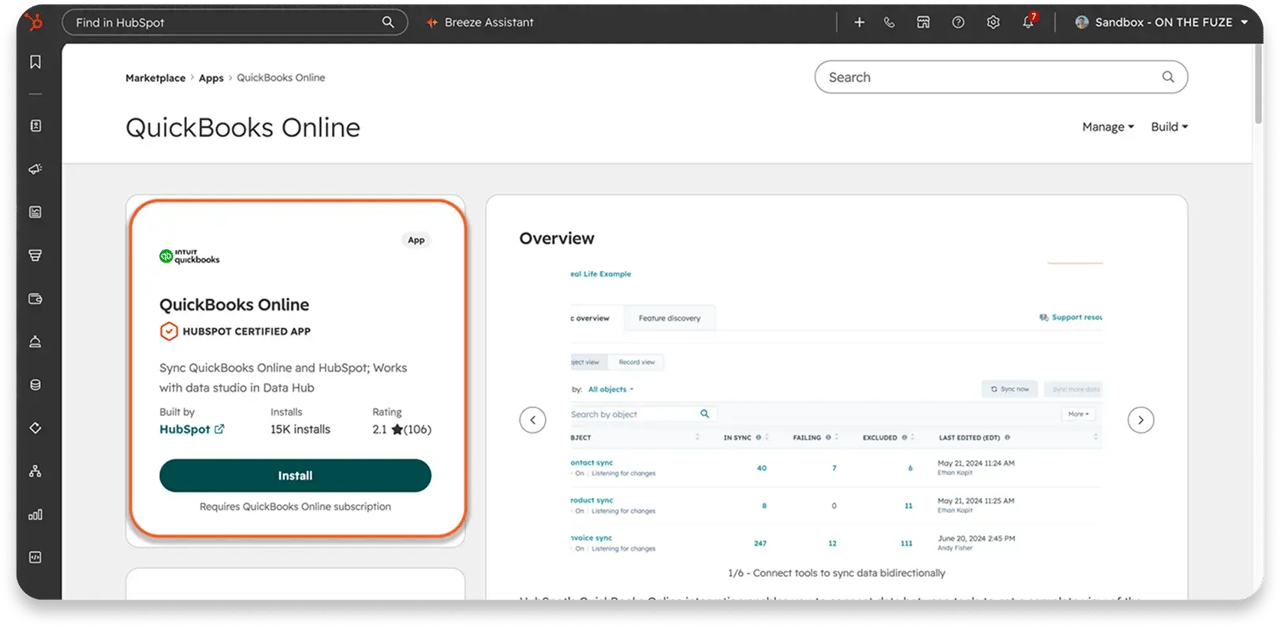
It's listed as a HubSpot Certified App in the HubSpot Marketplace, with 15K installs, and it's available on every HubSpot plan. You do need a QuickBooks Online subscription on Simple Start, Essentials, Plus, or Advanced.
What syncs, and in which direction?
| In HubSpot | In QuickBooks Online | Directions available | Default setting |
|---|---|---|---|
| Contacts | Customers | One-way or two-way | Two-way |
| Products | Products & Services | One-way or two-way | One-way, QuickBooks to HubSpot |
| Invoices | Invoices | One-way or two-way | One-way, QuickBooks to HubSpot |
| Credit memos | Credit memos | One-way or two-way | You choose |
If you're on Data Hub Professional or Enterprise, QuickBooks Online data can also feed one way into Data Studio, HubSpot's spreadsheet-style tool for blending data from different sources.
What doesn't sync?
Deals. HubSpot deals don't map to anything in QuickBooks, so nothing about your pipeline crosses over. Invoices synced in from QuickBooks are associated to the primary company of the contact on the invoice, but not to a deal.
How fast does it sync?
Neither direction is instant. HubSpot detects changes going to QuickBooks within a few minutes. Changes coming back from QuickBooks are detected every 30 minutes. So if a customer pays in QuickBooks, HubSpot can take up to half an hour to show it.
Three things in HubSpot share the name "QuickBooks integration"
This trips up a lot of teams, so it's worth separating them clearly:
- The QuickBooks Online data sync. The background sync this guide covers.
- QuickBooks workflow actions. Six actions inside HubSpot's workflow builder, like Create a QuickBooks invoice. They need a Professional or Enterprise subscription, they're only available to customers based in the United States, and they require the data sync app to be connected first.
- The legacy integration. An older version that HubSpot labeled legacy in March 2024, with a migration deadline of May 14, 2024.
🏆 Elite Partner Tip: Before you change anything, go to Settings > Integrations > Connected apps and read the app name. If it says [Legacy] QuickBooks Online, you're on the old integration. Run the migration tool in the same settings first. Configuring anything else on a legacy connection is wasted work.
What Is the Best CRM to Integrate With QuickBooks?
For a small business that already runs its books in QuickBooks Online, HubSpot is the strongest all-round fit. Its integration is built by HubSpot, included on every plan, and can sync customers, products, invoices, and credit memos in both directions. The right answer still depends on where your team sells and where your invoices are created.
Here's how the main CRMs connect to QuickBooks Online today:
| CRM | How it connects | What it syncs | Plan needed |
|---|---|---|---|
| HubSpot | Native app, built by HubSpot | Contacts, products, invoices, and credit memos, one-way or two-way | All plans. Custom field mapping needs Data Hub Starter or higher |
| Zoho CRM | Native integration, built by Zoho | Contacts, accounts, vendors, and products two-way. Estimates, invoices, and purchase orders one-way into the CRM | Enterprise edition and above |
| Salesforce | Third-party apps from the AppExchange, such as Breadwinner or DBSync | Depends on the connector | Varies by connector |
| Pipedrive | QuickBooks app in the Pipedrive Marketplace | Creates QuickBooks invoices from deals and shows their status back in Pipedrive | See Pipedrive's listing |
How should you choose?
Ask these five questions before you commit:
- Where does your team already work? A connector your reps won't open doesn't help.
- Where are invoices born? If sales creates invoices from deals, you need a CRM that creates and pushes invoices. If your bookkeeper raises every invoice, you mainly need visibility.
- Who fixes it when it breaks? A vendor-built app is maintained with the product. A third-party connector depends on another company's roadmap.
- What does it cost in total? Count the CRM tier and any connector subscription.
- Are you on QuickBooks Online or Desktop? HubSpot's native app supports Online only.
🏆 Elite Partner Tip: Choose based on where the invoice is born. If your deals turn into invoices, keep invoice creation in the CRM and let the sync carry it to your books. That's the flow HubSpot's integration is designed for.
What Does the Integration Actually Change for Your Business?
It removes double entry between sales and accounting, shows your team payment status without asking finance, and keeps one shared list of customers and products.
In practice, that looks like this:
- No more retyping. An invoice built in HubSpot lands in QuickBooks on its own.
- Payment status where sales can see it. The invoice record in HubSpot shows the payment's source, date, and status.
- One product catalog. Line items come from products synced from QuickBooks, so pricing and income accounts stay consistent.
- Fewer mismatches at month-end. When both systems share customers and invoice numbers, reconciliation becomes a check rather than a rebuild.
How do you prove it's working?
Don't take the integration on faith. Measure three things for the month before you connect and the month after:
| Metric | How to measure it |
|---|---|
| Hours spent re-keying invoices | Ask whoever does it now. Even a rough weekly estimate is enough |
| Invoices that don't match | Count invoices where the customer, amount, or number differs between systems |
| Days to close the month | From month-end to books closed |
If those numbers don't move, the problem is usually configuration, not the software.
What's the Safest Way to Roll Out the Integration?
Roll it out in four phases, in this order: Prepare, Configure, Prove, Maintain. Each phase has a clear owner and a clear "done" signal, so nothing gets turned on before it's ready.
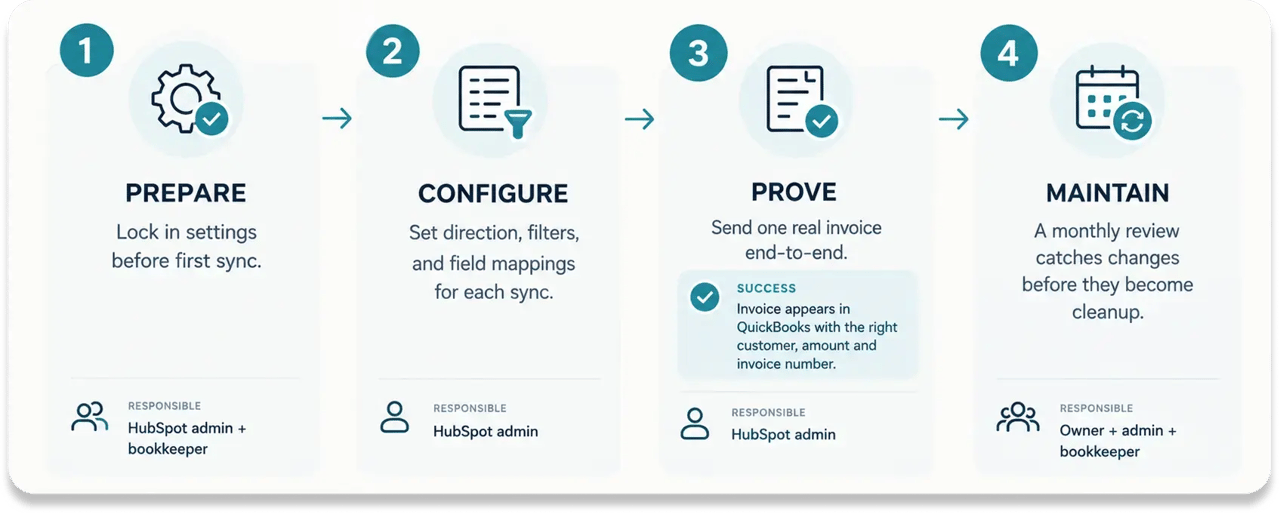
| Phase | Goal | Owner | Done when |
|---|---|---|---|
| 1. Prepare | Fix settings that are hard to change after the first sync | HubSpot admin and bookkeeper | All 8 items in the pre-connect checklist (next section) are ticked |
| 2. Configure | Set direction, filters, and mappings for each sync | HubSpot admin | Every sync is set, none are on yet |
| 3. Prove | Send one real invoice end to end | HubSpot admin | The invoice appears in QuickBooks with the right customer, amount, and number |
| 4. Maintain | Catch drift before it becomes a cleanup project | Owner, admin, and bookkeeper | A monthly review is on the calendar |
Three decisions in this rollout belong to the owner, not the person clicking:
- Who runs the setup, with admin rights on each side.
- How much of your customer list comes into HubSpot.
- How tax is handled, agreed with your accountant before the first invoice goes out.
HubSpot itself recommends consulting your accounting and legal teams before connecting to confirm the integration suits your needs.
What Do You Need Before You Connect QuickBooks to HubSpot?
You need admin access on both sides, a supported QuickBooks Online plan, and a handful of QuickBooks settings fixed before the first sync. Each item below prevents a specific problem later.
On the HubSpot side
- Permission to install. You need to be a Super Admin or have App Marketplace permissions.
- Invoice permissions. HubSpot users created after February 9, 2023 don't have invoice permissions by default. Without Super Admin or create invoice permissions, the Create button stays greyed out.
- Not on the legacy integration. Check Settings > Integrations > Connected apps for a [Legacy] label.
On the QuickBooks side
- The right plan. QuickBooks Online on Simple Start, Essentials, Plus, or Advanced. QuickBooks Desktop isn't supported by HubSpot's integration.
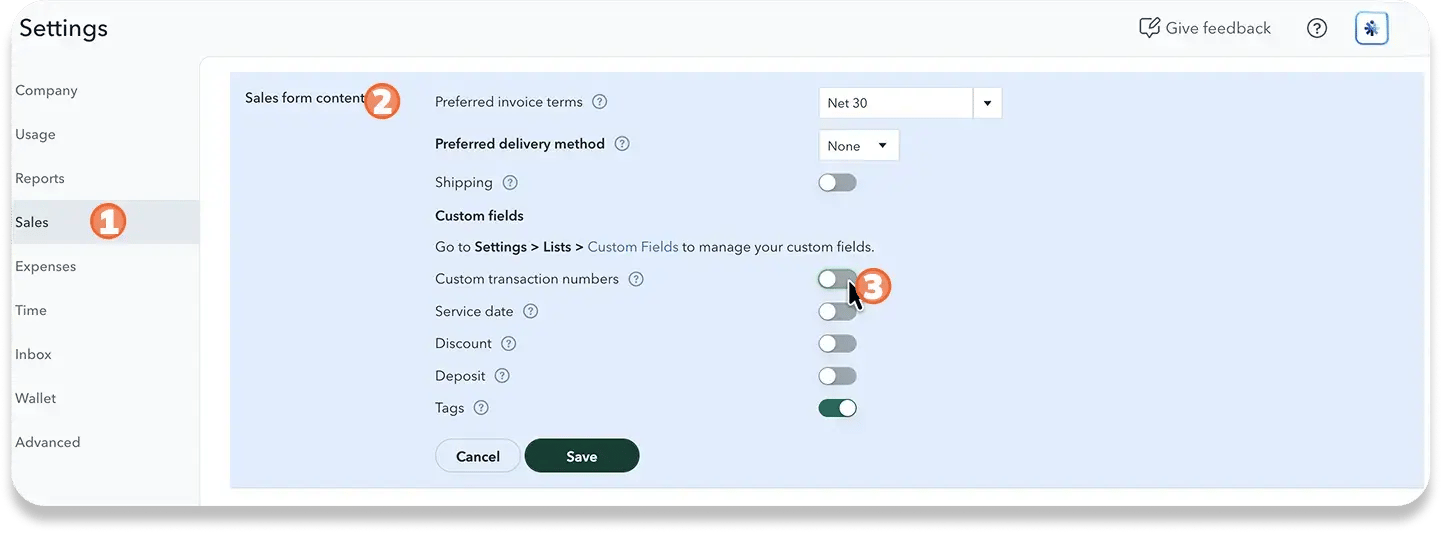
- Custom transaction numbers switched off. Go to ⚙ Settings > Account and settings > Sales, then in Sales form content, switch Custom transaction numbers off and click Save.
- Why: if it's on, invoices created in QuickBooks adopt HubSpot's invoice prefix. Both systems then number from the same series, and duplicate numbers won't sync. HubSpot invoices use the prefix INV, starting at 1001, by default.
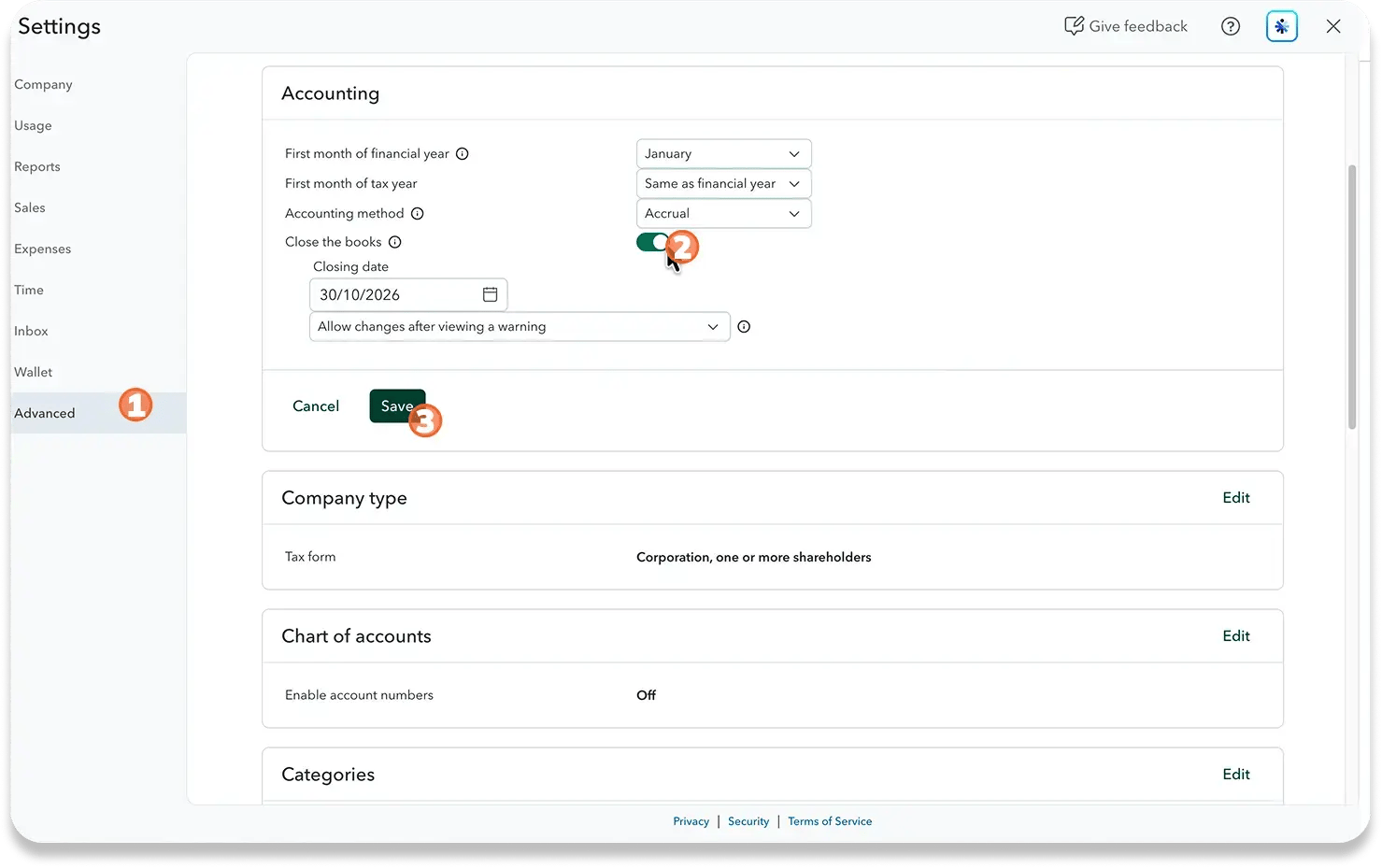
- Closed periods locked. HubSpot recommends turning on the QuickBooks setting that locks closed accounting periods. Go to ⚙ Settings > Account and settings > Advanced > Accounting, click Edit, and turn on Close the books. You'll need to be a primary or company admin in QuickBooks.
- A SKU on every product you sell. The product sync matches on SKU and only syncs products that have one. No SKU, no product in HubSpot.
- Know the Display Name rule. QuickBooks requires every customer's Display Name to be unique. A contact syncing from HubSpot takes its company's name, so the second contact at the same company fails. You'll switch that behavior off during setup.
🏆 Elite Partner Tip: There's no preview, no staging, and no QuickBooks sandbox for this integration, so treat your filters as your safety net. If a first sync creates records you didn't want, deleting them in HubSpot doesn't remove them from QuickBooks. Everything in this section is cheaper to fix now than after the first sync.
How Do You Set Up the HubSpot Integration With QuickBooks?
To set up the HubSpot integration with QuickBooks, install the QuickBooks Online app from the HubSpot Marketplace, authorize it with your QuickBooks login, then configure each sync before you turn it on. Authorizing the connection isn't the same as turning a sync on.
Step 1: Install the app
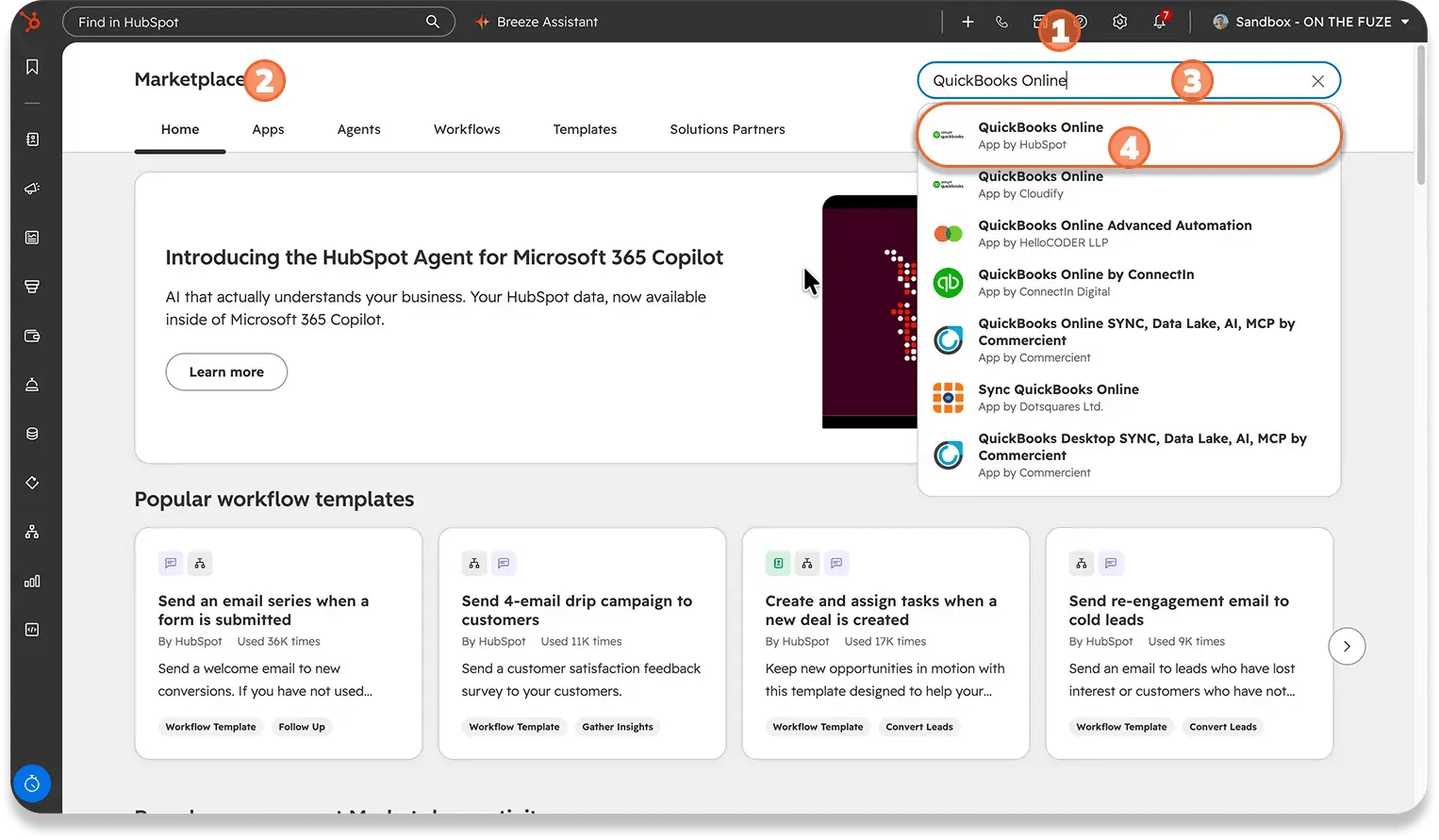
- First, click the Marketplace icon in the top navigation bar, then select HubSpot Marketplace.
- Next, search for QuickBooks Online. Several similar apps appear, so pick the one marked HubSpot Certified App and Built by HubSpot.
- Then click Install.
Step 2: Authorize the connection
- Click Connect to QuickBooks Online.
- Sign in to QuickBooks Online on the Intuit screen and authorize the connection.
Step 3: Open your sync settings
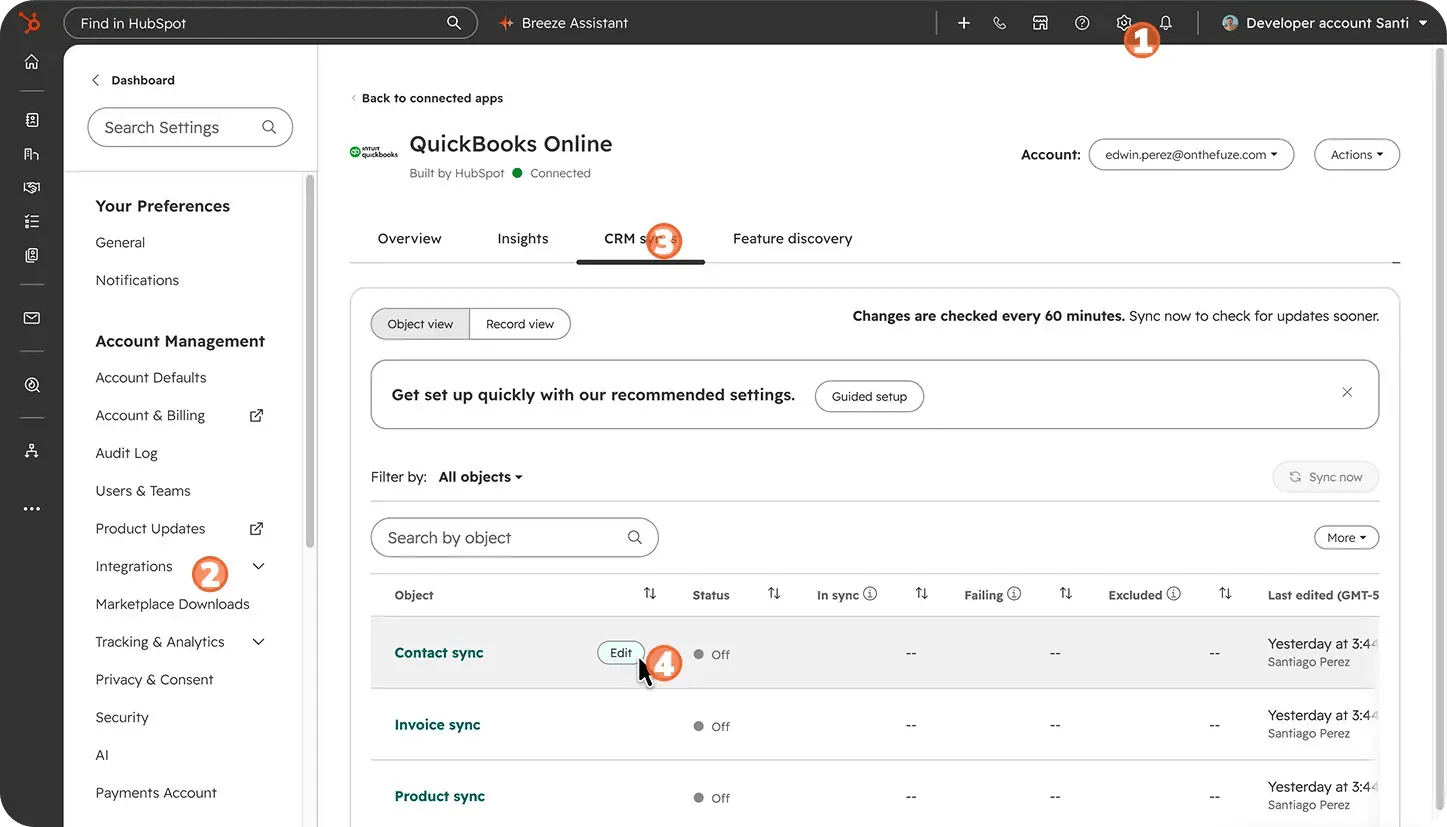
- Click the settings icon in the top navigation bar.
- Go to Integrations > Connected apps, then click QuickBooks Online.
- Open the CRM syncs tab and go object by object, hover over it and click Edit.
- Optional: you can use Guided setup if you want to set up quickly with HubSpot's recommended settings.
Step 4: Configure each sync
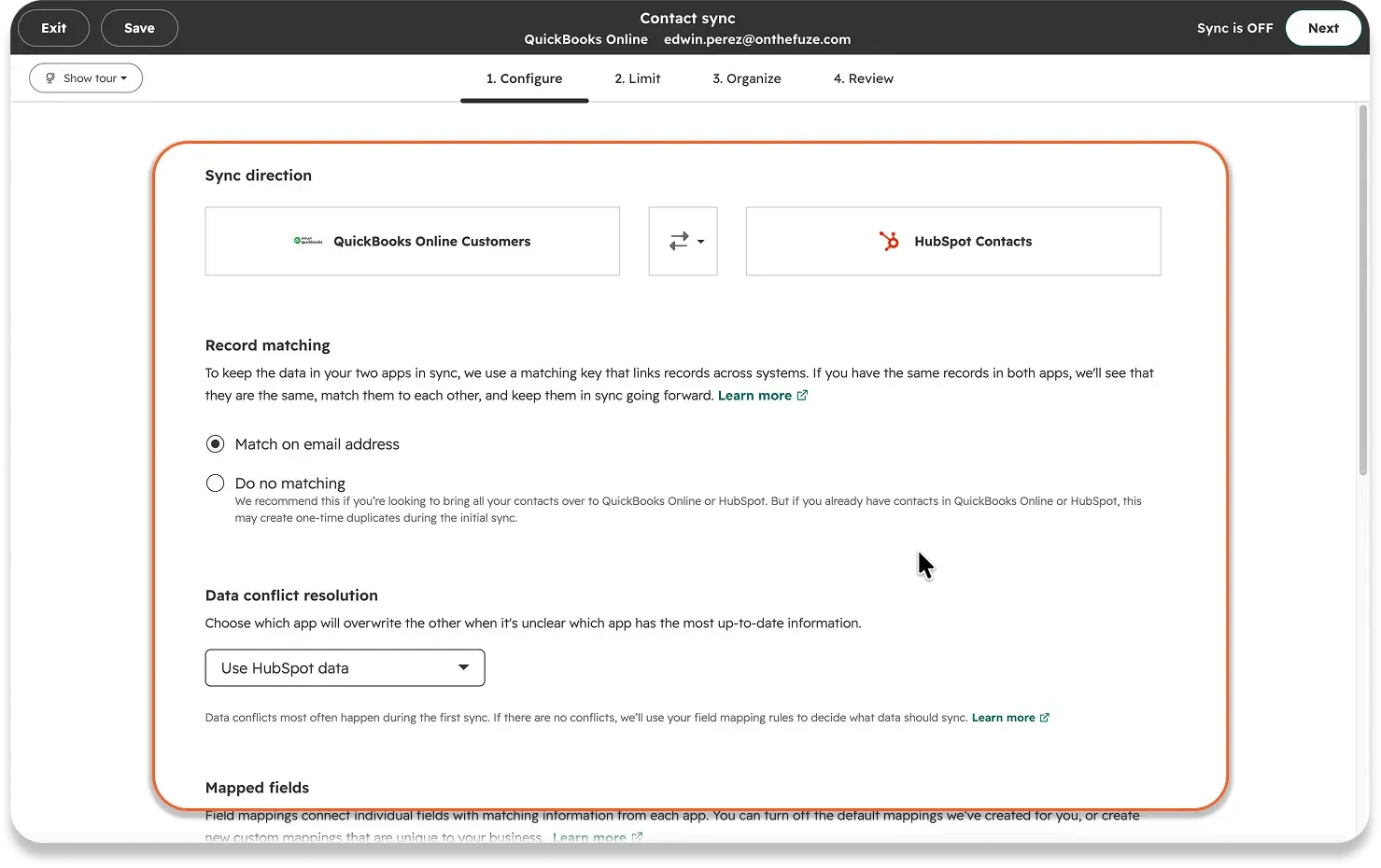
For each object (contacts, products, invoices, credit memos), you'll choose:
- The sync direction, one-way or two-way.
- Data conflict resolution, meaning which system wins when the same field disagrees: Use HubSpot data or Use QuickBooks Online data.
- Mapped fields, which you can toggle on or off.
- Filters, which decide which records sync at all.
We cover the recommended settings for each object in the next section.
Step 5: Turn on each sync, one at a time
Turn each sync on separately, and check it before moving to the next. If you need to pause one, hover over it in CRM syncs, click More, then Turn off sync. You can turn it back on the same way.
Step 6: Verify
- Click Object view to see how many records are syncing, failing, or excluded.
- Click Record view to see the individual records.
- On any invoice, check the Integrations sync card on the preview panel for that record's status.
How Should You Configure Each Sync?
Keep HubSpot's conservative defaults for products and invoices, sync all customers as contacts, and switch off the Display Name mapping before anything syncs. Here are the defaults you'll inherit:
| Sync | Default direction | Default filter |
|---|---|---|
| Contacts | Two-way | Inbound: All customers |
| Products | One-way, QuickBooks to HubSpot | All products & services, matched on SKU |
| Invoices | One-way, QuickBooks to HubSpot | Inbound: created after today at 12:00 AM. Outbound: excludes Draft status |
| Credit memos | One-way or two-way, you choose | Set when you configure the sync |
Contact sync: sync everyone, fix the name
- Keep the filter wide. HubSpot recommends syncing all customers from QuickBooks into HubSpot as contacts, so every invoice has a matching contact. Narrow it only if you have a reason, and keep every customer you'll invoice from HubSpot inside the filter.
- Switch off the Display Name mapping. In Mapped fields, turn off Display Name ← Associated Company Name. That mapping is what puts the company's name into each contact's QuickBooks Display Name, and it's why the second contact at the same company fails.
- To change a filter, click Edit under Filters, choose your criteria, then click Apply criteria and Done.
Product sync: leave it one-way and populated
Your HubSpot invoice line items come from this catalog. HubSpot recommends syncing products from QuickBooks and using those products on your invoices, quotes, and payment links. If a product is missing in HubSpot, check its SKU first.
Invoice sync: don't clear the default
- Inbound: the default only brings in invoices created after the day you connect. Your history stays in QuickBooks, which is usually what you want.
- Outbound: drafts are excluded, and that filter can't be edited. A draft stays in HubSpot until you create it for real.
- The warning: without a filter set, all invoices sync between QuickBooks Online and HubSpot. Clearing the inbound filter on a mature QuickBooks file brings years of history into your CRM, and there's no undo.
Credit memo sync
You can set credit memos to sync one-way or both ways. One limit to plan around: the integration only supports applying a credit memo to one invoice per payment.
Data conflict resolution
Pick this deliberately. For most small businesses, your books are the record of truth on billing details, so Use QuickBooks Online data is usually the safer choice. Whatever you pick, tell your bookkeeper.
Custom field mappings (advanced)
Standard fields like names, amounts, and dates are mapped for you. Custom mappings are for extra fields, like a PO number.
- Subscription: custom mappings need Data Hub Starter, Professional, or Enterprise.
- Field rules in QuickBooks: the custom field must be type Text and Number, in the Transaction category, Print Enabled, and turned on for all Sales Forms.
- The ceiling: only the first three custom invoice fields created in QuickBooks Online are visible to HubSpot. Plan your three before you map anything.
- PO numbers: PO number isn't a default field on QuickBooks invoices, so add it as a custom field in QuickBooks first.
🏆 Elite Partner Tip: Write down the date and time you turn the invoice sync on. The inbound invoice filter and the payment sync both key off your connection date, so it becomes the line in the sand when anyone asks, "why isn't last month's invoice in HubSpot?"
How Do You Send Your First Invoice From HubSpot to QuickBooks?
Create a real invoice from a deal, use the contact that synced from QuickBooks, click Create, and confirm it appears in QuickBooks within a few minutes. Don't rely on the sync until one invoice has made the full trip.
Step-by-step
- Open the deal. Go to CRM > Deals and open the deal you're invoicing.
- Start the invoice. In the right sidebar, find the Invoices section, click Add, then Convert deal to invoice. This carries the deal's line items across.
- Pick the right contact. For an existing customer, use the contact record that synced from QuickBooks, not a new one someone typed in. The emails need to match.
- Set terms. Choose payment terms, like Net 30, and the due date updates to match.
- Check line items. You need at least one, each needs a unique name, and each should be a product synced from QuickBooks.
- Add taxes and fees as line items. With the integration installed, invoice-level taxes and fees are turned off, because QuickBooks Online doesn't have the same concept. Add them as their own line item instead, ideally a product synced from QuickBooks. One-time, order-level discounts still work.
- Set up online payments, if you want them. Switching on Accept online payments needs HubSpot Payments or Stripe connected first. Once it's on, line item quantities must be whole numbers, and on Stripe the total must be more than $0.50.
- Create it. Save keeps a draft, and drafts never sync. Click Create when it's ready.
- Confirm it landed. Give it a few minutes, open QuickBooks, and find the invoice. Then check the Integrations sync card on the invoice in HubSpot.
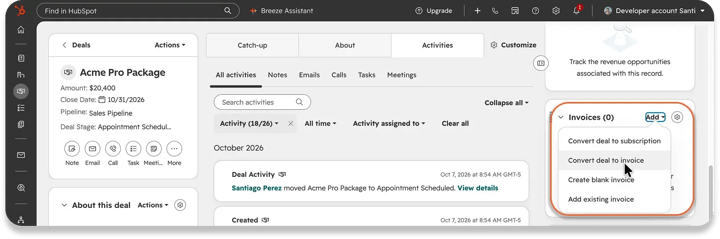
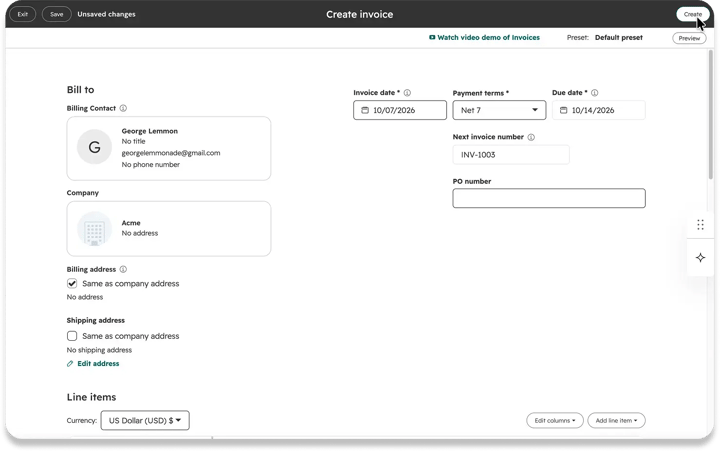
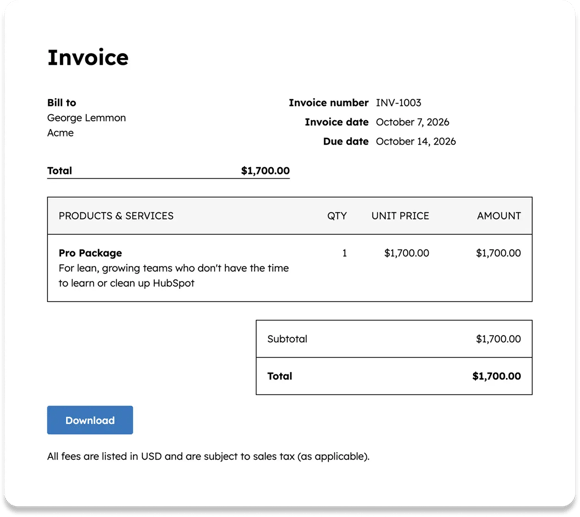
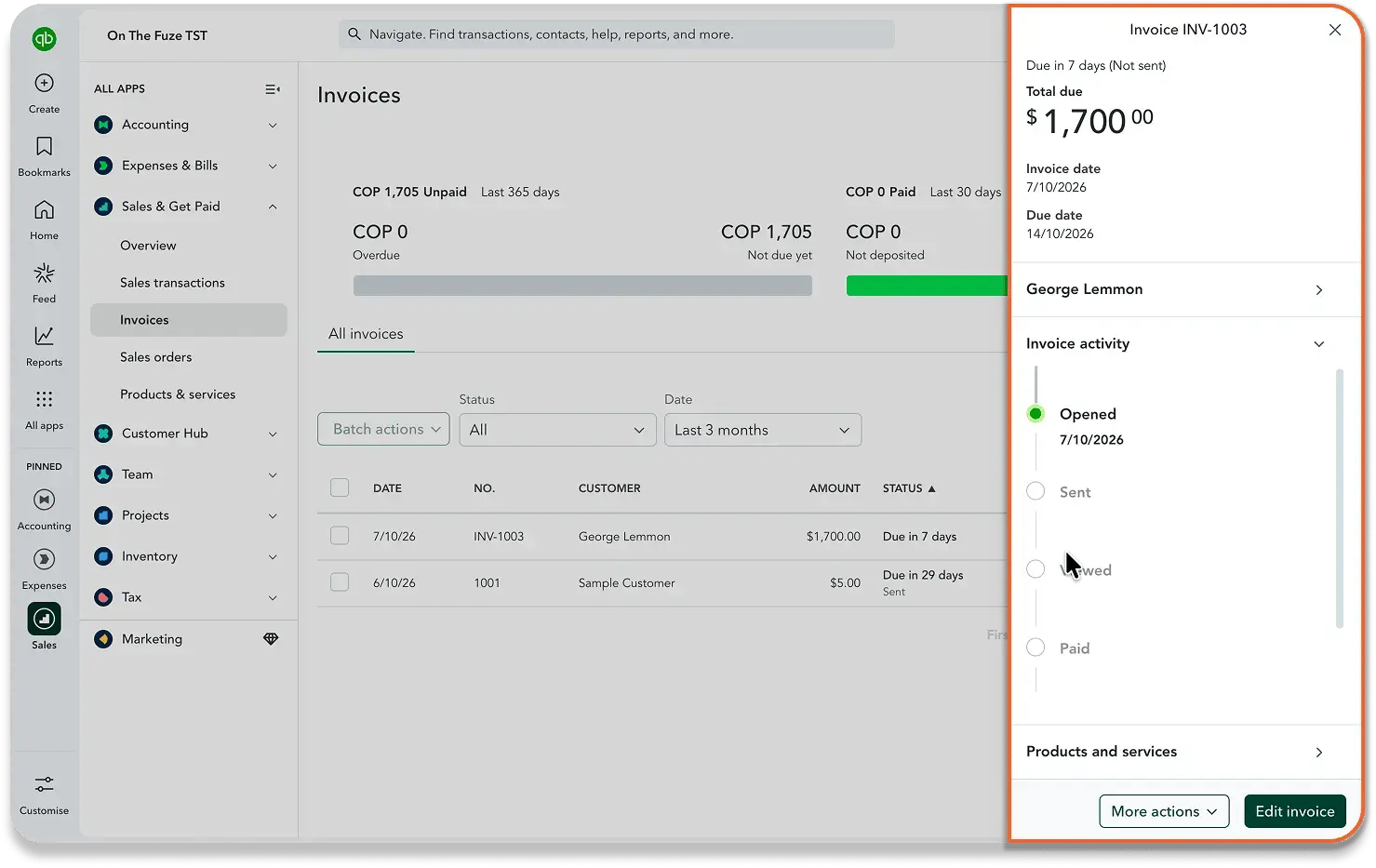
You can also create invoices from a contact, a company, a published quote, a ticket, or the invoices index at Revenue > Invoices.
🏆 Elite Partner Tip: The deal itself never goes to QuickBooks. Only the invoice does. If your team expects to "see the deal" in QuickBooks, reset that expectation early so nobody thinks the sync is broken.
A note on tax: tax line items added this way aren't connected to the QuickBooks Online Tax Center for tax reporting. If you rely on QuickBooks for tax reporting, agree your approach with your accountant before the first invoice goes out.
What Syncs Back From QuickBooks, and What Never Syncs?
Payment status and credit memos come back to HubSpot. Refunds, processing fees, deletions, and deal links do not, so those stay manual.
What comes back
- Payment details on the invoice record: source, payment date, and status, detected every 30 minutes.
- Only payments created after you connect. Earlier payments stay in QuickBooks. HubSpot does this to prevent duplicates.
- Credit memos, including line items, discounts, and how they were applied.
One exception to watch: payments associated with multiple invoices don't sync to HubSpot.
What never syncs
| Gap | What happens | What you do |
|---|---|---|
| Refunds | Refunds against payments aren't synced, in either direction | Record the refund in the other system by hand |
| Processing fees | Stripe or HubSpot Payments fees don't create an expense in QuickBooks | Enter them as one expense each month (see below) |
| Deletions | Deleting an invoice in HubSpot doesn't touch QuickBooks | Mirror the change in QuickBooks |
| Deal associations | Invoices synced from QuickBooks aren't associated to a HubSpot deal | Associate them manually if you report by deal |
The fee gap, in real numbers
Say a customer pays a $1,000 invoice by card. At Stripe's standard US rate of 2.9% + 30¢, the fee is $29.30.
- QuickBooks records: a $1,000.00 payment.
- Your bank receives: $970.70.
- What's missing: the $29.30 cost of collecting it, until someone reconciles.
HubSpot's recommended fix is simple. At month-end:
- First, create a report of all invoices and payments received.
- Next, add up the Processing fees and Platform fees properties.
- Then enter that total in QuickBooks as one expense.
Where Should Your Team Edit an Invoice?
Edit an invoice in the system that created it. Every synced invoice has an origin, and the origin decides where changes are safe.
| Invoice created in | Change the money side in | Why |
|---|---|---|
| HubSpot | HubSpot only | HubSpot blocks financial edits made in QuickBooks: adding or removing line items, updating pricing, removing a payment, or adding tax information. Make them in QuickBooks and the invoice fails to sync |
| QuickBooks | QuickBooks only | Updates to mapped properties only sync to QuickBooks if the invoice was created in HubSpot. For these invoices, HubSpot is showing you a copy |
If someone breaks this rule, the error reads: "Line item or invoice amount modifications in HubSpot native invoices cannot be made through external applications. Please make any necessary changes directly in HubSpot."
🏆 Elite Partner Tip: Put this rule in writing and give it to your bookkeeper before go-live, so a well-meaning edit in QuickBooks doesn't quietly stop an invoice from syncing.
Can HubSpot Workflows Create Records in QuickBooks?
Yes. HubSpot's workflow builder includes six QuickBooks actions, but they're separate from the background sync and have their own requirements.
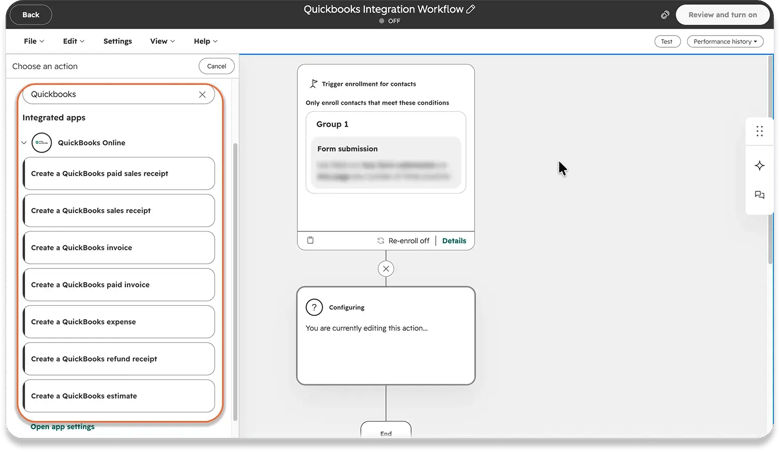
The main six actions are:
- Create a QuickBooks invoice
- Create a QuickBooks estimate
- Create a QuickBooks sales receipt
- Create a QuickBooks paid invoice
- Create a QuickBooks expense
- Create a QuickBooks refund receipt
Requirements:
- A Professional or Enterprise subscription in Marketing Hub, Sales Hub, Service Hub, Data Hub, or Revenue Hub.
- A business based in the United States. The actions aren't available elsewhere.
- The QuickBooks Online app connected first.
🏆 Elite Partner Tip: If you use a workflow that creates paid invoices in QuickBooks, filter out payments that come from invoices. HubSpot warns that otherwise, invoice payments also trigger paid invoice creation. You get one payment and two invoices for it.
What Mistakes Should You Avoid?
Most HubSpot QuickBooks problems come from a handful of settings and habits, and every one of them is preventable. These are the ones that cause the most cleanup, because they're hard to reverse after the first sync.
1. Connecting before switching off Custom transaction numbers
Leave it on, and QuickBooks adopts HubSpot's invoice prefix. Sooner or later two invoices land on the same number, and the sync rejects the second one.
2. Leaving the Display Name mapping on
If you sell to companies with more than one contact, the second contact at each company will fail to sync. Switch off Display Name ← Associated Company Name before you turn the contact sync on.
3. Clearing the inbound invoice filter
The default protects your history. Clear it, and every past invoice comes into HubSpot on your live data.
4. Invoicing a lookalike contact
If a rep creates a new contact instead of using the one synced from QuickBooks, the invoice can't find its customer and fails. Most often, it's an email mismatch.
5. Editing HubSpot invoices in QuickBooks
Financial edits made on the wrong side break the sync for that invoice. Edit where it was created.
6. Assuming fees, refunds, and deletions take care of themselves
They don't. Put them on a month-end checklist, or your books quietly drift away from your CRM.
7. Treating the integration as set-and-forget
Your business changes. New products, new team members, new pricing, and new billing habits all affect what should sync and how. A setup that was right on day one drifts out of alignment without anyone noticing, until someone reconciles. Review failing records and filters every month. That recurring review is exactly what our monthly HubSpot Admin service covers for teams that don't want to own it internally.
How Do You Fix the Most Common Sync Errors?
Every error in HubSpot's QuickBooks troubleshooting guide traces back to a setting or a team habit you can fix in advance. When an invoice fails, a banner appears at the top of the invoices index at Revenue > Invoices. Click Sync failure details to open the Failing to sync panel. All sync failures are also listed on your QuickBooks Online settings page in HubSpot.
| Error message | What it means | How to fix it |
|---|---|---|
| "An invoice should have an associated customer. Make sure the associated customer is present in both HubSpot & QuickBooks Online to sync this invoice" | HubSpot couldn't find the invoice's customer in QuickBooks. Most often, the contact's email doesn't match the QuickBooks customer | Swap in the contact whose email matches the QuickBooks customer |
| "The display name is a duplicate" | Two contacts at the same company are claiming the same QuickBooks Display Name | Switch off the Display Name ← Associated Company Name mapping in contact sync |
| "Duplicate Document Number Error: You must specify a different number. This number has already been used" | The invoice number is already used by another invoice or credit memo in QuickBooks | Renumber the conflicting QuickBooks record, then switch off Custom transaction numbers |
| Revenue recognition service date error | QuickBooks revenue recognition requires a service date on every line item | Turn off revenue recognition in QuickBooks and handle that reporting separately |
| "Line item or invoice amount modifications in HubSpot native invoices cannot be made through external applications. Please make any necessary changes directly in HubSpot." | Someone edited a HubSpot-created invoice in QuickBooks | Reverse the change in QuickBooks, then make it in HubSpot |
🏆 Elite Partner Tip: Check the Failing to sync panel in your first week, not your first quarter. A failure caught early usually affects one record. Left alone, the same cause repeats on every invoice after it.
Frequently Asked Questions
Does HubSpot integrate with QuickBooks?
Yes. HubSpot integrates with QuickBooks Online through a free app built by HubSpot, available on every HubSpot plan. It syncs contacts, products, invoices, and credit memos, one-way or two-way. It doesn't support QuickBooks Desktop.
Is the HubSpot and QuickBooks integration free?
Yes. The QuickBooks Online app is built by HubSpot and available on every HubSpot plan. You need a QuickBooks Online subscription on Simple Start, Essentials, Plus, or Advanced. Some features need paid tiers: custom field mappings need Data Hub Starter or higher, and workflow actions need a Professional or Enterprise subscription.
Does HubSpot integrate with QuickBooks Desktop?
Not natively. HubSpot's integration works with QuickBooks Online only. Desktop users need a third-party connector from the HubSpot Marketplace, such as Commercient's QuickBooks Desktop SYNC.
Does the HubSpot QuickBooks integration sync deals?
No. HubSpot deals don't map to anything in QuickBooks. You can create an invoice from a deal in HubSpot, and the invoice syncs, but the deal itself stays in HubSpot. Invoices that come in from QuickBooks aren't associated to deals automatically.
How often does HubSpot sync with QuickBooks?
HubSpot detects changes going to QuickBooks within a few minutes. Changes coming from QuickBooks to HubSpot are detected every 30 minutes.
Can I test the integration before connecting my live books?
Not with a QuickBooks sandbox. HubSpot doesn't allow a QuickBooks sandbox account to be connected, and there's no preview or dry run. Your safety net is the pre-connect settings, conservative filters, and one real test invoice before you rely on the sync.
Will my existing QuickBooks invoices and payments come into HubSpot?
Not by default. The inbound invoice filter only brings in invoices created after the day you connect, and only payments created after you connect sync to HubSpot. Your history stays in QuickBooks.
Why won't some of my contacts sync to QuickBooks?
The most common cause is the Display Name rule. QuickBooks requires unique Display Names, and each contact takes its company's name by default, so the second contact at a company fails. Switch off the Display Name ← Associated Company Name mapping in your contact sync settings.
How does the integration handle sales tax?
With the integration installed, you can't add invoice-level taxes and fees in HubSpot. Add them as line items instead. Those tax line items aren't connected to the QuickBooks Online Tax Center for tax reporting, so agree your approach with your accountant first.
Does the HubSpot QuickBooks Online integration work in Canada?
HubSpot doesn't publish a country restriction for the data sync, and it notes that most non-U.S. QuickBooks Online versions require synced invoices to include tax. The QuickBooks workflow actions, however, are only available to customers based in the United States.
Where are invoices in HubSpot now?
In Revenue > Invoices. HubSpot renamed Commerce Hub to Revenue Hub in June 2026, so older tutorials that point to "Commerce" are describing the same place.
Key Takeaways
- Yes, HubSpot integrates with QuickBooks. The HubSpot and QuickBooks integration is free, built by HubSpot, and available on every plan. It syncs contacts, products, invoices, and credit memos with QuickBooks Online, one-way or two-way.
- For most small businesses on QuickBooks Online, HubSpot is the strongest CRM fit, because the integration is native, maintained by HubSpot, and designed for invoices that start from deals.
- There's no sandbox and no undo. The first sync runs on your live books, so fix the pre-connect settings first.
- Three settings prevent most first-week failures: Custom transaction numbers off in QuickBooks, the Display Name mapping off in HubSpot, and contacts whose emails match.
- Keep HubSpot's default filters. They keep your invoice history in QuickBooks and your drafts out of your books.
- Prove it with one real invoice before anyone relies on the sync.
- Fees, refunds, deletions, and deal links never sync. Handle them in a monthly routine.
- Edit invoices where they were created, and review the setup every month as your business changes.

On The Fuze is a Top 1% HubSpot Elite Partner with 10+ years of experience and 3,000+ CRM setups optimized across North America. We help small and medium-sized businesses leverage the full potential of HubSpot to scale their businesses.