
HubSpot Sales Workspace Rollout Kit
Get a pre-launch checklist, which tabs to switch off per role, and a 30-day plan that makes the habit stick. 100% Free.
Download Now
According to HubSpot's 2025 State of Sales report, sales reps spend only 33% of their time actively selling. The rest goes to hunting down records, jumping between browser tabs, and rebuilding the same to-do list every morning.
The HubSpot Sales Workspace is built to win that time back. It's one screen inside Sales Hub where each rep sees the day's tasks, meetings, leads, and deals and works through them without opening anything else. If your reps have Sales seats on Sales Hub Professional or Enterprise, it's already included in your subscription.
Having it and using it are two different things, though. Most of the value depends on decisions an owner or sales leader makes before launch: who sees which tabs, what goes on the dashboard, which saved views exist, and how the team changes its morning routine. This guide covers what the Sales Workspace is, what changed in the 2026 update, how to configure it for each role, how to roll it out, and the mistakes that leave reps staring at an empty screen.
<!-- VIDEO EMBED: YouTube video "How Sales Teams Use the HubSpot Sales Workspace (Full 2026 Walkthrough)" -->
📋 Want your team actually opening it every morning, not just having access to it? Grab the free Sales Workspace Rollout Kit: the pre-launch checklist, which tabs to switch off for each role, and a 30-day plan that makes the habit stick. Use it to roll the workspace out for the first time, or to audit and fix the setup you already have.
What Is the Sales Workspace in HubSpot?
The Sales Workspace is a dedicated screen in HubSpot Sales Hub that brings each rep's tasks, meetings, leads, companies, and deals into one place, so they can plan and work their day without jumping around the CRM.
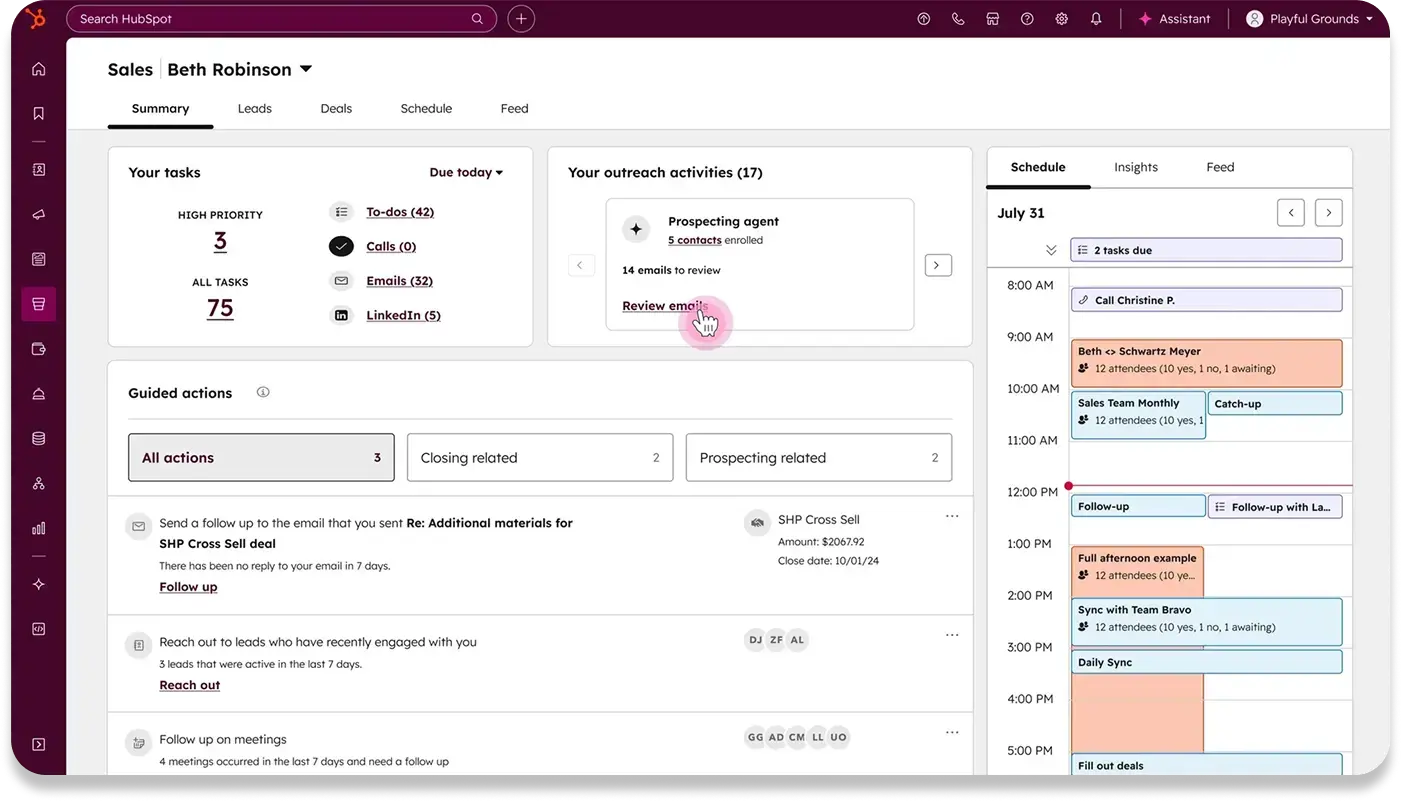
The Summary tab in a HubSpot demo account. The tabs you see depend on your settings.
It doesn't store anything of its own. It's a view of data that already lives in your HubSpot CRM, organized around what a rep needs to do next. There's no migration and no new database: when a rep updates a deal in the workspace, they're updating the same deal record everyone else sees.
To open it, click the Sales icon in the left sidebar, then select Sales Workspace.
How is it different from the CRM and Sales Hub?
People use these three terms as if they mean the same thing. They don't, and the difference matters when you're deciding who needs what.
| Term | What it is | Who has it |
|---|---|---|
| HubSpot CRM | The database: contacts, companies, deals, tickets, and their activity | Every HubSpot account, including free |
| Sales Hub | The paid sales software on top of the CRM, with tools like sequences, calling, and forecasting depending on your tier | Paid Sales Hub subscriptions |
| Sales Workspace | A screen inside Sales Hub that displays CRM data for a rep's day | Sales Hub Professional and Enterprise users with the right seat and permission |
Is the Sales Workspace the same as the prospecting workspace?
Yes, it's the same screen. Many teams still call it the prospecting workspace, and the word "prospecting" still shows up in its web address and in several of HubSpot's help articles. There's no separate prospecting workspace to set up.
Why Does the Sales Workspace Matter for Your Revenue?
Every minute a rep spends figuring out what to do next is a minute not spent selling, and the workspace removes most of that searching. It also puts the quality of your CRM data in front of the people who rely on it every day.
Here's the logic, step by step:
- Fewer decisions between tasks. Without the workspace, a rep finishes a call, goes back to a list, scrolls, picks the next record, opens it, and catches up on context. With Start tasks, HubSpot serves up the next task with its record and tools attached.
- One starting point. Tasks, meetings, and pipeline sit on one screen, so the morning starts in HubSpot instead of the inbox.
- Managers and reps look at the same lists. Shared saved views mean the pipeline review runs on the same data the reps work from.
- Gaps in your data show up fast. If tasks aren't logged or deal stages aren't updated, reps see an empty or misleading screen. That's uncomfortable and useful.
That last point matters more than it sounds. In Validity's State of CRM Data Management in 2025 survey of 602 CRM users, 76% said less than half of their organization's CRM data is accurate and complete, and 37% reported losing revenue as a direct consequence of poor data quality. The workspace doesn't fix bad data on its own. It does put it in front of the people who create it every morning.
How do you know it's working?
Don't judge the workspace by whether reps say they like it. Measure a few things in HubSpot for the 30 days before launch and the 30 days after:
| Metric | How to measure it in HubSpot | What good looks like |
|---|---|---|
| Overdue tasks per rep | A task report filtered to open tasks past their due date, broken down by owner | Trending down |
| Tasks completed per rep per week | A task report filtered to completed tasks, broken down by owner | Steady or rising |
| Open deals with no activity in 14+ days | A deal view or report filtered on Last activity date | Trending down |
| Open deals with no next step | A deal view filtered on Next activity date is unknown | Trending down |
If those numbers don't move, the cause is usually configuration or adoption, not the software. The rest of this post is about getting both right.
What Changed in the 2026 Sales Workspace Update?
An updated version of the Sales Workspace became the default for all HubSpot accounts on April 27, 2026. It has a new layout, and HubSpot kept a switch that lets a Super Admin move the account back to the previous version.
Here's what matters if you're responsible for the rollout:
- It's the default now. HubSpot's help center states that its updated-workspace guidance "applies to all accounts starting April 27, 2026."
- You can switch back, account-wide. Click the settings icon, then in the left sidebar under Tools, click Sales Workspace. Open the Others tab, switch off Enable the new Sales Workspace, and click Save. The change applies to every user in the account, and you may need to refresh your browser.
- "View as [user]" isn't available for now. HubSpot says the updated version "does not currently support the View as [user] feature." Its suggested alternative is for managers to create saved views that show a specific user's data.
- Some help articles still describe the old version. Several of HubSpot's Sales Workspace articles carry a note at the top saying they apply to the previous version. If a tutorial screenshot doesn't match your screen, check that note first.
🏆 Elite Partner Tip: Treat the switch back as a short-term safety valve, not a decision. If the new layout lands in the middle of a quarter-end push, switching back for a few weeks is reasonable. Staying on the old version indefinitely means your team keeps learning a layout HubSpot has already moved away from.
What Do You Need Before Your Team Can Use It?
Each rep needs three things: a Sales Hub Professional or Enterprise subscription, an assigned Sales or Service seat, and the Sales Access permission. Miss any one of them and the workspace won't appear for that user.
The access requirements
| Requirement | Why it matters | Who can fix it |
|---|---|---|
| Sales Hub Professional or Enterprise | The workspace isn't available on Free or Starter | Account owner, through billing |
| A Sales or Service seat | A Core seat doesn't include the workspace | Super Admin, or a user with the Modify billing permission |
| Sales Access permission | The seat is the ticket you bought; the permission is the key to the door | Super Admin, or a user with the Add and edit users permission |
To change a user's seat:
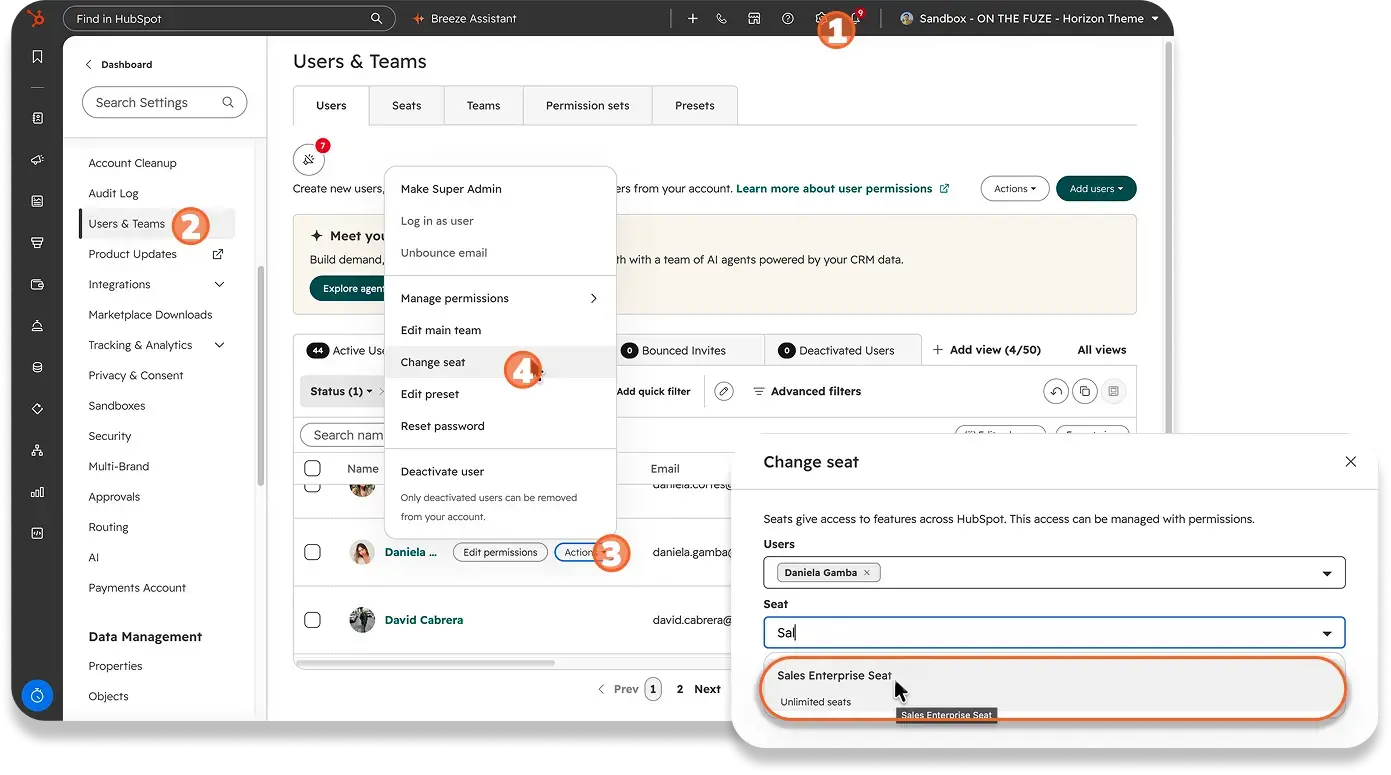
- Click the settings icon, then go to Users & Teams.
- Hover over the user, click Actions, then Change seat.
- Choose a Sales or Service seat from the Seats dropdown, then click Save.
To turn on Sales Access:
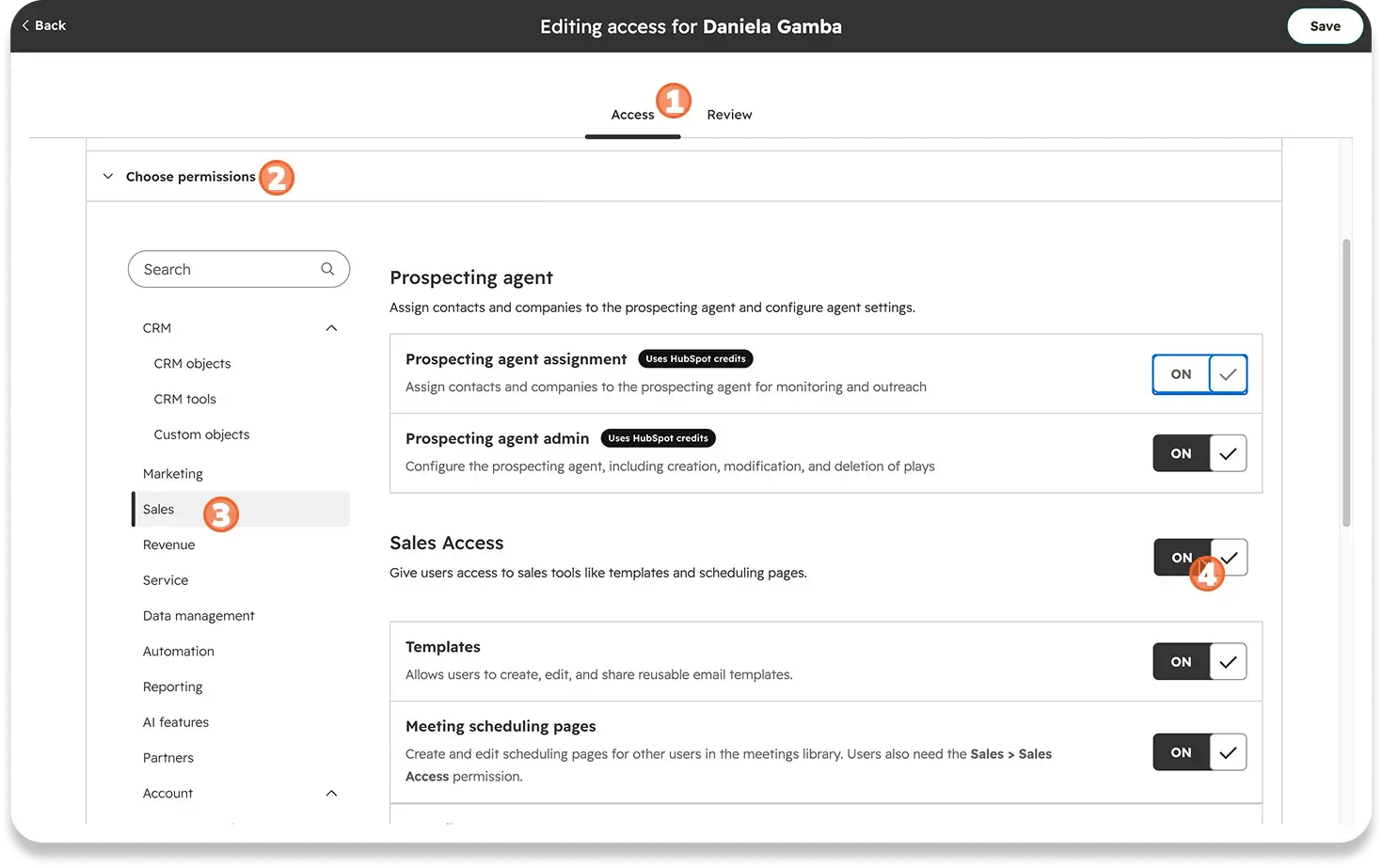
- In Users & Teams, click the user's name.
- Open the Access tab and click Edit permissions.
- In the sales permissions, turn on Sales Access, then click Save.
Permission changes can take up to five minutes to apply, and the user may need to log out and back in. Sales Access also gives the user sales templates, snippets, documents, calling, and the meetings tool.
The setup basics
Access gets reps in the door. These three things decide whether there's anything useful once they're inside:
- Tasks assigned to each rep. The Summary tab is built around tasks. No tasks means an empty screen on day one.
- A calendar connected for each rep. Each user connects their own: click the settings icon, go to General, open the Calendar tab, and click Connect your calendar. HubSpot supports Google and Office 365 calendars. Without one, the Schedule view just asks the rep to connect.
- A live pipeline with real deals in it. The Deals tab displays your pipeline. If your deal stages don't match how you actually sell, the workspace shows reps a version of the business that isn't real.
🏆 Elite Partner Tip: If a rep on a Professional account can't see the workspace, check their seat before anything else. When we audit portals, a Core seat where a Sales seat should be is one of the first things we look for, because it's an easy mistake to make when seats are assigned in bulk.
What Does Each Tab in the Sales Workspace Do?
The workspace has seven tabs: Summary, Companies, Leads, Deals, Tasks, Schedule, and Dashboard. Admins can hide three of them, Companies, Leads, and Deals, for specific users or teams. Summary, Tasks, and Schedule are always on, and the Dashboard tab shows whichever dashboards a Super Admin has added.
-1.webp?width=1480&height=847&name=Group%20144%20(1)-1.webp)
The Summary tab in a HubSpot demo account. The tabs you see depend on your settings.
| Tab | What it's for | Who uses it most | Can you hide it? |
|---|---|---|---|
| Summary | The rep's home base: today's tasks, plus cards for outreach, suggested tasks, meeting follow-ups, and stalled deals | Every rep | No |
| Companies | Filtered views of company records | AEs and account managers who own accounts | Yes |
| Leads | Working and qualifying leads | SDRs and prospecting reps | Yes |
| Deals | The pipeline, with stages, amounts, and saved views | Account executives and managers | Yes |
| Tasks | Every assigned task in one grid, with filters and saved views | Every rep, for weekly planning | No |
| Schedule | The calendar by day, week, or month, for meeting prep and follow-up | Every rep who runs meetings | No |
| Dashboard | Reports a Super Admin has chosen for the team | Reps and managers | Depends on which dashboards are added, and for which teams |
What's on the Summary tab?
The Summary tab is where reps should start every morning. It's built to answer one question: what do I need to do today?
- The tasks card sits front and center, split by type: high priority, to-dos, calls, emails, and LinkedIn. Quick filters above it show what's due today, what's overdue, and what's due tomorrow.
- Start tasks, at the top right of the tasks card, opens the rep's assigned tasks one after another, each with the record and tools it needs.
- More cards sit below: outreach activities, suggested tasks (HubSpot's recommended actions based on recent activity), meeting follow-ups, and recently stalled deals. Reps can drag cards into the order they like and collapse the ones they don't need.
- The right-hand panel has three views: Schedule for today's meetings, Feed for live updates on what's happening with their records, and Insights for monthly progress.
How Does a Rep Run a Morning From the Sales Workspace?
A rep opens the Summary tab, clicks Start tasks, works through the queue one task at a time, then uses Schedule and Deals to prep meetings and update the pipeline. Here's that morning in order:
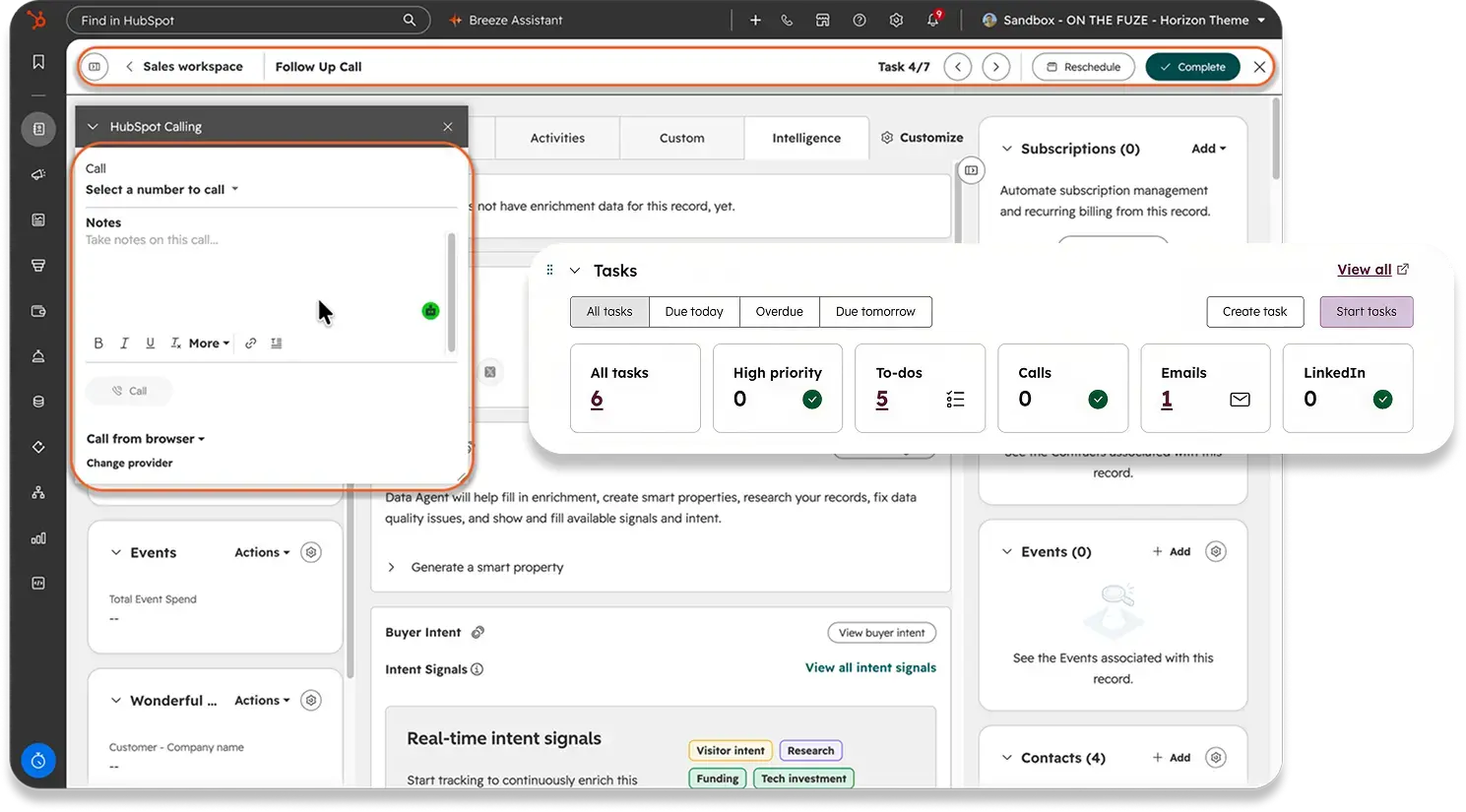
- Open the workspace. In the left sidebar, click Sales, then Sales Workspace. It opens on Summary.
- Check the day. Use the Due today and Overdue filters on the tasks card to see what's on the plate.
- Click Start tasks. HubSpot opens the first task alongside its record. For a call task, the calling tools open with it, so the rep picks the number, takes notes, and makes the call.
- Complete or reschedule, then keep going. A counter at the top (for example, Task 2 of 5) shows progress. Click Complete when it's done or Reschedule to push it back, and the next task follows.
- Plan the week in the Tasks tab. It lists every assigned task in a grid, with views for due today, overdue, upcoming, and completed, and filters for company, task type, priority, and queue.
- Prep meetings in Schedule. Switch between day, week, and month. Click a meeting to see who's attending and who hasn't accepted yet.
- Update deals in Deals. In the board view, each column is a stage, with the deal count and the total and weighted amounts at the bottom. Drag a card to move a deal to its next stage.
Why this works: the time a rep loses isn't in the calls themselves. It's in the gaps between them: choosing what's next, finding the record, catching up on context. The queue takes those decisions away, so more of the morning goes to selling.
🏆 Elite Partner Tip: Assign tasks with the right type and priority, not just a due date. The Summary tab groups tasks by type, so a rep with ten generic to-dos gets a much less useful morning than one with three calls, four emails, and three high-priority follow-ups.
How Do You Configure the Sales Workspace Settings?
Super Admins configure the workspace in Settings > Tools > Sales Workspace, which has three tabs: General, Dashboards, and Others. To get there, click the settings icon in the top navigation bar, then in the left sidebar under Tools, click Sales Workspace.
| Settings tab | What it controls |
|---|---|
| General | Whether the Companies, Leads, and Deals tabs show, and which users or teams are excluded from each |
| Dashboards | Which dashboards appear in the workspace's Dashboard tab, and for whom |
| Others | The switch between the updated version and the previous one |
How do you hide tabs for each role?
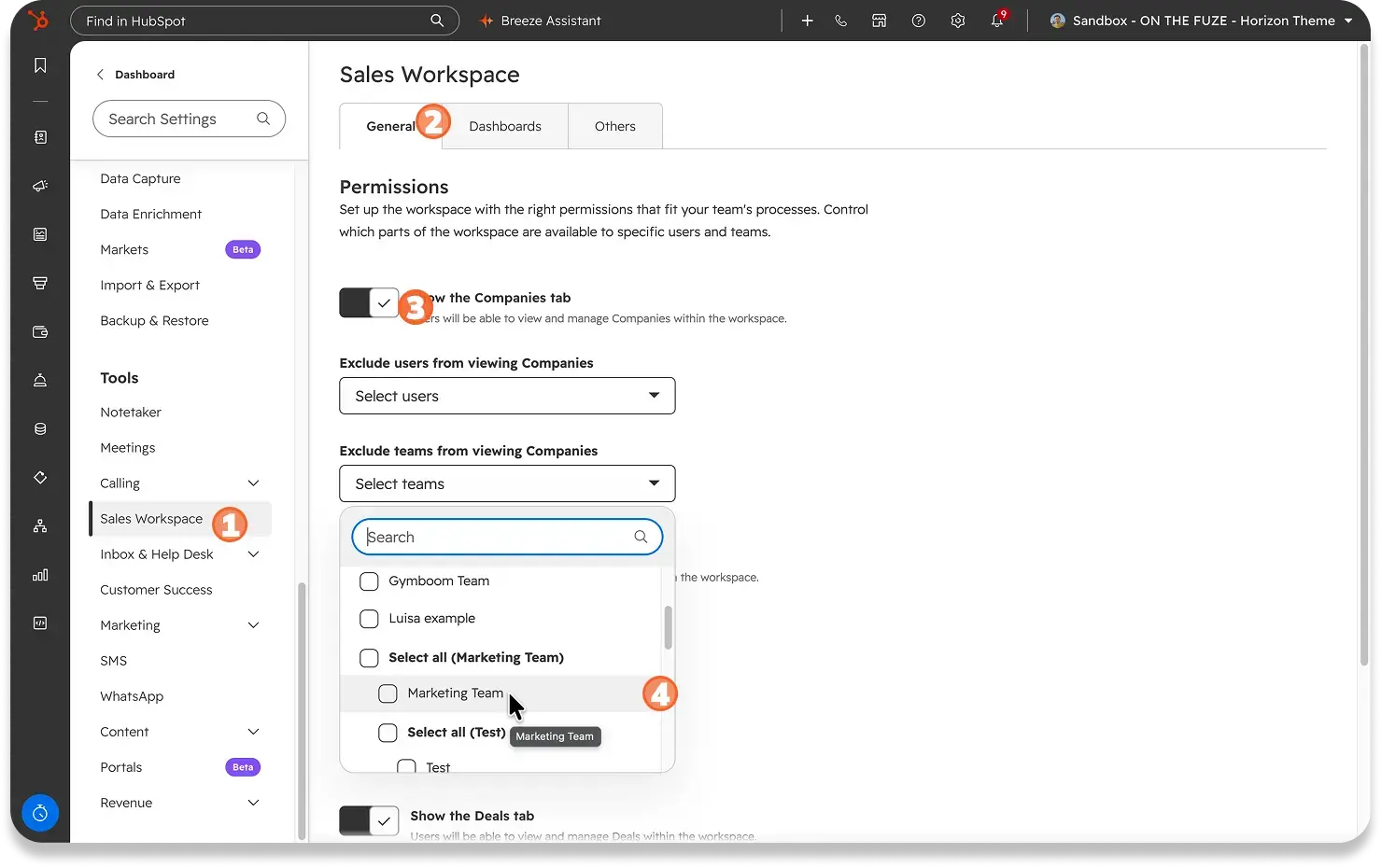
Make one decision per role: which of the three record tabs does this person use every day? Then hide the rest.
- In Settings > Tools > Sales Workspace, stay on the General tab.
- Find the tab you want to change, for example Show the Deals tab.
- Switch it off to hide that tab for everyone.
- Leave it on and use Exclude teams from viewing or Exclude users from viewing to hide it for specific teams or people.
- Click Save.
Here's the starting setup we recommend. Adjust it to how your team actually sells:
| Role | Companies | Leads | Deals | Why |
|---|---|---|---|---|
| SDR or prospecting rep | Hide | Keep | Hide | They qualify leads and hand them off. Most of their day runs from the task queue |
| Account executive | Your call | Hide | Keep | They work deals. Keep Companies if they own account relationships |
| Sales manager | Keep | Keep | Keep | They need full visibility, and they build the shared views |
| One person does it all | Keep | Keep | Keep | Common on smaller teams. Trim tabs as roles specialize |
Why hiding tabs helps: a tool meant to simplify the day turns into clutter when every rep sees every tab, including ones that have nothing to do with their job. Fewer choices on screen means a faster start to the morning, and the workspace feels built for each person's role.
🏆 Elite Partner Tip: Exclude by team, not by person. Set up your teams first in Settings > Users & Teams > Teams, then use the team exclusion fields. When you hire a new SDR, adding them to the SDR team gives them the right setup, instead of relying on someone to remember a settings page.
How do you set up the Dashboard tab?
Add up to five existing dashboards in the Dashboards settings tab, and make each one available to everyone or assign it to specific teams. The Dashboard tab only shows what a Super Admin adds here.
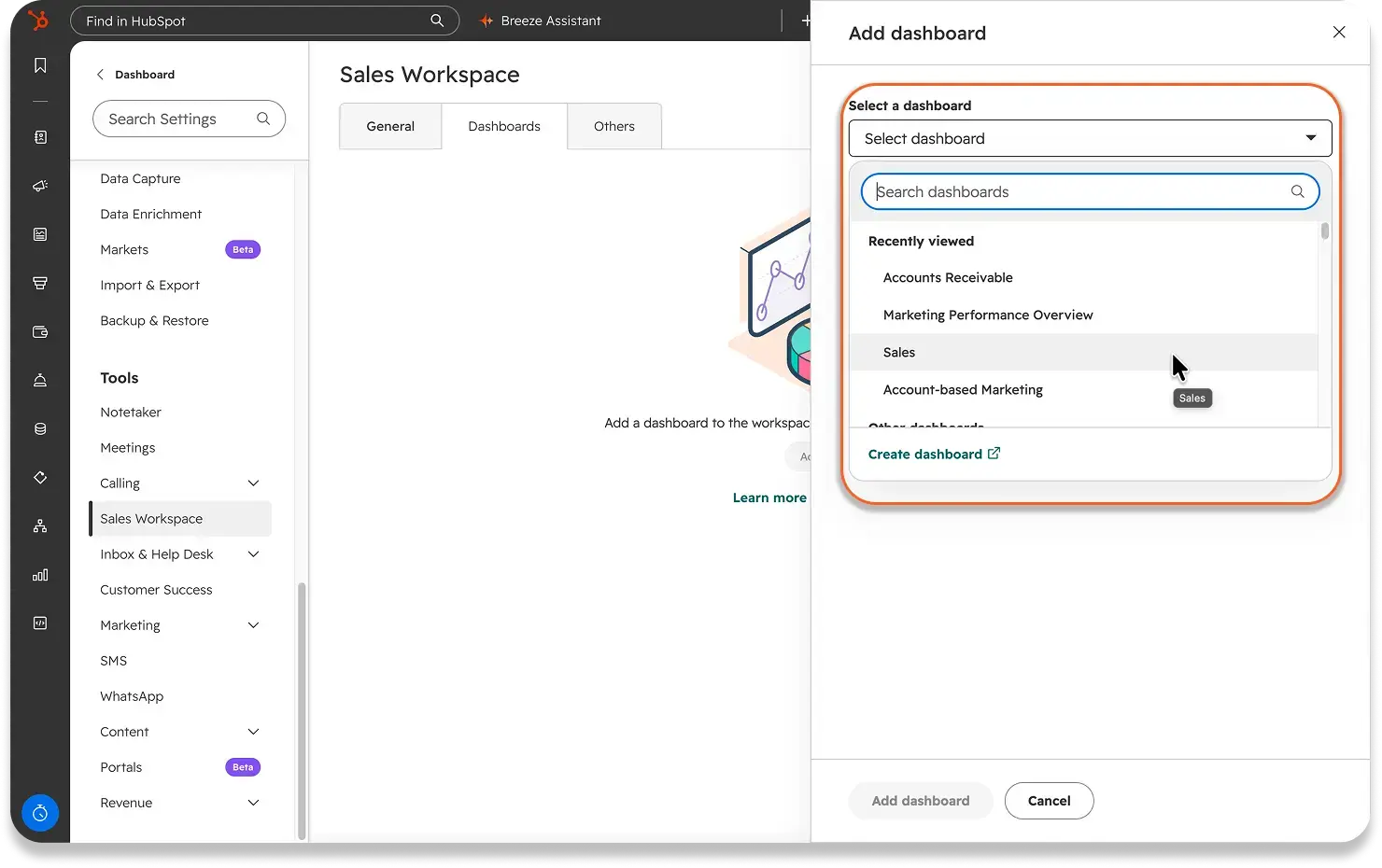
- Build the dashboard first in Reporting > Dashboards, using reports your reps will act on.
- In Settings > Tools > Sales Workspace, open the Dashboards tab.
- Click Add dashboard and select the dashboard.
- Choose Available to everyone or Assign to teams, then save.
What to put on it:
- For reps: reports they can act on today, like their open deals by stage, tasks completed this week, and meetings booked.
- For managers: team-level views, like overdue tasks by rep and deals with no activity in 14 or more days.
-
What to leave off: reports nobody acts on. If a report doesn't change what a rep does today, it belongs on a leadership dashboard instead.
How Do You Build Saved Views Your Team Will Actually Use?
Create custom saved views on the workspace's record tabs, then share them with the teams that need them. You can't save filter changes onto HubSpot's default views, so every useful view starts as a new one.
- Click the + icon next to your view tabs to create a new view.
- Pick a layout: table, board, report, calendar, or Gantt.
- Give it a name anyone can understand, like Stalled deals over $10K.
- Open View settings to choose the pipeline, set your filters, set the sort order, and decide whether to show stage totals.
- Save the view.
- To share it, click the view name and select Manage sharing. Keep it private, or share it with specific users, whole teams, or everyone.
Three views to build before launch:
| View | Filters | Who it's for |
|---|---|---|
| Stalled deals | Your main pipeline, open deals, Last activity date more than 14 days ago, sorted by amount | AEs and managers |
| Deals with no next step | Open deals where Next activity date is unknown | AEs and managers |
| Overdue tasks by rep | Open tasks past their due date, filtered or sorted by owner | Managers, for the weekly pipeline review |
Why it works: a saved view turns a question like "which big deals have gone quiet?" into a one-click tab. Without it, the question becomes a report someone has to build, and usually nobody does.
🏆 Elite Partner Tip: Build and share your views before you roll the workspace out. If reps log in on day one and see an unfiltered wall of every deal in the portal, they'll go straight back to their old habits.
How Do You Roll Out the Sales Workspace So Your Team Uses It?
Roll it out in four phases: Prepare, Configure, Launch, and Reinforce. Turning the workspace on takes minutes. Changing how your team starts the day is the real work, which is why the last phase runs for 30 days.
| Phase | Goal | Owner | Done when |
|---|---|---|---|
| 1. Prepare | Every rep can get in, and there's something to see | Super Admin | Seats, Sales Access, tasks, calendars, and the pipeline are all checked |
| 2. Configure | Each role sees only what it needs | Super Admin and sales manager | Tabs hidden by role, dashboards added, saved views shared |
| 3. Launch | The workspace becomes the official start of the day | Sales manager | Announced to the team and bookmarked for every rep |
| 4. Reinforce | The habit sticks | Sales manager | Four weekly check-ins done, and the setup adjusted |
The 30-day adoption plan
| Week | What to do |
|---|---|
| Week 1 | Announce the workspace as the new start of the day. Sit with each rep and bookmark it for them |
| Week 2 | Managers open the workspace in every 1-on-1 and review the rep's day from it |
| Week 3 | Check real usage in your reports, like overdue and completed tasks by rep, not self-reported usage |
| Week 4 | Review which tabs people actually use, and adjust the exclusions |
To bookmark it: in the left sidebar, open the Sales menu, hover over Sales Workspace, and click the bookmark icon. It's added to the Bookmarks menu in the left navigation, which holds up to ten items. Reps can also set the workspace as their browser's start page.
🏆 Elite Partner Tip: Have managers run 1-on-1s from the workspace, not from a separate report. When the manager's screen and the rep's screen are the same, the workspace stops being optional.
What Mistakes Should You Avoid?
Most Sales Workspace rollouts stall for reasons that have nothing to do with the software. These are the ones we see most often, and every one of them is preventable.
1. Launching to an empty screen
If reps aren't logging tasks, booking meetings, or updating deal stages, the workspace has nothing to show. Someone who opens a blank screen on Monday rarely comes back on Tuesday. Fix the data habits first, then launch.
2. Giving everyone every tab
When every role sees every tab, a focused screen turns into clutter. Spend a few minutes in the General settings tab hiding what each role doesn't use.
3. Launching without shared views
Without saved views, reps face every record in the portal at once. Build and share views before day one.
4. Leaving the Dashboard tab empty
The Dashboard tab only shows what a Super Admin adds. Skip that step, and reps will assume the feature doesn't work.
5. Assigning the wrong seat
A Core seat doesn't include the workspace. If a rep on a Professional account can't see it, check the seat before you open a support ticket.
6. Assuming the habit will change on its own
Your reps already have a morning routine: their inbox, a deals list, a personal checklist. Turning the workspace on doesn't change that. A clear announcement, manager check-ins, and a few weeks of follow-through do.
7. Treating the setup as finished
Your team changes. New hires, new roles, a new pipeline stage, a manager who leaves. Each one changes which tabs, views, and dashboards should exist, and a setup that fit on launch day drifts out of alignment without anyone noticing. Review it whenever a role or your pipeline changes. That recurring review, deciding what needs to change and in what order, is exactly what our monthly HubSpot Admin service covers for teams that don't want to own it internally.
How Do You Fix the Most Common Sales Workspace Problems?
Almost every Sales Workspace complaint traces back to a seat, a permission, or a setup step that was skipped. Use this table to go from what the rep sees to the fix.
| What the rep sees | Likely cause | How to fix it |
|---|---|---|
| No Sales Workspace in the menu | Wrong seat, or Sales Access is off | Check the seat first, then the permission |
| Still missing right after you fixed access | The permission change hasn't applied yet | Wait up to five minutes, then log out and back in |
| An empty Summary tab | No tasks assigned | Assign tasks before rollout |
| Schedule asks them to connect a calendar | Their calendar isn't connected | Each user connects their own in Settings > General > Calendar |
| A blank or missing Dashboard tab | No dashboard added for their team | Settings > Tools > Sales Workspace > Dashboards > Add dashboard |
| A wall of every deal in the company | No saved views built or shared | Build and share views before launch |
| Save is greyed out after filtering a view | It's one of HubSpot's default views | Create a custom view with + instead |
| A tab they need is missing | They, or their team, are excluded from it | Check the exclusion fields on the General settings tab |
| The screen doesn't match a tutorial | The tutorial shows the previous version | Check the version note at the top of the help article |
Frequently Asked Questions
What is the HubSpot Sales Workspace?
The HubSpot Sales Workspace is a screen in Sales Hub that brings a rep's tasks, meetings, leads, companies, and deals into one place. It doesn't store separate data. It displays records that already live in your HubSpot CRM, organized around what each rep needs to do next.
Which HubSpot plans include the Sales Workspace?
Sales Hub Professional and Enterprise. Each user also needs an assigned Sales or Service seat and the Sales Access permission. It isn't available on Free or Starter, and a Core seat isn't enough.
Is the Sales Workspace the same as the prospecting workspace?
Yes. Many teams still call it the prospecting workspace, and "prospecting" still appears in its web address and in some HubSpot help articles. It's the same screen, opened from Sales > Sales Workspace in the left sidebar.
Why can't my rep see the Sales Workspace?
Usually it's the seat or the permission. Check that the rep has a Sales or Service seat (not a Core seat), then check that Sales Access is turned on. Permission changes can take up to five minutes, and the rep may need to log out and back in.
When did the new Sales Workspace become the default?
The updated version became the default for all HubSpot accounts on April 27, 2026.
Can I switch back to the old Sales Workspace?
Yes, if you're a Super Admin. Go to Settings > Tools > Sales Workspace, open the Others tab, switch off Enable the new Sales Workspace, and click Save. The change applies to every user in the account.
Can I hide tabs in the Sales Workspace?
Yes. Super Admins can hide the Companies, Leads, and Deals tabs for everyone, or for specific users or teams, in Settings > Tools > Sales Workspace. Summary, Tasks, and Schedule always stay visible.
Can a manager see exactly what a rep sees?
Not with View as [user]. HubSpot says the updated version doesn't currently support that feature. Instead, managers can create saved views that show a specific rep's data.
How many dashboards can you add to the Sales Workspace?
Up to five. A Super Admin adds them in the Dashboards tab of the Sales Workspace settings, and makes each one available to everyone or assigns it to specific teams.
Does the Sales Workspace replace the HubSpot CRM?
No. It's a view of your CRM, not a separate system. Updating a deal or completing a task in the workspace updates the same records everyone else sees, so there's nothing to migrate.
Key Takeaways
- The Sales Workspace is one screen for a rep's whole day, included with Sales Hub Professional and Enterprise. It displays your CRM data; it doesn't store its own.
- Access takes three things: the right subscription, a Sales or Service seat, and the Sales Access permission. When someone can't see it, check the seat first.
- The updated version has been the default since April 27, 2026. Super Admins can still switch back, but treat that as temporary.
- Configure by role. Hide Companies, Leads, or Deals for teams that don't use them, add up to five dashboards, and share saved views before launch.
- Launch to a full screen, not an empty one. Tasks, calendars, and a real pipeline need to be in place on day one.
- Adoption is the real project. Announce it, bookmark it, run 1-on-1s from it, and check real usage over 30 days.
- Review the setup as your team changes, so the workspace keeps matching how your business actually sells.

On The Fuze is a Top 1% HubSpot Elite Partner with 10+ years of experience and 3,000+ CRM setups optimized across North America. We help small and medium-sized businesses leverage the full potential of HubSpot to scale their businesses.