Better segments start with a clean CRM
Get the free HubSpot Audit Checklist 2026. Score the data quality your segments depend on, so every segment targets the right people.
Download Now
.webp)
If your HubSpot emails reach the wrong people, your best campaigns lose money. This is one of the most common problems we find when auditing HubSpot accounts. The database is full, the automation is running, and leadership assumes the right people are getting the right messages. But underneath, contacts are grouped by rules that no longer match how the business sells, markets, or serves customers—so emails go to unengaged people, sales chases the wrong leads, and reporting stops reflecting reality.
Segments fix that. When built correctly, they become the targeting layer that decides exactly who receives every email, who enters every workflow, and who shows up in every audience-based report.
Can HubSpot Help With Segments?
Yes, segmentation is a core, native feature available on every HubSpot plan, including Free. You don't need a third-party tool, a data team, or custom code. The segmentation engine is built directly into the CRM and connects to every other tool you use.
HubSpot helps with segments in four concrete ways:
- It builds the audience for you. With Breeze AI (HubSpot's built-in AI, available on Starter, Professional, and Enterprise), you can describe the audience you want in plain English—"contacts who opened a marketing email in the last 30 days but are still at the Lead stage"—and HubSpot generates the filter logic automatically. You can then review and adjust it.
- It updates audiences automatically. Active segments continuously re-evaluate your entire database, so your audiences stay accurate without anyone maintaining them.
- It connects segments to every tool. A segment you build once is instantly available in Marketing Email, Workflows, Ads, and the Custom Report Builder—no re-creating the same audience in multiple places.
- It predicts lookalike audiences. On paid tiers, Breeze AI can analyze a "seed" segment (say, your 100 best customers) and generate a new segment of existing contacts who statistically resemble them—surfacing hidden opportunities already sitting in your database.
🏆 Elite Partner Tip: Breeze AI is a fantastic first draft, not a final answer. It builds the filter structure in seconds, but always open the logic and confirm the AND/OR relationships match your intent before you save. AI gets you 80% there; the last 20% is where accuracy lives.
What Are Segments in HubSpot?
Segments are groups of records—contacts, companies, deals, tickets, and more—organized by shared characteristics so you can target them as a single audience. In plain terms, a segment answers one foundational business question: Who, exactly, are we targeting?
You set filter criteria—anything from a lifecycle stage to a website behavior—and HubSpot groups every record that matches. That group then powers a marketing email, a workflow enrollment, an ad audience, or a report.
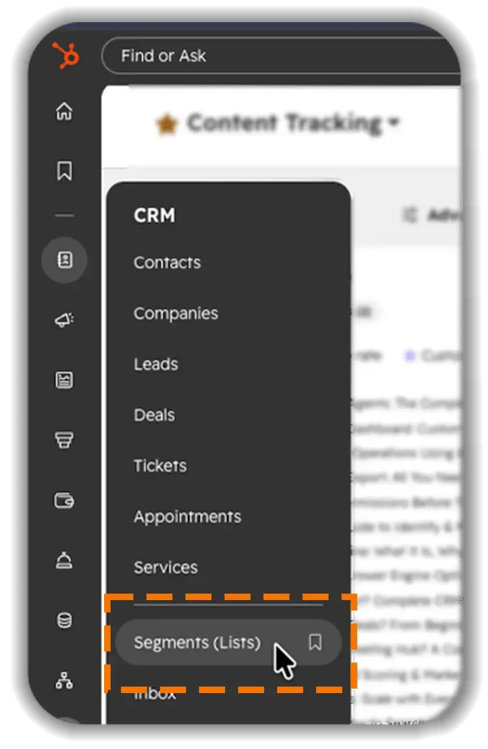 HubSpot officially renamed Lists to Segments (the platform still notes "(Lists)" throughout the interface). The underlying grouping engine is the same, but the name reflects a real shift: from flat, static email lists toward dynamic, behavior-based audiences that update themselves across the entire customer journey.
🏆 Elite Partner Tip: Don't treat the rename as cosmetic. The move to "Segments" signals that HubSpot expects you to group records by behavior and relationships—not just demographics. If your lists are still just "Newsletter" and "All Contacts," you're using a 2026 tool with a 2015 strategy.
What Is the Difference Between an Active and Static Segment?
An active segment updates itself automatically. A static segment is a frozen snapshot that never changes on its own. This is the single most important decision you make when building any segment, so it's worth getting right.
Think of it like music. A static segment is a burned CD—the tracklist is fixed the moment you burn it. An active segment is a smart playlist like "Most Played This Month"—it quietly adds and removes songs as your habits change, with no manual effort.
| Active Segment | Static Segment | |
| Updates over time | Yes—records join and leave automatically | No—fixed at the moment it's saved |
| Best for | Ongoing newsletters, lifecycle targeting, automation triggers | One-time blasts, event attendees, imported lists |
| Membership control | Rules-based (HubSpot decides) | Manual (you add and remove records) |
| Example | "Contacts who opened an email in 90 days" | "Attendees of our March 2026 webinar" |
Use an active segment when the audience should always reflect current reality—like everyone currently at the MQL stage. Use a static segment when you need a permanent record of a group at a point in time—like the exact 500 people you met at a trade show.
One critical rule: an active segment can be converted to static at any time (freezing it), but a static segment can only be converted back to active if it was originally built with filter logic. A static list built by importing a CSV has no rules for HubSpot to evaluate, so it can never become dynamic.
What Are the 4 Types of Segmentation?
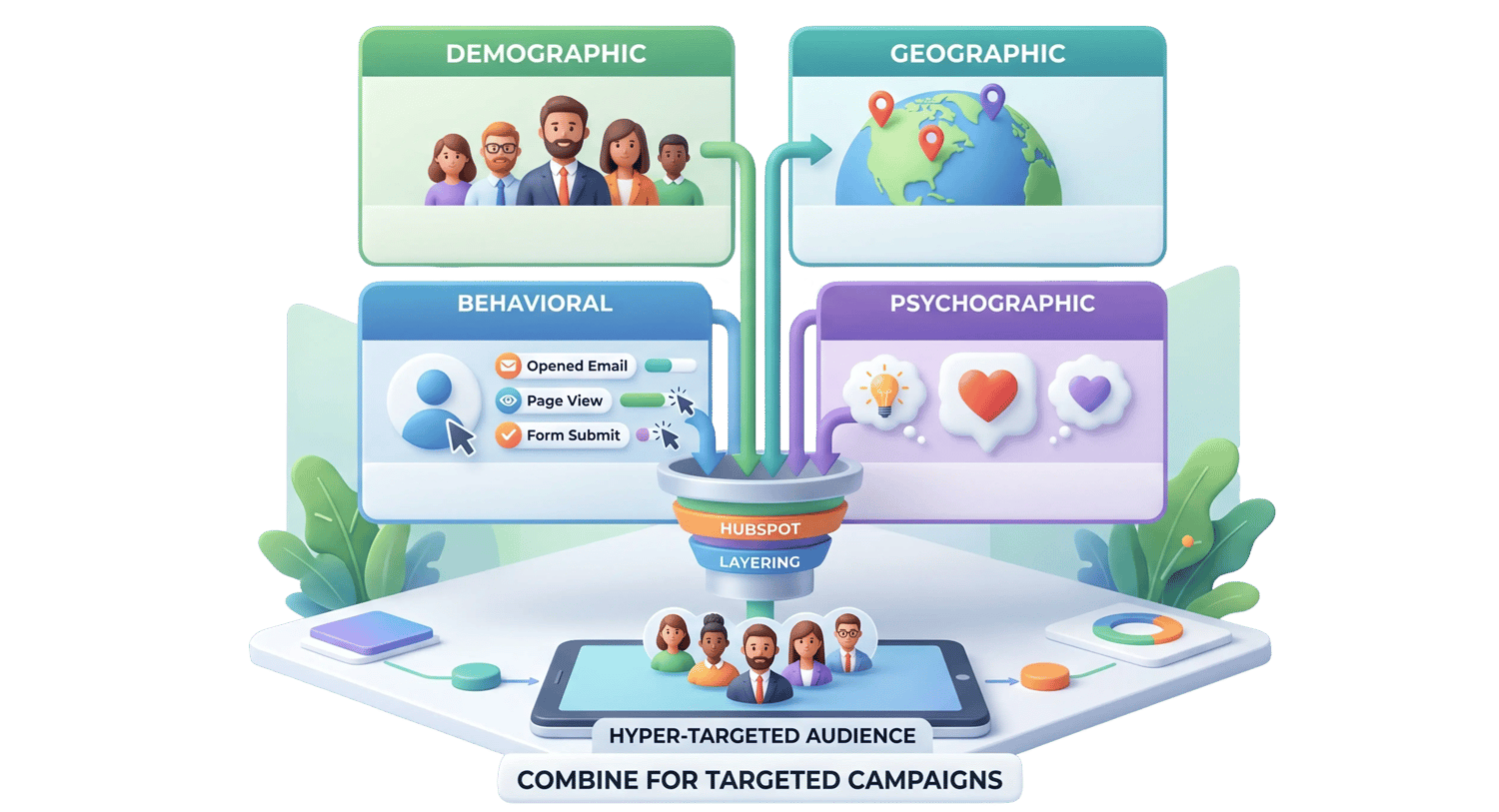
The four classic types of segmentation are demographic, geographic, behavioral, and psychographic—and HubSpot supports all four natively. Understanding them helps you decide which filters actually matter before you start building.
- Demographic segmentation groups people by who they are: job title, company size, industry, or lifecycle stage. HubSpot example: Contact property
Job Titlecontains CEO, VP, Director. - Geographic segmentation groups by location: country, state, region, or time zone. HubSpot example: Company property
Country/Regionis any of United States, Canada. - Behavioral segmentation groups by what people do: emails opened, pages viewed, forms submitted, or products purchased. HubSpot example:
Last marketing email open dateis less than 90 days ago. - Psychographic segmentation groups by attitudes, interests, and priorities—often captured through form questions, survey responses, or custom properties. HubSpot example: Custom property
Primary Goalis equal to Reduce operating costs.
HubSpot lets you layer demographic, geographic, and behavioral filters into a single segment, which is exactly how you build a hyper-targeted audience instead of a generic mailing list.
🏆 Elite Partner Tip: Most SMBs only ever use demographic and geographic filters because that data is easy. The competitive advantage lives in behavioral segmentation—targeting people by what they actually did on your site and in your emails. That's the data that predicts who's ready to buy.

How Do You Create a Segment in HubSpot?
You build segments in HubSpot's Segments tool using a visual, no-code filter editor. Here's the step-by-step process in the 2026 interface.
Step 1: Open the Segments Tool
In your HubSpot account go to CRM → Segments (Lists).
Step 2: Start the Build
In the upper right, click Create segment.
Step 3: Choose Your Object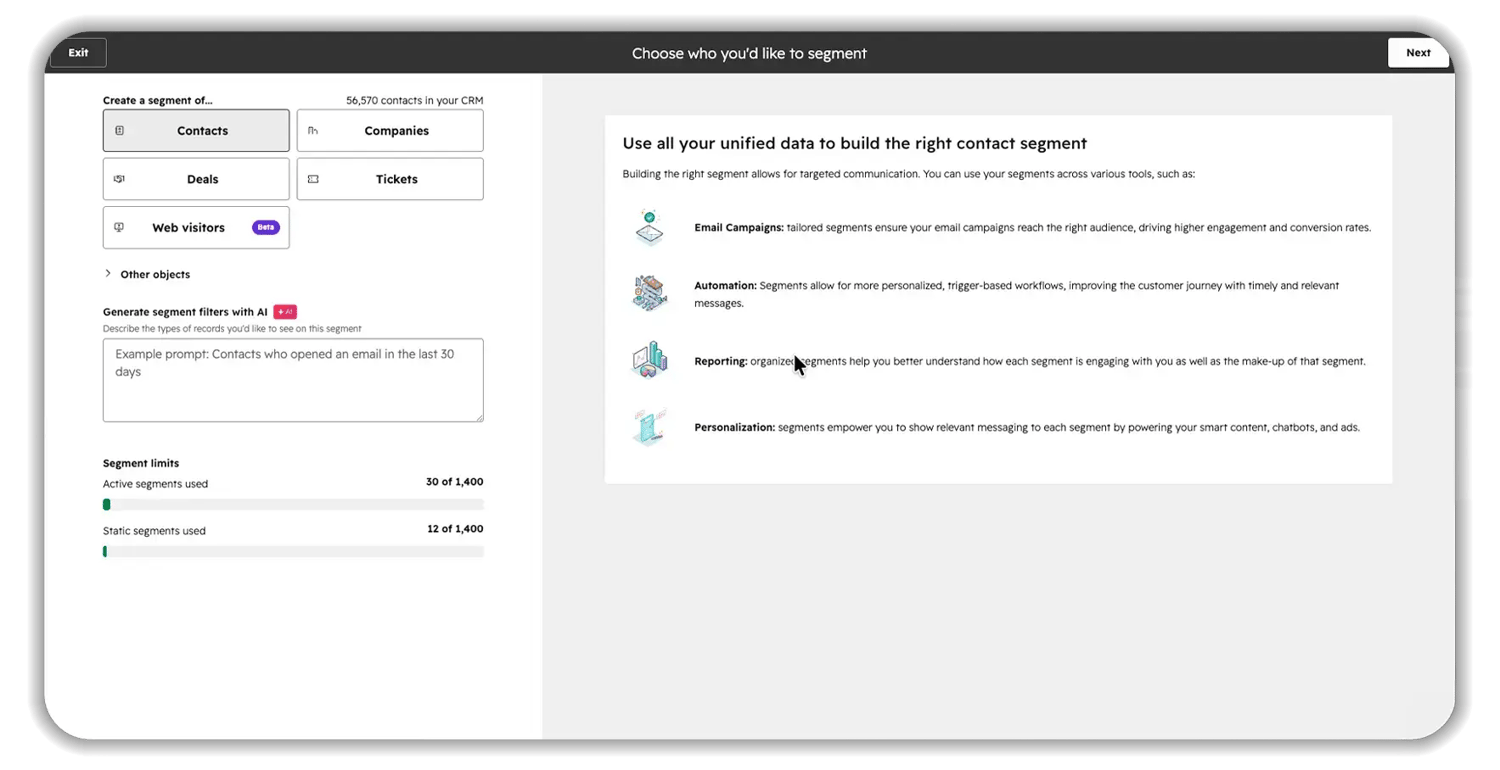
Select the type of record you want to group: Contacts, Companies, Deals, Tickets, or another object. This is the "base" of your segment.
Step 4: Build the Filters (Manually or With AI)
- With AI: In the Generate segment filters with AI box, describe your audience in plain language. Breeze builds the logic for you (Starter, Professional, and Enterprise).
- Manually: Click Next, then + Add filter. Choose a filter category—Properties (data fields), Events (behaviors), or Memberships (in other segments or workflows)—pick your operator (like "is equal to" or "is known"); and set the value.
Step 5: Layer Your Logic
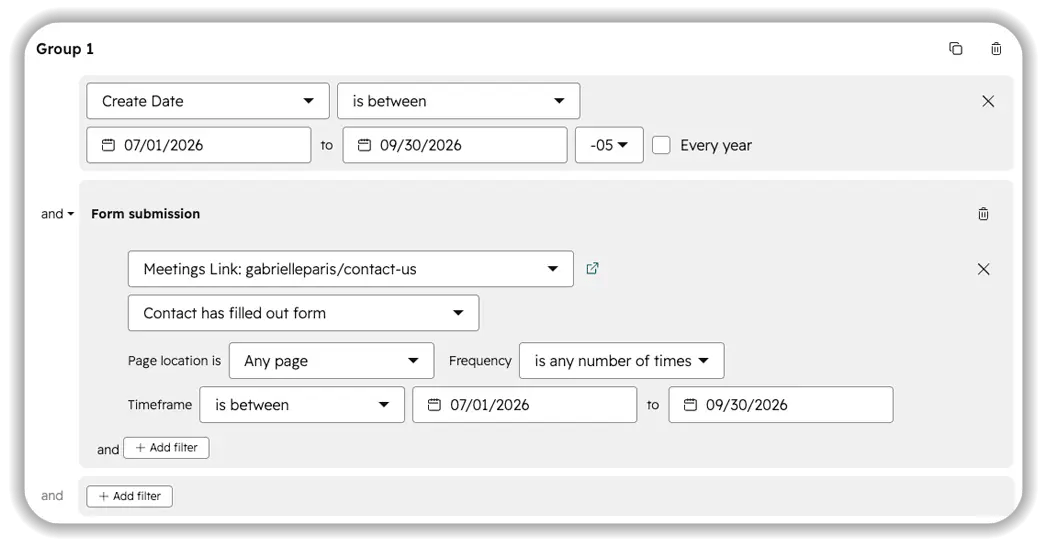
- Click + Add filter inside a group to apply AND logic (narrows the audience—records must meet every condition).
- Click + Add filter group to apply OR logic (broadens the audience—records need to meet at least one group).
Step 6: Add Exclusions (Optional)
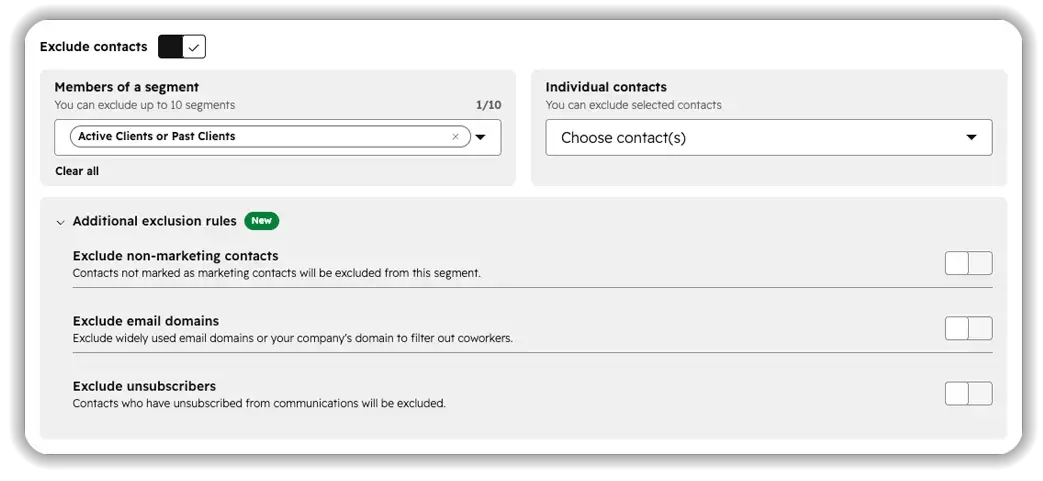 Toggle Exclude [records] on to suppress specific segments, records, or rule-based groups—so certain people never enter this audience regardless of the filters.
Step 7: Test Before You Trust
Toggle Test matches on and check whether a specific record passes or fails your logic. This one habit prevents the most common segmentation errors.
Step 8: Name, Set Type, and Save
Click Next, choose Active or Static, optionally click Generate with AI to auto-write a description, add it to a folder, and click Save and process segment. HubSpot processes the database and shows your exact member count when it's done.
🏆 Elite Partner Tip: You can set up to 250 filters per segment, including up to 60 based on associated (cross-object) data. If you're brushing against those limits, that's a signal to simplify—build smaller "building block" segments and combine them using Segment membership filters instead of one monster segment.
How Do You View Segments in HubSpot?
All your segments live in one place: the Segments index page under CRM → Segments. To get there, click CRM → Segments.
From the Manage tab on that page, you can:
- See every segment with its type (active or static), size, object, and last-updated date.
- Search and filter by name, creator, type, or object to find what you need in a large portal.
- Open any segment to view its exact members and the filter logic behind it.
- Organize into folders to keep the list clean as it grows.
- Take action—clone, edit, delete, or use a segment in another tool—by hovering over it and clicking More.
To view the members of a specific segment, just click its name. To review the rules, open the segment and look at the filter panel on the left.
🏆 Elite Partner Tip: A quick health check: sort your Segments index by size and last-updated date. Empty active segments usually mean broken logic. Segments that haven't updated in months are often abandoned. Both are signals your portal needs a cleanup.
What Mistakes Should You Avoid With Segments?
The costliest segmentation mistakes aren't technical—they're strategic decisions that quietly corrupt your targeting. Here are the ones we fix most often.
Using an Active Segment to Capture a One-Time Event
If you build an active segment based on a status that gets reset after an event (like "Registered for the May Webinar"), everyone falls out the moment that property changes, erasing your historical record. Use a static segment to permanently capture point-in-time groups like event attendees.
Combining Mutually Exclusive Filters With AND
Filtering for Lifecycle Stage is Lead AND Lifecycle Stage is Customer returns zero records, because no contact can be two stages at once. When you want records matching either value, use OR logic.
Letting Segments Sprawl
The guiding principle is as many segments as necessary, but as few as possible. Every abandoned test list and one-off blast segment clutters the interface and adds backend processing load. Audit and delete obsolete segments on a regular cadence.
Skipping Naming Conventions
A segment named "Webinar Leads" tells a new hire nothing. A segment named [2026-Q2] [Active] [MQL] Cybersecurity Webinar Attendees communicates the date, type, stage, and purpose at a glance. Adopt a standard and enforce it.
Forgetting to Maintain Suppression Segments
For compliance (GDPR, CAN-SPAM, CASL), build active segments of contacts who've opted out and apply them as global exclusions across every send. This mathematically guarantees you never email someone who asked you not to.
🏆 Elite Partner Tip: Create a dedicated "Exclusions & Suppression" folder for the segments that must never receive certain messages—competitors, opted-out contacts, and customers with open support tickets. Treat that folder as mission-critical infrastructure, and check it during every audit.
Advanced: Cross-Object Segmentation
HubSpot's biggest advantage over basic list tools is cross-object segmentation—filtering one type of record based on the properties of related records. A contact segment isn't limited to contact properties. It can also evaluate the associated company, the associated deals, and the contact's behavioral events all at once.
Here's what that makes possible in a single segment:
"Directors of IT" (contact property) at "manufacturing companies" (company property) with an "open renewal deal over $50k" (deal property) who "viewed the pricing page 3+ times this week" (behavioral event).
That's a list primed for immediate sales intervention—the kind of precision that's effectively impossible in flat, tag-based email tools. On Professional and Enterprise plans, you can narrow associated-object filters even further using association labels (for example, only the primary associated company).
What Are the Segment Limits in HubSpot?
Segments themselves are free, but the number you can create is capped by your subscription tier, and every segment is limited to 250 filters. Knowing these boundaries prevents surprises as your portal scales.
| Subscription Tier | Active Segments | Static Segments | Notes |
| Free Tools | 10 | 1,000 | Basic filters only (forms, contact properties, email activity) |
| Starter | 25 | 1,000 | Adds Breeze AI filter generation |
| Professional | 1,000 | 1,000 | Adds cross-object logic and association labels |
| Enterprise | 1,500 | 1,500 | Adds predictive lookalike segments and scale |
Tier limits are set by HubSpot and can change—confirm current numbers in HubSpot's Product & Services Catalog before making a plan decision.
Two more constraints worth knowing:
- Filter depth: up to 250 filters per segment, with a maximum of 60 based on associated cross-object data.
- Processing time: highly complex active segments over large databases can take several minutes to fully reprocess after a record changes—so don't panic if a contact doesn't appear the instant a property updates.
🏆 Elite Partner Tip: "List sprawl" is a real performance tax at scale. Every active segment adds to the calculations HubSpot runs each time a record changes. Disciplined deletion of dead segments isn't just tidiness—it directly protects your portal's speed and automation reliability.
Frequently Asked Questions
What is the difference between a list and a segment in HubSpot?
There is no functional difference—HubSpot renamed "Lists" to "Segments" in 2026. The interface still notes "previously called lists," but the grouping engine, active/static types, and filter logic all work exactly as they did before.
What are the four types of segmentation?
The four classic types are demographic (who someone is), geographic (where they are), behavioral (what they do), and psychographic (their attitudes and priorities). HubSpot supports all four, and you can combine them in a single segment.
Can you segment for free in HubSpot?
Yes. HubSpot's Free tools include 10 active segments and 1,000 static segments, though filtering is limited to basic criteria like form submissions, contact properties, and marketing email activity. Paid tiers unlock behavioral, cross-object, and AI-powered segmentation.
How do I view all my segments in HubSpot?
Click CRM → Segments. The Manage tab lists every segment with its type, size, and object. Click any segment name to view its members and filter logic.
Does deleting a segment delete my contacts?
No. Deleting a segment only removes the grouping—your contact and company records stay in the CRM. If you delete a segment by accident, HubSpot keeps it in a "Recently deleted" area for a limited window so you can restore it with its original logic intact.
Can I convert an active segment to a static one?
Yes, at any time—this freezes the audience as it currently stands. You can only convert a static segment back to active if it was originally built with filter logic; a static list created by importing a CSV cannot become active because it has no rules to evaluate.
What happened to the HubSpot Lists API?
HubSpot migrated to the modern v3 Lists (Segments) API and retired the legacy v1 Lists API in 2026. If you have older integrations built on v1, they need to be updated to the v3 endpoints and ILS segment IDs to keep working.
Key Takeaways
- Segments are HubSpot's audience-targeting layer—the tool that decides who receives every email, enters every workflow, and appears in every audience-based report. In 2026, "Lists" and "Segments" mean the same thing.
- Active segments update automatically; static segments are frozen snapshots. Choosing the wrong type is the most common—and most damaging—segmentation mistake.
- The four segmentation types are demographic, geographic, behavioral, and psychographic. The advantage comes from combining them, especially adding behavioral data.
- HubSpot helps natively—no extra tools—through active updating, Breeze AI filter generation, cross-object logic, and predictive lookalike audiences.
- Segments identify who, Workflows execute what, and Views handle daily triage. Keep those roles separate to protect portal speed and reporting accuracy.
- Discipline matters at scale: enforce naming conventions, use folders, maintain suppression segments, and delete obsolete ones to avoid list sprawl.
- A regular HubSpot audit is the most reliable way to keep your segments aligned with how your business actually operates.