Custom Reports Step-by-Step Guide
Get five ready-to-build HubSpot reports, step-by-step configuration instructions, and an audit checklist to find what's off in your current setup.
Download Now

If your HubSpot reports don't match how your business really works, you're making decisions on bad data.
Leadership pulls a report, it looks clean, and they act on it. But the numbers are misleading because the reports were never configured to reflect how the team sells, services, or markets.
Custom reports and dashboards fix that. When built correctly, they become your single source of truth—giving every decision-maker the right data, in the right format, at the right time. This guide walks you through everything: what custom reports are, how to build them, the four types of dashboards, advanced configurations, and the strategic mistakes that quietly cost growing companies real money.
What Is the Difference Between a Standard Report and a Custom Report?
Standard reports are pre-built by HubSpot. Custom reports are built by you—to match your specific business. HubSpot gives every account access to a library of standard reports: deal pipeline summaries, contact lifecycle stage counts, email open rates, and so on. These reports are quick to use and require no setup. For many teams just starting out, they're enough. But standard reports have a fundamental limitation: they reflect how HubSpot thinks your business works, not how your business actually works.
| Standard Reports | Custom Reports | |
| Setup | Zero — pre-built by HubSpot | Configured by you in the Report Builder |
| Flexibility | Fixed columns, filters, and layout | Fully configurable |
| Data sources | Single object (e.g., Contacts) | Single or cross-object |
| Calculations | Limited aggregate math | Formula fields, row-level math |
| Best use case | Quick operational snapshots | Strategic decision-making |
Custom reports let you combine data across objects, apply your own formulas, and visualize exactly what leadership needs to see—not a generic approximation of it.
What Are Custom Report Types in HubSpot?
HubSpot offers five custom report types, each designed for a different kind of business question. Understanding which report type to use before you start building saves significant time and avoids the frustration of building the wrong report from the wrong data source.
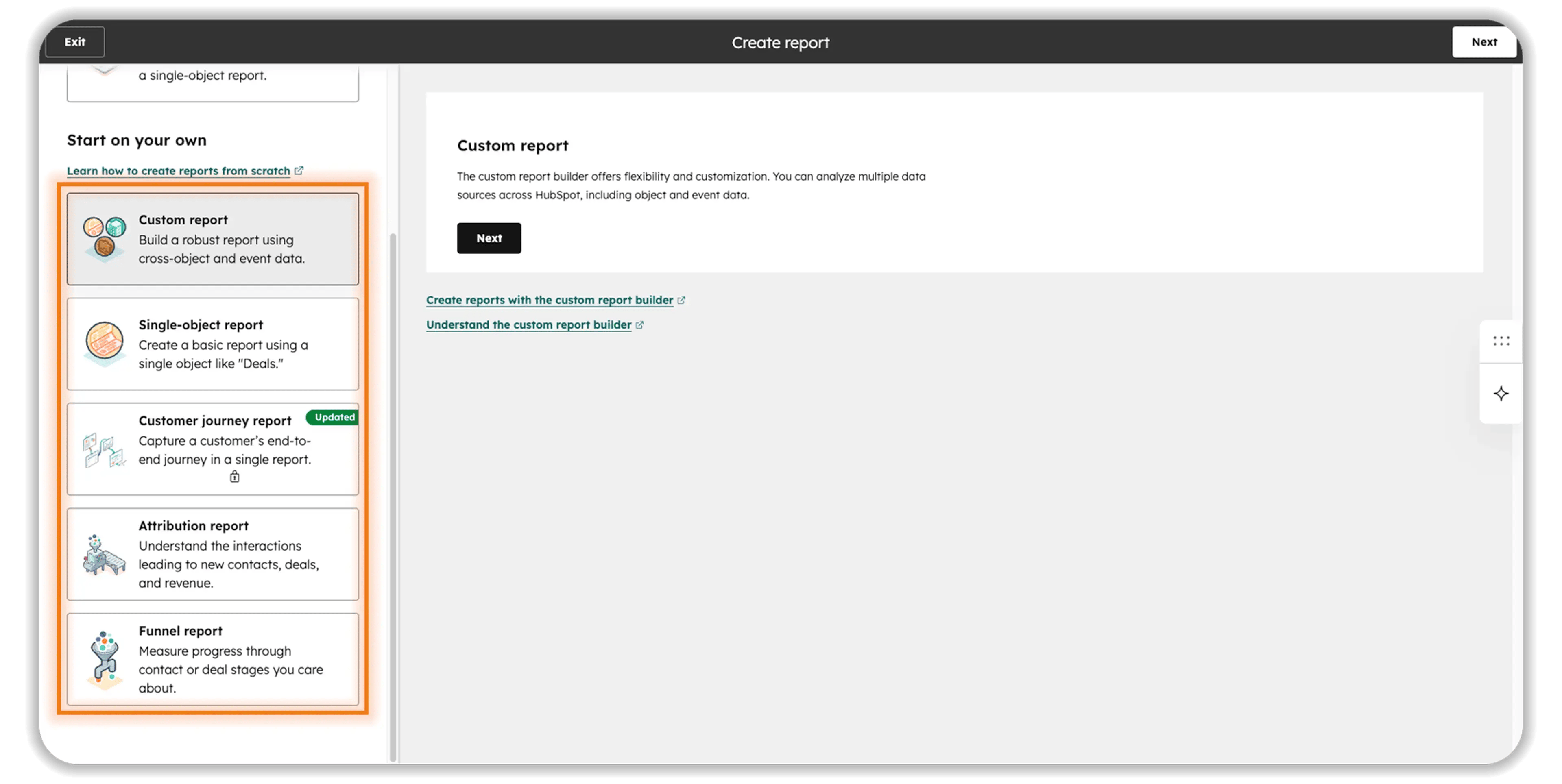
1. Single-Object Reports
Report across properties of one HubSpot object: Contacts, Companies, Deals, Tickets, Activities, Products, or Custom Objects. Best for straightforward questions like "How many open deals do we have by rep?"
2. Cross-Object Reports
Join two or more related objects in a single report. For example, report on Contacts and their associated Deals simultaneously. Essential for questions like "Which lead sources are generating the most revenue?"
3. Funnel Reports
Track how records move through a defined sequence of stages—pipeline stages, lifecycle stages, or ticket stages. Calculate conversion rates at every step. The go-to report for identifying exactly where you're losing deals or customers.
4. Attribution Reports
Show which marketing touchpoints influenced a contact becoming a customer. HubSpot supports multiple attribution models: First Touch, Last Touch, Linear, Time Decay, U-Shaped, and W-Shaped. These answer the perennial question: "Which channels are actually driving revenue?"
5. Cohort Reports
Group records by a shared characteristic at a point in time—such as all contacts who became customers in Q1—and track how that group behaves over subsequent periods. Ideal for retention analysis, churn tracking, and measuring the long-term impact of campaigns.
🏆 Elite Partner Tip: Most SMBs only use Single-Object and Cross-Object reports. The real competitive advantage comes from Funnel and Attribution reports. These two types—when built correctly—reveal exactly where revenue is being lost and which marketing investments are working.

How to Create Custom Reports in HubSpot?
You build custom reports inside HubSpot's Report Builder—a visual interface that requires no coding. Here is the step-by-step process in HubSpot:
Step 1: Navigate to the Report Builder
Go to Reporting → Reports in the top navigation. Click Create report in the upper right. Choose Start from scratch for a custom report, or Browse Template report library for a template starting point.
Step 2: Select Your Report Type
Choose from Single-Object, Cross-Object, Funnel, Attribution, or Cohort. For most teams, start with Single-Object or Cross-Object. Select your primary data source—for example, Deals if you're building a revenue report.
Step 3: Add Your Data Fields
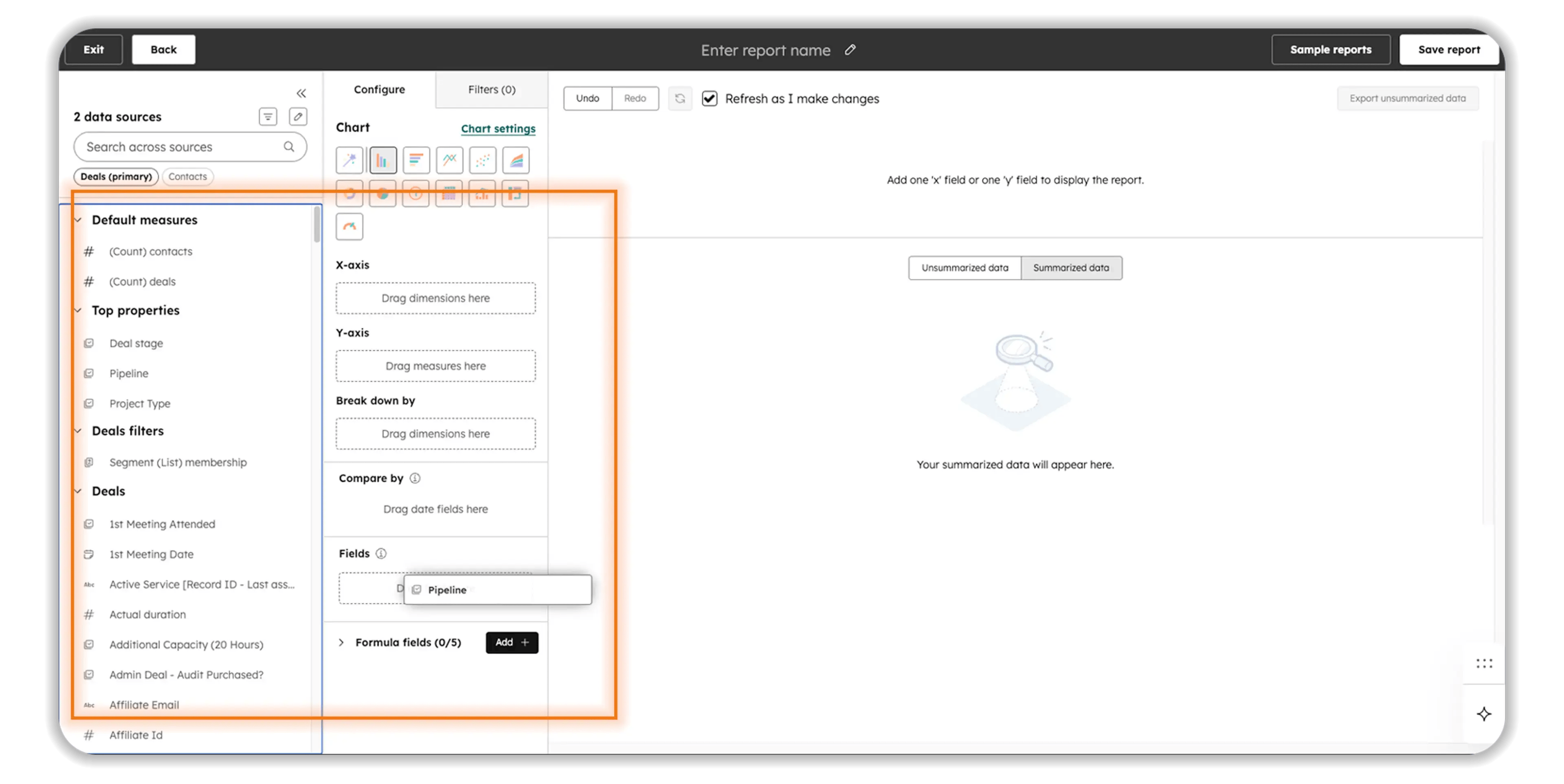
In the left-hand panel, browse available properties for your selected object. Drag and drop fields into the report table: deal name, amount, close date, deal owner, pipeline stage, lead source, and so on. You can add fields from associated objects here as well.
Step 4: Apply Filters
Use the Filters panel to narrow your data. Apply date range filters (e.g., "Close date is this quarter"), property filters (e.g., "Deal stage is not equal to Closed Lost"), or association filters. HubSpot supports AND/OR logic for precise segmentation.
Step 5: Choose Your Visualization
Toggle between Table view and Chart view using the icons at the top of the report canvas. Chart options include bar, line, pie, area, scatter plot, and combo charts. Select the visualization that makes the key insight obvious at a glance for your audience.
Step 6: Add Formula Fields (Optional)
If you need calculated columns—win rate, average deal size, weighted score, or custom margins—use Add formula field in the column configuration panel. See the Formula Fields section below for full detail.
Step 7: Save and Publish
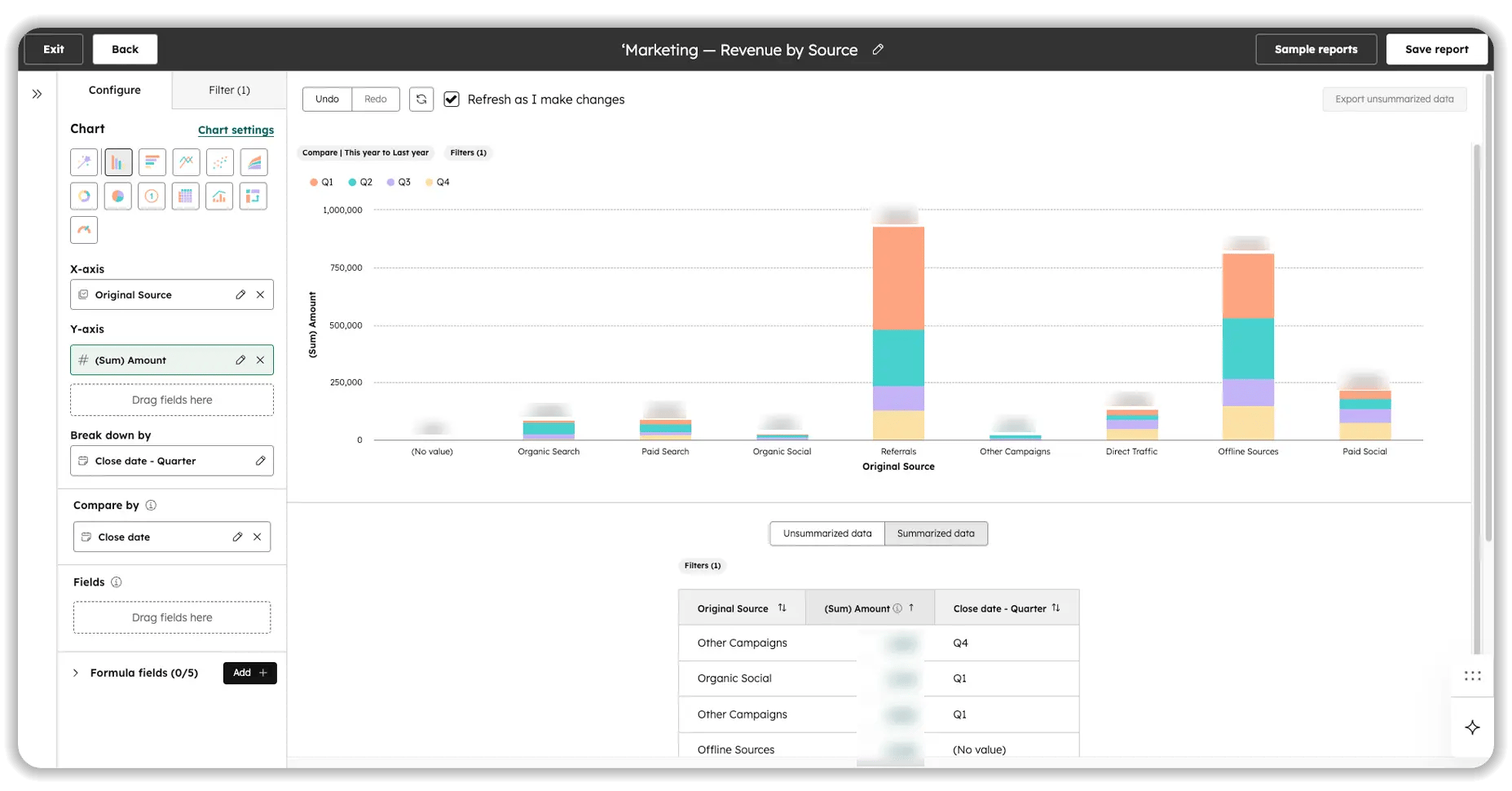
Name the report descriptively (example: Q2 Deal Velocity by Rep — Closed Won). Add a description so teammates understand what it measures. Set who can view or edit it. Click Save. The report is now available to add to any dashboard.
🏆 Elite Partner Tip: Always build reports with a specific business question in mind before opening the builder. "I need a report" is not a business question. "Why are deals stalling between Proposal Sent and Contract Signed?" is. When you start from a question, you end up with a report that drives action.
Does HubSpot Have Dashboards?
Yes. HubSpot has a native dashboard system that lets you combine multiple reports into a single, shareable view. Dashboards in HubSpot are not a bolt-on feature—they're built directly into the platform. Every report you create can be added to one or more dashboards. You can arrange, resize, and organize report tiles to create layouts that serve each audience differently: executives, sales reps, marketing managers, and support leads.Dashboards can be:
- Shared with specific users or teams with view or edit permissions
- Set to refresh automatically on a schedule
- Delivered by email on a daily, weekly, or monthly basis
- Pinned to your sidebar for one-click access
- Filtered globally with dashboard-level filters that apply to all reports simultaneously
A well-structured dashboard eliminates the need for leaders to log in to HubSpot and hunt for information. The right data finds them.
What Are the 4 Types of Dashboards in HubSpot?
HubSpot dashboards fall into four categories based on how they're created and who they're designed to serve.
1. Blank Dashboards (Custom-Built)
You start with an empty canvas and add any reports you've created. This gives you complete freedom to design a dashboard for a specific audience, business function, or review cadence. Most mature HubSpot accounts rely on blank dashboards for their most important views.
2. Pre-Built Template Dashboards
HubSpot provides a growing library of ready-to-use templates: Sales Activity, Marketing Performance, Service Desk, Website Analytics, and more. These load instantly and are a strong starting point for teams new to reporting. You can fully customize them after loading.
3. Team Dashboards (Shared Dashboards)
Dashboards shared with a specific team, user group, or department. Every member of the team sees the same view. Ideal for sales team stand-ups, marketing review meetings, or weekly leadership check-ins. Permissions are managed at the dashboard level.
4. Personal Dashboards
Private dashboards visible only to the user who created them—unless they choose to share. Useful for reps tracking their own pipeline, quota attainment, or daily activity without affecting shared team views. Personal dashboards give each team member ownership over their own data story.
🏆 Elite Partner Tip: Build one dashboard per audience—not one dashboard for everything. A CEO dashboard should show revenue, pipeline, and NPS—not ticket volumes. A sales rep dashboard should show their own pipeline and activity—not company-wide marketing metrics. One dashboard, one audience, one job.
How Do You Build a Dashboard in HubSpot?
Creating a dashboard takes less than five minutes. The strategic work is deciding what belongs on it.
- Go to Reporting → Dashboards in the top navigation.
- Click Create dashboard in the upper right.
- Choose to start from a template or create a blank dashboard.
- Name the dashboard clearly. Example: Weekly Sales Review — Q2 2026.
- Click Add report and select from your saved reports library, or create a new report directly from this screen.
- Drag and resize report tiles to arrange your layout.
- Use the Filters option at the top to set global date ranges or property filters that apply to all reports simultaneously.
- Click Manage sharing to set who can view or edit.
- Click Schedule to set up automated email delivery to stakeholders.
How Do Formula Fields Work in HubSpot Custom Reports?
Formula fields let you build custom calculated metrics directly inside your reports—without writing code or exporting to Excel.This is one of the most underused features in HubSpot's report builder, and one of the most powerful. Instead of pulling data into a spreadsheet and calculating manually, you define the formula once inside the report and it recalculates automatically as your data changes.
What you can calculate:
- Arithmetic:
add(),minus(),multiply(),divide()— for custom margins, growth rates, or weighted scores - Date & time:
minus_time(),format_datetime()— for pipeline velocity, SLA tracking, or speed-to-lead compliance - String manipulation:
concat(),lower(),capitalize()— for standardizing messy data within the report view - Conditional logic: IF/THEN conditions for tier-based segmentation or custom deal scoring
A practical example:
To calculate gross profit margin on a deal-by-deal basis, use:divide(minus([Amount], [Cost]), [Amount])This calculates the margin for each individual deal row before any totals are aggregated—far more accurate than calculating margin at the column level.Elite Partner Tip: When building formula fields, decide upfront how you want to handle null (empty) values. HubSpot gives you two choices: exclude rows with nulls from the calculation entirely, or convert nulls to zero. Choosing the wrong option silently skews your averages. Always document your approach in the report description.
What Is HubSpot Data Studio?
HubSpot Data Studio is an advanced data integration layer—part of Operations Hub—that connects external data sources directly to your HubSpot reports.For most SMBs, reporting is limited to data that lives inside HubSpot. Data Studio removes that limitation. It allows you to pull data from external tools—spreadsheets, ERPs, and enterprise data warehouses like Snowflake or Databricks—and blend it with your CRM data in a familiar, spreadsheet-style interface. No SQL. No developer resources required.What Data Studio enables:
- Continuous, automated sync from external data sources (replacing manual CSV uploads)
- AI-assisted data blending and cleaning using natural language prompts
- Enriched HubSpot records—for example, matching billing data from an ERP to Company records using domain name or customer ID as the matching key
- Calculated custom fields, such as a "Customer Readiness Score," synced back to the Smart CRM
- Unified datasets that immediately power HubSpot reports, workflows, and campaigns
For growing businesses whose revenue data lives partly in HubSpot and partly in an external billing system, ERP, or e-commerce platform, Data Studio is the feature that makes unified reporting possible without a full data engineering team.
Is HubSpot Like Tableau?
No—HubSpot and Tableau serve different purposes, but HubSpot has significantly closed the gap for SMBs.Tableau is a standalone business intelligence (BI) platform. It can connect to dozens of data sources simultaneously, build highly sophisticated visualizations, and serve enterprise analytics teams. It is powerful, expensive, and requires dedicated technical users to get value from it.HubSpot's reporting is designed for the operational team using their CRM. It's native, fast, and requires no additional tools or licenses.
| HubSpot Reports | Tableau | |
| Data sources | HubSpot CRM + external (via Data Studio or API) | Multiple external databases, warehouses, and apps |
| Setup required | Minimal — drag-and-drop interface | Significant — data connectors and technical config required |
| Target user | Sales, marketing, and ops teams | Data analysts and BI specialists |
| Cost | Included with HubSpot subscription | Separate license ($70–$840+/user/year) |
| Learning curve | Low to moderate | Moderate to high |
| Real-time CRM data | Native and immediate | Requires data pipeline setup |
| Best for | Operational CRM decisions | Cross-system enterprise analytics |
If your business runs primarily on HubSpot, you almost certainly do not need Tableau. HubSpot's custom reports, cross-object reporting, formula fields, and Data Studio cover the analytical needs of most SMBs without requiring a separate tool, a data team, or additional budget. Where Tableau becomes relevant is when you need to blend HubSpot data with finance systems, production data, or other non-CRM platforms in a unified enterprise analytics environment—typically a need that emerges at 100+ employees.
What Mistakes Should You Avoid with HubSpot Reports and Dashboards?
The most expensive reporting mistakes aren't technical—they're strategic.
Reporting on activity instead of outcomes:
Tracking "calls made" or "emails sent" measures effort, not results. Build reports that connect activity to pipeline created, deals closed, and revenue generated.
Using standard reports where custom reports are needed:
Standard reports are a starting point. If you're making strategic decisions—territory planning, budget allocation, hiring—your reports need to be custom-built to reflect how your business actually works.
Building dashboards for everyone that serve no one:
A dashboard that tries to show everything to everyone ends up being useful to no one. Design each dashboard for a specific audience with a specific decision to make.
Ignoring null values in formula fields:
Null values handled inconsistently will silently corrupt your calculated metrics. Always document your null-handling approach when building formula fields.
Never auditing reports after they're built:
Business processes change. Deal stages get renamed, pipelines get restructured, team members change. A report built in 2024 may be pulling incorrect data in 2026 if nobody has audited that the underlying filters still match current operations.
No naming convention or ownership:
A HubSpot account with 200+ reports and no naming convention is unusable. Establish a clear naming standard—for example: [Audience] — [Metric] — [Time Period]—and assign an owner to every report and dashboard.
Frequently Asked Questions
How do I create a custom report in HubSpot?
Go to Reporting → Reports, click Create report, choose Start from scratch, select your report type and data source, add fields and filters, choose a visualization, and save. The process takes 5–15 minutes for most report types.
What is the difference between a standard report and a custom report in HubSpot?
Standard reports are pre-built by HubSpot with fixed configurations. Custom reports are built by your team using the Report Builder, with full control over data sources, fields, filters, calculations, and visualizations.
What are custom report types in HubSpot?
HubSpot offers five custom report types: Single-Object, Cross-Object, Funnel, Attribution, and Cohort. Each is designed for a different analytical purpose and business question.
Does HubSpot have dashboards?
Yes. HubSpot has a native dashboard system. You can create unlimited dashboards, add any saved reports to them, customize the layout, set sharing permissions, and schedule automated email delivery.
What are the 4 types of dashboards in HubSpot?
The four types are: Blank (custom-built from scratch), Pre-built Templates (ready-to-use from HubSpot's library), Team Dashboards (shared with specific teams or groups), and Personal Dashboards (private to individual users).
Is HubSpot like Tableau?
No. HubSpot reporting is designed for operational teams working within their CRM. Tableau is a standalone BI platform for enterprise data analysts connecting multiple external systems. For most SMBs, HubSpot's native reporting covers the full analytical need without Tableau.
What is HubSpot Data Studio?
Data Studio is an advanced feature within HubSpot's Operations Hub that lets you connect external data sources—spreadsheets, ERPs, data warehouses—directly to HubSpot. It uses AI-assisted data blending to create unified datasets that power custom reports without manual CSV uploads or code.
Can I schedule reports to be sent automatically in HubSpot?
Yes. You can schedule dashboard email delivery on a daily, weekly, or monthly basis. Recipients receive the dashboard as a PDF or HTML email. Individual reports can also be exported manually to PDF or CSV at any time.
How do I share a dashboard in HubSpot?
Open the dashboard, click Actions → Manage sharing, and select the users or teams you want to share it with. You can assign view-only or edit access, and generate a shareable link for external stakeholders without HubSpot logins.
Do I need Operations Hub for custom reports?
No. Custom reports are available across HubSpot's Starter, Professional, and Enterprise tiers. Formula fields and advanced cross-object reporting are available starting at Professional. Data Studio and advanced API integrations require Operations Hub Professional or Enterprise.
Key Takeaways
- Standard reports ship with HubSpot. Custom reports are built to match how your business actually operates. If you're making strategic decisions from standard reports, you may be working from incomplete information.
- There are five custom report types: Single-Object, Cross-Object, Funnel, Attribution, and Cohort—each designed for a different business question.
- HubSpot has a full native dashboard system with four types: Blank, Pre-built, Team, and Personal. Dashboards can be shared, scheduled, and delivered automatically.
- Formula fields give you row-level custom calculations inside reports—no Excel required. Handle null values deliberately to protect your metrics.
- HubSpot is not Tableau, and most SMBs with 11–50 employees don't need Tableau. HubSpot's native reporting covers the vast majority of operational analytical needs.
- Data Studio removes the data silo problem for businesses whose revenue data lives across multiple systems—without a data engineering team.
- The most expensive reporting mistakes are strategic: reporting on activity instead of outcomes, building dashboards for everyone, and never auditing reports as the business evolves.
- A quarterly HubSpot audit is the most effective way to ensure your reports and dashboards stay aligned with how your business actually operates.

%20(1)-2.webp)