The Ultimate HubSpot Audit Checklist
In 10 minutes, you'll self-assess your current HubSpot setup, spot the most critical problems, and learn how to fix them.
Download Now
If you're here, you might be missing out on one of the most powerful tools in HubSpot... connecting your Gmail or Outlook Inbox with HubSpot for instantaneous tracking and logging of email communications.
This guide will guide you through this process step-by-step. Allowing you to easily add contacts to your database, use templates, and log activities automatically.
How to Connect Gmail to HubSpot & Add Contacts from Your Inbox (Step-by-Step Tutorial)
This video is part of our HubSpot Contact Management for Beginners tutorial. Learn about importing and exporting contacts, email integration, forms, and more by watching the full video here.

Gmail Integration Steps
Here's how to connect HubSpot to Gmail in 2025:
- Access Settings: Log into HubSpot and click the Settings icon ⚙ in the top-right corner. Under General, select Email.
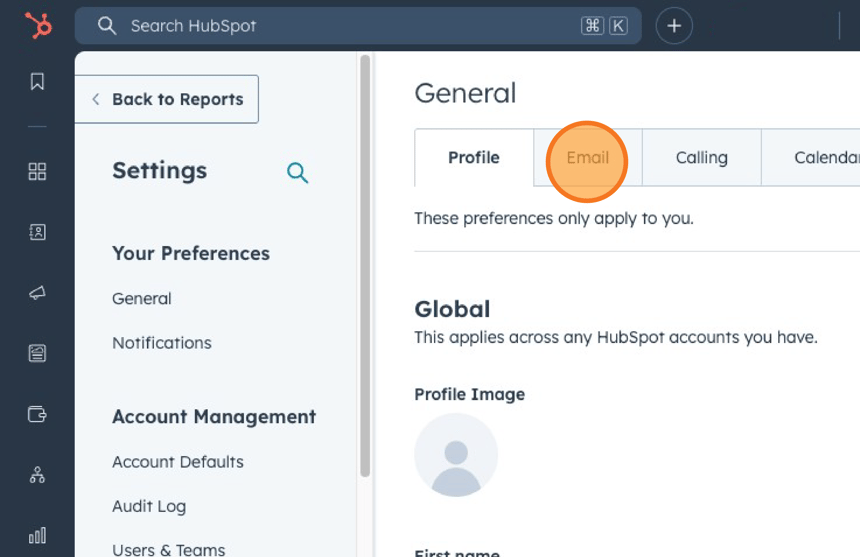
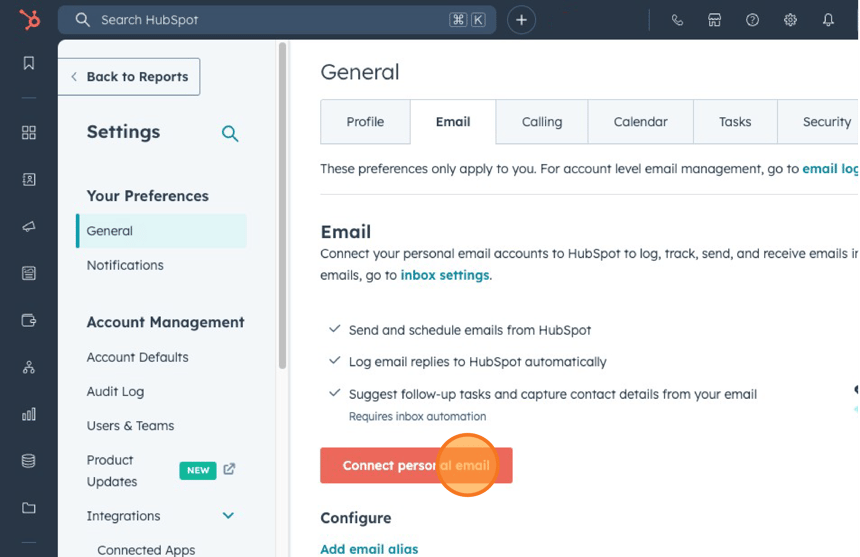
- Connect Personal Email: Click on Connect personal email.
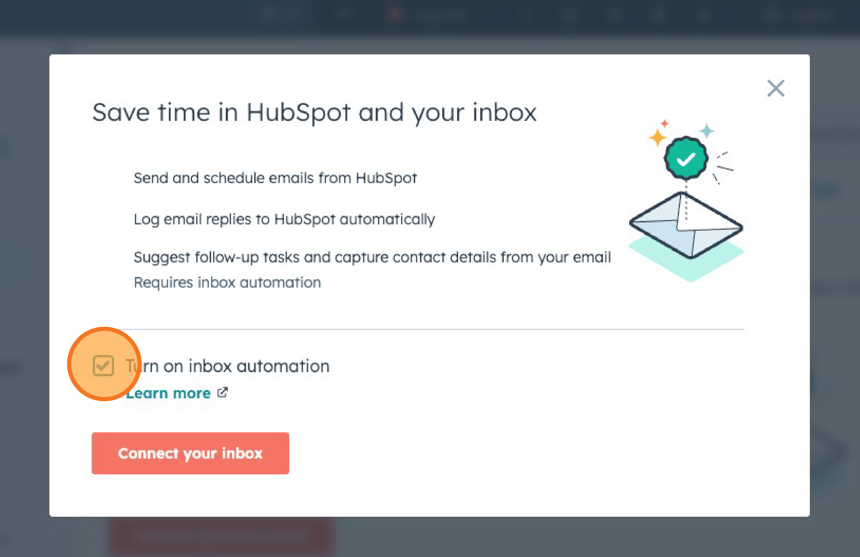
- Turn on Inbox automation (optional but recommended): If you turn this on, HubSpot will scan all your new emails and automatically add contact information it finds into your CRM. It will also suggest tasks for you based on what's in the email. This only works for new emails, not old ones. It's a great way to save time and effort.
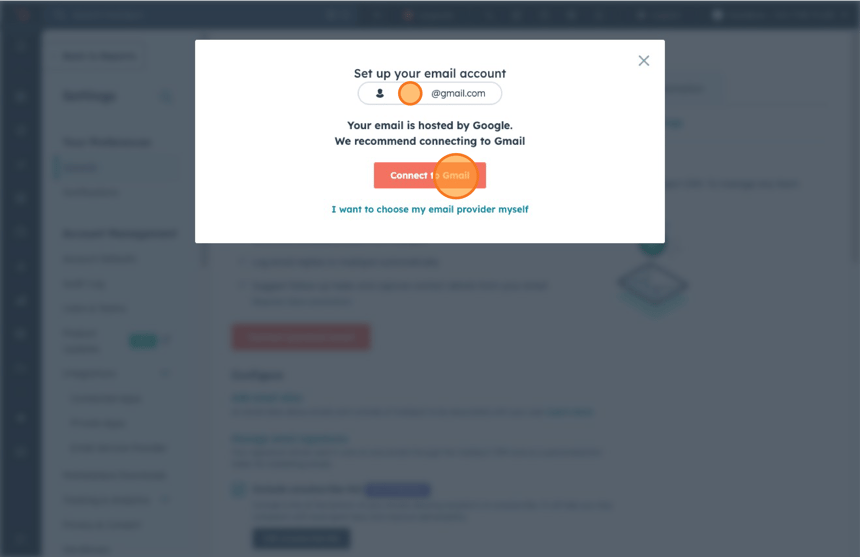
- Connect HubSpot to Gmail: Type in your email address and click next. If you use Gmail, go ahead and connect to it - HubSpot will recommend this. Take a moment to read about what you can expect from the integration, then continue. Don't Use Gmail? No worries, just select your email provider from the list!
- Sign in with your Google account: Grant the necessary permissions and click Continue.
- Install the extension: Follow prompts to add the HubSpot extension to Chrome and refresh your Gmail tab after installation.
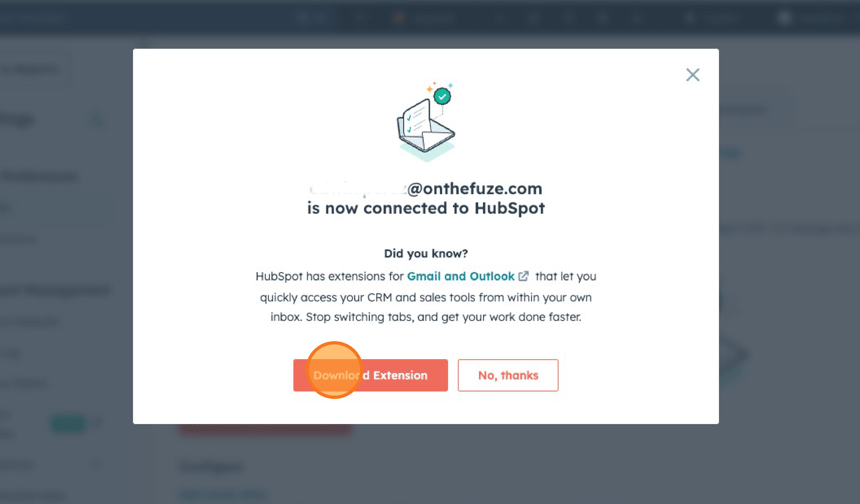
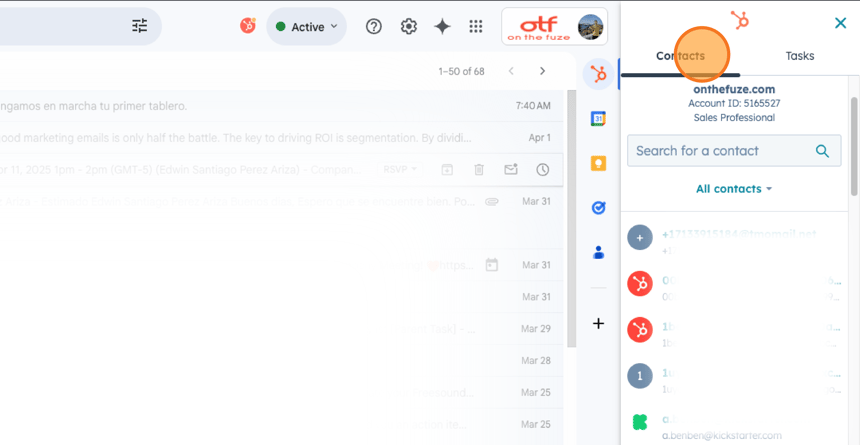
- Verify Connection: Open Gmail and look for the HubSpot sidebar. If you can see it at the right-hand side of the screen, your integration is complete, and you will be able to see contact details directly from your inbox. You can also click directly into the contact record and open it within HubSpot.
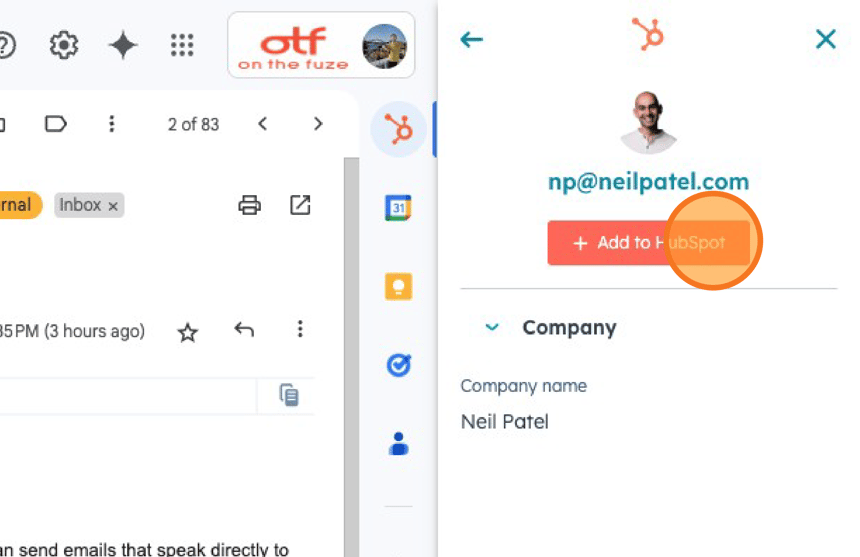
- Create a New Contact: If you want to create a contact, you can do that automatically within your inbox. Just go to the right-hand side. Click + Add to HubSpot, and then you'll be able to see the contact record directly from HubSpot.
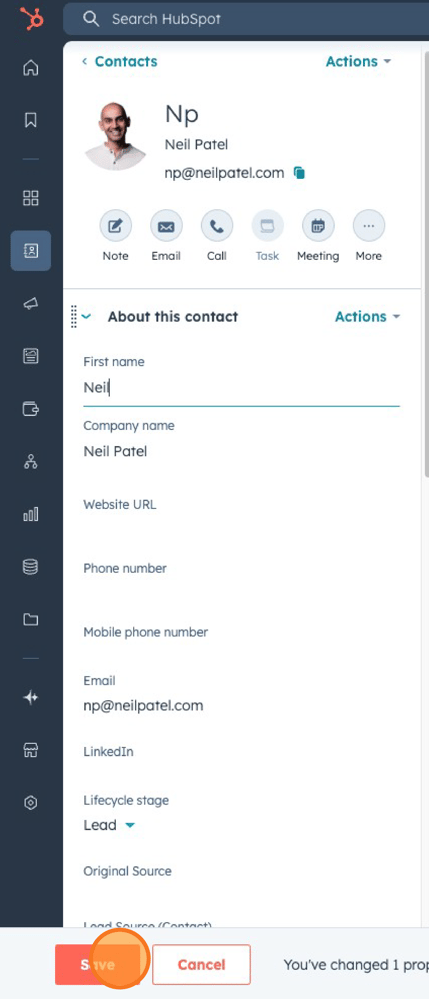
- Adding Contact Information: If you want to add some final details to your contact, you can do it on the left-hand side of the contact record within HubSpot by clicking the pencil next to the field or just double-clicking on the info you want to edit. When you're done, don't forget to click Save.

Outlook Integration Steps
Use Outlook? No worries, the process is basically the same; you'll just sign in with your Microsoft account and follow the authentication process!
📺 Want to see more helpful tutorials? Click HERE to master HubSpot 📺