The Ultimate HubSpot Audit Checklist
In 10 minutes, you'll self-assess your current HubSpot setup, spot the most critical problems, and learn how to fix them.
Download Now

Even if most of your contacts are created through forms, imports, or integrations, it's essential to know how to manually add and manage contacts within HubSpot.
This guide walks you through the process step by step!
How to Manually Add Contacts in HubSpot (Step-by-Step Beginner Tutorial)
This video is part of our HubSpot Contact Management for Beginners tutorial. Learn about importing and exporting contacts, email integration, forms, and more by watching the full video here.

How to Manually Create a Contact
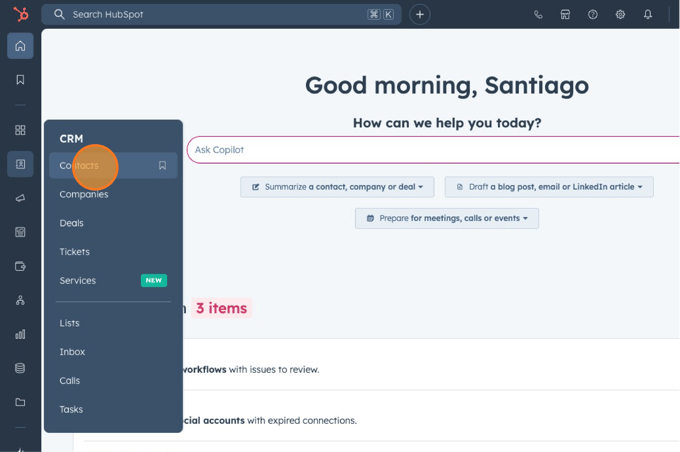
- Navigate to your Contacts page: From your HubSpot dashboard, click on Contacts in the main navigation menu (left-hand side). This will take you to your contacts dashboard, where you can see your existing contacts.
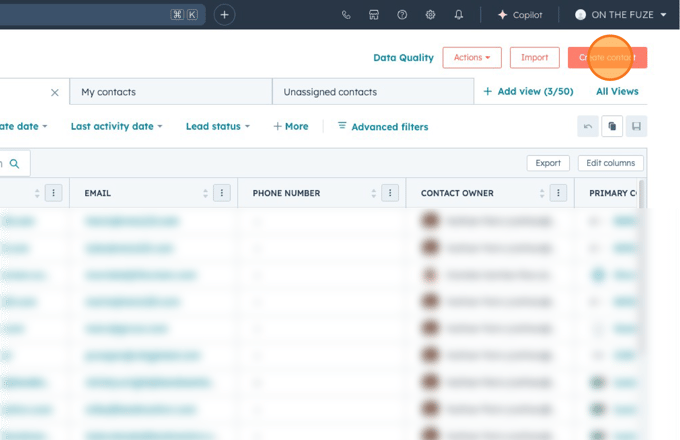
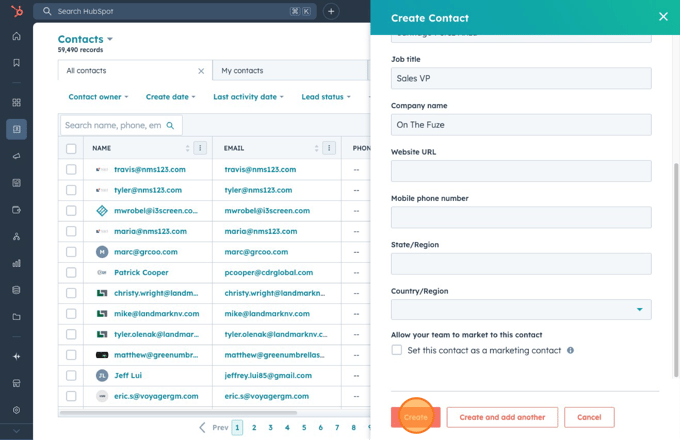
- Create a New Contact: Look for the Create Contact button in the upper right corner of your contacts dashboard. Click this button to open the contact creation form.
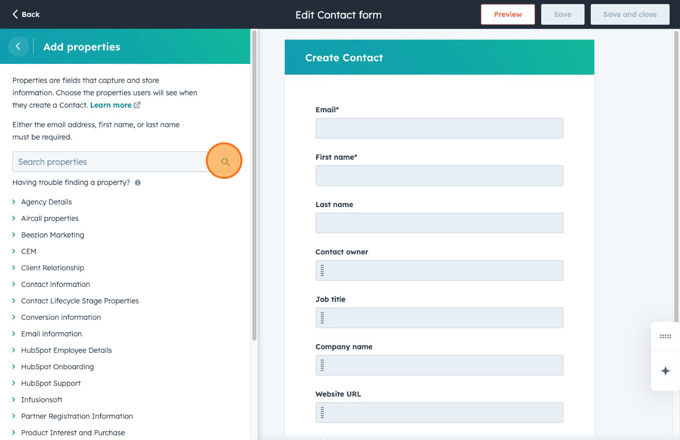
- Enter Contact Information: In the contact creation form, you'll see key relevant fields for your client. Fill in as much information as you have available. At minimum, we recommend including the contact's name and email address.
- Add Additional Details (Optional): HubSpot offers many additional contact properties you can populate. Click on Edit this form in the top right corner and then head to Add properties and search for the one you want to add. The more information you add, the more personalized your future interactions can be!
- Save Your New Contact: Once you've entered all the relevant information, click the Create button at the bottom of the form to save your new contact to your HubSpot database.


💡 Pro Tips for Creating Contacts
- Use consistent formatting: Establish guidelines for how you enter data (e.g., phone number format, capitalization) to keep your database clean.
- Check for duplicates: Before creating a new contact, use the search function to make sure they don't already exist in your database. To learn more about duplicates, check our HubSpot Support Guide: How to Identify and Merge Duplicate Contacts.
📺 Want to see more helpful tutorials? Click HERE to master HubSpot 📺