The Ultimate HubSpot Audit Checklist
In 10 minutes, you'll self-assess your current HubSpot setup, spot the most critical problems, and learn how to fix them.
Download Now

Managing your contacts effectively is a key part of using HubSpot to its full potential. Whether you’re looking for specific people, prospects, or clients, HubSpot makes it easy to search and filter your contact database.
In this post, we'll walk through how to search for contacts and use filters to narrow down your results, ensuring you can find exactly who you're looking for.
How to Search & Filter Contacts in HubSpot (Beginner Tutorial)
This video is part of our HubSpot Contact Management for Beginners tutorial. Learn about importing and exporting contacts, email integration, forms, and more by watching the full video here.
Easily Search for Contacts
The first step to finding the right contact is using HubSpot’s search bar.
It’s quick and efficient—just start typing in part of a contact's name, and HubSpot will immediately pull up matching results. This means you don’t have to scroll through endless lists or worry about missing anyone.
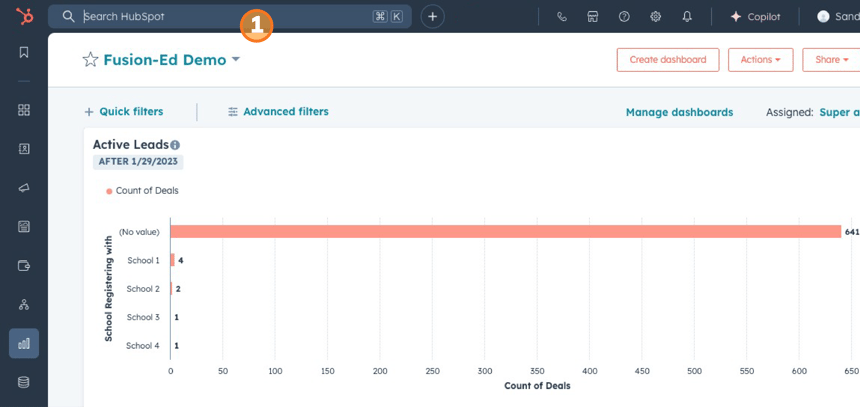
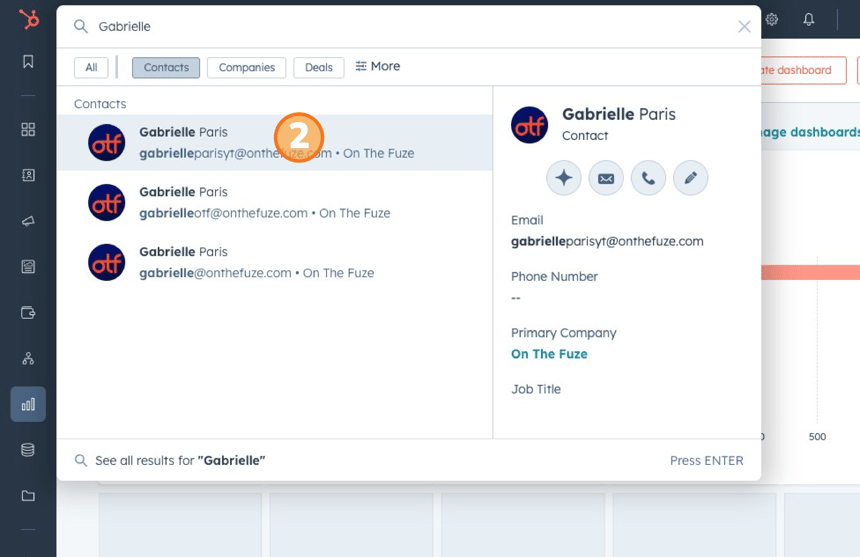
Here’s how easy it is: start typing a name, and within seconds, you’ll land on the contact’s record. It’s really that simple!

Narrow Your Search with Filters
Sometimes, you might want to get more specific with your search. That's where filters come in. HubSpot offers powerful filtering options that let you zero in on exactly the data you need. For example, you might want to find contacts who haven’t been contacted in the past month.
Here’s how to do it:
- Go to the filter tab in your contact database.

- Click on Last Activity Date to set a date range (like "this month" or a custom range).
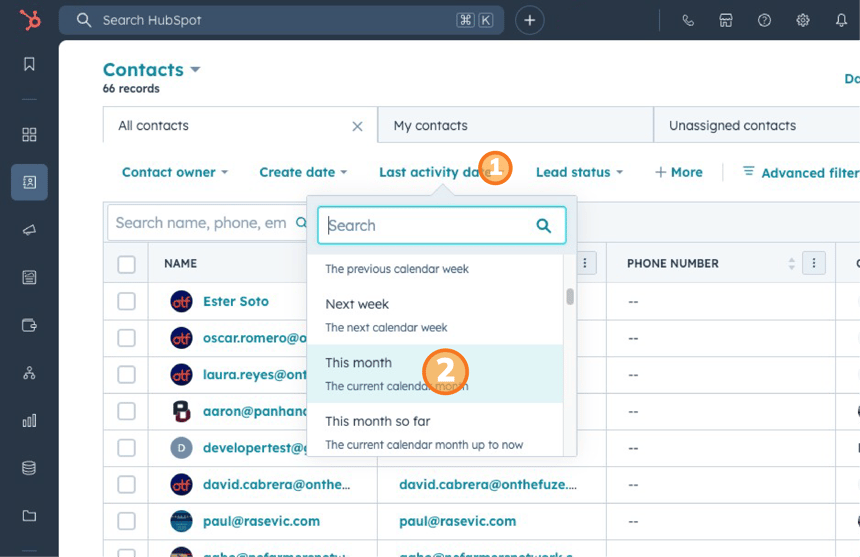
- HubSpot will show you only the contacts who fall within that criteria.
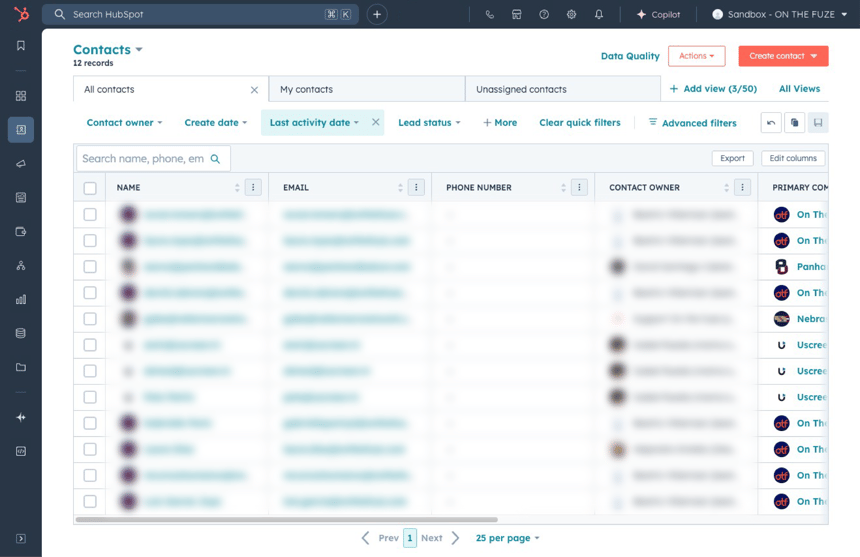
This is just one example, but you can get creative with filters to segment your contacts in any way you need. It could be by deal stage, contact owner, company name, or any number of custom properties. The possibilities are endless.
💡 Pro Tips for Better Contact Management
- Use Search Shortcuts: To save time, use search shortcuts like typing only the first few letters of a name or email address. HubSpot will filter results on the fly.
- Combine Filters: Don't just stop at one filter. Combine multiple filters (e.g., "Last Activity Date" and "Deal Stage") to create a more refined search that zeroes in on exactly what you need.
- Save Filter Views: If you frequently need to search using the same criteria, save your filter view. This way, you don’t have to set the filters from scratch every time you log in.
- Use Lists for Repeated Searches: If you have regular contact segments, like “leads” or “recently contacted,” create saved lists. This allows you to quickly access your target groups and make sure you’re always working with the right contacts.
📺 Want to see more helpful tutorials? Click HERE to master HubSpot 📺