The Ultimate HubSpot Audit Checklist
In 10 minutes, you'll self-assess your current HubSpot setup, spot the most critical problems, and learn how to fix them.
Download Now

Managing contacts and staying on top of your tasks in HubSpot is essential. In this post, we’ll walk you through how to assign a contact owner, log activities, and stay organized with tasks and reminders.
Whether you're new to HubSpot or just looking to improve your company's efficiency, this guide will help you stay on track.
How to Assign Contact Owners & Track Activity in HubSpot CRM
This video is part of our HubSpot Contact Management for Beginners tutorial. Learn about importing and exporting contacts, email integration, forms, and more by watching the full video here.

Assign a Contact Owner
Here's how to easily assign a contact owner and associate activities:
- Assign a contact owner: First things first—if you want to ensure that someone is responsible for following up with a contact, you’ll need to assign them as the contact owner. Here’s how to do it:
- Select the contact you want to assign by clicking the check mark next to their name.
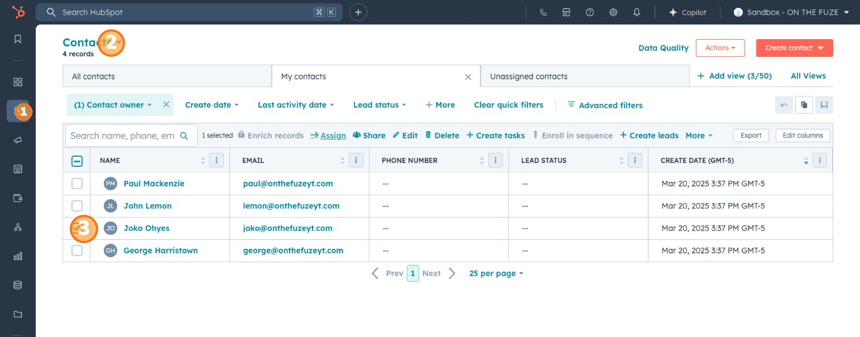
- Head up to the Assign button in the contact profile bar and click on it.
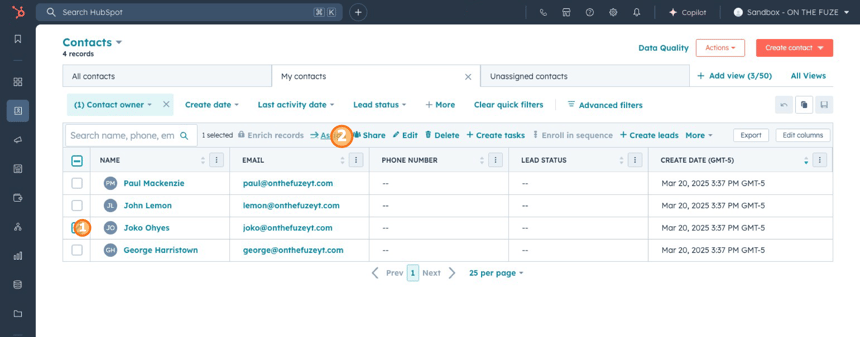
- Search for the contact owner you want to assign (for example, Santiago), then hit Update to confirm the assignment.
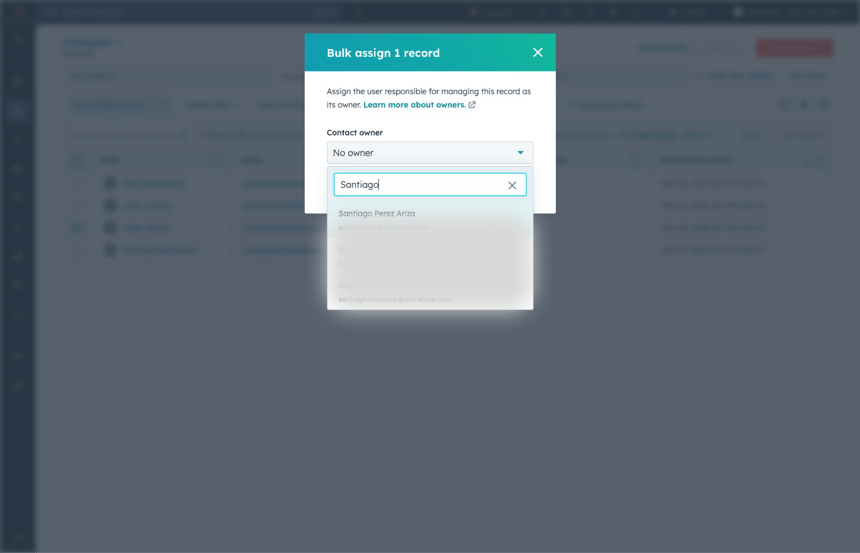
- Once you see the confirmation message, you’re all set! HubSpot will save your changes, and Santiago will now be the assigned contact owner.
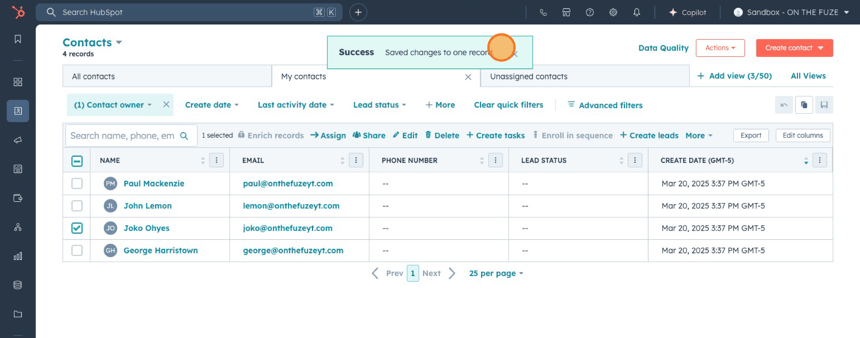
- Select the contact you want to assign by clicking the check mark next to their name.
- Stay on Top of Follow-Ups with Notes, Emails, and Tasks: Now that your contact has an owner, it’s time to track interactions and make sure follow-ups don’t fall through the cracks.
- Create a Note: To record a conversation or important detail, go to the Notes section of the contact profile. Click Create Note, type in the details of your interaction, and hit Create Notes. This keeps all your communication logged in one place.
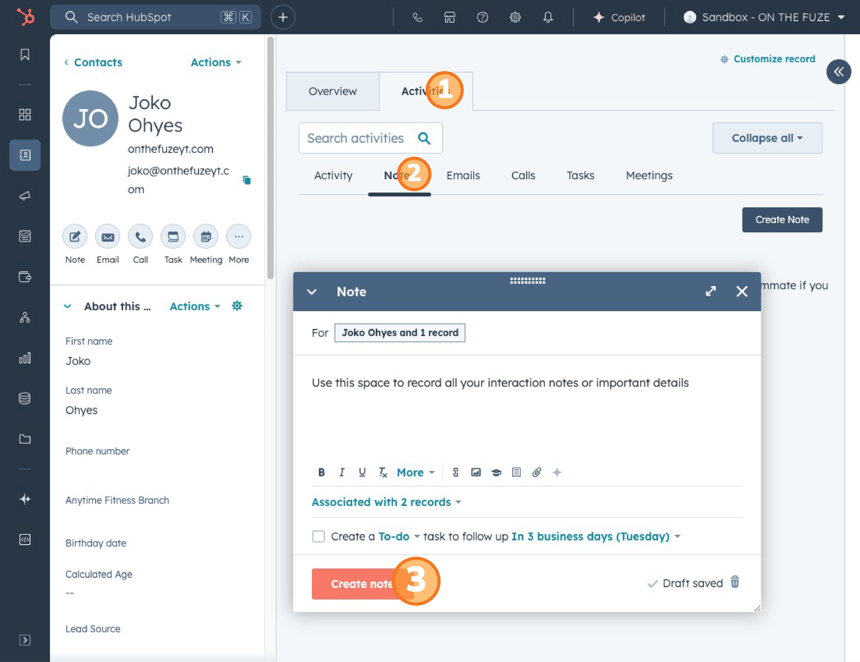
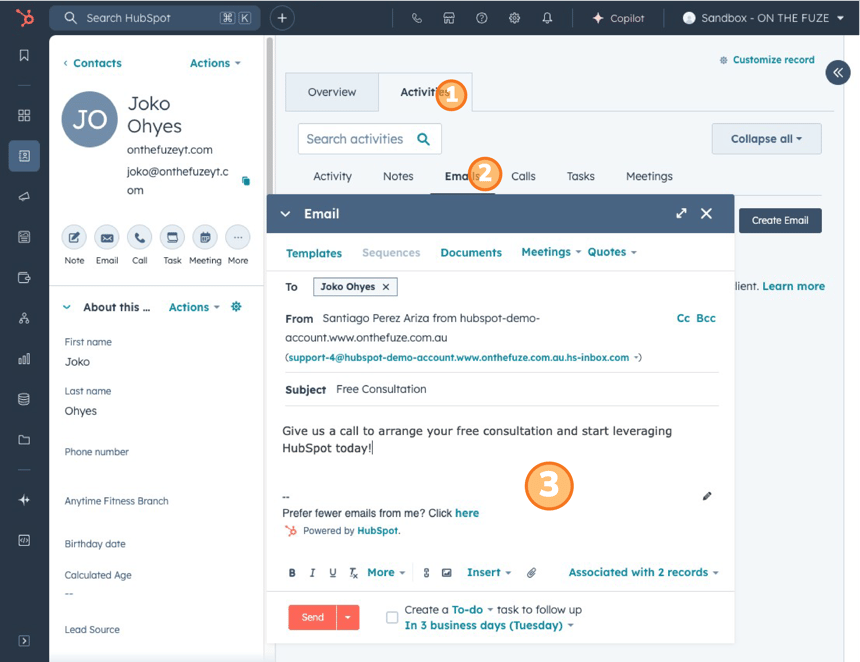
- Send and Track Emails: Want to email a contact and track that conversation? Head over to the Email tab, write your message (you can use a template or create a one-off email), and click Send. HubSpot will automatically log this email so you can refer back to it later.
- Set a Task for Follow-Up: To schedule a follow-up, go to the Tasks tab and click Create Task. Name the task (e.g., “Follow-up call with John”), set the priority, and add any relevant notes that will help you when the time comes to follow up. Once you’re ready, click Create, and HubSpot will send you a notification to remind you to follow up with John.
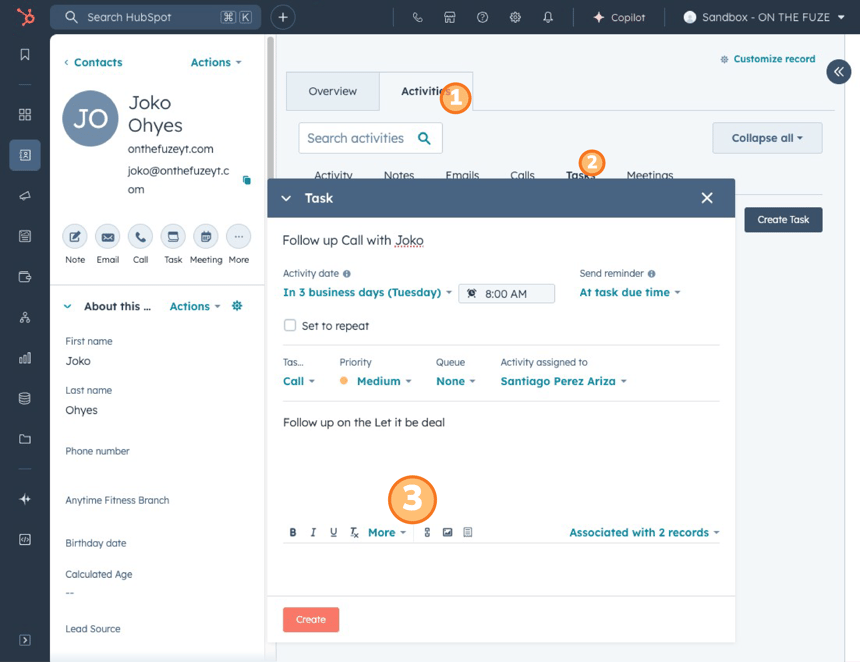
- Create a Note: To record a conversation or important detail, go to the Notes section of the contact profile. Click Create Note, type in the details of your interaction, and hit Create Notes. This keeps all your communication logged in one place.
Stay Organized and Never Miss a Follow-Up
Once your tasks and activities are logged, you can rest assured that you’re staying on top of your follow-ups. HubSpot will notify you at the appropriate time, keeping everything running smoothly and ensuring nothing falls through the cracks.
💡 Pro Tips for Managing Contacts
- Use a CRM Template for Consistency: When creating tasks, emails, or notes, try using templates to ensure consistency across your team. Templates also help save time and ensure that nothing is missed during the follow-up process.
- Regularly Update Contact Owners: If responsibilities shift, ensure the right person is always assigned to the contact. Regularly check if someone else should be the owner based on team structure or workload.
- Track Every Activity: Make sure to log all activities—whether it's a call, email, or meeting—so you have a full history of interactions with each contact. This helps you stay informed and build better relationships.
- Set reminders for tasks: Don’t rely on memory! HubSpot’s reminder feature ensures that tasks are never missed. Use it liberally for things like follow-ups, meetings, or important deadlines.
📺 Want to see more helpful tutorials? Click HERE to master HubSpot 📺