
Get The Quote-to-Contract Checklist
With before-you-publish instructions, signature setup, and everything you need to create quotes that turn into contracts automatically.
Download Now
HubSpot lets your team build, send, and track sales quotes inside the CRM and turn signed quotes into a live contract record automatically. It's part of Revenue Hub, HubSpot's quote-to-cash newest product, available on Professional and Enterprise. This replaces a stack of disconnected tools like PandaDoc or DocuSign for the document, a spreadsheet for tracking status, and a separate manual step to update the deal once someone finally signs.
In a world where three out of four revenue leaders say deals stall or go cold because their quoting process can't keep pace, according to HubSpot's own 2026 research*. That's not a sales problem. It's a setup problem, and this post will help you fix it.
Does HubSpot Have a Quoting Tool?
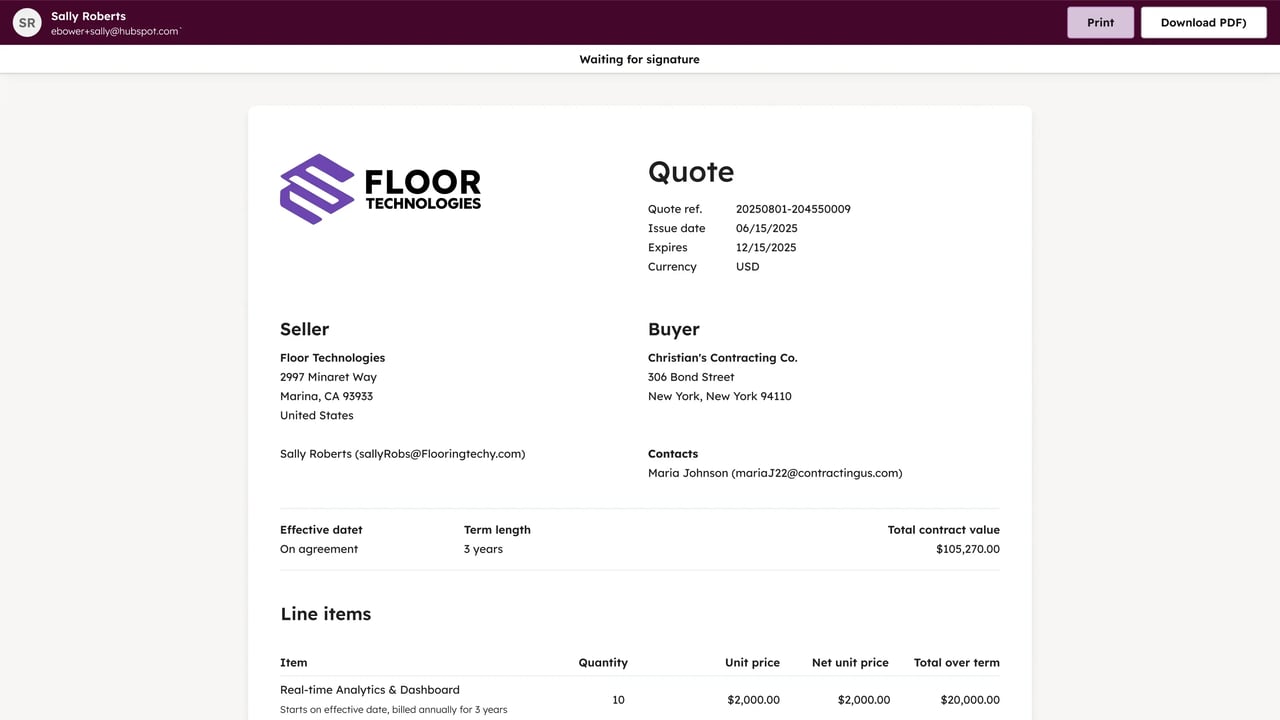
Yes. HubSpot's quoting tool is part of its AI-powered CPQ system (Configure, Price, Quote), included with Revenue Hub Professional and Enterprise. It's not a bolt-on or a third-party integration. A quote lives directly on a deal in your sales pipeline, pulls pricing from your product library, and can be branded, signed, and paid without leaving HubSpot.
🏆 Elite Partner Tip: if your team has been quoting through PandaDoc or DocuSign layered on top of HubSpot, check whether that integration is still doing anything a native Revenue Hub quote can't. Most SMBs are paying for a second tool to replicate something already included in their HubSpot subscription.
What Do You Need Before You Can Create a Quote?
Two things: a Revenue Hub seat and a product library that's already filled in. Skip either one and you'll hit a wall the moment you try to build your first quote.
- A Revenue Hub seat: assigned on a Professional or Enterprise subscription. This is what gives you access to custom templates, e-signature, quote approvals, and contract auto-creation.
- A populated product library: every line item on a quote pulls its name, price, and SKU straight from this library. If your products aren't set up yet, quotes will either be blank or built from numbers typed in by hand, which is exactly the inconsistency this tool is supposed to remove.
How Do You Customize Quote Templates in HubSpot?
Quote templates are built in a drag-and-drop editor with 10 configurable modules, no coding required. To get there:
- Click the settings icon.
- Navigate to Objects → Quotes.
- Click the Quote Templates tab.
- Click Open template library, then Create new quote template.
You'll be asked to pick from four template types: a standard quote template, a change quote template (for updating an existing contract), a renewal quote template (for renewing one), and a legacy quote template for accounts still using the older tool.
Once you're in the editor, these are the 10 modules available and what each one controls: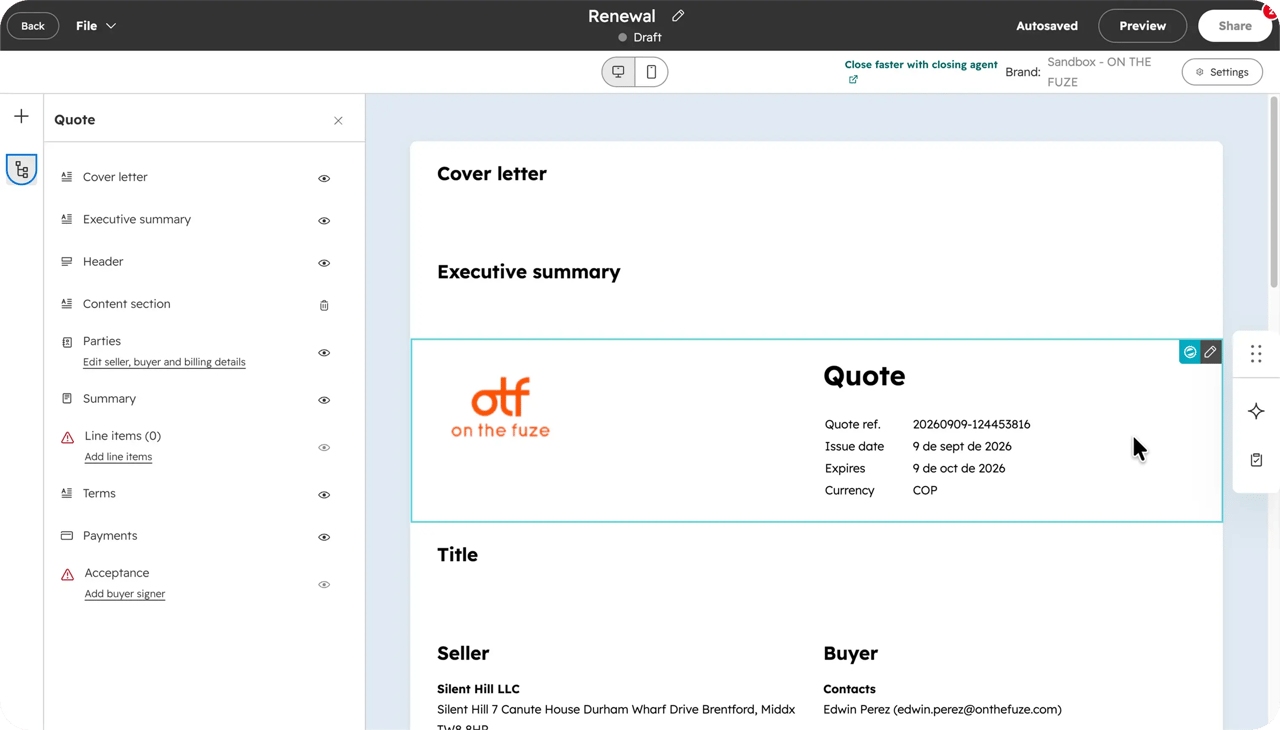
- Cover letter: an optional intro page. Use static content, or let AI generate fresh copy from the deal each time, with writing guidelines to steer tone.
- Executive summary: same static-or-AI choice as the cover letter.
- Header: toggle quote reference, issue date, and expiration date, and override the default logo for this template only.
- Parties: seller info, buyer company and contacts, and a separate "bill to" section for when billing differs from the buyer.
- Summary: toggle effective date, term length, total discount, total taxes, and total contract value.
- Line items: choose which columns to display, pulled from the product library.
- Billing: turn on automatic invoice and subscription creation the moment a quote is signed.
- Terms: contract language and attachments, no AI option here by design.
- Payments: enable online payment collection through your connected processor.
- Acceptance: choose which signing methods this template allows.
Every module can be reordered, deleted if optional, or locked in place so reps can't remove it.
Elite Partner Tip: lock the Terms module so no rep can accidentally strip your legal language out of a quote, but leave Line items open. Reps need the flexibility to add products; they don't need the ability to edit your contract terms.
Custom templates require Revenue Hub Professional or Enterprise. On Free, you're limited to HubSpot's default template.
How Do You Create Quotes in HubSpot?
Start from the deal, not from a blank page. Every quote should be tied to a real deal so it inherits the right contact and pipeline context.
- Open the deal.
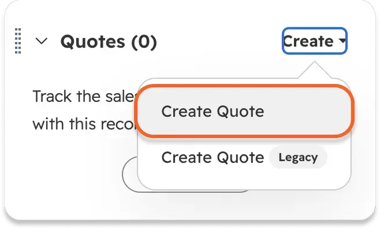
- In the right sidebar, find the Quotes card and click Create.
- Choose Create Quote (not the Legacy option, unless your account is still on the older tool).
- Under Quote purpose, select Create a new quote. This same dropdown is reused later to update or renew a signed contract.
- Select the template you built.
- Click Create quote.
From there, you'll fill in:
- Parties: buyer contact and billing details, needed for tax calculation.
- Line items: pulled from your product library, not typed by hand.
- Payments: turn on billing if you want invoices generated automatically once the quote is signed.
- Acceptance: choose how the buyer signs (more below).
Before sending, click Preview to check it exactly as your buyer will see it, then Settings to confirm the generated Quote URL and decide whether to turn on Automated reminders. When it's ready, click Share to make it live. Until that click, the quote is a draft only your team can see.
How Does E-Signature Work on HubSpot Quotes?
HubSpot's e-signature is powered by Dropbox Sign under the hood, and you never need a separate Dropbox Sign account to use it. Inside the Acceptance module, you have three signing options:
| Acceptance method | What it means |
|---|---|
| Print and sign | Buyer prints, signs by hand, and sends it back |
| E-signature | A real, legally binding electronic signature |
| Accept without signature | One click, no signature captured |
All three move a quote to Accepted status, which is what triggers contract creation downstream. E-signature is the right choice for anything you intend to manage as a real contract.
A few mechanics worth knowing before you turn it on:
- Identity verification is optional. When it's on, the buyer gets a secure email link with a one-hour window to verify before it expires.
- Keep quote PDFs under 40MB. Larger files, usually from high-resolution images embedded in a rich text module, can fail signature verification.
- E-signature usage is pooled at the account level: 25 per user, per month on Revenue Hub Professional, 50 per user on Enterprise, shared across every user with an assigned seat.
🏆 Elite Partner Tip: a signature is deducted from your pool the moment you publish a quote with e-signature turned on, not when the buyer signs it. Recalling and resending a quote costs another signature from the pool. Don't publish a signature-enabled quote until the buyer is genuinely ready to sign, or you'll burn credits on quotes that sit untouched.
How Do You Manage Quotes in HubSpot?
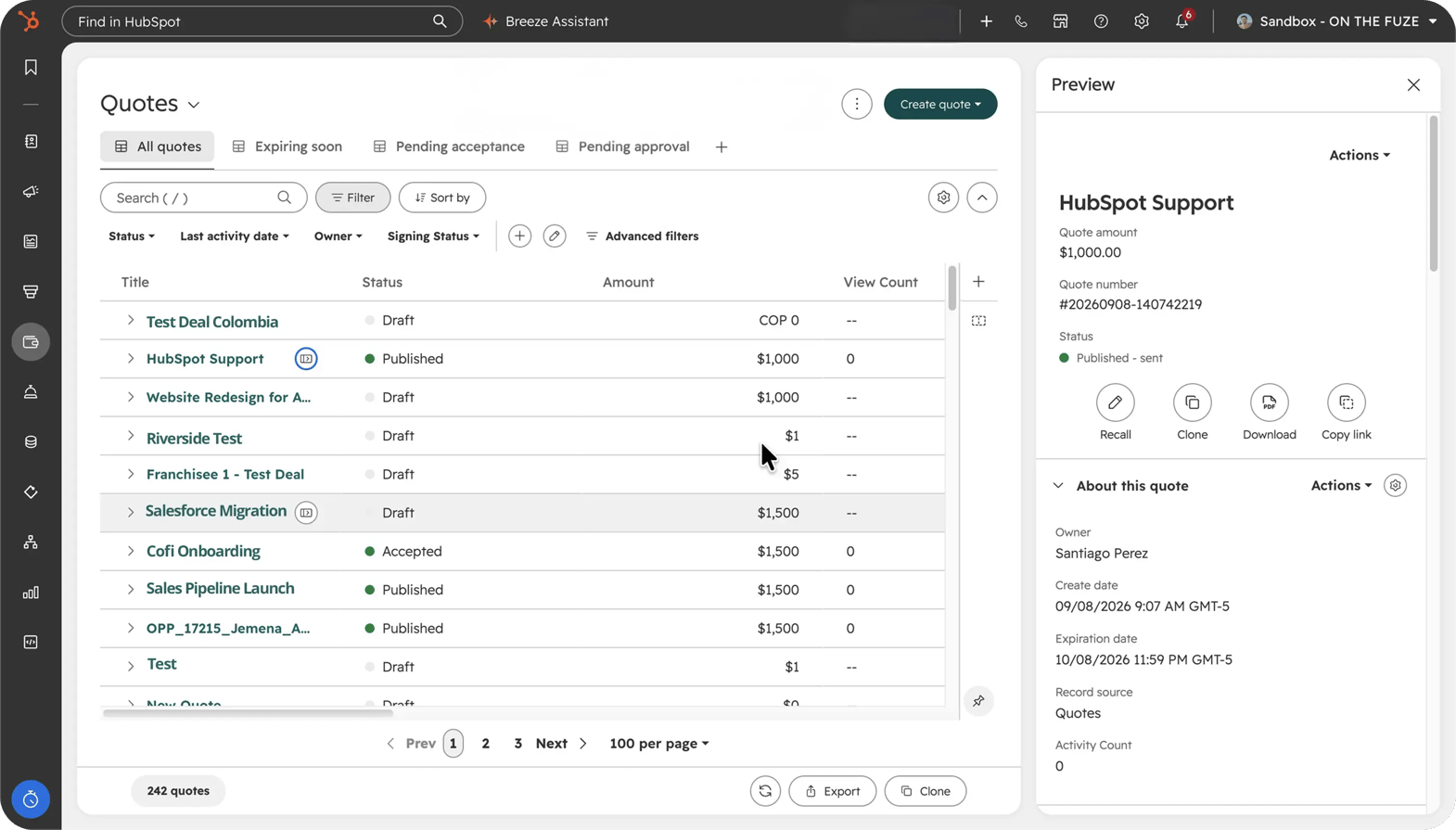
Every quote you've sent lives on one index page, sorted by status so you know what needs attention without digging. Go to Revenue → Quotes to see four tabs: All quotes, Expiring soon, Pending acceptance, and Pending approval.
Each quote carries a status:
- Draft: still being built, autosaved, not yet visible to the buyer.
- Published: live and shared with the buyer.
- Pending signature: sent, waiting on the buyer.
- Pending approval: held for internal review before it can go out.
- Changes requested: an approver sent it back.
- Accepted: every required step is complete, approval, acceptance method, and payment if applicable.
- Expired: the buyer didn't act before the expiration date.
HubSpot also tracks buyer activity automatically: when a quote is sent, viewed, downloaded, printed, and signed. One detail worth knowing: if a buyer opens the PDF attachment directly from the email instead of the shared link, that doesn't count as a tracked view.
If more than one quote is published against the same deal, the most recently published one automatically becomes the deal's primary quote, and the deal amount updates to match it.
How Do I Set Up Quote Approvals in HubSpot?
Quote approvals put a manager between a rep and a buyer before a discount goes out the door. There are two types, and you can only run one at a time.
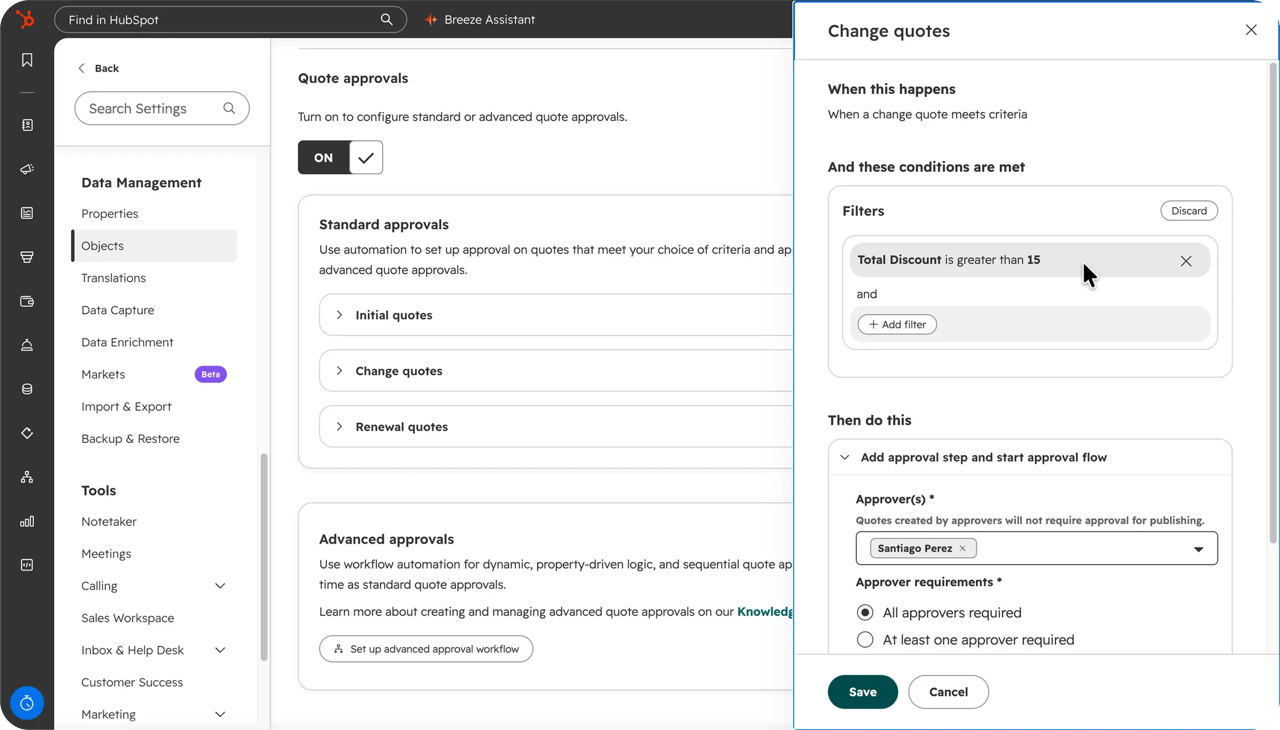
Standard approvals are filter-based and take a few minutes to configure:
- Go to settings → Objects → Quotes.
- Click the Approvals tab.
- Toggle Approvals on.
- Under Standard approvals, click Edit and add a filter, for example, "discount amount is greater than 15%."
- Choose up to 10 approvers, and decide whether all of them need to sign off or just one.
- Save, then toggle the Quotes switch on to activate it.
Advanced approvals, available on Revenue Hub Enterprise only, run through the workflows tool instead of a simple filter. They support sequential approval chains, up to five priority levels with up to 10 approvers each, so a quote can route from a sales manager to a director to legal, in order, without anyone getting pinged before it's their turn.
🏆 Elite Partner Tip: if only one rep is currently selling, approvals can feel like unnecessary friction. The moment a second rep starts sending quotes, turn standard approvals on with a discount threshold. It's the difference between catching a bad discount before it ships and finding out about it after the deal is closed.
How Do I Delete Quotes in HubSpot?
Deleting a quote works differently depending on whether it's still a draft or already published.
To delete a draft quote:
- Go to Revenue → Quotes.
- Hover over the draft and click Preview.
- Click Actions → Delete.
To delete a published or expired quote:
- If the quote hasn't been accepted or paid yet, select Recall & Edit first.
- Confirm in the pop-up window
- Then File at the top left and Delete.
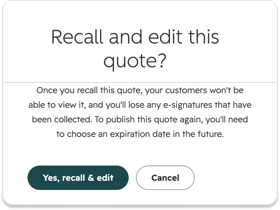
A quote that requires multiple e-signatures can be recalled, edited, or deleted even if not everyone has signed it yet.
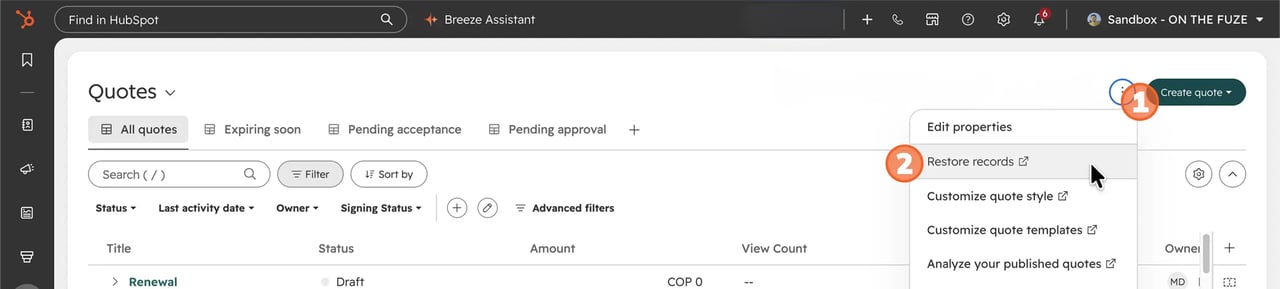
One thing to know before you delete anything: quotes with online payments or e-signature enabled can't be restored once deleted. Draft quotes without those features turned on can be restored from the Actions → Restore records option on the quotes index page. If there's any chance you'll need a quote back, archive it instead of deleting it. Archiving hides it from buyers and from your default view but keeps it recoverable.
How Does a Signed Quote Become a Contract Automatically?
A Super Admin has to turn this on once, and then it runs on every accepted quote without anyone touching it. In legacy HubSpot, a signed quote was the end of the story, and most businesses fell back on a spreadsheet to manage what happened next. Revenue Hub replaces that spreadsheet with a contract record that builds itself.
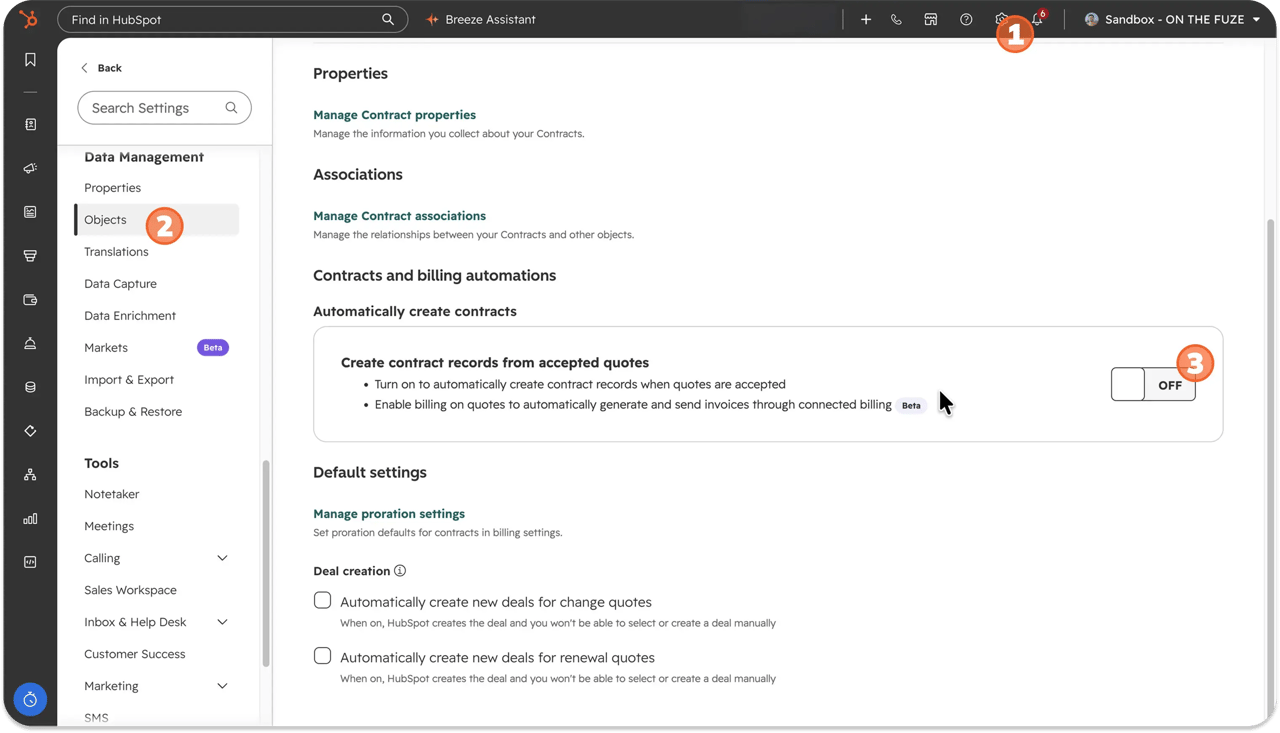
To turn it on:
- Go to settings → Objects.
- Select Contracts from the dropdown.
- On the Setup tab, switch on Create contracts from accepted quotes.
Once it's on, here's what carries over automatically the moment a quote is accepted:
| On the quote | Becomes, on the contract |
|---|---|
| Line items | Contract line items, unchanged |
| Billing schedule | The contract's billing schedule |
| Price | Total contract value (TCV) and annual contract value |
| Recurring price, if any | Monthly and annual recurring revenue (MRR / ARR) |
The contract record itself has three tabs: Overview (financial snapshot and current line items), Activities (every email, call, and update tied to the account), and History (the audit trail of every upgrade, downgrade, or renewal). Buyers never see this record. They only see what it generates downstream: quotes, invoices, and receipts.
This is also where renewals get easier. When it's time to renew, HubSpot pulls the contract's current terms into a new renewal quote automatically, not the numbers from the original signed deal. That matters because 76% of businesses miss renewals specifically because their revenue data lives somewhere other than their customer records*. A contract that updates itself removes that gap entirely.
What Mistakes Should You Avoid With HubSpot Quotes and Contracts?
Most of the expensive mistakes here aren't about the quote itself; they're about the setup decisions made before anyone hits send.
- Never turning on auto-contract creation. Everything else can be perfect; the template, the e-signature, the approval chain, and a signed deal still won't produce a contract if this one Super Admin setting was never flipped on.
- Publishing e-signature before the buyer is ready. The signature is deducted from your pool at publish, not at signing. A quote that sits untouched for a month still costs a credit, and resending it costs another.
- No approval threshold on discounts. Once more than one person is sending quotes, an unreviewed discount is a margin leak waiting to happen.
- Quoting from a stale or incomplete product library. If the numbers on the quote weren't pulled from a maintained product library, they won't match what gets billed, and they won't match what the contract inherits either.
- Deleting a published quote without checking its status first. Anything with e-signature or online payments already enabled can't be brought back. Archive when in doubt.
Frequently Asked Questions
Does HubSpot have a quoting tool?
Yes. It's part of HubSpot's AI-powered CPQ system, included with Revenue Hub Professional and Enterprise.
How do I delete quotes in HubSpot?
Draft quotes can be deleted directly from the quotes index page. Published or expired quotes need to be recalled and edited first if they haven't been accepted or paid, then deleted. Quotes with e-signature or online payments enabled can't be restored once deleted.
How do I set up quote approvals in HubSpot?
Go to settings → Objects → Quotes → Approvals tab, turn approvals on, and configure standard approvals with a property-based filter (like a discount threshold) and up to 10 approvers. Advanced, sequential approval workflows require Revenue Hub Enterprise.
Do I need a separate e-signature tool like DocuSign?
No. E-signature is built into the quotes tool, powered by Dropbox Sign, with no separate account required.
What happens if I don't turn on automatic contract creation?
Quotes will still work exactly as before, they'll get signed and accepted, but no contract record will be created, and none of the downstream renewal, billing, or revenue tracking benefits will apply.
Can quote templates be customized without a developer?
Yes. The template editor is entirely drag-and-drop, with 10 configurable modules and no code involved.
Key Takeaways
- HubSpot's quoting tool is native, built on AI-powered CPQ, and included with Revenue Hub Professional and Enterprise, no third-party tool required.
- A Revenue Hub seat and a maintained product library are the two prerequisites before building your first quote.
- Quote templates have 10 configurable modules that can be reordered, locked, or removed to match how your team sells.
- E-signature is pooled at the account level and consumed at publish, not at signing, so timing matters.
- Deleting quotes works differently for drafts versus published quotes, and anything with e-signature or payments enabled can't be restored.
- A signed quote only becomes a contract automatically if a Super Admin has turned on "Create contracts from accepted quotes," a single setting most accounts never enable.
- Contracts inherit line items, billing schedules, and revenue totals from the signed quote and keep renewal quotes current automatically.
*State of B2B Revenue, 2026, HubSpot

On The Fuze is a Top 1% HubSpot Elite Partner with 10+ years of experience and 3,000+ CRM setups optimized across North America. We help small and medium-sized businesses leverage the full potential of HubSpot to scale their businesses.