HubSpot Processor Decision Sheet
Compare HubSpot Payments vs. Stripe side by side, see which one protects your margin, and use our template to import your product library clean from day one.
Download Now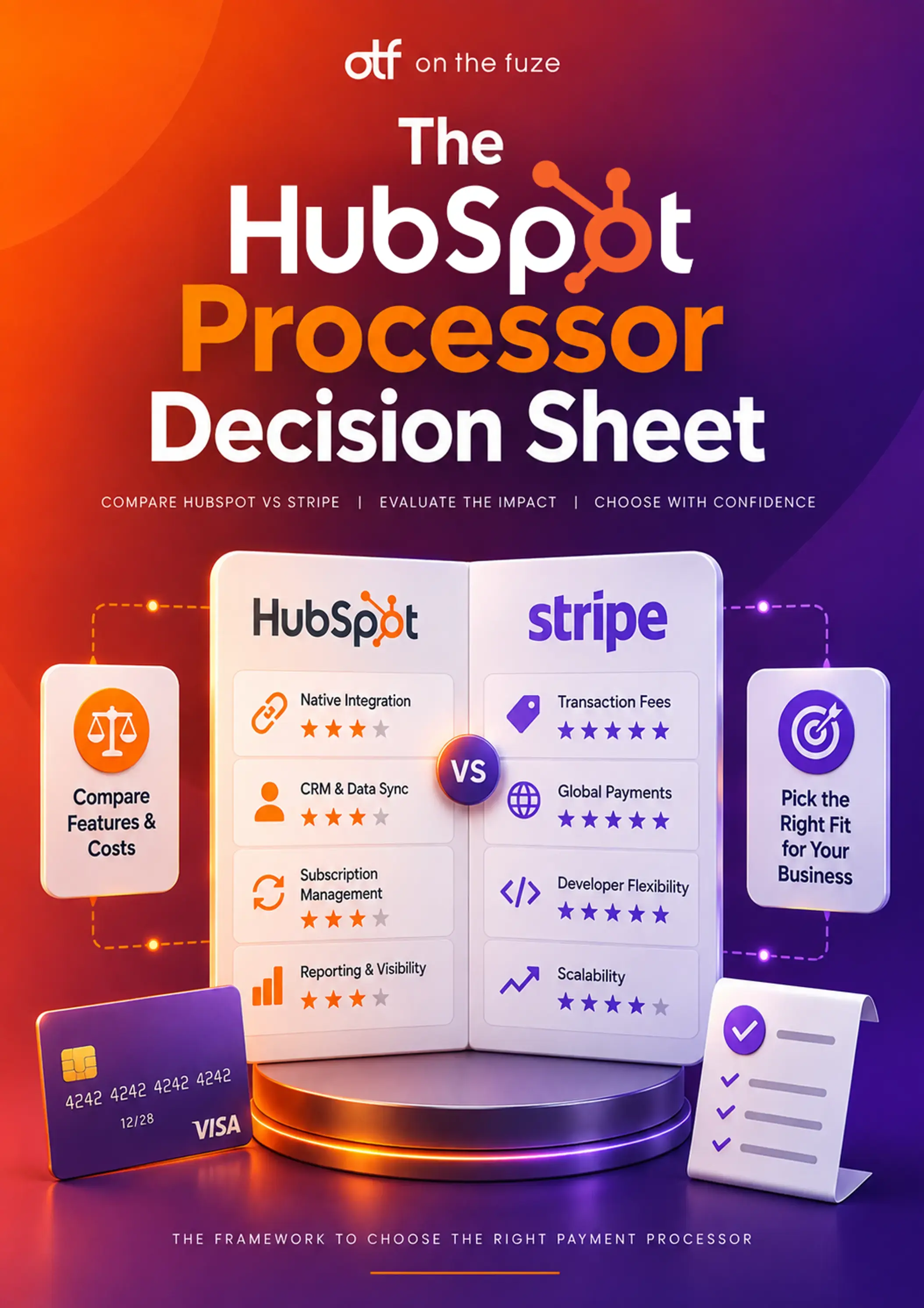

Revenue Hub setup comes down to three decisions made before you send a single quote: your payment processor, your product library, and your currency configuration. Get any of them wrong, and you won't find out until it's expensive. You're overpaying hundreds of dollars per invoice on the wrong processor. Your reports don't match reality because reps stopped using a messy product catalog. A quote stalls mid-negotiation behind a currency error nobody saw coming.
Revenue Hub setup isn't a technical checkbox; it's a financial decision your team lives with for years. Most teams jump straight to building quotes. That's backwards: every quote, contract, invoice, and payment you send later inherits whatever foundation you build first.
This guide walks through the exact configuration decisions, processor, product catalog, currency, and tax that determine whether Revenue Hub becomes the single source of truth for your revenue or one more disconnected tool your team quietly works around.
What Do You Need Before You Set Up Revenue Hub?
Three things determine whether Revenue Hub, and specifically HubSpot's native payment processor, is even available to your business: your subscription tier, your country, and what you sell. Confirm all three before you touch a single setting.
1. Your subscription tier
 *Price shown in USD and subject to applicable tax.
Revenue Hub's core setup features are gated by tier:
- Free and Starter: basic products, invoices, payment links, and simple subscriptions only.
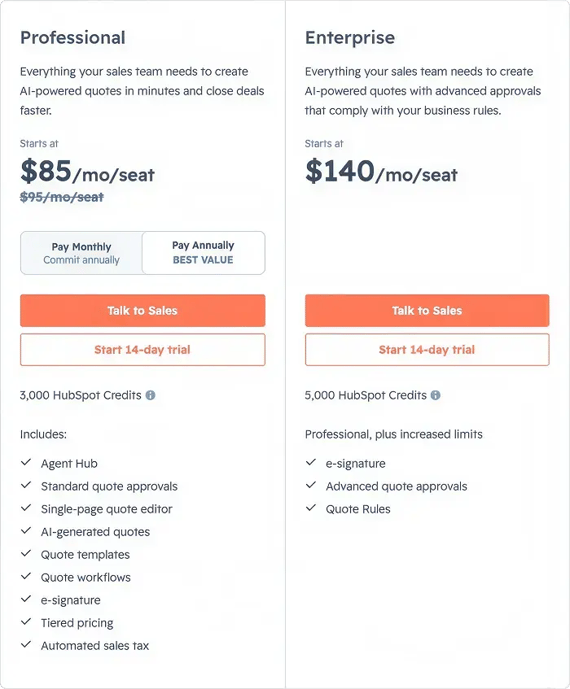
- Professional ($95/seat/month, billed annually): adds CPQ quoting, contracts, e-signature (25 per user/month), tiered pricing, Price Books, and revenue analytics.
- Enterprise ($140/seat/month, billed annually): adds advanced, multi-stage quote approvals and a higher e-signature allowance (50 per user/month).
New customers who add Revenue Hub alongside Sales Hub currently qualify for discounted bundle pricing: $57/seat/month for Professional and $98/seat/month for Enterprise. Confirm current bundle eligibility with your HubSpot rep, since promotional pricing changes.
🏆 Elite Partner Tip: Don't buy Professional or Enterprise seats for your entire team on day one. License the reps who build quotes and manage contracts. Everyone else can view records with a free Core Seat.
2. Your country
To use HubSpot payments, HubSpot's own processor, your business must be based in the United States, United Kingdom, or Canada, with a matching local bank account in the same country as your business registration. If you're outside those three countries, HubSpot payments isn't available to you at all; you'll connect an existing Stripe account instead.
3. What you sell
Revenue Hub is built for services, subscriptions, and digital products, not physical-goods e-commerce with live shipping and inventory tracking. There's no native shipping-rate calculator or inventory decrement engine. If your business ships physical products, you'll typically pair Stripe with a dedicated e-commerce platform rather than relying on Revenue Hub alone.
A "no" on either country or product doesn't lock you out of Revenue Hub's other tools. It just means your processor decision is already made for you: Stripe.
HubSpot Payments or Stripe: Which Should You Connect?
Your business only supports one connected payment processor at a time, so this is a real either/or decision, not a "start with one, add the other later" situation. The two options don't just differ on paper. Every fee line is different, and on a large invoice, the gap adds up fast.
The two options, side by side
| HubSpot Payments (Native) | Stripe (Connected) | |
|---|---|---|
| What it is | HubSpot's own processor, managed entirely inside the CRM | Your existing Stripe account, with HubSpot as the front end |
| Card processing | 2.9% per transaction, no additional fees | 2.9% + $0.30 per transaction, plus $15 per dispute (your negotiated rate applies if you already have a Stripe account) |
| ACH bank transfer | 0.8%, capped at $10 per transaction | 0.8%, capped at $5 per transaction |
| Platform fee | 0.5% per transaction, capped at $10 on ACH; currently waived for new HubSpot Payments signups for a full year | 0.75% per transaction, uncapped |
| Countries supported | US, UK, Canada only | Anywhere Stripe operates |
| Currencies | USD-based, with a cross-border fee for international cards | 130+ currencies natively |
| Who manages disputes and payouts | HubSpot, inside your CRM | Stripe, on your existing dashboard |
Why the cap matters more than the headline rate
Run the same $50,000 invoice through both options, paid by ACH bank transfer:
- HubSpot Payments: $10 processing fee (capped) plus $10 platform fee (capped) equals $20 total. Under the current new-account promotion, the platform fee is waived, so that drops to $10 for your first year.
- Stripe (connected): $5 processing fee (capped) plus a $375 platform fee (0.75%, uncapped) equals $380 total.
That gap only widens as your invoice size grows, because HubSpot's fees stay capped while Stripe's platform fee keeps scaling with the transaction.
The decision matrix
| Your business | Use | Why |
|---|---|---|
| B2B services or SaaS, based in the US, UK, or Canada | HubSpot Payments | Capped fees protect your margin on large invoices; payouts and disputes stay inside HubSpot |
| Global reach, multiple settlement currencies | Stripe | 130+ currencies settle natively, avoiding forced USD conversion on foreign buyers |
| Complex usage-based or metered billing | Stripe | More mature support for consumption-based billing architectures |
| Physical goods with shipping and inventory | Stripe plus a dedicated e-commerce platform | Revenue Hub doesn't natively handle shipping calculators or inventory decrementing |
🏆 Elite Partner Tip: If you're already running Stripe and considering a switch, don't disconnect first. HubSpot supports migrating an existing Stripe setup to native HubSpot Payments without a gap in service. Map out the fee difference on your actual transaction volume before you commit either way.
How to connect your processor, step by step
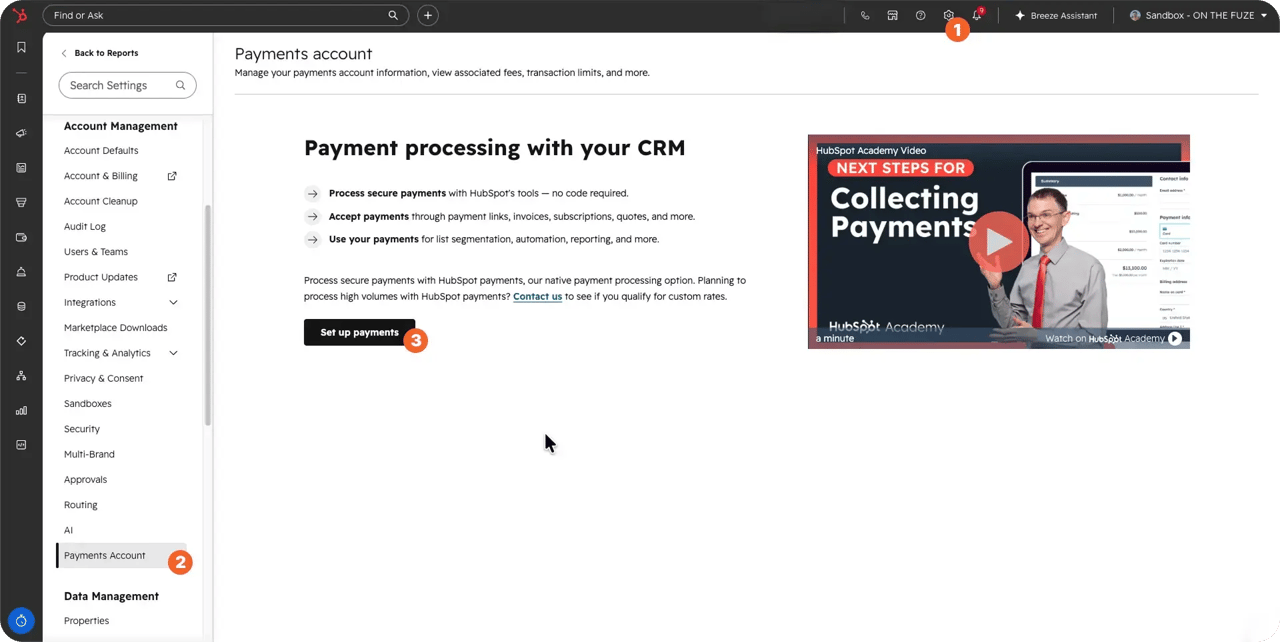
- Click the Settings gear in the top navigation bar.
- In the left menu, under Account Management, click Payments Account.
- Click Set up payments.
- Optional: click Take this quick survey for a processor recommendation based on your business profile.
- In Choose a payment processor, select HubSpot payments and continue, or choose to connect your existing Stripe account instead.
- Fill in your country, business type, tax ID, ownership details, and bank account. On Review and finish, accept the terms and submit.
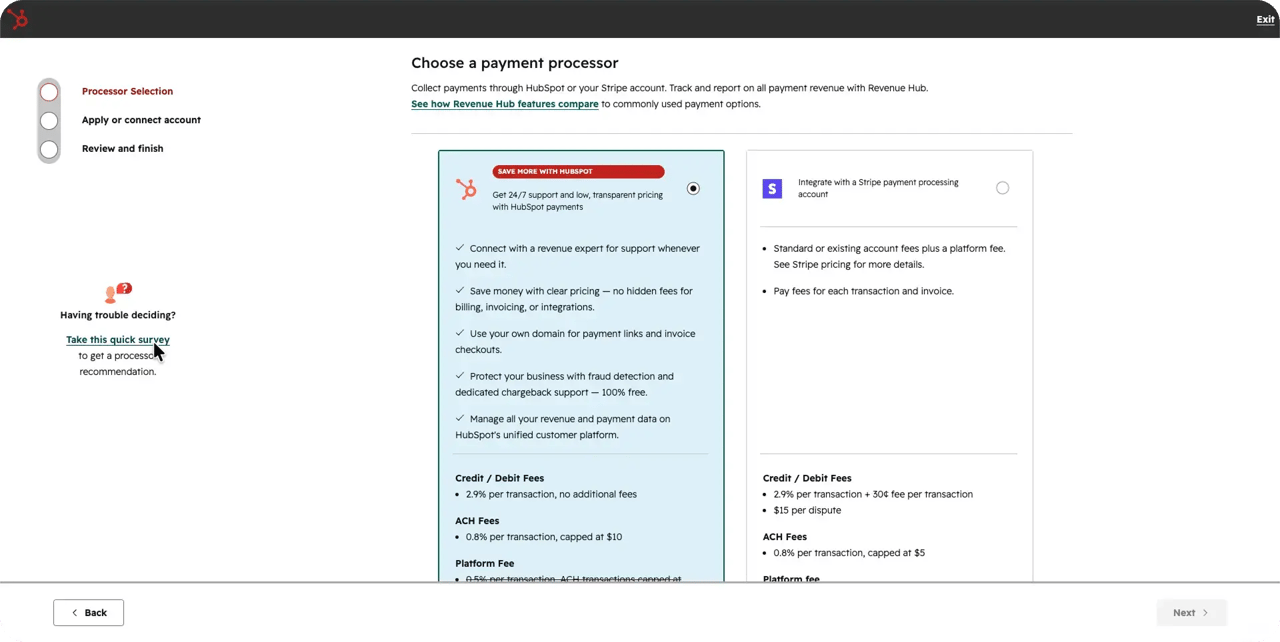
If you chose HubSpot Payments, underwriting is typically automatic within one to two business days, though HubSpot's team may request additional documentation in some cases, extending the review to two or three business days. You can't take payments until underwriting clears.
🏆 Elite Partner Tip: Sandbox and developer accounts only show Stripe as an option. HubSpot Payments isn't available in test environments. If you're demoing the setup flow and don't see it, that's expected behavior, not a bug.
How Do You Build a Clean Product Library in HubSpot?
Your product library is the single source of truth every quote, contract, and invoice pulls from. Get it wrong here, and the error follows every deal downstream.
Add a product correctly
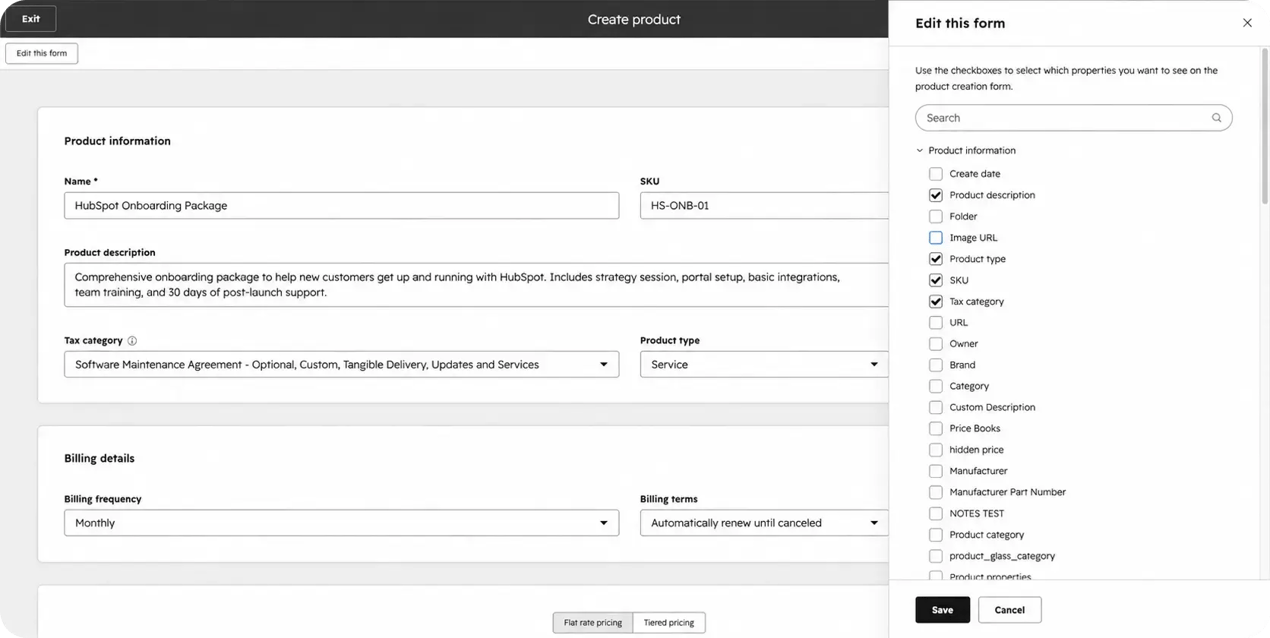
Navigate to CRM → Products and click Create product. A handful of fields do the real work:
- Name and SKU: exact, consistent naming so reps never retype or guess. SKUs are optional but make reporting dramatically cleaner once your catalog grows past a handful of items.
- Product Type and Tax Category: these classify the item for financial reporting and are required for automated tax calculation to work correctly later.
- Billing Frequency: switching this from One-time to Monthly (or another cadence) is what turns a sale into recurring revenue and automatically populates your MRR and ARR.
- Pricing: flat rate for a standard price, or tiered pricing (Professional and Enterprise only) for volume-based discounting.
- Unit Cost: what it costs you to deliver. HubSpot automatically calculates Margin beside it, letting you build approval rules around margin erosion instead of raw discount percentage.
Importing products in bulk
If you're migrating an existing catalog, go to the Products page and click Import. Map your spreadsheet columns to the same fields: name, price, billing frequency, and tax category. Import a clean file, with one row per product and no duplicates. Whatever you import is exactly what every quote and invoice will read from afterward.
Skip the trial and error: our free Product Import Template already has these columns mapped out and includes worked examples, so you can drop in your catalog and import it clean on the first try. Grab the template here.
The three-tiered pricing models
If your business sells at volume, Revenue Hub supports three distinct tiered pricing structures (Professional and Enterprise only):
| Model | How it works | Best for |
|---|---|---|
| Volume-based | The discounted rate applies to all units once a threshold is crossed | Bulk licensing or wholesale goods |
| Stair-step | A flat fee applies to a defined range of units (for example, 1 to 10 users at $500/mo flat) | Seat-based software packages |
| Graduated | Each tier is priced independently, and the final price blends across tiers | Metered usage, like storage or API calls |
🏆 Elite Partner Tip: Don't let your product library become a dumping ground for one-off custom line items. Every time a rep types a custom item instead of selecting from the catalog, it skips your pricing rules, breaks tax classification, and makes product-level revenue reporting unreliable. If a product doesn't exist yet, add it to the library first, even for a one-time deal.
How Do You Set Up Currencies, Tax, and Price Books?
Currency setup is mandatory the moment you sell internationally. Automated Sales Tax and Price Books are optional power-ups you turn on only when you need them. Treating all three as equally urgent is a common way setup projects stall.
Currency: the core, non-negotiable setting
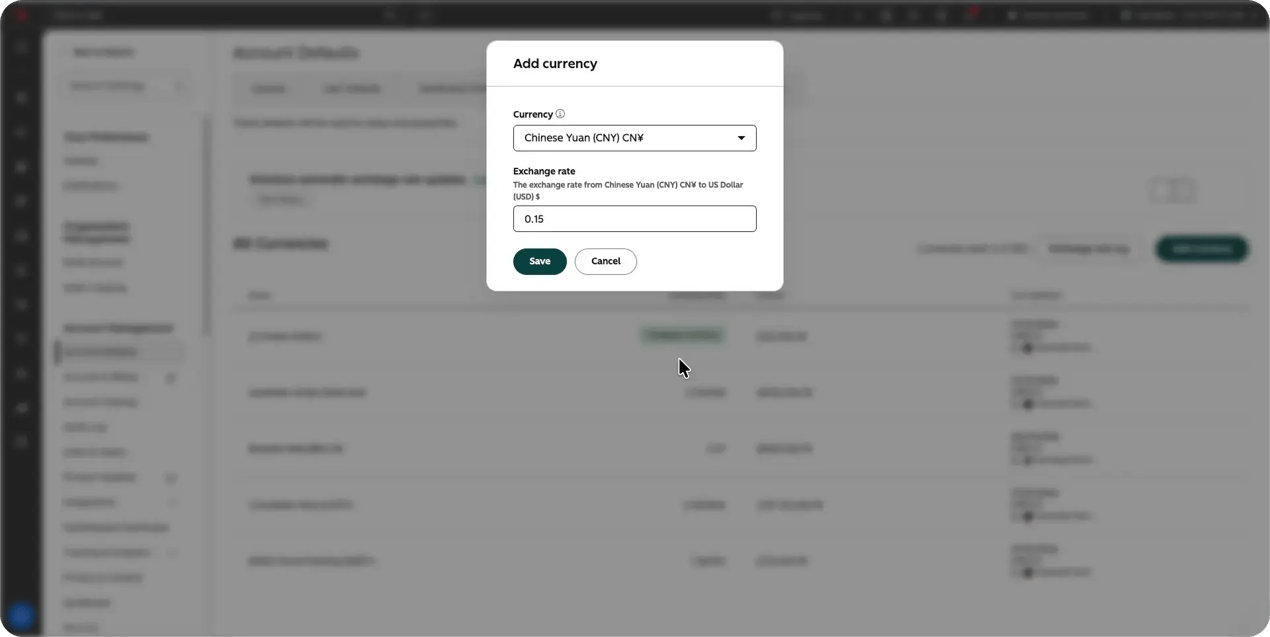
Go to Settings → Account Defaults → Currency tab → Add currency, and add every currency you actively sell in. This exposes a per-currency price column on every product in your library.
Currency is set at the Deal level, not the quote. A rep can't start a deal in USD and switch to GBP mid-negotiation on the quote. If an international deal needs a localized price and the product doesn't have one set, HubSpot triggers a "missing currency" alert and blocks the quote until it's resolved.
Multi-currency support requires at least a Starter subscription, with capacity scaling by tier: Starter supports up to 5 currencies, Professional up to 30, and Enterprise up to 200.
Automated Sales Tax (optional)
Automated Sales Tax calculates the correct tax rate at checkout based on your tax registrations, the product's assigned Tax Category, and the buyer's address. Turn this on once you're collecting tax across multiple states or provinces. It isn't required to start selling.
Price Books (Public Beta)
Price Books let you layer contextual pricing, a regional rate, a partner discount, and a quarterly promotion on top of a single base product, instead of cloning the SKU for every variation. As of mid-2026, Price Books is in public beta and available to Professional and Enterprise accounts that opt in. It hasn't reached general availability yet, so treat it as a power-up to evaluate, not a foundational requirement.
What Mistakes Should You Avoid When Setting Up Revenue Hub?
The most expensive Revenue Hub mistakes are rarely about the software. They're about treating setup as a one-time task instead of an ongoing discipline.
Letting the product library drift
One clean product doesn't keep your catalog clean. Once duplicates and vague names creep in, reps can't find the right item and start typing custom line items instead, quietly breaking your pricing rules, your tax classification, and your reporting all at once.
Skipping "optional-looking" fields
Billing Frequency, Unit Cost, and Tax Category don't look mandatory on the product form, but skipping them has real consequences. No Billing Frequency means a recurring product never populates MRR. No Unit Cost means you're approving discounts blind, with no visibility into margin. "No Tax Category" means Automated Sales Tax can't classify the item at all.
Routing large invoices through the wrong processor
A US-based service business running Stripe instead of HubSpot Payments pays an uncapped 0.75% platform fee instead of a $10 cap, a difference that grows directly with your invoice size.
Ignoring the currency-on-the-deal rule
Setting a deal's currency incorrectly, or forgetting to add a localized product price, means a quote you thought was ready gets stuck behind a "missing currency" alert at the worst possible moment: mid-negotiation.
Treating setup as a launch task instead of a review cadence
Business processes change. A product library, tax configuration, or processor decision that was right a year ago may no longer match how your team sells today. Without a periodic review, small misalignments compound quietly until reporting stops matching reality.
Frequently Asked Questions
What's the difference between HubSpot Payments and Stripe in Revenue Hub?
HubSpot Payments is HubSpot's own processor, managed entirely inside the CRM, with fees capped on card disputes and ACH transactions and available only to businesses in the US, UK, or Canada. Stripe is your own account, connected as an integration, with an uncapped 0.75% platform fee but support for 130+ currencies and global availability.
Can I use both HubSpot Payments and Stripe at the same time?
No. A HubSpot account supports one connected payment processor at a time. Switching later is possible, but it's a deliberate migration, not a simple toggle.
Do I need Revenue Hub Professional to set up a product library?
No. Basic product creation is available on Free and Starter. Professional and Enterprise add tiered pricing, Price Books, contracts, and e-signature: features most growing businesses need as their catalog and deal volume mature.
Why does HubSpot show a "missing currency" alert on my quote?
This happens when a deal is set to a currency that the product on the quote doesn't have a defined price for. Add the localized price to the product record, or apply HubSpot's automated exchange rate conversion, to clear the alert.
Is Price Books available yet?
Price Books is in public beta as of 2026, open to Professional and Enterprise accounts that opt in. It hasn't reached general availability, so treat it as an evaluation, not a required setup step.
How long does HubSpot Payments underwriting take?
Underwriting is often completed automatically within one to two business days. In cases where HubSpot needs additional documentation, review can extend to two or three business days. You can't process payments until they clear.
What happens if I skip Billing Frequency on a product?
The product stays classified as a one-time sale. It won't populate your Monthly or Annual Recurring Revenue numbers, even if you're billing the customer on a recurring basis.
Key Takeaways
- Three decisions determine your Revenue Hub foundation: payment processor, product library structure, and currency configuration. Every later step inherits whatever you build here.
- HubSpot Payments and Stripe are a real either/or, with genuinely different fees on every line. For US, UK, or Canada-based service and SaaS businesses, HubSpot's capped fees protect margin on large invoices; Stripe wins on global currency reach and existing integrations.
- Your product library is the single source of truth. Clean names, correct billing frequency, and assigned tax categories aren't optional details; they're what every quote, contract, and invoice reads from later.
- Currency is set on the Deal, not the quote, and missing a localized price will block a quote from going out at the worst possible time.
- Automated Sales Tax and Price Books are power-ups, not prerequisites. Turn them on when you need them, not on day one.
- The most expensive mistakes are about drift, not day-one setup. A clean foundation degrades quietly without a regular review cadence.