If your team has more than five people using HubSpot, your permissions setup is either protecting your revenue or quietly draining it. Most small businesses never configure this correctly—and they pay for it in corrupted data, missed follow-ups, and reports they can no longer trust.
This guide gives you the technical depth to set up, audit, and scale HubSpot user permissions the right way. Whether you're a founder who just hired your fifth rep or an ops leader trying to tighten a system that's gotten out of control—this is where you start.
What Are HubSpot User Permissions?
HubSpot user permissions control exactly what each person on your team can see, do, and change inside your CRM.
Every user in your portal has a set of permissions assigned to them. Those permissions determine whether they can view contacts, edit deals, delete records, access reports, publish emails, or change account settings. Without deliberate configuration, most users end up with either too much access or too little—both of which create problems.
Permissions in HubSpot operate across two levels:
- Object-level permissions — What a user can do with CRM records (Contacts, Companies, Deals, Tickets)
- Tool-level permissions — What features a user can access (Marketing, Sales, Service, Reporting, Settings)
Think of it this way: tool permissions answer "Can you enter this part of HubSpot at all?" Object permissions answer "Once you're in — can you touch this record?"
Why Do HubSpot Permissions Matter for Your Business?
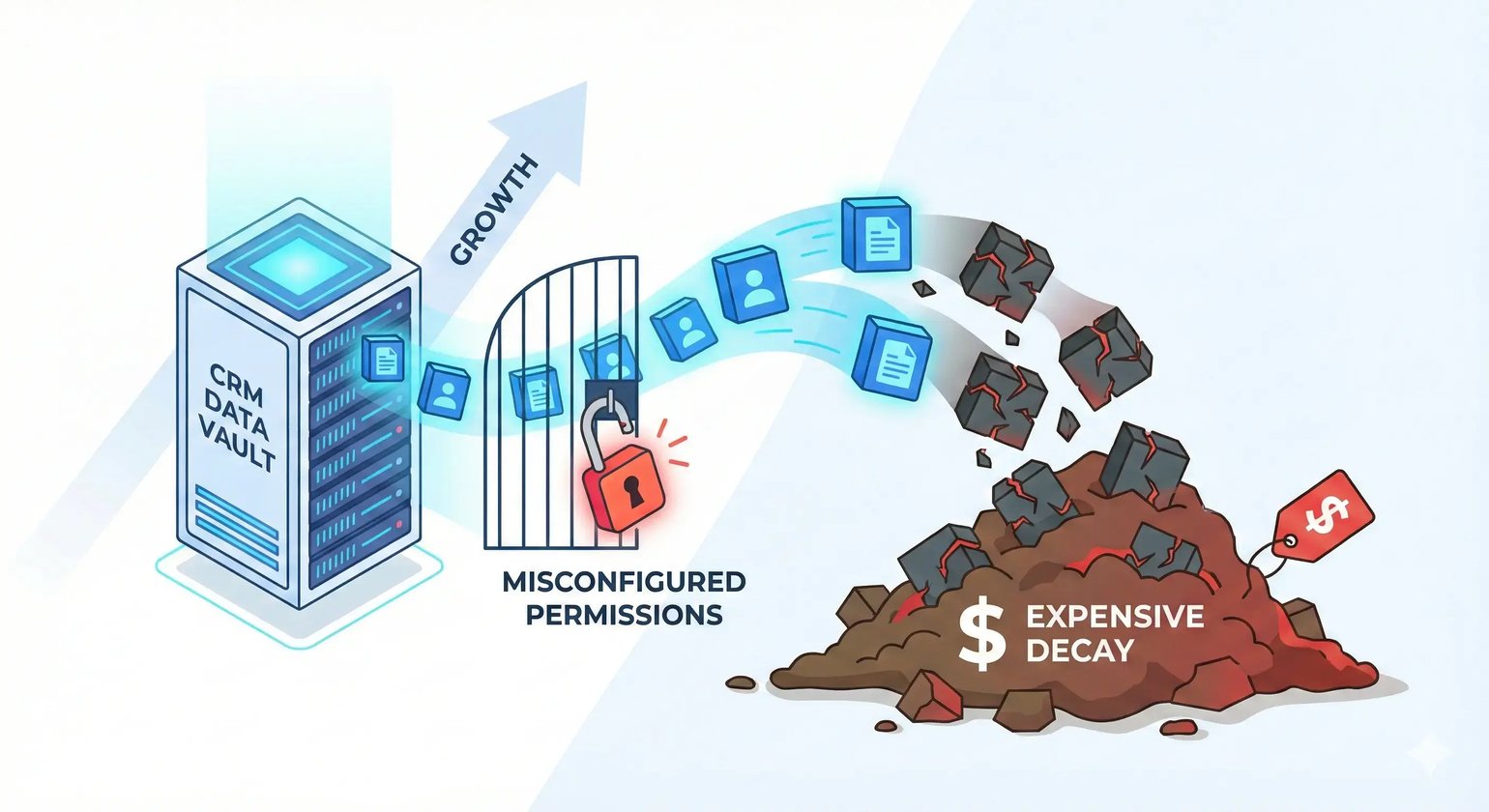 Misconfigured permissions are one of the most common—and most expensive—causes of CRM data decay in growing businesses.
Here's what happens when permissions are left on default:
- Sales reps overwrite deal data. A rep changes the Close Date or Deal Amount without a manager review, and your forecast becomes fiction.
- Marketing sends to the wrong list. A user with broad access accidentally edits or publishes an asset meant for a different campaign.
- Data gets deleted. An employee who left the company—or was never properly onboarded—deletes contacts or pipeline stages with no recovery path.
- Reporting stops making sense. When too many people can edit properties, you end up with inconsistent values, broken workflows, and dashboards no one trusts.
For a 15-person company, these aren't hypothetical risks. They're likely already happening. A disciplined permissions structure is what keeps your CRM aligned with how your business operates.
How Many Users Can You Have on HubSpot?
The number of users you can add to HubSpot depends on your subscription tier and the seat model that applies to your account.
As of 2026, HubSpot uses a seat-based model with the following structure:
| Seat Type | What It Covers | 2026 Status |
| Core Seat (Free) | Read-only access to CRM records and basic dashboards. | Replaces "View-Only" seats on Pro/Ent plans. |
| Core Seat (Paid) | Full CRM access, workflows, and primary tools. | Required for any user who creates or edits data. |
| Sales Hub Seat | Advanced Sales tools: Sequences, Playbooks, A/B Testing. | Add-on for Sales Pro/Enterprise users. |
| Service Hub Seat | Advanced Service tools: SLAs, Omni-channel routing. | Add-on for Service Pro/Enterprise users. |
| Partner Seat | Full Admin access for certified HubSpot Solutions Partners. | Does not count toward your paid seat limit. |
Free CRM: HubSpot allows unlimited users on the free tier, but feature access is limited and permissions customization is minimal.
Paid tiers (Starter, Professional, Enterprise): You purchase seats. Every active user needs at least a Core Seat. Sales reps who use sequences or forecasting also need a Sales Hub Seat on top of that.
Elite Partner Tip: Audit your seat usage quarterly. Inactive users who still hold paid seats are a silent cost. Don't confuse "users" with "contacts." HubSpot prices marketing contacts separately from user seats, and if a user only needs to view reports, a View-Only Seat reduces cost without limiting visibility.
How to Give Permissions in HubSpot
You assign or modify permissions directly from the Users & Teams section inside HubSpot Settings.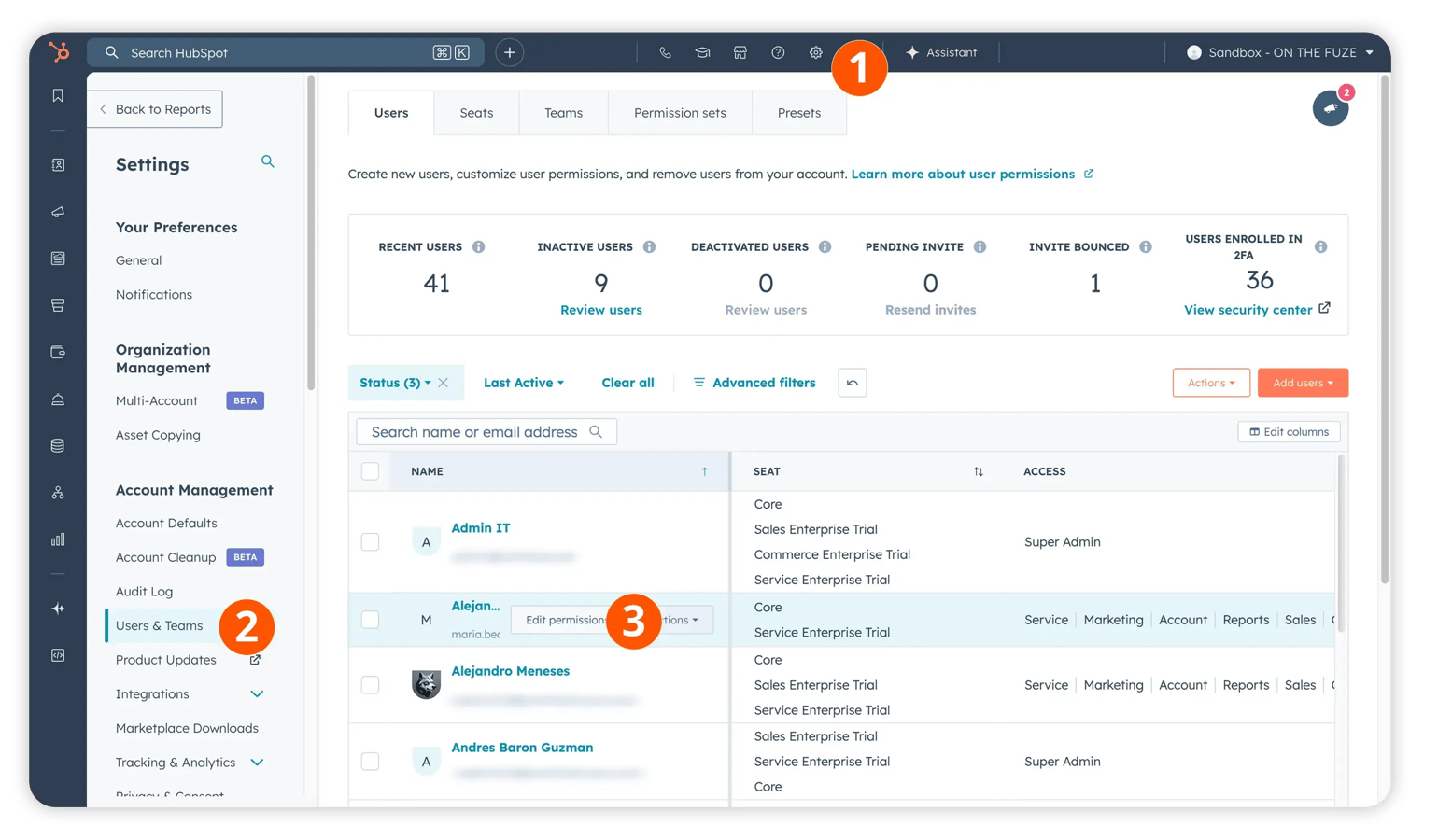 Here's the step-by-step process in HubSpot:
Step 1 — Access User Settings
- Click the Settings icon (gear icon) in the top navigation bar.
- In the left sidebar, navigate to Users & Teams.
- Click Users to see your full user list.
Step 2 — Open a User's Permissions
- Hover over the name of the user you want to modify.
- Select Edit Permissions.
Step 3 — Assign a Seat
HubSpot now uses seats, you should:
- Assign a Seat: Choose from HubSpot-defined roles like Sales Manager or Marketing Admin.
- Creaet a custom permisison set: If you have an Enterprise sub, select a role you built specifically for your internal workflow.
- Manually assign permissions: Use these sparingly for "one-off" needs, such as giving a specific Rep the ability to Import without changing their entire role.
Step 4 — Set Record Visibility
Within CRM permissions, you control what records a user can see, not just whether they can edit them:
- All — User sees every record in the portal
- Team — User sees records owned by anyone on their team
- Owned — User sees only records assigned to them
Elite Partner Tip: Set reps to "Owned" visibility for Deals and Contacts. Managers get "Team" visibility. VPs and admins get "All." This protects pipeline data without creating bottlenecks.
Step 5 — Save and Confirm
Click Save at the bottom of the permissions panel. Changes take effect immediately.

How Do I Check My HubSpot Permissions?
If you are a Non-Admin: Due to HubSpot’s 2026 security protocols, many users are blocked from seeing their own permission list to protect account configuration data.
- Check your Profile: Click your name in the top right > Profile & Preferences. If "View Permissions" is not visible under Security, your access is strictly controlled by your Admin.
- Request a Permission Export: If you need to verify your access for a project, ask your Super Admin to use the "Export User List" feature, which includes a CSV of all assigned roles and seats for the team.
If you're an admin reviewing a user's permissions:
Follow the path—Settings > Users & Teams > Users—then click the relevant user's name and open their Permissions tab. You'll see exactly what's enabled.
Using Permission Sets to audit at scale:
- Go to Settings > Users & Teams > Permission Sets.
- Review each saved set to confirm the access level is still appropriate for the role.
- Click on any set to see which users are currently assigned to it.
Elite Parter Tip: Permission Set audits should happen at minimum twice per year—or any time you hire, promote, or lose a team member in a key role.
Understanding HubSpot Permission Sets
Permission Sets are pre-configured bundles of access that you can assign to multiple users at once.
Instead of configuring each user individually, you create a Permission Set for each role in your business—and assign users to the set that matches their function.Why this matters: When a Sales Manager gets promoted to Director, you update one Permission Set, and every user in that set inherits the change. Without sets, you'd update each user manually.
Recommended Permission Sets for a 10–50 person SMB:
| Role | CRM Visibility | Key Permissions Enabled |
| Super Admin | All | Full access to everything |
| Sales Manager | Team | Edit deals, view all team records, access forecasting |
| Sales Rep | Owned — Contacts & Deals | Create/edit contacts and deals, limited delete |
| Marketing Manager | All — Contacts only | Publish emails/pages, manage forms, view all contacts |
| Marketing Coordinator | All — Contacts only | Edit drafts, no publish access |
| Customer Success | Team | View/edit contacts and tickets, no deal access |
| Executive/Leadership | All | View-only for CRM, full dashboard access |
What Are the Most Common HubSpot Permission Mistakes?
The most costly permission mistakes aren't about giving too little access—they're about giving too much.
Here are the ones we see most frequently:
-
Giving everyone Super Admin access Super Admin means full control of the portal—including the ability to delete data, change properties, and access billing. This should be limited to 1–2 people maximum.
-
Never updating permissions after role changes A rep who becomes a manager still has rep-level access. A contractor who's no longer working with you still has active login credentials. Both are live risks.
-
Skipping object-level visibility settings You configured tool access but forgot to set who can see whose records. Now every rep can see every other rep's pipeline—creating privacy issues and pipeline manipulation risk.
-
Ignoring import/export permissions The ability to export your entire contact database is a significant data risk. This permission should be tightly controlled and explicitly granted—not left on by default.
-
Not using Permission Sets Managing permissions user by user, without sets, means any role change requires manual updates across multiple profiles. This leads to permission drift over time.
How Do You Restrict Specific Fields in HubSpot?
HubSpot allows you to restrict edit (and view) access to individual properties—not just entire objects.
This is called Field-Level Security, and it's available on Professional and Enterprise plans. It's one of the most underused features in HubSpot, and one of the highest-impact ones.
The Deal Desk use case
Standard deal permissions are binary: a user either can edit all deal properties or they can't. That's a problem when you need reps to create deals but not change commercial terms once they're set.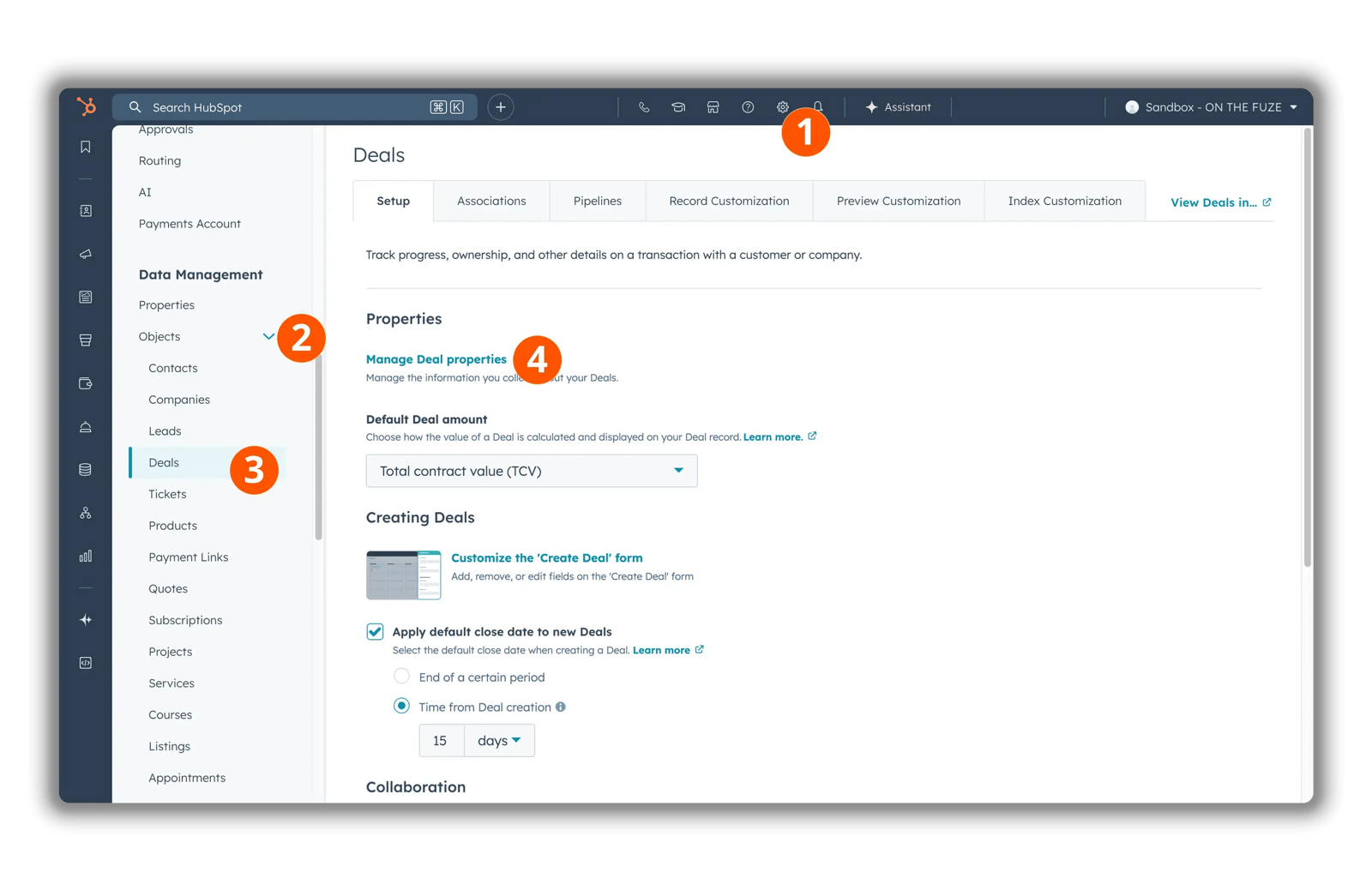 How to configure field-level restrictions:
- Go to Settings > Properties.
- Select the Deals object.
- Go to Manage Deal Properties.
- Find the property you want to protect (e.g., Amount, Close Date, Contract Start Date).
- Click on the property to open it, then select the Manage access tab.
- Customize the level of access users and teams have to this property
- Change from Allow everyone to view and edit to Assign to users and teams.
Result: Reps can still create and update their deals—but core revenue fields are locked until a manager reviews and confirms. Your forecast reflects verified numbers, not rep optimism.
PII Protection
The same field-level logic applies to view access. If you store sensitive employee or contact data—such as salary information, social insurance numbers, or compensation fields—you can restrict who can even see those fields, not just edit them. Only the users or teams with explicit view access will see the data. Everyone else sees a blank.
Without field-level security, deal property access is all-or-nothing: a rep who can edit deals can edit every field in them
How Does Content Partitioning Work in HubSpot?
Content Partitioning lets you assign marketing assets to specific teams so users only see what's relevant to them.
As you grow, your HubSpot portal can become cluttered with assets from multiple campaigns, brands, or regions. Content Partitioning—available on Professional and Enterprise—solves this by separating assets by team.
Assets that can be partitioned:
- Marketing Emails
- Landing Pages
- Forms
- Dashboards
- Lists
How to assign an asset to a team:
- Go to the relevant asset dashboard (e.g., Marketing > Emails).
- Select a file or folder.
- Click Manage Sharing or Assign to Team (label varies by asset type).
- Select the relevant team.
Outcome: A user on the "US Marketing" team won't see "Canada Marketing" emails in their dashboard at all—not just can't edit them, but can't see them. This eliminates accidental edits and reduces decision fatigue.
For Enterprise portals with multiple brands: HubSpot also supports Domain Partitioning, which prevents a user from one brand from publishing a landing page to a different brand's domain. This is a critical safeguard for multi-brand or multi-region operations.
How Do Hierarchical Teams Work in HubSpot?
HubSpot Enterprise supports parent-child team hierarchies that enable roll-up reporting and cascading permissions across your organization.
Flat team structures work at 15 people. They break down at 40. A hierarchical team setup solves both the permissions problem and the reporting problem at the same time.
Example structure:
Parent: Global Sales
└── Child: North America Sales
└── Grandchild: East Coast Reps
└── Grandchild: West Coast Reps
How permissions cascade:
- A manager of "Global Sales" automatically sees records and activity from all child teams below them.
- An "East Coast Rep" can see their own records only.
- There is no lateral visibility: East Coast Reps cannot see West Coast Rep data, even though they share the same parent.
Why this matters for reporting:
A VP of Sales can filter any report by "Global Sales" and HubSpot will automatically aggregate data from every child and grandchild team. No manual selection of individual teams. No missed data. Roll-up reporting works as intended from day one.
How Do You Control HubSpot Breeze (AI) Access?
HubSpot's Breeze AI tools have their own permission layer that Super Admins control separately from standard user permissions.
In 2026, AI permissions are no longer "all or nothing." They are managed in Settings > AI > Data Governance.
- Object-Level AI Scopes: You can now allow Breeze to read Contact and Ticket data for summaries while explicitly blocking it from reading Deal or Revenue data.
- Breeze Intelligence Permissions: Control who can use "Enrichment" credits to pull third-party data into the CRM.
- AI Audit Logs: Super Admins can now view a log of which users are prompting Breeze and what data the AI is surfacing to them.
How Do You Secure HubSpot API Integrations?
Every integration connected to your HubSpot portal carries its own set of permissions—and an unsecured integration is a backdoor into your CRM.
This is a blind spot for most SMBs. You lock down your users carefully, then connect a third-party tool with admin-level API access because it was the easiest way to get the integration working.
Best practices for API and Private App security:
- Use Private Apps (not legacy API keys) — Go to Settings > Integrations > Private Apps to create scoped API tokens for custom integrations.
- Apply Least Privilege — Only grant the scopes the integration actually needs. If it reads contact data, give it
crm.objects.contacts.readonly. Do not include write or delete scopes unless required. - Audit connected apps regularly — Go to Settings > Integrations > Connected Apps to see every third-party tool with access to your portal. Remove anything that's no longer in use.
- Never assign Developer Seats to standard users — Developer Seats grant access to HubSpot's developer tools and are unnecessary for anyone not actively building or managing apps.
If an API key is ever compromised, the damage is limited to the scopes it was granted. A key with read-only access to contacts cannot delete your pipeline. Scope discipline is your insurance policy.
HubSpot Permissions FAQ
What is the difference between a Super Admin and an Admin in HubSpot?
A Super Admin has unrestricted access to every setting, feature, and record in the portal—including billing, user management, and data deletion. A standard Admin can be granted elevated permissions, but the scope is configurable. Limit Super Admin access to 1–2 trusted individuals.
Can I give a user access to some deals but not others?
Yes, using the "Owned" visibility setting. A user set to "Owned" visibility for Deals can only see deal records where they are listed as the owner. You can also use Team visibility to extend access to colleagues within the same team structure.
Can I prevent a user from deleting contacts?
Yes. Under CRM Permissions, toggle the "Delete" permission to "None." Additionally, you can now enable "Deletion Approvals," where a user can request a deletion that a Super Admin must approve.
What happens to a user's owned records when they are deactivated?
The records remain in HubSpot and retain their original owner assignment. Before deactivating a user, reassign their open deals, contacts, and tasks to the appropriate team member. HubSpot will prompt you to do this during the deactivation process.
Can I limit what a user can see in reporting?
Yes. Under Reports & Dashboards in the Permissions tab, you control whether a user can view reports, create their own, edit shared dashboards, or manage the reporting library. You can also use Dashboard-level sharing settings to restrict who sees specific dashboards.
Do permissions sync across HubSpot's mobile app?
Yes. Permission settings apply across all HubSpot interfaces—desktop, browser, and mobile. A rep with "Owned" deal visibility on desktop will have the same visibility on the HubSpot mobile app.
How do I set up permissions for a contractor or part-time employee?
Create a dedicated Permission Set for temporary or external users. Enable only what they need for their specific work—typically limited CRM access, no settings access, no import/export capabilities, and no delete permissions. Review and deactivate these accounts when the engagement ends.
Are HubSpot permission sets the same as roles?
Effectively, yes. As of late 2025, HubSpot renamed "Permission Sets" to "Roles" to align with industry standards (RBAC). When you see "Roles" in your settings, that is where you manage your permission bundles.
Key Takeaways
- Permissions are a revenue protection strategy, not just an admin task. Misconfigured access leads to corrupted data, forecast drift, and reporting that no longer reflects reality.
- HubSpot uses a seat-based model as of 2026. Every active user requires at least a Core Seat. Sales Hub and Service Hub seats are additive for specialized tools.
- Assign permissions through Permission Sets, not on a user-by-user basis. Sets make changes scalable and auditable.
- Use data visibility settings (Owned, Team, All) to control what records each user can see—separate from what they can do.
- Field-Level Security locks critical properties (Deal Amount, Close Date) to managers and admins, protecting your forecast data from rep-level changes.
- Content Partitioning prevents teams from seeing or accidentally editing each other's assets—essential as your marketing operation grows.
- Breeze (AI) access should default to restricted until your team has a clear governance policy in place.
- Every API integration is a permission vector. Apply least privilege to all private app scopes and audit connected apps quarterly.
- Audit permissions at least twice per year—or any time there's a hire, promotion, or departure in a role with elevated access.


%20(1)-2.webp)