
HubSpot Customer Agent Deployment Checklist
Get a setup checklist, guideline action configs, and handoff rules that get your Customer Agent resolving tickets on its own.
Download Now

Your support costs used to rise in a straight line. More customers meant more tickets, which meant more reps and a queue that still backed up every Monday morning.
The HubSpot Customer Agent breaks that link. It resolves routine, tier-one questions on its own, around the clock, and it only charges you when it actually solves the problem.
In this article, we'll cover what the Customer Agent is, what it costs, how to configure it stage by stage, the mistakes that quietly cap your resolution rate, and the exact settings that separate a 30% agent from a 90% one.
What Is the HubSpot Customer Agent?
The HubSpot Customer Agent is an autonomous AI support agent, built into Service Hub, that reads a customer's question, answers it from your approved content, and either resolves the conversation or hands it to a human. It's part of HubSpot's Breeze AI suite, and it replaces the rigid, rule-based chatbots that came before it.
The difference matters. Old chatbots ran on decision trees. If a customer's wording didn't match a pre-set path, the bot broke and forced an escalation. The Customer Agent reads intent. Someone typing "I want my money back" gets routed to your refund policy without ever using the word "refund."
Every reply runs through the same five steps:
- Understand: it interprets what the customer wants, not just the keywords they used.
- Ground: it answers only from the business content you've approved, never the open internet, and cites the source each time. This is what keeps it from making things up.
- Personalize: because it lives inside your CRM, it can read the contact's tier, order history, and past tickets and tailor the answer.
- Decide: it grades its own confidence and picks one of three paths. Give a sourced answer, ask a clarifying question, or hand off to a human.
- Act or resolve: it can complete a task (like a password reset or an order lookup), not just talk, then close the conversation or pass the full context to your team.
🏆 Elite Partner Tip: The word to remember is Ground. The agent can only be as good as the content you sync to it. Teams that treat this as a content project, not a software toggle, are the ones that hit 90%. We'll come back to this in the setup.
If you want to know more about Chatflows and how different they are from the Customer Agent, read: HubSpot Chatflows: Turn Website Visitors Into Qualified Leads
What Does the HubSpot Customer Agent Cost?
As of April 2026, the Customer Agent uses outcome-based pricing: $0.50 per resolved conversation (50 HubSpot Credits), and nothing at all when it hands a conversation to a human. You pay for outcomes, not attempts.
That's a meaningful shift. The previous industry norm charged you per conversation or per message, whether or not the customer's problem got solved. That put the financial risk of a weak answer on you. HubSpot's model moves that risk to the vendor.
There's a strict definition behind "resolved," and it protects your budget. A conversation only counts as resolved if the agent shares a content source or completes a configured action, and no human handoff or negative feedback occurs within a 72-hour window after its final reply.
Here's how the three models compare:
| Factor | Traditional human support | Per-conversation AI pricing | HubSpot outcome-based pricing |
| Cost per interaction | ~$6.00 average | ~$1.00 per attempted conversation | $0.50 per successful resolution |
| Who carries the risk | You (fixed salary + overhead) | You (you pay for AI failures) | HubSpot (no charge on failure) |
| Definition of "success" | Ticket closed by a rep | Inactivity timeout | Action taken + 72-hour no-escalation window |
| Availability | Business hours | 24/7/365 | 24/7/365 |
At roughly $6.00 for a human-handled tier-one ticket versus $0.50 for an autonomous resolution, you're looking at an 83–91% cost reduction on every routine ticket the agent handles.
Two things to plan for before you budget:
- Plan requirements. The Customer Agent needs Service Hub Professional or Enterprise. It isn't available on Free or Starter. Professional starts around $450/month billed annually for five seats.
- Included credits. Professional and Enterprise come with a monthly HubSpot Credit allotment (roughly 3,000 and 5,000 credits, respectively), which covers a stretch of resolutions before you pay anything extra.

How Well Does the Customer Agent Perform?
In HubSpot's Q1 2026 reporting, the Customer Agent resolved 70% of support conversations autonomously, up from 20% a year earlier, with top teams clearing 90%. These aren't projections. They're figures HubSpot shared from its live customer base.
The numbers worth knowing for a decision:
- 70% average autonomous resolution across the deployment base, up from 20% twelve months prior.
- 90%+ for top-performing teams, the ones with clean CRM data and well-maintained knowledge bases.
- 9,000+ active deployments, making the Customer Agent the most-used AI tool on the platform (53% of all AI credits consumed).
- 39% average reduction in total ticket resolution time, which frees your reps for the complex work only humans can do.
The pattern behind those numbers is the whole point. The gap between a 30% agent and a 90% agent isn't the model; it's the data and configuration behind it. That's good news, because both are things you control.
What Do You Need Before You Turn It On?
Most of the resolution rate is decided before you open the setup wizard. Skipping this groundwork is the most common reason an agent fails to deliver great resolution rates.
Run this pre-flight checklist first:
- Confirm your plan. Service Hub Professional or Enterprise (Settings → Account & Billing).
- Pick one narrow, high-volume use case to launch first, like billing and refund questions. Don't try to cover everything on day one.
- Audit your content. List every help article, FAQ, and policy the agent will rely on, and archive anything stale. A 2024 refund policy sitting next to your 2026 one will make the agent contradict itself.
- Turn on Auto-Enrichment so CRM records are populated. Blank properties cripple personalization.
- Confirm a human escalation path exists: an inbox or team ready to receive handoffs.
🏆 Elite Partner Tip: AI amplifies your documentation, it doesn't fix it. An hour spent archiving outdated articles will do more for your resolution rate than any setting inside the agent. This is the same discipline that keeps a growing HubSpot portal aligned with how your team actually works: review first, then configure.
How Do You Set Up the HubSpot Customer Agent? (Step by Step)
You configure the agent across five stages in: Overview → Define → Train → Test → Deploy → Analyze. To get started go to Service, and select Customer Agent, then Create agent.
Here's what each stage does and how to configure it.
Stage 1: Define (set its identity)
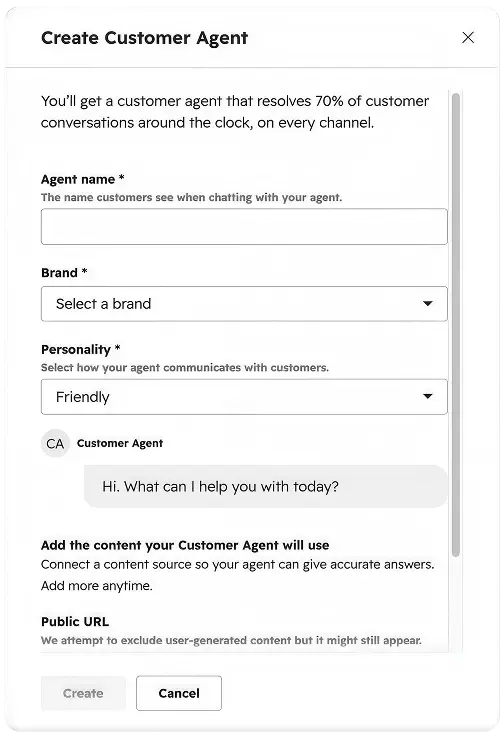
This is where you decide who the agent is and what it's for.
- Role & personality. Choose a personality: Friendly, Professional, Casual, Empathetic, or Witty. For billing or account topics, pick Professional. Steady and clear beats clever when money or access is on the line.
- Brand Voice. Link the agent to a saved Brand Voice (built under Marketing → Brand from a 500+ word writing sample and a "terms to avoid" list). This keeps replies sounding like your company, not a generic bot.
- CRM permissions. Grant read access to the properties it needs for personalization, and update access only where an action genuinely requires it.
- Language controls. Restrict the agent to the languages your team can actually support on escalation. This is a 2026 update that prevents it from implying human help you don't offer.
Stage 2: Train (the step that decides 30% vs 90%)
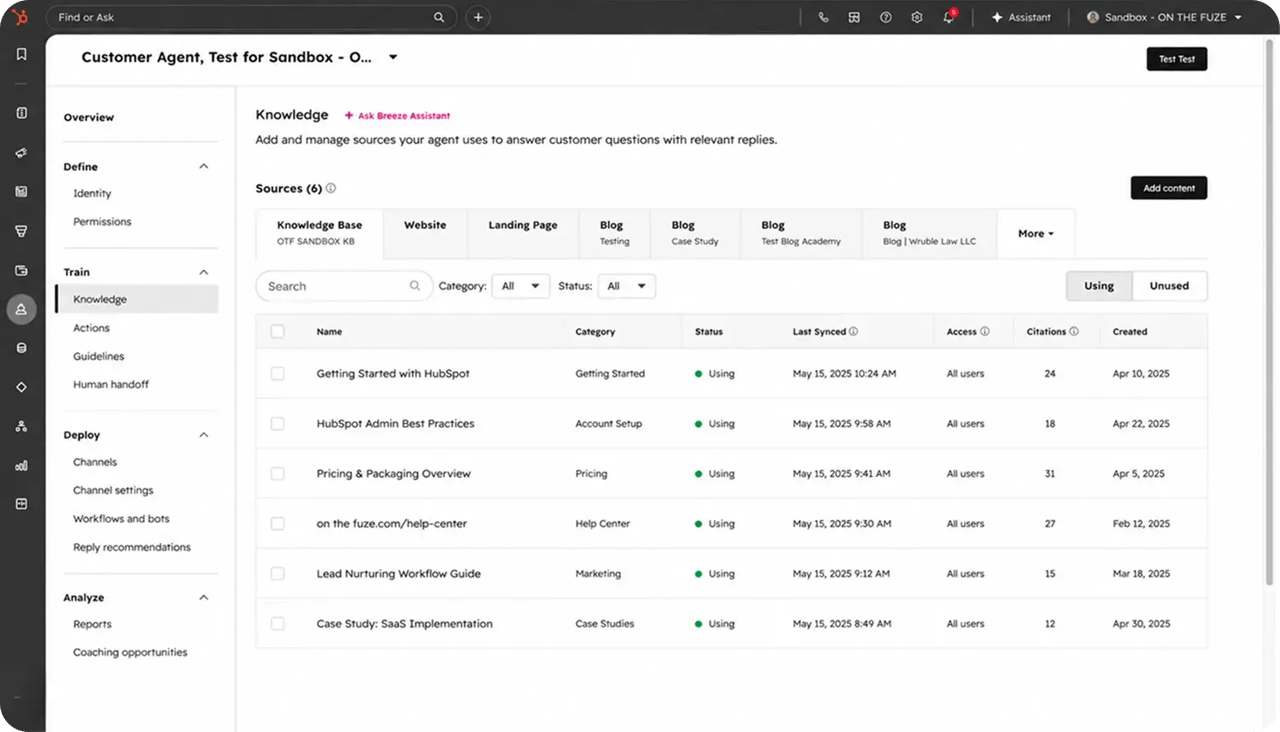
The agent only knows what you sync to it. Under Train, connect three types of content:
| Source | Limit / format | Best practice |
| Knowledge Base | Native sync | Format articles with clear headers and bullets so the agent extracts cleanly. |
| Public URLs | Up to 5,000 pages | Use path filtering to exclude promotional pages. |
| Files | PDF, DOCX, TXT (≤10MB each) | Best for SOPs and manuals; bundle into a Knowledge Vault. |
Then tighten it with three settings that most people skip:
- Path filtering. When you crawl your site, include
/support/and/help/and exclude/blog/. This stops the agent from answering a support question with marketing copy, the number-one cause of wrong answers. - Knowledge Vaults. Bundle reusable content into a Vault. Update it once, and every agent tied to it updates too, so your answers never drift apart.
- Guidelines. Write an explicit role, the data the agent must collect before answering, and the topics it must never touch. "Help the customer" is not an instruction. "You are a Tier 1 billing specialist. Always ask for the Invoice ID before discussing charges. Never explain code-level bugs, escalate them" is.
Stage 3: Test (never skip this)
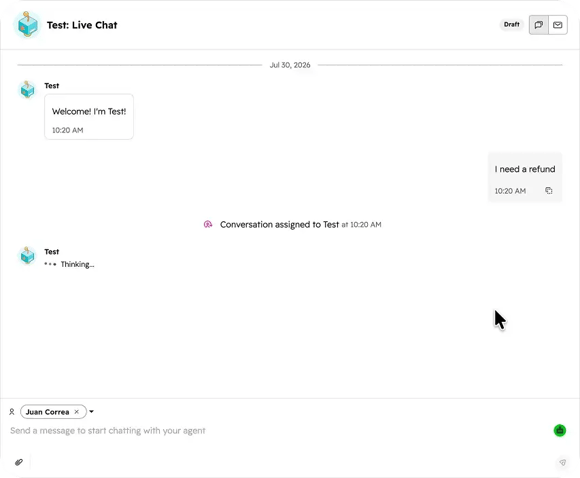
Before a single customer sees it, test in the Preview sandbox, which runs conversations without spending any credits.
- Draft vs Live. The Draft toggle tests your unpublished changes; Live tests what customers get right now. Make a change, test on Draft, and publish only when it behaves.
- Test as CRM contact. Impersonate a real contact to confirm the agent pulls that person's actual order history and tier.
- Testing Insights. Read why the agent answered as it did and which source it cited. Use Rate reply and Coach agent to correct weak answers before launch.
Stage 4: Deploy (one channel first)
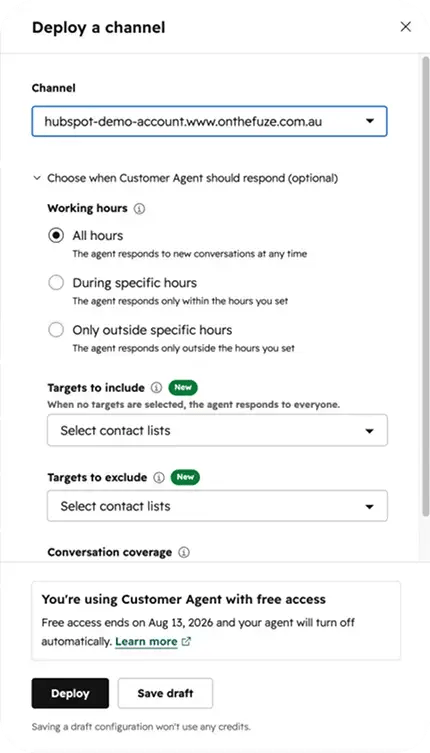
The agent supports live chat, email, forms, WhatsApp, Facebook Messenger, and calling (in beta), among other channels. Don't switch them all on at once.
- Launch on website Live Chat only, scoped to a subset of pages if you can.
- Watch every transcript in that controlled space.
- Expand to email, WhatsApp, and the rest only after the first channel is stable and accurate.
Stage 5: Analyze (make it better every week)
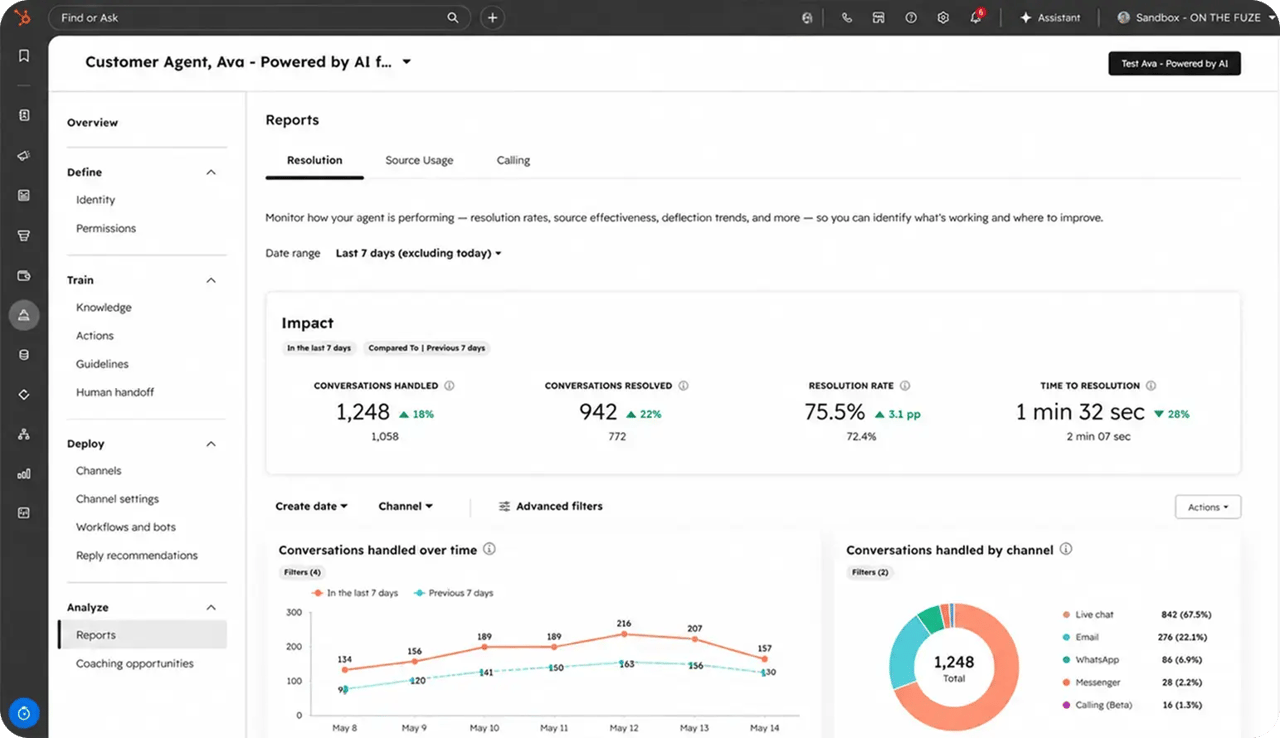
Launch is the start, not the finish. In the Analyze stage, review the Knowledge gaps and Coaching opportunities tabs weekly. They show exactly which questions forced a human handoff. That list is your content roadmap: write or approve those articles, and your resolution rate climbs.
How Do You Get It to Resolve More Tickets?
The jump from "answers questions" to "solves problems" comes from Actions, configured tasks the agent can perform in other systems. A grounded agent can tell a customer your refund policy; an agent with Actions can check their refund status live.
You build these under Train → Actions, where each Action is a defined call to an API endpoint. The configuration that matters:
- Trigger phrases. Natural-language cues ("where's my refund," "reset my password") that tell the agent when to reach for the Action.
- Parameter extraction. The inputs the agent must collect first. If it needs an Order ID, it will pause and ask for one before proceeding.
- Action protection. Set sensitive Actions to Verify email, which forces an email confirmation link before the agent shares account data, so a stranger can't pull another customer's information.
- Server-side tokens. API keys are injected on HubSpot's side and never exposed to the agent or the chat window.
🏆 Elite Partner Tip: Start with one Action tied to your highest-volume request. An order-status or refund-status lookup usually pays for itself first. Prove it in testing with Verify email on, then add more. Sequencing beats switching everything on at once.
What Mistakes Should You Avoid?
The costliest Customer Agent mistakes aren't technical. They're about discipline. These are the three we see most often when we audit a stalled setup.
1. Garbage in, garbage out
Assuming the agent will "figure out" messy or outdated docs. It won't. It amplifies them. Contradictory policies produce contradictory answers. Fix: audit and archive before you sync.
2. Turning on every agent at once
Activating the Customer Agent, Prospecting Agent, and Data Agent in the same week overwhelms your team, hides what's working, and burns through credits. Fix: sequence it. Master the Customer Agent first, then expand.
3. Vague guidelines
Open-ended instructions give the agent no boundaries and produce unpredictable behavior. Fix: write explicit roles, required data, and prohibited topics.
| Focus area | Common mistake | Better practice |
| Data readiness | Trusting the agent to interpret stale docs | Audit content, archive old policies, enable Auto-Enrichment |
| Rollout | Launching every agent on every channel | Sequence deployments; one channel first |
| Instructions | "Answer customer questions" | Explicit role, required data, prohibited topics |
| Maintenance | Set-and-forget | Weekly review of Knowledge gaps + Coach agent |
| Experience | Hiding that it's an agent | Label it clearly; make reaching a human easy |
How Do You Keep It Improving Over Time?
Pair the Customer Agent with the Breeze Knowledge Base Agent, and your support content starts filling its own gaps. When the Customer Agent can't confidently answer something, it logs the gap. The Knowledge Base Agent scans your closed tickets in the background, and once it spots five or more similar issues your team has resolved the same way, it drafts a help article from those real resolutions.
A manager reviews and publishes it, the Customer Agent ingests it immediately, and the gap closes, so the next customer with that question gets resolved on their own. That's the loop that carries top teams past 90%: not one big setup, but a weekly rhythm of closing gaps driven by real customer demand.
This is the same principle behind a healthy HubSpot portal in general. The system doesn't stay aligned on its own. It stays aligned because someone reviews how it's being used and makes the right changes, in the right order, as the business evolves.
Frequently Asked Questions
What is the HubSpot Customer Agent?
It's an autonomous AI support agent inside HubSpot Service Hub that reads a customer's question, answers it from your approved content, personalizes using the CRM record, and either resolves the conversation or hands it to a human. It's part of the Breeze AI suite.
How much does the HubSpot Customer Agent cost?
$0.50 per resolved conversation (50 HubSpot Credits) under 2026 outcome-based pricing. You're only charged when it resolves; conversations that escalate to a human are free. It requires Service Hub Professional or Enterprise, both of which include a monthly credit allotment.
What counts as a "resolved" conversation?
A conversation is marked resolved only if the agent shares a content source or completes a configured action, and no human handoff or negative feedback occurs within a 72-hour window after its final response.
What plan do I need to use the Customer Agent?
Service Hub Professional or Enterprise. It is not available on Free or Starter tiers.
How many tickets can the Customer Agent actually resolve?
HubSpot reported a 70% average autonomous resolution rate in Q1 2026, up from 20% a year earlier, with top teams exceeding 90%. Your rate depends heavily on the quality of your synced content and CRM data.
Which channels does the Customer Agent support?
Live chat, email, forms, WhatsApp, Facebook Messenger, and calling (in beta), among others. Best practice is to launch on website live chat first, then expand once it's stable.
Will the Customer Agent make things up?
It's built to avoid that. It uses retrieval-augmented generation, meaning it answers only from the content you've approved, not the open internet, and cites its source on each reply. Accuracy problems almost always trace back to stale or missing content, not the agent itself.
How long does it take to set up?
A focused, single-use-case launch (like billing questions on live chat) can be configured and tested in a few days. The ongoing work is weekly optimization: reviewing knowledge gaps and coaching the agent.
Key Takeaways
- The HubSpot Customer Agent is an autonomous, intent-based support agent in Service Hub that resolves tier-one tickets from your approved content, a real upgrade over rule-based chatbots.
- Pricing is outcome-based: $0.50 per resolved conversation, nothing on a human handoff, on Professional or Enterprise plans.
- The proof is public: 70% average autonomous resolution in 2026 (up from 20%), with top teams past 90% and resolution times down 39%.
- You configure it in five stages (Define, Train, Test, Deploy, Analyze), but the resolution rate is mostly decided by your content and data before you start.
- The Train stage is where you win or lose: clean content, path filtering, sharp guidelines, and Actions for real tasks.
- Launch on one channel, test in Draft, and review knowledge gaps weekly. Then pair it with the Knowledge Base Agent to close gaps automatically.
- The agent multiplies your discipline, not your gaps. Whether it stalls at 30% or scales to 90% comes down to the same operational hygiene that keeps HubSpot aligned with how your business really works.



%20(1)-2.webp)