HubSpot Deal Pipeline Cleanup Kit
This free kit keeps your pipeline clean with 4 cleanup views, 10 closed lost reasons, and a 30-minute monthly review. 100% Free.
Download Now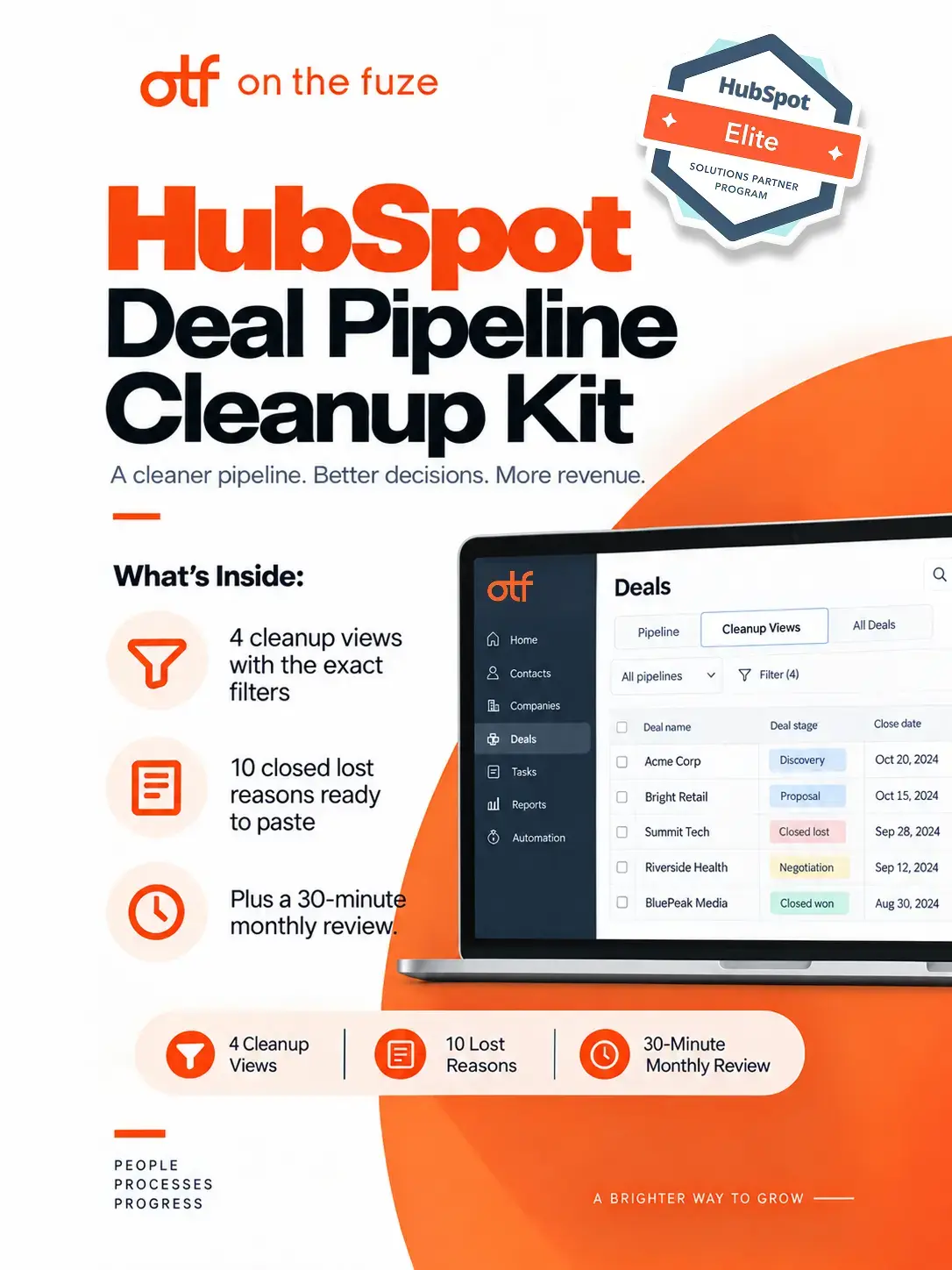

If your HubSpot pipeline says you're closing $80,000 this quarter, but half of those deals haven't had a call or an email in two months, you don't have a forecast. You have a wish list, and you're hiring, spending, and planning off of it.
Most pipelines don't break at setup. They break slowly: deals slide past their close date, sit for weeks with no next step, or never get an amount at all. Every one of them makes your pipeline look bigger than it is.
This guide shows you how to build, edit, and clean up your HubSpot deal pipeline in the 2026 interface, then lock it down so it stays accurate without anyone chasing reps for updates.
What Are HubSpot Deals?
A HubSpot deal is a record of one potential sale: who's buying, what it's worth, and when you expect it to close. Deals sit alongside contacts and companies in your CRM, and they're the object your revenue reporting is built on.
Every deal carries a few properties that matter more than the rest:
- Amount: what the deal is worth.
- Close date: when you expect it to close.
- Deal stage: where it sits in your sales process.
- Deal owner: who's responsible for moving it forward.
Lead vs. deal: a lead is a prospect you haven't qualified yet. A deal is a qualified sale with a value and a close date. HubSpot tracks the two with separate objects, and keeping them apart is what keeps your pipeline honest.
Read more: What Are HubSpot Deals? From Beginner To Advanced Features
What Is a HubSpot Deal Pipeline?
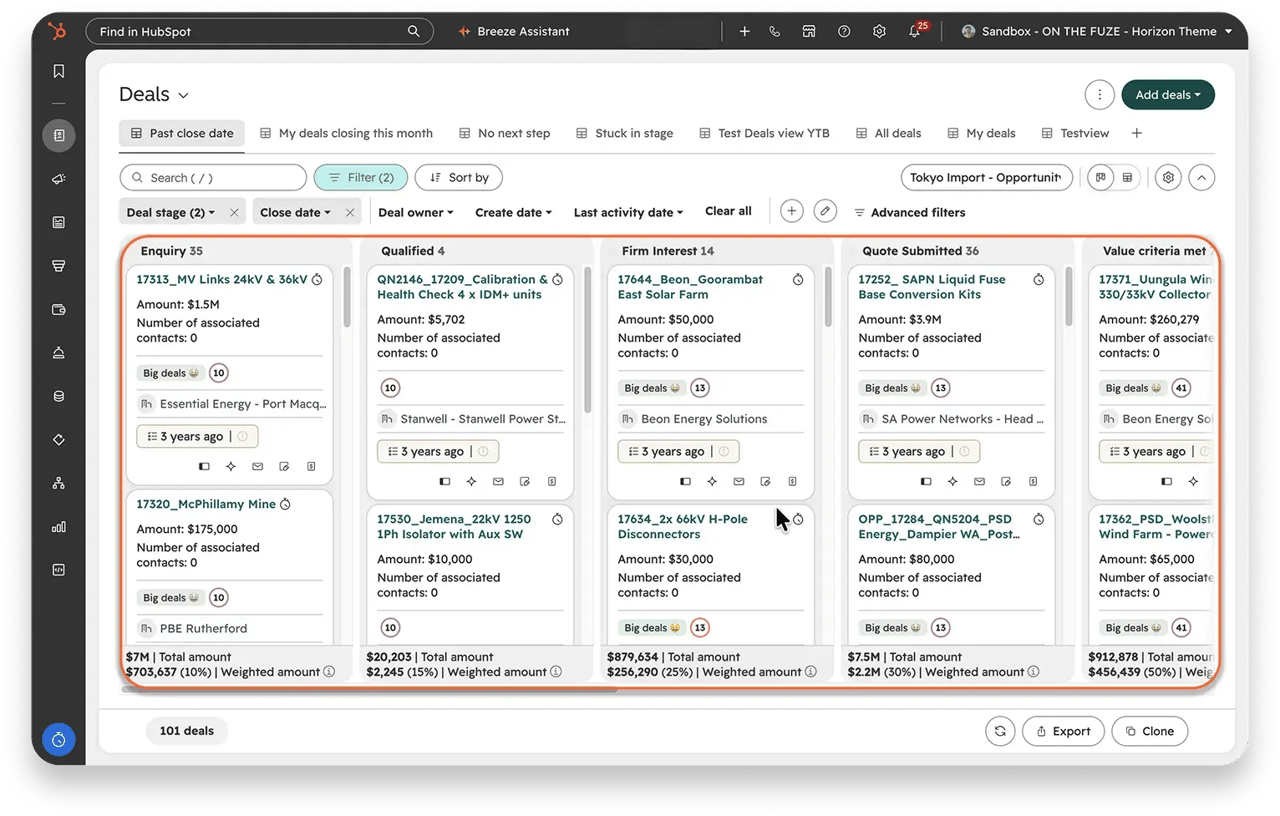 A deal pipeline is the set of stages every deal moves through, from the first qualified conversation to Closed won or Closed lost. Each stage carries a win probability, and HubSpot multiplies it by the deal's amount to get a weighted amount.
That weighted amount is the realistic number your forecast should run on. A $1,000 deal in a stage with a 50% probability counts as $500 in your weighted pipeline, not the full $1,000.
To see your pipeline, go to CRM → Deals and switch to the board view in the top right. Every column is a stage, and the bottom of each column shows its total amount and weighted amount.
If your team tracks its "real" pipeline in a spreadsheet, a Trello board, or a second tool like Pipedrive or monday.com, the deal pipeline is what replaces it. Your deals, your forecast, and your reports all live in one place.
Does HubSpot CRM Include Sales Pipeline Tracking?
Yes. Every HubSpot account, including the free CRM, comes with a default deal pipeline. What changes by plan is how many custom pipelines you can add on top of it.
| Plan (seat-based pricing) | Custom pipelines |
|---|---|
| Free tools | 0 (the default pipeline only) |
| Starter | 15 |
| Professional | 100 |
| Enterprise | 350 |
Source: HubSpot Knowledge Base, "Set up and manage object pipelines," updated Sept 29, 2026. The limit is shared across all objects with pipelines, not just deals.
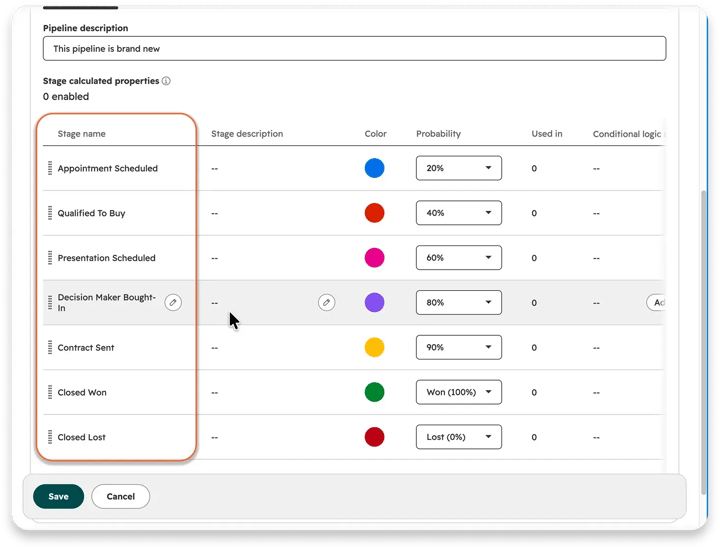
The default pipeline comes with seven stages: Appointment scheduled (20%), Qualified to buy (40%), Presentation scheduled (60%), Decision maker bought-in (80%), Contract sent (90%), Closed won (100%) and Closed lost (0%). They're a starting point, not a recommendation for how your business sells.
How Many Deal Pipelines Should You Have?
Create one pipeline per sales process, not one per product or team. A pipeline should have its own stages, automations, and metrics. If two processes share all three, they belong in one pipeline.
| Situation | What to do |
|---|---|
| New business and renewals follow different steps | Separate pipelines |
| You sell several products or services the same way | One pipeline, plus a Product or Service type dropdown on the deal |
| Several teams sell the same way | One pipeline, with team permissions to control who sees what |
There's one more rule that saves most pipelines from clutter: only qualified opportunities should become deals. If your process starts with booking a discovery call to qualify someone, manage that step with the Leads object. Create the deal once the prospect is qualified, not when the first meeting is booked.
🏆 Elite Partner Tip: Extra pipelines split your forecast across several boards, and nobody sees the full number in one place. Before you add one, ask whether its stages are truly different. If the only difference is the product, a dropdown on the deal does the job.
How Do You Create a Deal Pipeline in HubSpot?
You create a deal pipeline from your Objects settings in about a minute. Custom pipelines need a Starter, Professional, or Enterprise subscription, plus the Edit property settings permission.
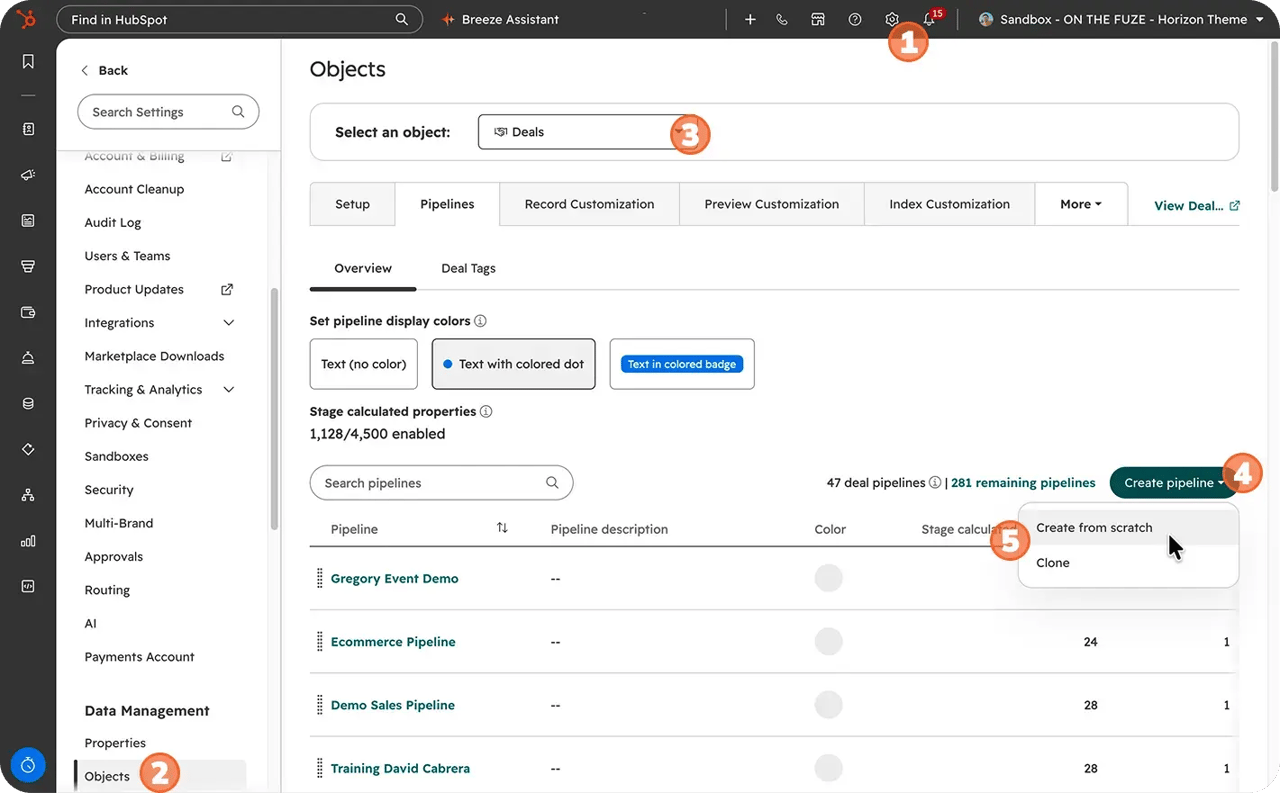
- Click the settings icon in the top navigation bar.
- In the left sidebar, under Data Management, click Objects.
- Click the Select an object dropdown and choose Deals.
- Click the Pipelines tab.
- Click the Create pipeline dropdown and select Create from scratch.
- Name the pipeline after what it's for (for example, New Business), then click Create pipeline.
Already have a pipeline that works? Choose Clone from existing instead. On Professional and Enterprise, cloning can copy its conditional stage properties, pipeline rules, pipeline automations, deal tags, and pipeline access, so you don't rebuild them by hand.
How Do You Create and Customize Deal Stages in HubSpot?
You add, rename, reorder, and delete deal stages from the same Pipelines tab, then click Save. This is also how you edit a deal pipeline in HubSpot later on, so the steps below cover both.
Add or rename a stage
- On the Pipelines tab, click the name of your pipeline.
- To rename a stage, hover over it, click the pencil icon next to its name, and type the new name.
- To add a stage, click + Add stage under your list and type its name.
- Drag any stage to put it in the right order. New stages land at the bottom, under Closed lost.
- Click Save in the bottom left.
Name every stage after what the buyer confirmed
The most common stage problem isn't the number of stages. It's what they describe. Stages named after what the rep did tell you about activity. Stages named after what the buyer confirmed tell you about the deal, and that's what you can forecast.
| Rep-action stage | Buyer-confirmed stage | Why it's better |
|---|---|---|
| Proposal sent | Proposal reviewed | Someone clicking send doesn't mean the buyer read it |
| Demo scheduled | Demo completed | A booked demo can still be a no-show |
| Qualified to buy | Discovery completed | It names the step the buyer actually took |
Whatever you rename, keep one Won stage and one Lost stage. HubSpot's sales reports and sales analytics tools need both to count your deals correctly.
Delete a stage without breaking anything
HubSpot won't delete a stage that's still in use, so you clear it out first.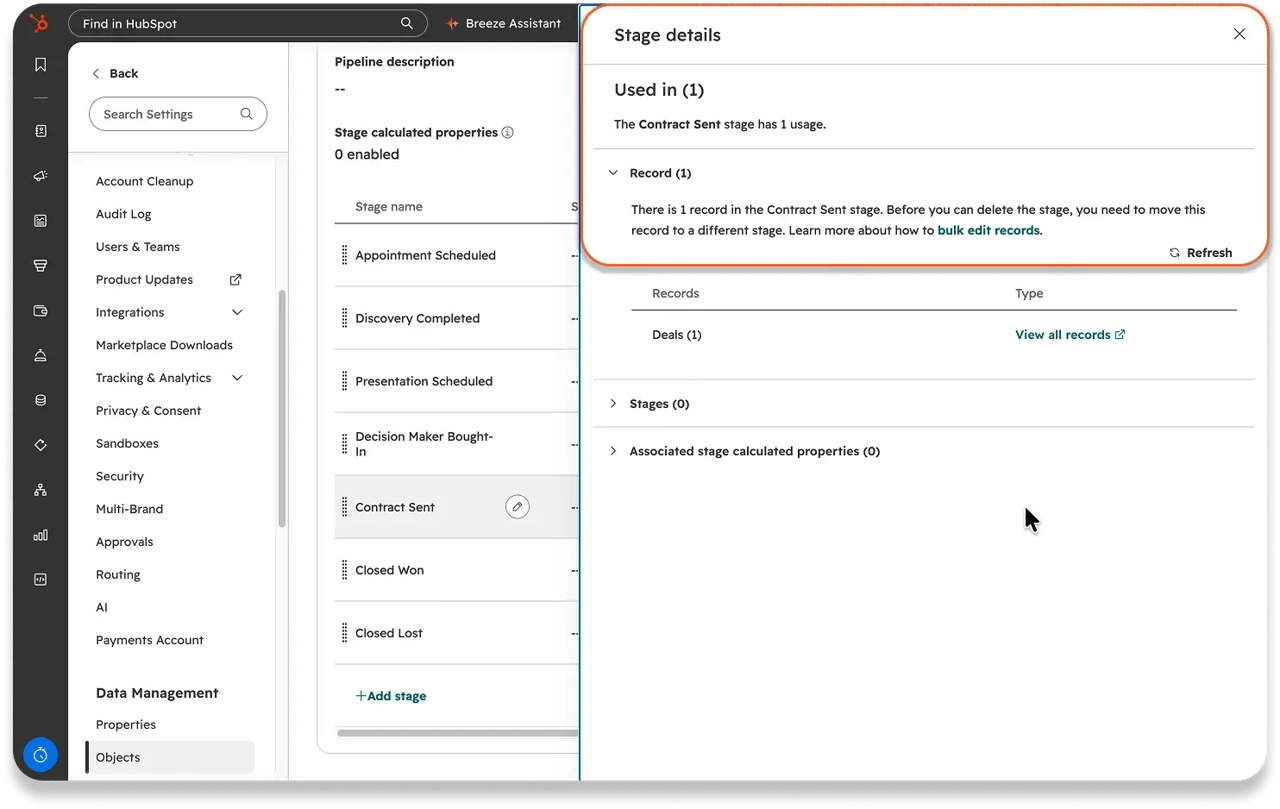
- Find the stage and look at its Used in column.
- Click the number. A panel shows everything still using the stage, such as deals sitting in it or a required field tied to it.
- Click View all records and move those deals to another stage.
- Scroll right to the Delete column and click the trash icon.
- Click Save.
How Do You Set Win Probabilities You Can Trust?
Base each stage's probability on your own close rates, not on HubSpot's defaults. Your probabilities are what turn a board full of deals into a forecast. Set them by guesswork, and every report downstream is guessing too.
The formula: deals from this stage that closed won ÷ deals that reached this stage.
If 5 out of every 10 deals that reach a stage end up signing, that stage gets 50%.
- In your pipeline's stage list, click the Probability dropdown next to a stage.
- Pick a percentage, or type your own in Enter amount and click Add option.
- Click Save.
🏆 Elite Partner Tip: Re-check your probabilities every quarter. Close rates change as your pricing, team and market change, and a probability set two years ago quietly inflates or deflates every forecast you run today.
How Do You Edit a Deal in HubSpot?
You can edit a deal from the board, from its record, or straight from the table view, and HubSpot saves your changes automatically. A pipeline only stays accurate if updating a deal is quick, so it's worth showing your team all three.
| You want to... | Fastest way |
|---|---|
| Move a deal to the next stage | Drag its card to the next column on the board |
| Change a close date, amount or other property | Click the deal name, then click the property on the record |
| Update several deals one after another | Switch to the table view and click a cell, just like a spreadsheet |
| Apply the same change to many deals | Select them in the table and use Edit (bulk edit) |
A few things to know:
- Edits save on their own. On a record or in the table view, you click the property, change the value, and HubSpot saves it.
- Bulk edit changes one property per pass. To change both the stage and the lost reason, you run two edits.
- Moving a deal's probability by hand stops it from updating. A deal's probability normally updates when it moves to a new stage. Edit it manually, and it stays where you put it.
How Do You Clean Up a HubSpot Deal Pipeline?
Cleaning up a pipeline takes four moves: find the deals that aren't real, close them out, merge duplicates, and standardize names. Do them in that order, and do all of them before you turn on pipeline rules.
Step 1: Turn on time-in-stage tracking
To spot deals stuck in a stage, HubSpot has to track how long each deal sits there. On new pipelines, that tracking is off by default. It's available on Professional and Enterprise.
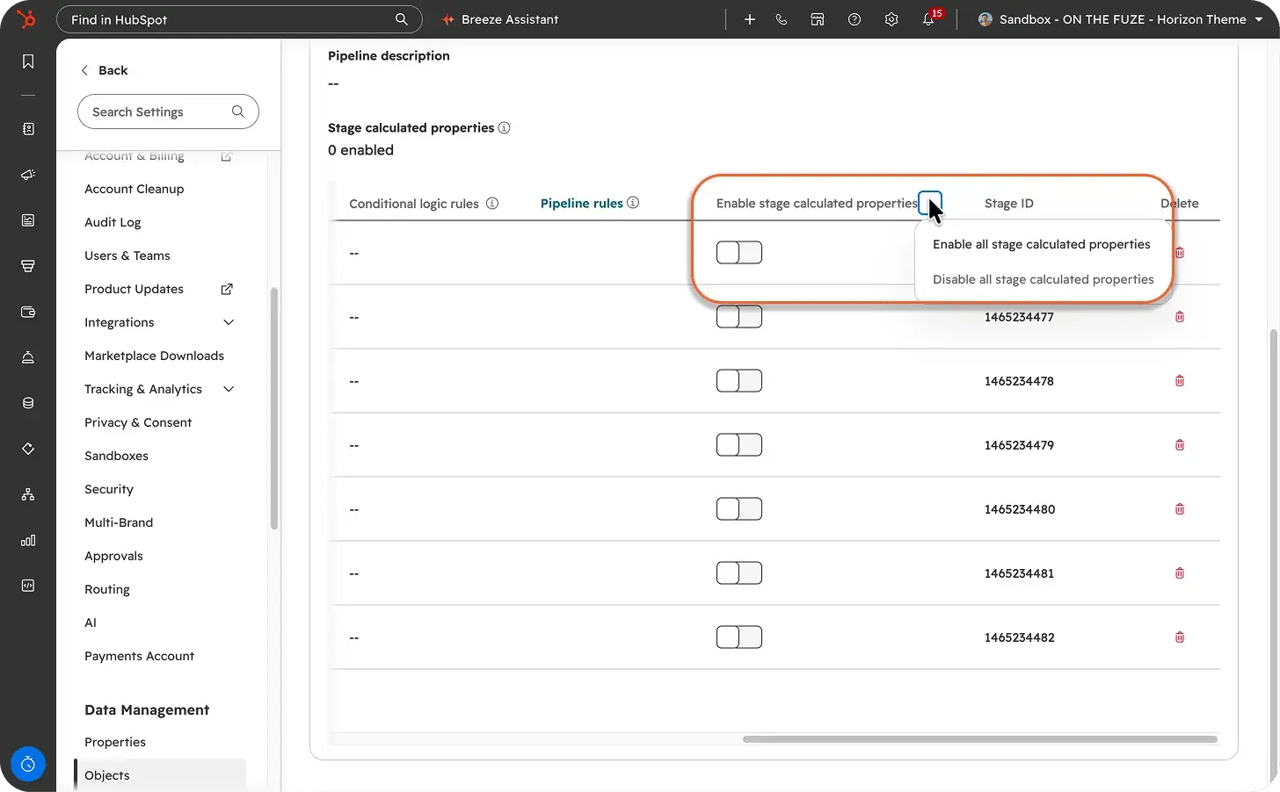
- Open your pipeline settings and click your pipeline's name.
- Scroll right, click the three dots next to Enable stage calculated properties, then select Enable all stage calculated properties.
- Click Save.
HubSpot fills these properties in from your deals' history, so you can use them right away.
Step 2: Build your cleanup views
Turn each problem into a saved view, so next month, finding those deals takes one click. Every view below also uses Deal stage is none of All closed deals, so you only see open deals.
| View | Filter | What it catches |
|---|---|---|
| Past close date | Close date is before → Relative date → Today | Deals whose close date already passed |
| No next step | Next activity date is unknown | Deals with nothing scheduled |
| Stuck in stage | Date entered current stage is more than [X] days ago | Deals that haven't moved |
| Missing amount or owner | Amount is unknown, OR Deal owner is unknown | Deals your forecast can't count, or that nobody owns |
To build one:
- Go to CRM → Deals and switch to the table view.
- Click the + next to your view tabs, choose Table, and name the view.
- Add the filters from the table above. For the OR logic in the last view, use Advanced filters → Add filter group.
- Click Save in the bottom right.
- For the next view, click Clone at the bottom and swap the first filter.
For Stuck in stage, pick a number of days that fits your sales cycle. We start with 30.
🏆 Elite Partner Tip: Share the views with your whole team, so every rep cleans up from the same list. Click the view's name, click the configure view (gear) icon, then Manage sharing → Everyone.
Step 3: Close out dead deals (don't delete them)
Move dead deals to Closed lost instead of deleting them. A lost deal still tells you why you lost, and your win-rate reports need that data.
Before you close anything, give each owner one business day to rescue any deal that still has a real next step with the buyer. Then:
- Open your Past close date view and check the box next to each deal nobody rescued.
- Click Edit at the top of the table and choose Deal stage under Property to update.
- Pick Closed lost with your pipeline's name next to it, and click Update. HubSpot lists every pipeline's stages here, and picking another pipeline's stage moves your deals into it.
- Select the same deals again, click Edit, choose Closed lost reason, and enter something like Pipeline cleanup, so you can filter these out of this month's win-rate reports.
- Click Update, then repeat for the other views.
Good to know: if close date automation is on for your pipeline (on its Automate tab), moving deals to a closed stage sets their close date to today. Your reports will show when you closed them out, not when they were originally expected.
Step 4: Merge duplicate deals
Duplicates count the same sale twice, so your pipeline looks healthier than it is. HubSpot's duplicate management tool only covers contacts and companies, so deals are merged by hand.
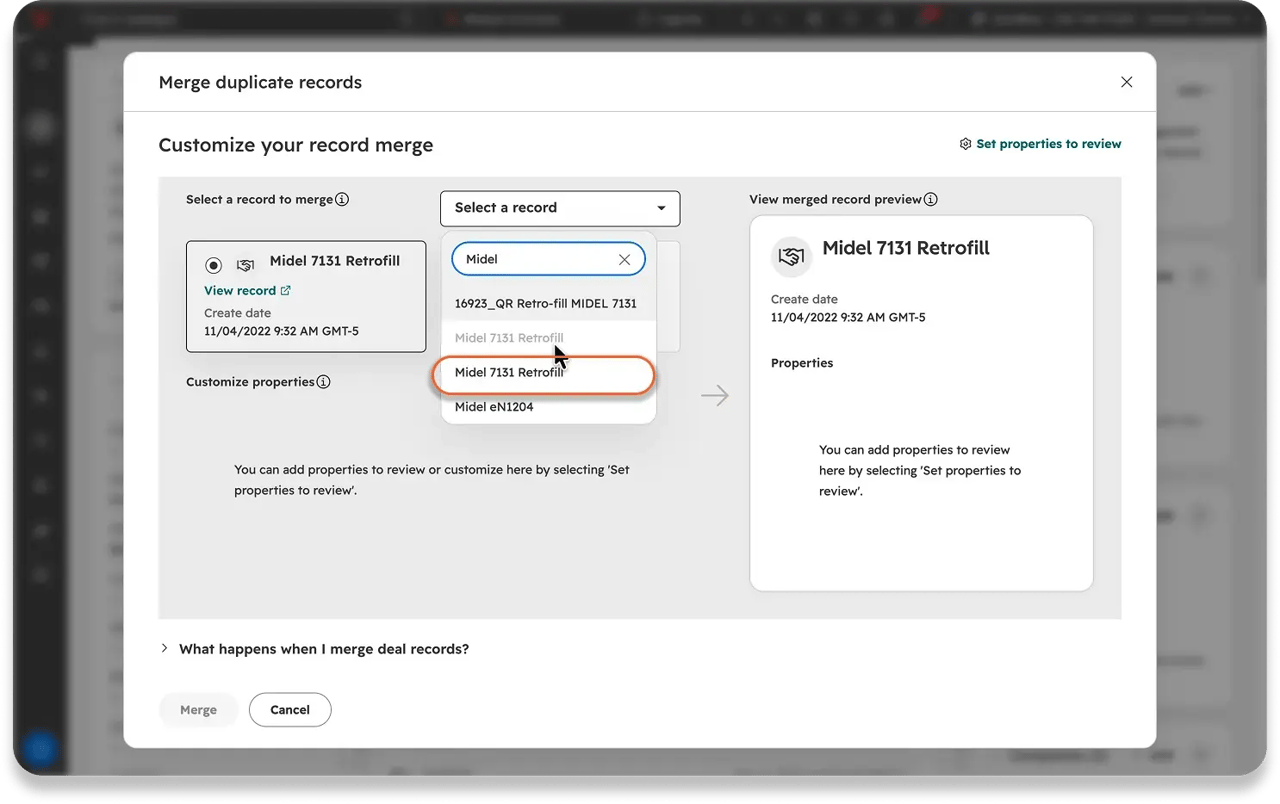
- In your deals table, click the Deal Name column header to sort A to Z, so duplicates line up next to each other.
- Open the deal you want to keep, click Actions, and select Merge.
- Click Select a record, search for the duplicate, and pick it.
- Check the preview, then click Merge.
Merging can't be undone, so double-check before that last click.
Step 5: Standardize deal names with a naming convention
A deal naming convention makes reports readable and duplicates easy to spot. The simplest one that works for most small businesses:
| Deal type | Formula | Example |
|---|---|---|
| New business | Company name - What they're buying | XYZ Logistics - HubSpot Support Package |
| Renewal | Company name - What they're buying - Renewal [year] | XYZ Logistics - HubSpot Support Package - Renewal 2027 |
| Upsell | Company name - What they're adding - Upsell | XYZ Logistics - Website Pages - Upsell |
You can't force a format on every deal, but you can pre-fill the company name with a default deal name (Super Admin required):
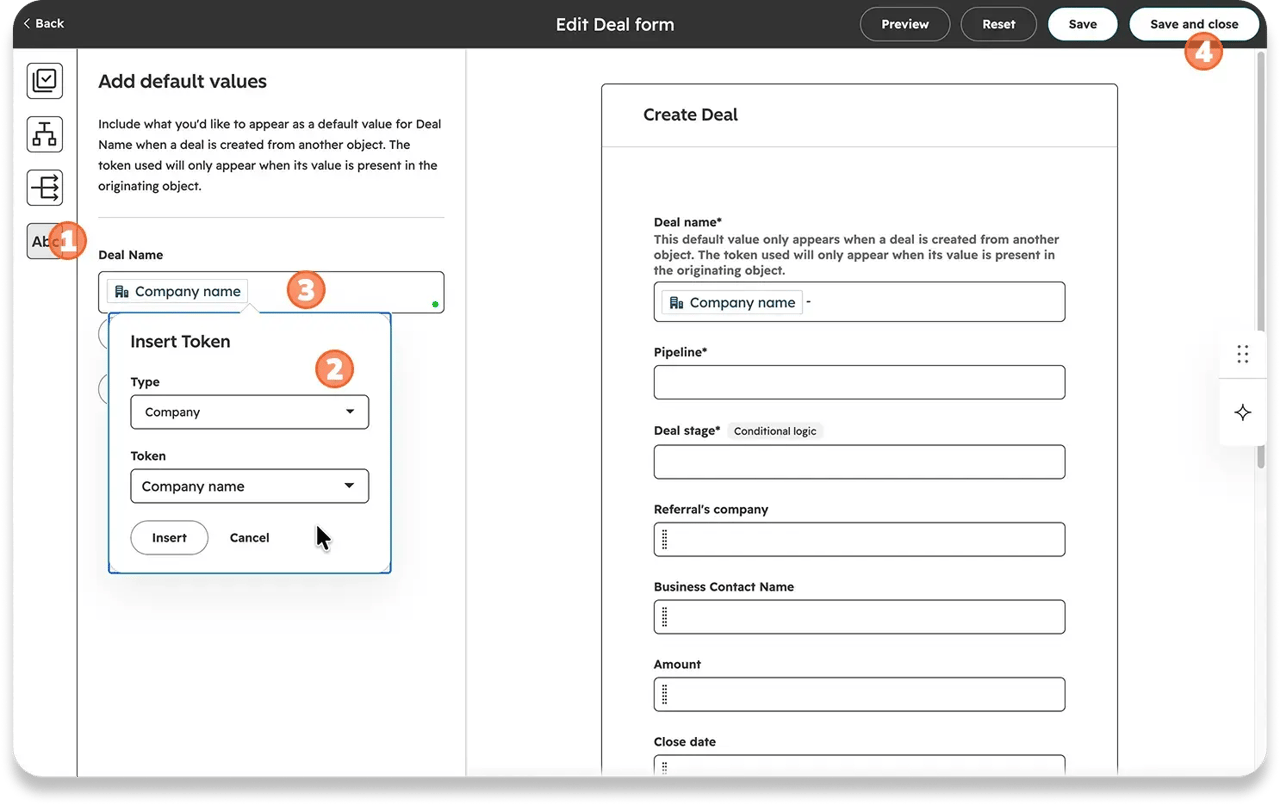
- Click the settings icon, go to Objects, and select Deals.
- Under Creating deals, click Customize the 'Create deal' form.
- In the left sidebar, click the Abc icon to open Add default values.
- Click Personalize, choose Company and Company name, and click Insert.
- Type a dash after the token, click Update, then Save and close.
The default name only fills in when a rep creates the deal from a company's record. From the deals page, there's no company to pull the name from, so build the habit of creating deals from the company record.
How Do You Keep Your HubSpot Pipeline Clean?
Good pipeline management means HubSpot enforces your standards, so nobody has to police them. Three settings do most of the work, and one test makes sure they behave.
Require the right info at each stage
Conditional stage properties make HubSpot ask for specific fields the moment a deal enters a stage. They're available on every plan with the Edit property settings permission.
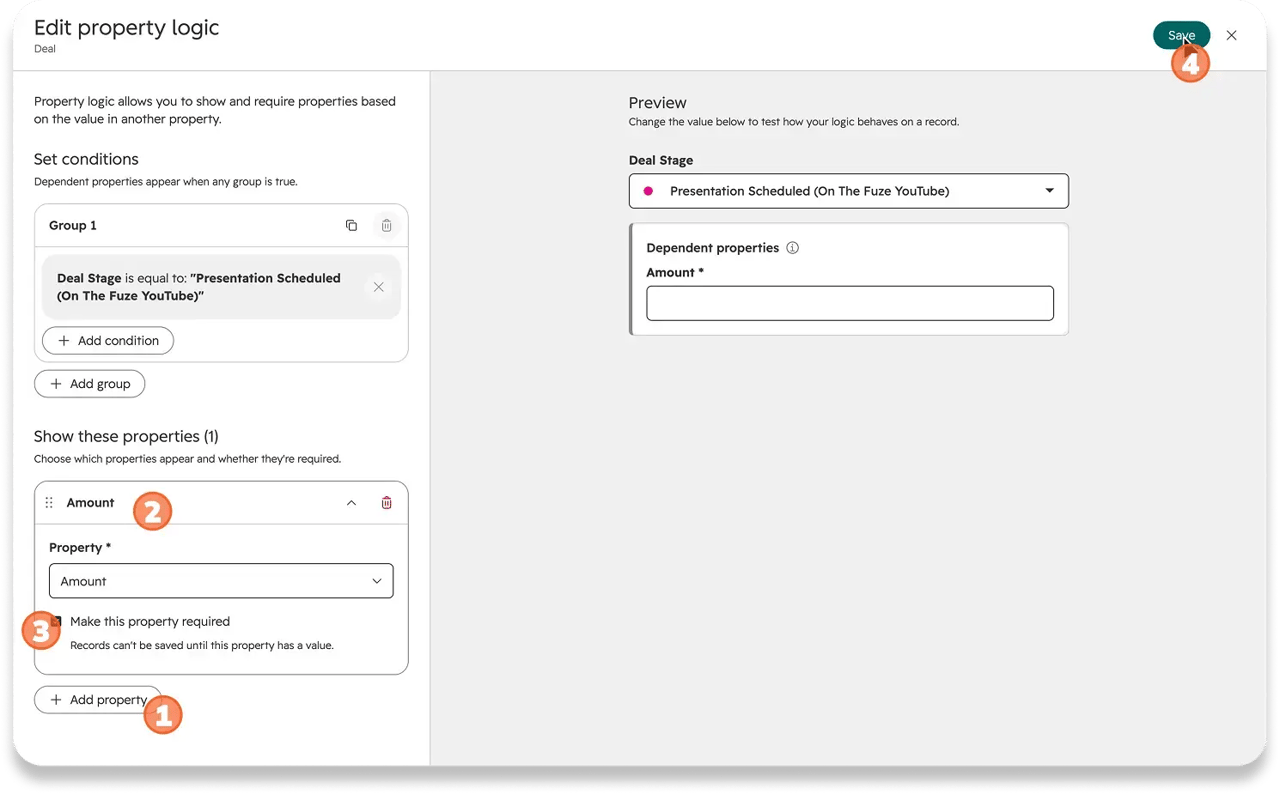
- Open your pipeline settings.
- Find the stage where a deal needs real numbers to count in your forecast (for example, Proposal sent). Hover over its Conditional logic rules column and click Add rule.
- Click Add property and pick what a deal needs before it can enter that stage, such as Amount, Close date and a Product or Service type dropdown.
- Check Required next to each one.
- Click Save in the top right.
Do the same for Closed lost with your lost reason property, so nobody loses a deal without saying why.
Stop deals from skipping stages
Required fields only work if deals pass through the stages that ask for them. Pipeline rules (Professional and Enterprise, Super Admin to configure) close that gap.
- In your pipeline settings, click the Pipeline Rules tab.
- Turn on Restrict deals from skipping stages, and in the panel that opens, choose All stages.
- Click Save.
Deals can still jump straight to Closed won or Closed lost, so a deal that dies early can still be closed out.
On the same tab, you can also stop deals from moving backwards, choose which stages new deals can start in, or limit who can edit deals in certain stages. On Sales Hub Enterprise, you can add an approval stage a deal can't pass until a manager approves it.
🏆 Elite Partner Tip: Run your cleanup BEFORE you turn on pipeline rules. Once rules are on, HubSpot blocks bulk edits to a deal's pipeline or stage. And remember that Super Admins, users with Edit property settings permissions, workflows and the API can get past every rule except approvals, so keep those permissions to a small group.
Give every deal a next step, automatically
Pipeline automations hand out the next step for you. They're available on Sales Hub Starter and up, with Super Admin or Workflow edit permissions.
- On your deals board, hover over a stage and click Automate.
- Select Create and assign task.
- Give the task a title (for example, Confirm next step with the buyer). Set Due date to Custom date and 2 days, and assign it to the deal owner.
- Click Create workflow.
From the same menu, you can also send an internal email notification or edit a field on the record when a deal enters a stage.
Test it before your team does
Ask a rep without admin access to run these with you, since admins can get past the rules:
- [ ] Drag a deal into a stage with required fields. Pass if HubSpot stops the move until the fields are filled in.
- [ ] Drag a deal from your first stage straight to a late stage. Pass if HubSpot won't let it skip.
- [ ] Move a deal into a stage with a task automation. Pass if a new task is waiting for the deal owner.
- [ ] Move a deal to Closed lost. Pass if HubSpot asks for the lost reason.
What Does a 30-Minute Monthly Pipeline Review Look Like?
Once your views are built, keeping the pipeline clean takes about 30 minutes a month. Same day, same order, same views.
| Minutes | Open this | Do this |
|---|---|---|
| 0–3 | Pipeline board | Add up the weighted amounts and note the total |
| 3–10 | Past close date | Send each owner their list with a one-day rescue window |
| 10–16 | No next step | Every deal gets a scheduled next activity, or goes on the rescue list |
| 16–21 | Stuck in stage | Ask what's blocking each deal; move it forward or flag it |
| 21–25 | Missing amount or owner | Fill in the amount and assign an owner |
| 25–28 | Deals table, sorted by name | Merge duplicates and fix names that break the formula |
| 28–30 | Your notes | Close out last month's unrescued deals and log the numbers |
Once a quarter, add 15 minutes to re-check your stage probabilities and review your lost deals by reason.
What Mistakes Should You Avoid With Your HubSpot Deal Pipeline?
The costliest pipeline mistakes aren't technical. They're about what you let into the pipeline and what you let sit there.
Creating deals before a prospect is qualified
A "meeting booked" stage fills your pipeline with deals that were never real. Track early conversations as leads, and create the deal once the prospect is qualified.
Naming stages after rep activity
"Proposal sent" tells you someone clicked send. Name stages after what the buyer confirmed, so each stage means the same thing for every rep.
Deleting dead deals instead of closing them
Deleted deals take their history with them. Close them out as lost, with a reason, so your win-rate reports stay accurate.
Leaving default probabilities in place
HubSpot's defaults weren't built from your close rates. If you've never changed them, your weighted pipeline is a guess.
Turning on rules before cleaning up
Pipeline rules block bulk stage edits. Clean up first, then lock it down.
Adding a pipeline for every product or team
More pipelines mean a forecast split across boards. Use one pipeline per sales process, and a dropdown for everything else.
Frequently Asked Questions
What are HubSpot deals?
HubSpot deals are CRM records that track potential sales. Each deal stores the amount, expected close date, deal stage and owner, and moves through a deal pipeline until it's Closed won or Closed lost.
Does HubSpot CRM include sales pipeline tracking?
Yes. Every HubSpot account, including the free CRM, includes a default deal pipeline. Starter adds up to 15 custom pipelines, Professional up to 100 and Enterprise up to 350 on seat-based pricing, shared across all objects with pipelines.
How do I create a new deal pipeline in HubSpot?
Go to Settings → Data Management → Objects, select Deals, open the Pipelines tab, click Create pipeline → Create from scratch, name it, and click Create pipeline. Custom pipelines need a Starter subscription or higher.
How can I customize the deal stages in a HubSpot pipeline?
Open your pipeline from the Pipelines tab. You can rename stages with the pencil icon, add stages with + Add stage, drag them into order, set each stage's probability, and add required fields with Conditional logic rules. Click Save when you're done.
How to create deal stages in HubSpot?
On the Pipelines tab, click your pipeline, click + Add stage, type the stage name, choose a probability, drag it into place and click Save. New stages land at the bottom of the list, under Closed lost.
How do I edit a deal pipeline in HubSpot?
Go to Settings → Data Management → Objects, select Deals, open the Pipelines tab and click the pipeline's name. From there, you can rename, add, reorder or delete stages and change their probabilities. To rename, reorder or delete the pipeline itself, click Actions on the right.
How to edit pipeline stages in HubSpot?
Open the pipeline from Settings → Objects → Deals → Pipelines. Hover over a stage and click the pencil icon to rename it, drag to reorder it, change its probability from the dropdown, or delete it from the Delete column once its Used in count is clear. Then click Save.
How do you edit a deal in HubSpot?
Drag the deal's card to move it between stages, click the deal name to edit properties on its record, or click a cell in the table view. HubSpot saves your changes automatically. To change the same property on many deals, select them in the table and click Edit.
Can you delete a deal stage that has deals in it?
No. HubSpot blocks deleting a stage that's still in use. Click the number in the stage's Used in column, move the deals out with View all records, remove anything else tied to it, then delete the stage.
Can you undo a deal merge in HubSpot?
No. Merged deals can't be unmerged, so check the preview carefully before you click Merge.
What is a good deal naming convention in HubSpot?
Company name - What they're buying works for most small businesses (for example, XYZ Logistics - HubSpot Support Package). Add Renewal [year] or Upsell for those deal types, and set a default deal name so the company name fills in automatically.
Why should I close dead deals instead of deleting them?
Closed lost deals keep their history and lost reason, which your win-rate and sales reports depend on. Deleting them removes that data and makes your win rate look better than it is.
Can admins get past HubSpot pipeline rules?
Yes. Super Admins, users with Edit property settings permissions, workflows and the API can bypass every pipeline rule except deal approvals. Test your rules with a rep who doesn't have admin access.
Key Takeaways
- A deal pipeline is only as useful as the deals in it. Dead, stale and duplicate deals make your forecast look bigger than it is.
- Every HubSpot account includes a deal pipeline. Starter adds up to 15 custom pipelines, Professional 100 and Enterprise 350.
- Use one pipeline per sales process, and keep unqualified prospects in the Leads object, not in your deal pipeline.
- Name stages after what the buyer confirmed, and set win probabilities from your own close rates. Re-check them every quarter.
- Clean up in four moves: find the deals that aren't real with saved views, close them out as lost (never delete them), merge duplicates and standardize names.
- Lock it down after the cleanup: required fields at key stages, a rule against skipping stages and an automation that hands out the next step.
- Keep it clean in 30 minutes a month with the same views, in the same order, on the same day.
On The Fuze is a Top 1% HubSpot Elite Partner with 10+ years of experience and 3,000+ CRM setups optimized across North America. We help small and medium-sized businesses leverage the full potential of HubSpot to scale their businesses.