Marketing Hub Workflow Templates
Get 5 ready-to-copy marketing workflows to nurture leads, promote events, and follow up on autopilot.
Download Now
If your team only follows up when someone remembers to, you're losing leads you already paid for.
A prospect downloads a guide at 9 p.m., a human doesn't see it until two days later, and by then they've booked a demo with a competitor who answered first. Marketing automation closes that gap.
In 2026, HubSpot makes this easier than it has ever been. You describe what you want to happen in plain English, and HubSpot builds the follow-up for you.
Does HubSpot Do Marketing Automation?
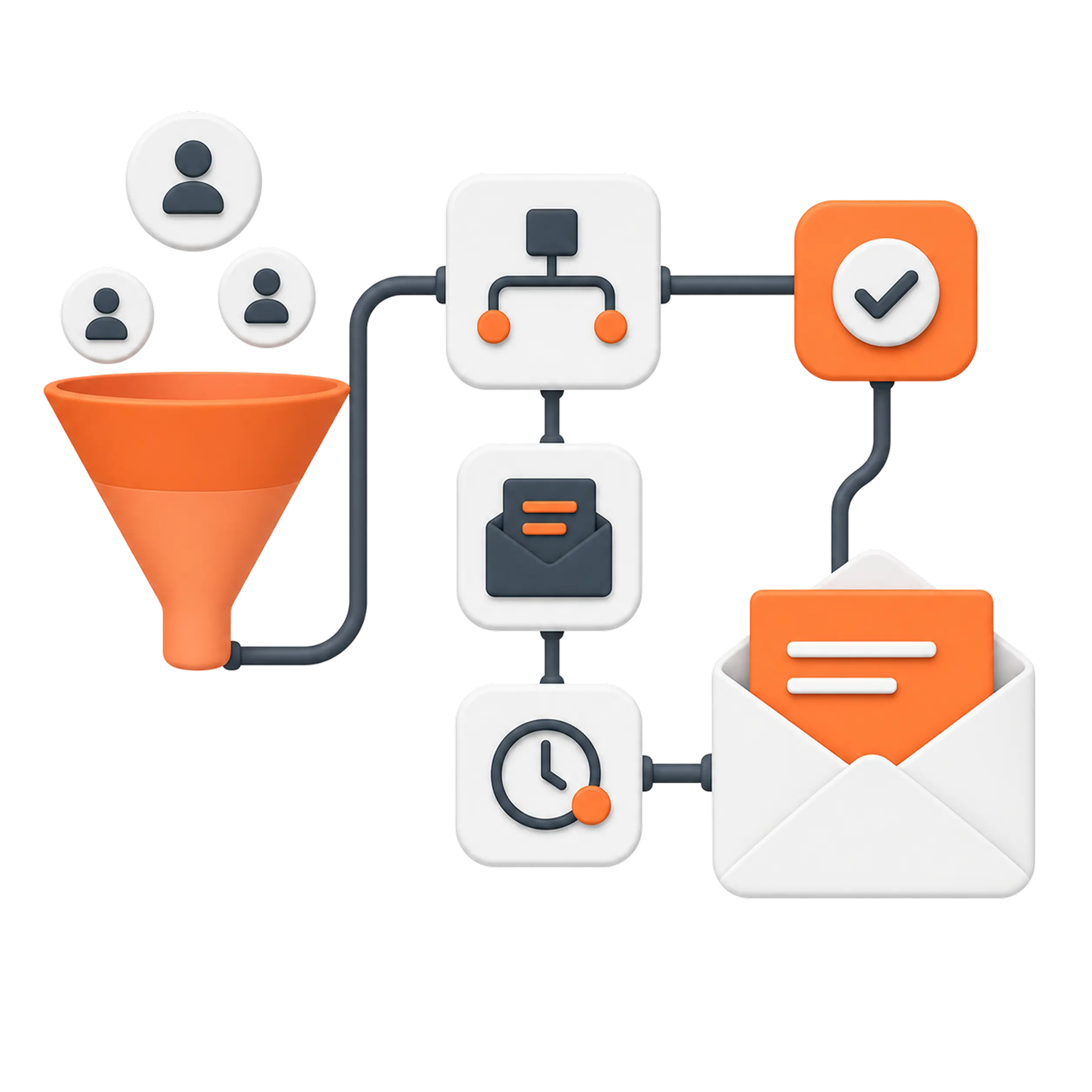
Yes. Marketing automation is one of HubSpot's core strengths, built around a tool called Workflows. A workflow is a set of "if this happens, do that" rules that run on their own—when a lead submits a form, HubSpot can send a welcome email, notify a rep, update a record, and add the contact to the right audience, all without anyone lifting a finger. Three things define HubSpot automation today:
- Workflows handle the logic: triggers, delays, branches, and actions across your whole CRM.
- Breeze, HubSpot's built-in assistant, can draft the workflow for you when you describe it in plain language.
- Segments (renamed from "Lists" in 2026) feed workflows with audiences that update themselves in real time.
The result is a follow-up engine that runs consistently, whether you have five leads this week or five hundred.
What Is Marketing Automation in HubSpot?
Marketing automation is the system that captures leads, follows up with them automatically, and shows you what's working—so growth doesn't depend on someone remembering to do the manual work.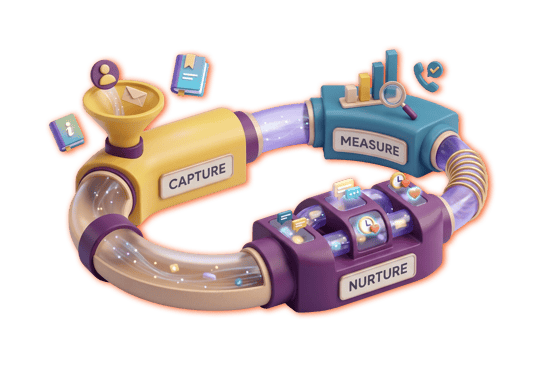
Every effective setup follows the same three-step loop:
- Capture — Bring in real people who trade their email for something useful, like a guide or a checklist.
- Nurture — Send the right message at the right time, automatically, so trust builds while your team focuses elsewhere.
- Measure — See what's opening, converting, and turning into booked calls, so you know what to fix.
The third step feeds the first. Once you can measure which offers and emails produce meetings, you know where to invest next. Everything in this guide maps back to that loop.
What Do You Need to Run Marketing Automation in HubSpot?
Lead capture works on any HubSpot plan, but automated, multi-step nurture requires Marketing Hub Professional or higher. Starter includes basic, single-step email automation; the full workflow builder—with delays, branches, and behavior-based triggers—becomes available at Professional.
Here's the short version of what each tier gives you:
| Plan | What you can automate |
| Free / Starter | Forms, CTAs, meeting links, and basic single-step email follow-up |
| Professional | The full Workflows builder: multi-step nurtures, behavior triggers, branching, business-day delays, and the "build with Breeze" option |
| Enterprise | Everything in Professional, plus advanced branching, custom-coded actions, and revenue attribution reporting |
🏆 Elite Partner Tip: Don't upgrade before you need to. Build and test your capture pieces on the plan you have. When you can point to leads sitting untouched over a weekend, you'll have a concrete reason to move to Professional—and you'll know exactly what the upgrade is buying you.
How Do You Set Up Marketing Automation in HubSpot? (Step by Step)
You set up automation in four moves: capture the lead, build the emails, wire them into a workflow, and measure the result. Follow them in order—the sequence matters more than most people expect.
Step 1 — Capture the Lead
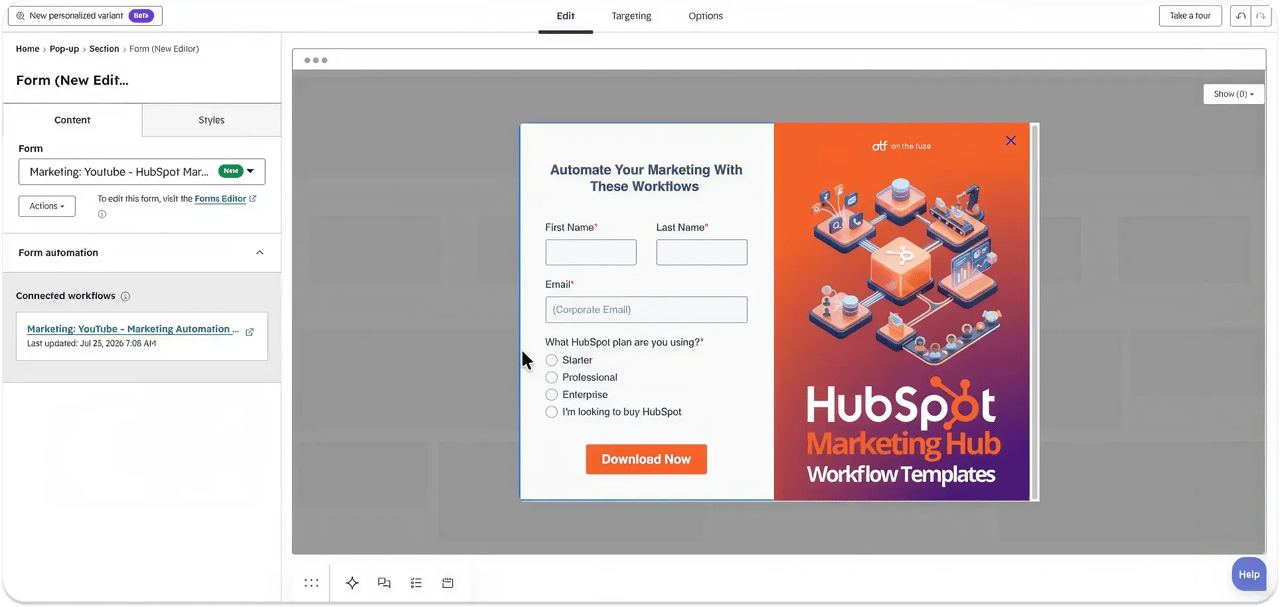 Creating a CTA to capture leads from our website or from dedicated landing pages.
Start with an offer worth an email address: a checklist, a guide, or a template library. Then build the capture piece.
- Go to Marketing → CTAs → Create and choose a pop-up template (for example, a download offer).
- In the design tab, match the pop-up to your brand image, colors, and fonts.
- Add a form that collects first name and email at minimum. A qualifying field (like company size or current tool) helps you route leads later.
- In the targeting tab, choose when the pop-up appears: exit intent, time on page, scroll depth, or inactivity.
Name the form something specific, like Templates Library Opt-In. Clear names save you time when you're picking triggers later.
Step 2 — Build Your Emails First
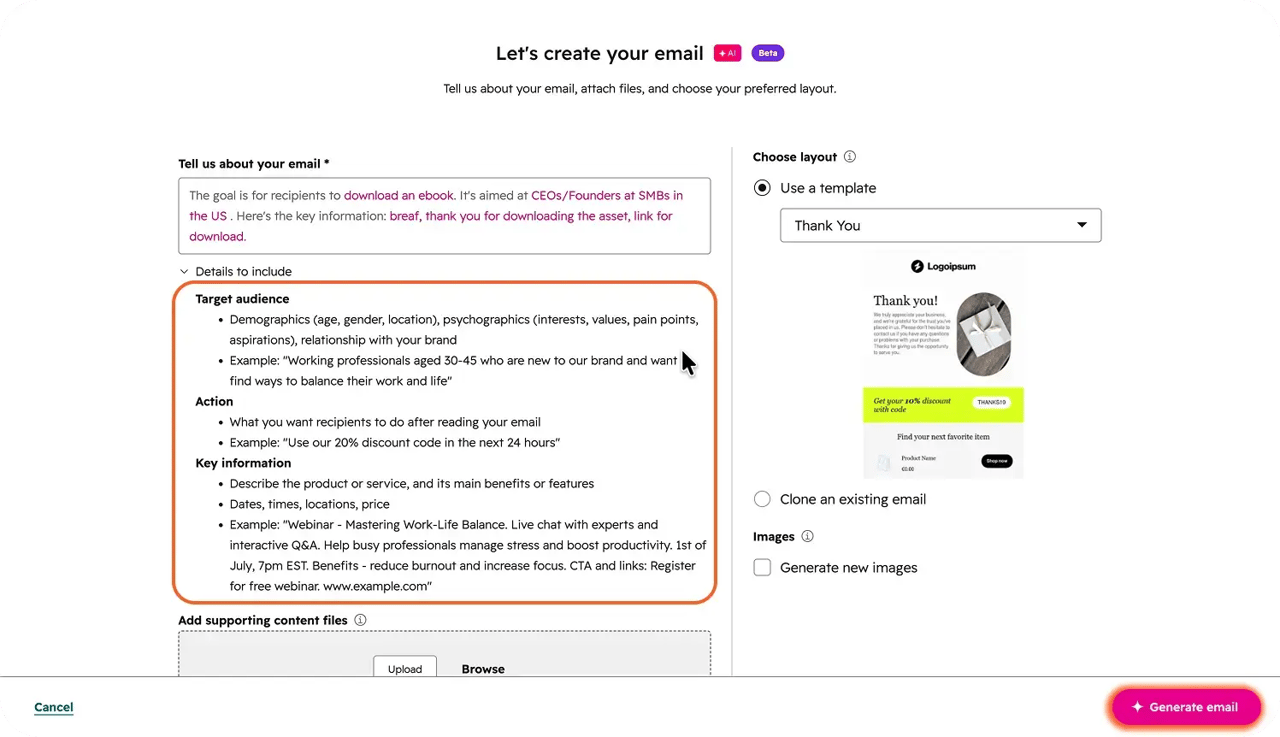 Using Breeze AI to generate email drafts. Remember to always review any AI content.
Thanks to AI, Breeze can now assemble a full sequence for you—but it can't create the marketing emails from inside the workflow builder. The emails have to exist and be saved for automation first, or the workflow has nothing to send.
For each email:
- Open the email editor and start from a template, or use HubSpot's "Create email with AI option", which drafts a first version from a short description of your goal, audience, and key points.
- Make it yours—apply your logo, fonts, and brand voice, and tighten the copy.
- In the send settings, choose Save for automation (rather than a one-time send).
- Name each email clearly using a consistent pattern, such as Templates Library – Welcome, Templates Library – Story, Templates Library – Results, and Templates Library – Re-engagement.
Consistent names make the next step fast, because you'll reference these emails directly.
Step 3 — Build the Workflow
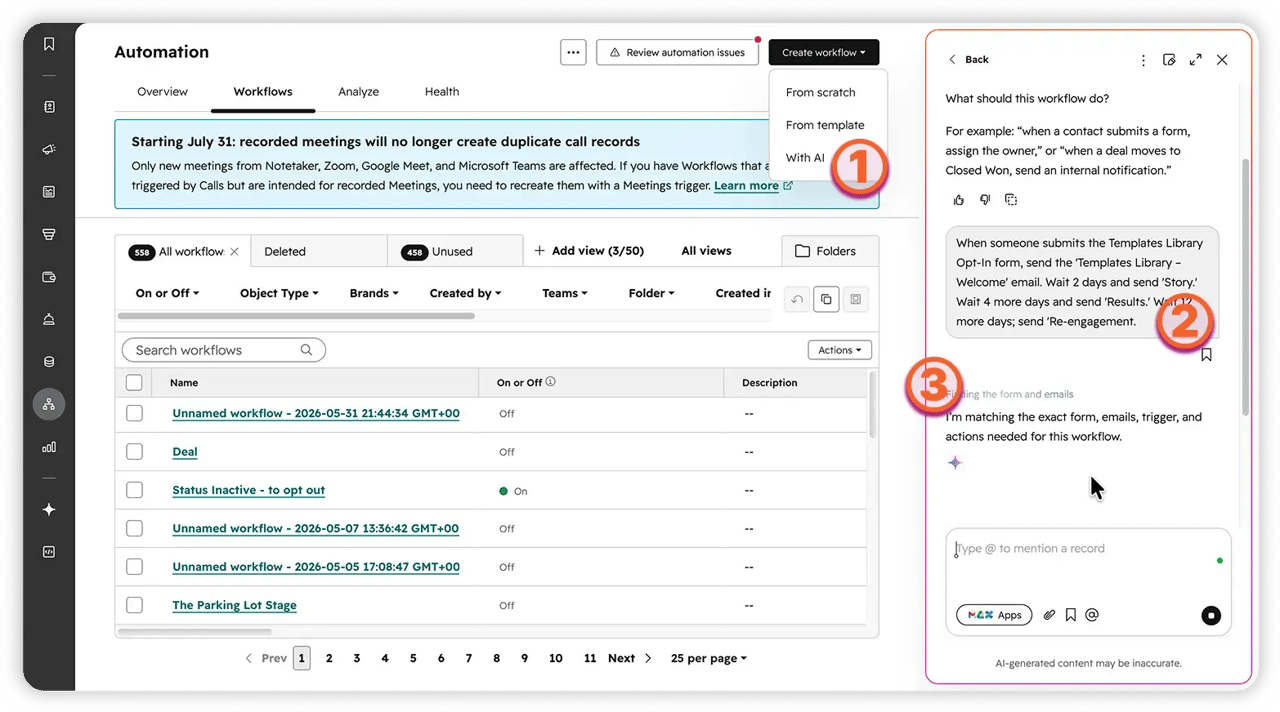 This is how to create an AI-powered HubSpot workflow. Your prompt must be highly specific.
Now you connect the pieces. Go to Automation → Workflows → Create workflow, and choose the option to build with AI.
Describe the sequence in plain language and name the emails you just saved. For example:
"When someone submits the Templates Library Opt-In form, send the 'Templates Library – Welcome' email. Wait 2 days, send 'Story.' Wait 4 more days, send 'Results.' Wait 12 more days, send 'Re-engagement.'"
Breeze sets the trigger, drops each email into place, and spaces out the delays. Then you review what it built:
- Open each delay and turn on "business days only." A plain "wait 3 days" counts through the weekend, so an email can land at 2 p.m. on a Saturday. Business-day delays hold it until Monday.
- Add one branch by hand: if a contact converts—books a call or replies—remove them from the sequence so they stop getting "did you see our offer?" emails.
- Check re-enrollment in Settings so the same person doesn't loop through the nurture more than once.
🏆 Elite Partner Tip: Always test before you promote. Submit the form with your own email and confirm the pop-up fires, the first email arrives with the right link, and the contact record shows the enrollment. Five minutes of testing prevents a public mistake in front of real leads.
Step 4 — Measure and Optimize
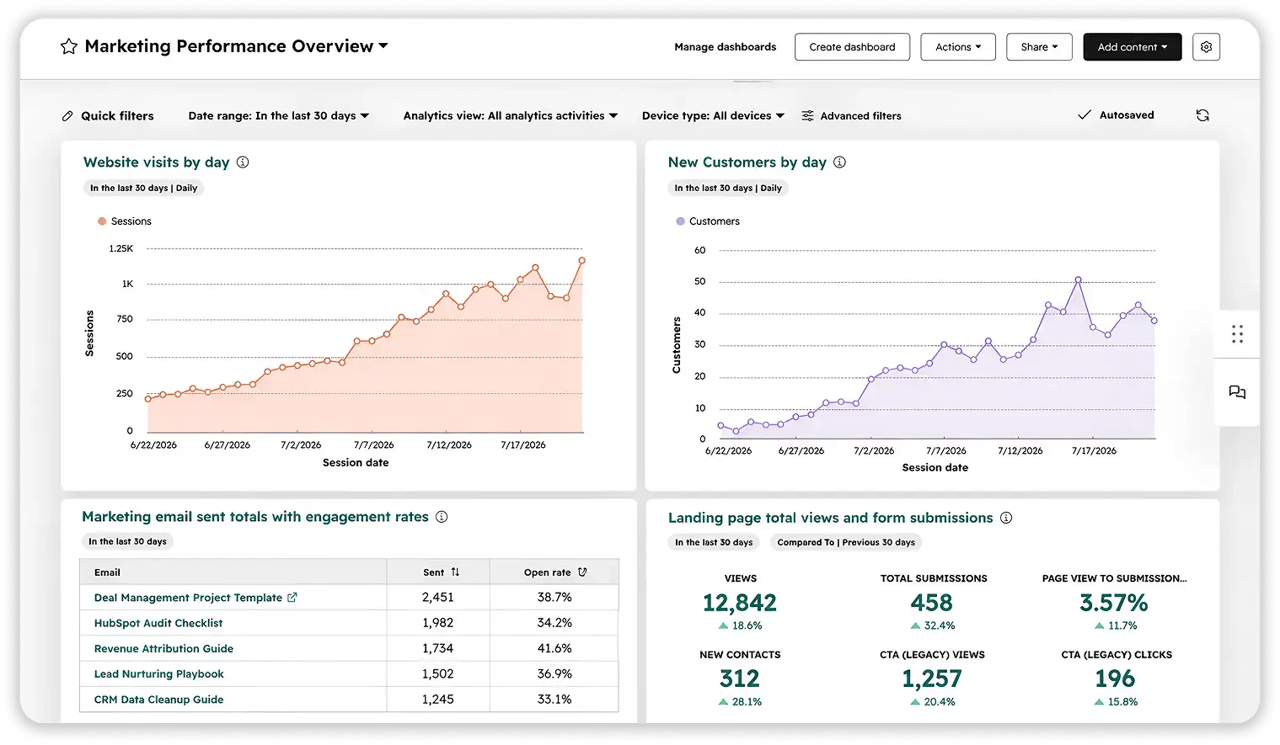 Dashboards are the most effective way to measure the success of your marketing automations.
Automation you can't measure is just noise. Build a reporting view so you can see whether the loop is working (covered in detail below).
What Is HubSpot Breeze, and How Does It Fit In?
Breeze is HubSpot's built-in assistant layer, and it shows up in three forms across the platform. If you've heard it called "Copilot," that was the old name—HubSpot renamed the assistant to Breeze Assistant.
| Breeze form | What it does | Where you'll use it |
| Breeze Assistant | Drafts content and builds workflows from a plain-language description | Email editor, workflow builder |
| Breeze Agents | Runs multi-step jobs on their own, like the Data Agent (cleans and categorizes records) and the Prospecting Agent (watches accounts for news signals) | Inside workflows and in the background |
| Breeze Intelligence | Fills in missing details on your contact and company records so personalization goes past "Hi, first name." | Across the CRM |
Basic data enrichment is now included with your Core seats, with deeper enrichment available through paid credits. For a small team, the practical value is simple: these tools lower the technical barrier so you can build automation without a developer.
Simple Workflows vs. Advanced Workflows: Which Should You Use?
Use a Simple Workflow for one quick action; use an Advanced Workflow for a multi-step journey. HubSpot offers both, and picking the wrong one costs you time.
| Simple Workflow | Advanced Workflow | |
| Where it lives | Inside the email or form editor | The central Automation → Workflows tool |
| Best for | A single, immediate action (send one confirmation email) | Sequences that span days, branches, and multiple objects |
| Complexity | Low—no separate tool to open | Higher—full logic, delays, and branching |
🏆 Elite Partner Tip: Most small teams overbuild. If all you need is a single confirmation email after a form submission, do it as a Simple Workflow right inside the form editor. Save the central Workflows tool for the journeys that truly need it—fewer moving parts means fewer things to break.
Read more: If you want to know more about HubSpot workflows, check our blog "Automate Business Operations Using HubSpot Workflows for 2026 Success".
How Do You Measure If Your Marketing Automation Is Working?
Start with a dashboard, then set a Goal on the workflow itself. Together they tell you both the big picture and the one number that matters.
Build the dashboard. Go to Reporting → Dashboards → Create dashboard and pick the Marketing Performance Overview template. It loads a set of reports for you. Three are your pulse:
- Landing page total views and form submissions — is capture working?
- Marketing email sent totals with engagement rates — are the nurture emails opening and getting clicked?
- New Contacts by day and Website visits by day — are people coming in and coming back?
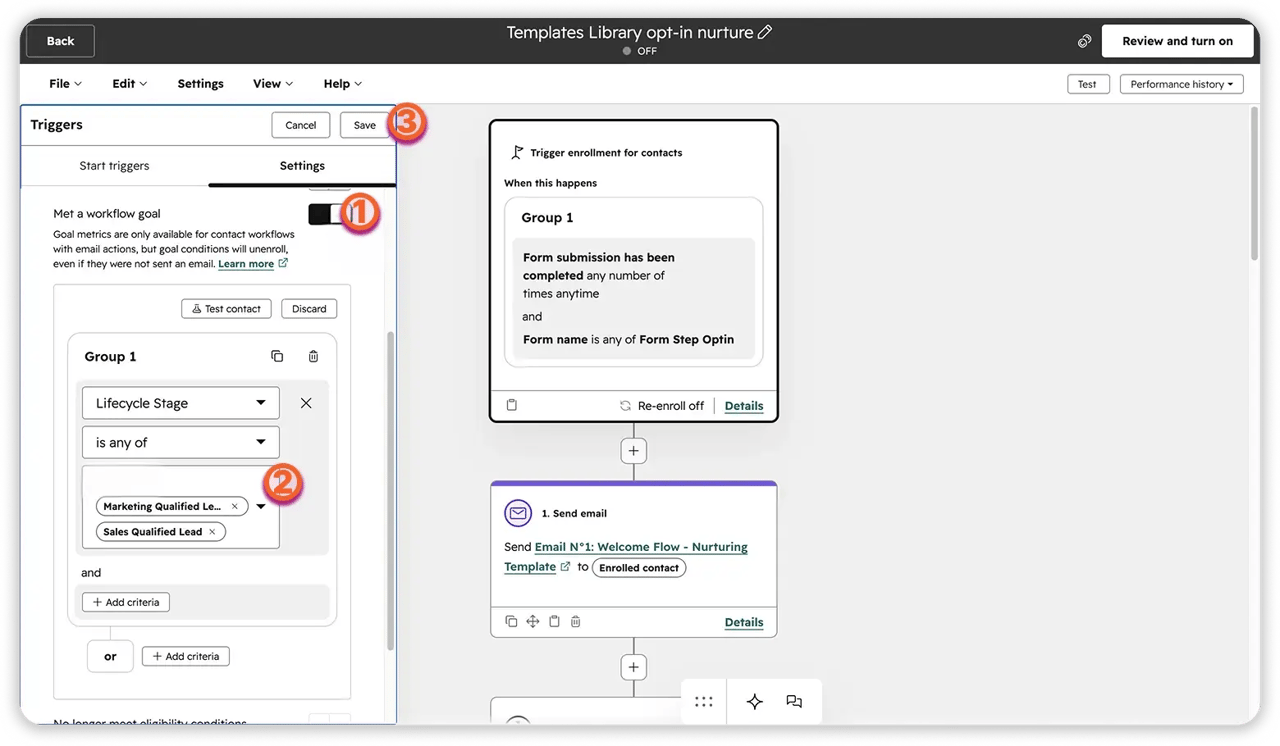 Follow these steps to create a workflow goal. If this goal is met, the contact who was enrolled will unenroll.
Set a workflow Goal. Inside the workflow, open Edit → Edit Goal and define what success means—"booked a meeting" or "became a marketing-qualified lead." HubSpot then shows a conversion rate: of everyone who entered the sequence, how many hit that goal? That's your single "did it work?" number, and it ties directly to the automation you built.
One tier note. Tying a specific email to closed revenue—revenue attribution—is a Marketing Hub Enterprise feature. On Professional you get contact-level attribution and workflow goal conversion, which is plenty to answer whether people are signing up, opening, and booking.
🏆 Elite Partner Tip: Before you check a report, open a hot lead's contact record and look at their timeline. You'll see the exact emails they received and which ones they opened. Now your first call references what they engaged with—and you can confirm at a glance that a real person moved through the sequence.
What Marketing Automation Mistakes Should You Avoid?
The most expensive automation mistakes aren't technical—they're sequencing and hygiene problems. Here are the ones we fix most often.
- Building the workflow before the emails. The workflow can't send emails that don't exist yet and aren't saved for automation. Build the emails first.
- Leaving delays on calendar days. Weekends send tank engagement. Turn on business-day delays.
- No exit branch. If you don't remove people who convert, you keep emailing customers who already said yes. It reads as careless.
- Skipping the re-enrollment check. The wrong setting can loop the same contact through your nurture again and again.
- Over-automating. Just because you can send more emails doesn't mean you should. Use frequency caps and stay useful, not noisy.
- Never auditing. A workflow built a year ago may be pointing at a renamed form or an old segment. Businesses change; automations should be reviewed on a schedule.
- Not testing before launch. Enroll yourself first. Catch the broken link before your leads do.
Frequently Asked Questions
Does HubSpot do marketing automation?
Yes. HubSpot's Workflows tool automates multi-step marketing follow-up—triggered emails, delays, branches, internal notifications, and record updates. In 2026, you can describe a workflow in plain language and have Breeze build it for you.
What HubSpot plan do I need for marketing automation?
Basic single-step email automation is available on Starter. The full workflow builder—multi-step nurtures, behavior triggers, and branching—requires Marketing Hub Professional. Enterprise adds advanced branching and revenue attribution.
Can HubSpot build a workflow for me?
Yes. When you create a workflow, choose the option to build with AI, describe what you want in plain language, and it assembles the trigger, emails, and delays on the canvas. You then review and adjust before turning it on.
Do I have to write my marketing emails, or can HubSpot draft them?
HubSpot's AI email editor includes a writer that drafts a first version from a short description of your goal, audience, and key points. You still review, brand, and approve every email—and the emails must be created and saved for automation before a workflow can send them.
How do I stop automated emails from sending on weekends?
Open each delay step in your workflow and turn on "business days only." HubSpot then skips Saturdays and Sundays when calculating the wait, so your emails arrive during working hours.
How do I measure marketing automation results in HubSpot?
Build a Marketing Performance Overview dashboard under Reporting, and set a Goal on your workflow (for example, "booked a meeting") to see a conversion rate. Revenue attribution reporting is an Enterprise feature; contact-level measurement is available on Professional.
How many workflows can I run?
Marketing Hub Professional includes up to 300 active workflows, and Enterprise includes up to 1,000. For a small business, that's rarely the limiting factor—most teams run a few dozen at most, so the real constraint is the quality and upkeep of each one, not the ceiling.
Key Takeaways
- HubSpot does marketing automation through Workflows—an "if this, do that" engine that runs your follow-up without manual effort.
- Lead capture works on any plan; multi-step automation requires Marketing Hub Professional. Enterprise adds advanced branching and revenue attribution.
- Follow the loop: Capture → Nurture → Measure. The third step tells you where to invest next.
- Build your emails first and save them for automation—Breeze can wire a sequence together, but it can't invent the emails.
- Describe the workflow in plain language, then review it. Turn on business-day delays and add an exit branch for people who convert.
- "Lists" are now "Segments." Active segments update themselves and are the fuel for automation.
- Measure with a dashboard plus a workflow Goal. On Professional, goal conversion answers "is this working?"—no Enterprise report required.
- The costly mistakes are sequencing and hygiene: wrong build order, weekend sends, no exit branch, and never auditing.