Claude + HubSpot Starter Kit
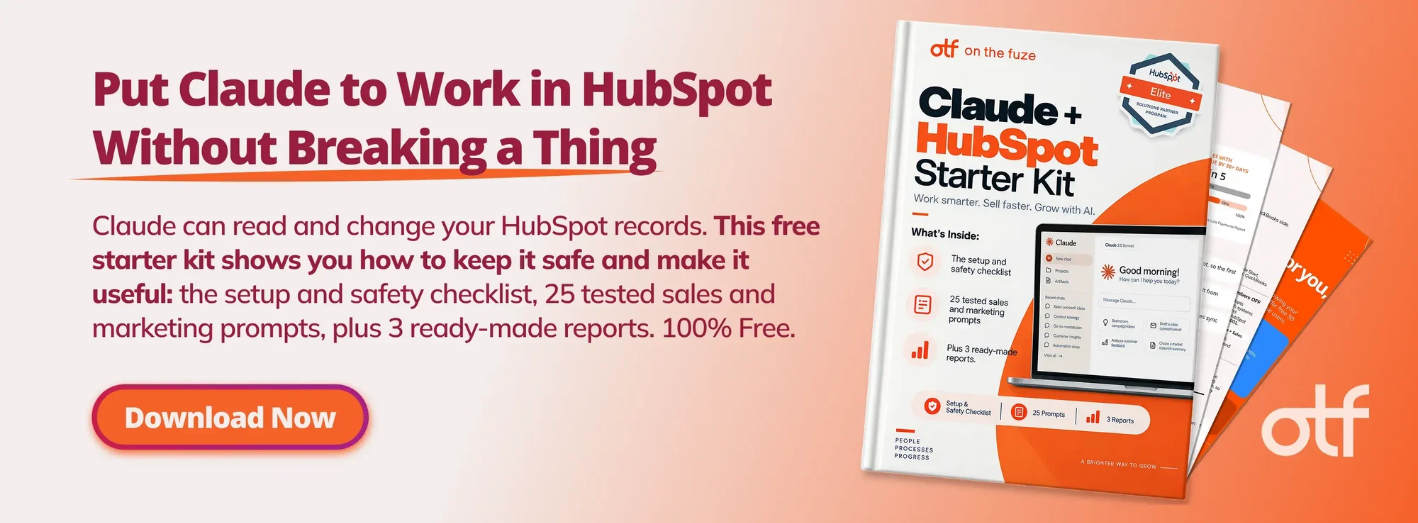
Get the setup and safety checklist, 25 tested sales and marketing prompts, plus 3 ready-made reports. 100% Free.
Download Now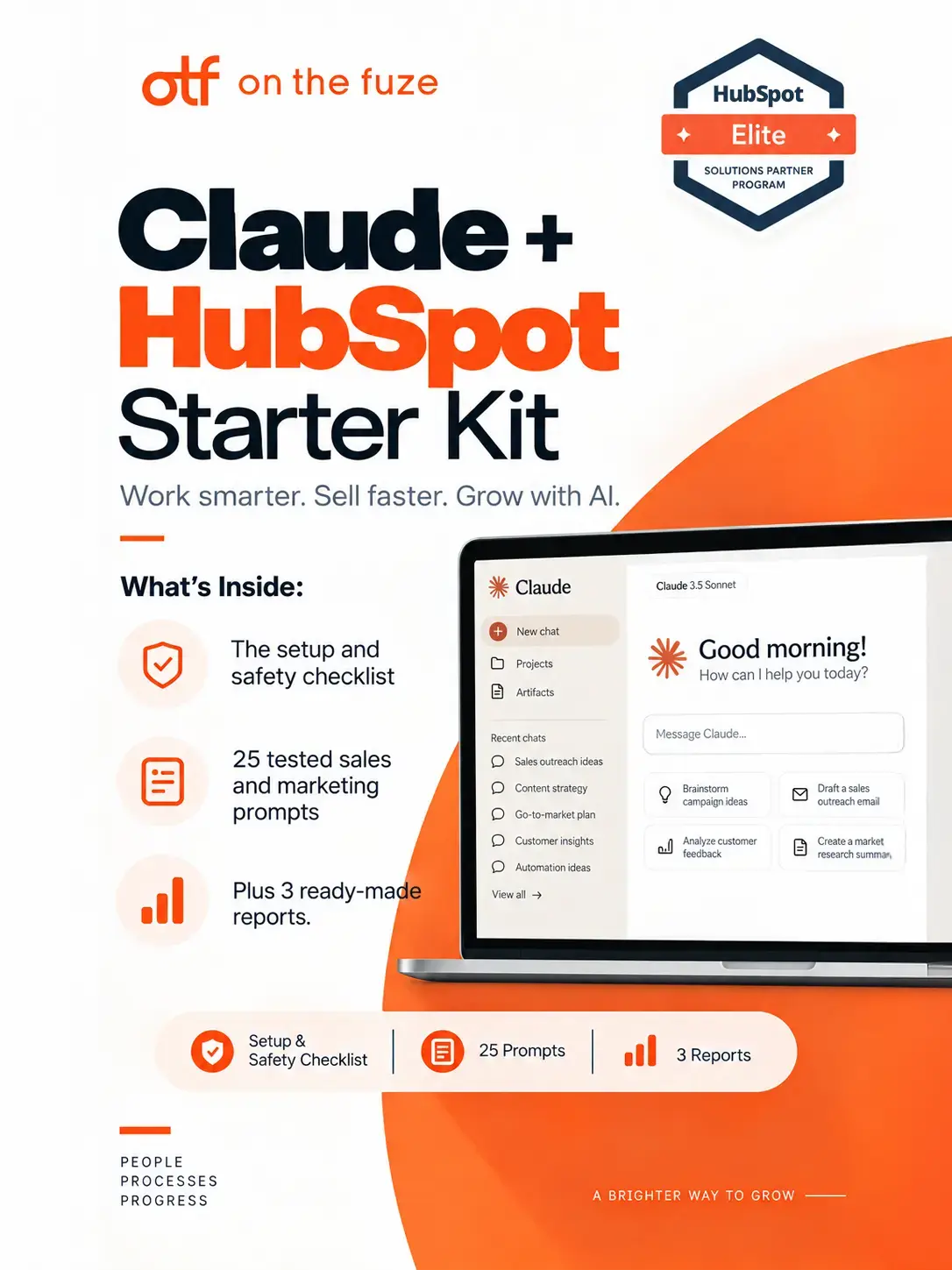
Most teams that want a quick answer from their CRM still start with an export. Someone pulls a spreadsheet out of HubSpot, pastes it into a chatbot, and copies the answer back by hand. It's slow, it's out of date by the time anyone reads it, and your customer data leaves HubSpot on the way.
The HubSpot connector for Claude, the official Claude HubSpot integration, removes that step. It lets Claude read your HubSpot records directly and, with the right permissions, create and update them too. Your team asks a question in plain English and gets an answer built from live CRM data: which deals are stuck, what a customer said on the last call, and which campaign actually brought in revenue.
That power is also the risk. A tool that can change your deal stages can throw off your forecast in seconds if it's set up carelessly. This guide covers what the connector is, what you need before you connect it, how to set it up so nothing changes without approval, how sales and marketing teams use it every day, and the mistakes that cost growing companies time and trust.
What Is the HubSpot Connector for Claude?
The HubSpot connector for Claude is a free integration, built by HubSpot, that lets Claude work with your HubSpot data directly from Claude's window. You connect it once, and Claude can then answer questions about your contacts, companies, deals, tickets, and campaigns and take actions like logging a call or creating a task.
Technically, it's an MCP connector. MCP stands for Model Context Protocol, an open standard that lets an assistant like Claude plug into another app in a controlled way. You don't need to know how MCP works to use it. What matters is what it means for you:
- No exports. Claude reads the records in HubSpot, not a copy in a spreadsheet.
- No middleman tools. You don't need Zapier, Coupler.io or Supermetrics just to move CRM data into an assistant.
- Your permissions still apply. Each person only sees in Claude what HubSpot already lets them see.
The connector launched in July 2025 as read-only. Write access, meaning the ability to create and update records, followed in November 2025. If someone on your team tried it early and decided it "can only read," it's worth a second look.
How is it different from Breeze Assistant?
Breeze Assistant is HubSpot's own assistant, inside HubSpot. The Claude connector brings your HubSpot data into Claude. They solve different problems, and many teams use both.
| Breeze Assistant | HubSpot connector for Claude | |
|---|---|---|
| Where you use it | Inside HubSpot | Inside Claude (web, desktop or mobile) |
| Who builds it | HubSpot | HubSpot builds the connector; Anthropic builds Claude |
| Cost | Included with every HubSpot subscription | Free to install; needs a paid Claude plan |
| Best for | Quick help while you work in a HubSpot record | Analysis across your CRM, plus work that mixes CRM data with documents, files, and other tools |
Can Claude AI Integrate With HubSpot?
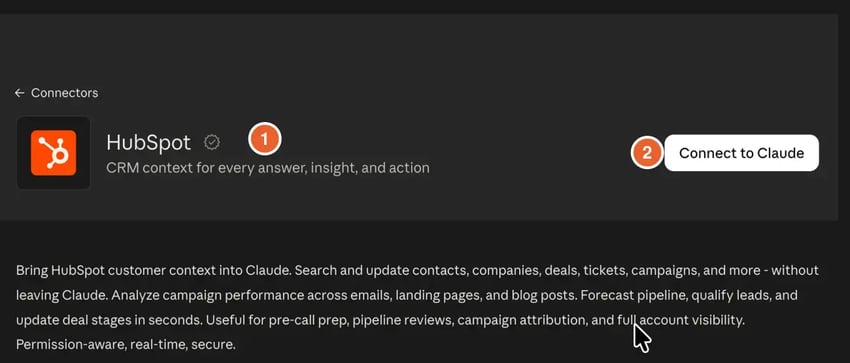
Yes. The Claude HubSpot integration runs through HubSpot's official connector, available in Claude's connector directory and listed as "by HubSpot" with a verified check mark. It works on Claude's web, desktop and mobile apps, and it's free to install.
Two things have to be true first:
- A paid Claude plan: Pro, Max, Team, or Enterprise. HubSpot's documentation requires a paid plan for this connector.
- The right HubSpot permission: Super admins and users with App Marketplace Access can connect right away. Everyone else needs a super admin to approve the connector first.
What Can You Do With the HubSpot Claude Connector?
Claude can read, create, and update most of your HubSpot records, but it can't delete anything. Here's the full picture from HubSpot's own capability table, as of October 2026:
| What Claude can do | Which HubSpot records |
|---|---|
| Read, create, and update | Contacts, companies, deals, tickets, leads, and custom objects · calls, meetings, notes, tasks, and emails · line items and products · landing pages, website pages, blog posts, and marketing emails · segments (lists) · pipelines |
| Read and create (no updates) | Campaigns, marketing events, and properties |
| Read only | Campaign attribution, saved reports, inbox and help desk conversations, buyer intent, AI search visibility (AEO), users and teams · invoices, orders, carts, payments, and subscriptions |
| Plan, not build | Workflows: Claude drafts the trigger, actions, and copy, and you build it in HubSpot |
| Never | Delete a record, or even clear a field like a contact's phone number |
A few details that matter in practice:
- Bulk changes cap at 10 records at a time. Bigger jobs belong in HubSpot's own bulk tools.
- Your pipeline rules still apply. Conditional property rules and pipeline stage validations run when Claude creates or updates a record. If a deal needs an amount before it can move stages, Claude has to follow that rule too.
- Charts are built in. Ask for a bar chart by deal stage, and Claude draws it from your data.
Claude, Claude Cowork or Claude Code for HubSpot: Which One Do You Need?
For sales and marketing teams, you need Claude and Claude Cowork for longer jobs. You don't need Claude Code. Your HubSpot connection works across all three, but each does a different job.
| Product | What it does | Do you need it? |
|---|---|---|
| Claude | The app you chat with, on the web, on the desktop, or on the phone | Yes, it's where the connector lives |
| Claude Cowork | Claude working through a whole task for you, like turning deal data into a finished report, saving files, and running scheduled tasks | Yes, for reports and anything that runs on a schedule |
| Claude Code | The developer tool. Paired with HubSpot's Developer MCP server, it helps developers build apps or website themes on HubSpot | Only if you're writing code |
Most teams use Claude Cowork with HubSpot for anything bigger than a quick question: weekly reports, files you want saved, and scheduled tasks like the pipeline review later in this guide.
In September 2026, Anthropic began merging Claude Chat and Cowork into one experience. Depending on your account, you may still see a "Chat | Cowork" switch in the message box. Either way, the connector works the same.
What Do You Need Before You Connect?
You need one thing on the Claude side and one on the HubSpot side, plus a few settings that decide whether the connector is safe. Get these right before anyone on your team runs their first request.
| Requirement | Why it matters | Who handles it |
|---|---|---|
| A paid Claude plan (Pro, Max, Team or Enterprise) | The connector doesn't work on Claude's Free plan | Whoever manages your Claude subscription |
| The connector added for your team (Team and Enterprise) | The Owner adds it once; then each person connects their own account | The Claude Owner |
| Super Admin approval in HubSpot | Approval is also where you choose what data the connector can reach | A HubSpot Super Admin |
| Clean HubSpot user permissions | Claude shows each person only what HubSpot lets them see | A HubSpot Super Admin |
| Sensitive Data checked | With Sensitive Data turned on, Claude can't read any emails, calls, meetings or notes | A HubSpot Super Admin |
| Marketing Hub Professional or Enterprise (for campaign revenue) | Campaign attribution depends on it | Account owner, through billing |
On pricing, as of late October 2026, Claude Pro is $20 per month when you pay monthly, and Claude Team seats start at $20 per seat per month when you pay annually. Prices change, so confirm on Claude's pricing page before you buy.
🏆 Elite Partner Tip: Fix permissions before rollout, not after. When we audit portals, over-shared permissions are common, and the connector makes them visible fast: a rep who can see every deal in HubSpot can now ask Claude to summarize every deal in HubSpot.
How Do You Connect HubSpot to Claude? A Beginner-Friendly Setup
If you're new to using Claude with HubSpot, start here. Connecting takes a few minutes per person: a Super Admin approves the connector in HubSpot, then each user connects from Claude's settings.
Step 1: Approve the connector in HubSpot (Super Admin)
- In HubSpot, click the settings icon, then go to Integrations → Connected Apps.
- Open the Approved apps tab and approve the HubSpot connector for Claude.
- Choose which optional data permissions it can use and who can install it.
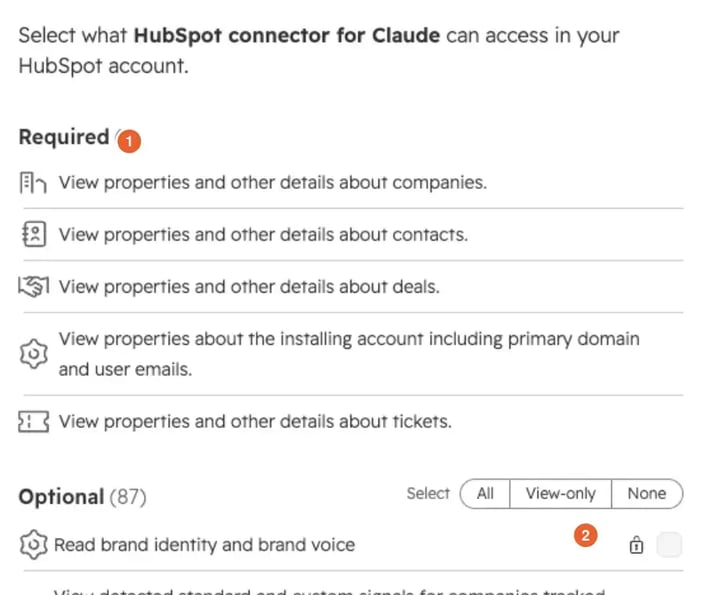
To change those permissions later, click the connector in Approved apps to open its Admin Settings, switch permissions on or off, and click Save changes. Anyone already connected has to disconnect and reconnect to pick up a newly approved permission.
Step 2: Connect from Claude (each user)
- In Claude, click your name or profile icon in the bottom left, then Settings.
- Click Connectors, then browse or open the Discover tab.
- Search for HubSpot and open the listing marked by HubSpot, with the verified check mark. If your Owner already added it, it's under Yours instead.
- Click Connect to Claude (or Connect for your team if you're the Owner on a Team plan).
- In the browser, click Continue connecting, pick your HubSpot account, and click Choose account.
- On the permissions page, choose what Claude can access, accept the terms, and click Connect app.
- Click Open Claude. You'll see "Connected to HubSpot."
On the permissions page, required permissions only let Claude view records. Optional permissions let it create or change them. A lock icon means your Super Admin hasn't approved that permission yet.
Step 3: Turn it on in a chat
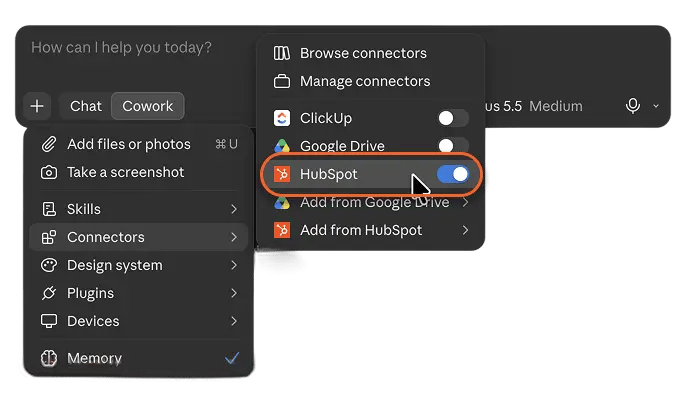
Once connected, HubSpot is switched on in every new chat. To check, click + in the message box, then Connectors, and confirm HubSpot is on. Switch it off when a chat has nothing to do with your CRM.
🏆 Elite Partner Tip: You can connect one HubSpot account per Claude account. If you manage more than one portal, you'll disconnect and reconnect to switch, so build that into how your team works.
How Do You Stop Claude From Changing Records Without Approval?
Set the connector's "Write/delete tools" group to "Needs approval." It's the single most important setting, and HubSpot recommends it too. If that group stays on "Always allow," Claude can edit your HubSpot data without checking with you first.
- In Claude, click your name in the bottom left, then Settings.
- Click Connectors, then HubSpot.
- Scroll to Tool permissions, where HubSpot's tools are grouped by what they do.
- Find Write/delete tools (it includes Manage CRM objects) and set the whole group to Needs approval from the menu on the right.
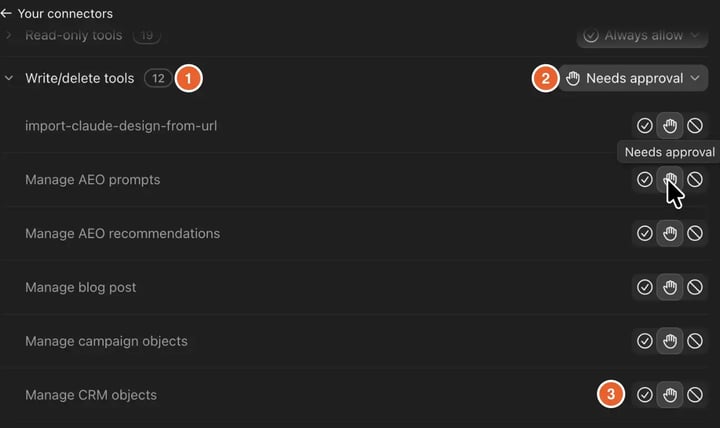
Read-only tools can stay on "Always allow," because they only look at your data. Despite the group's name, the connector can't delete anything.
What approval looks like
With approval on, a change goes through two checks:
- Claude shows a table of the changes it wants to make: the record, the property, the current value and the new value.
- You reply to approve it.
- A pop-up asks: "Claude wants to use Manage CRM objects from HubSpot." Click Allow once. "Allow for this task" would let the rest of the chat go through without asking.
- Claude's reply links every record it changed. Click through and check the record in HubSpot, at least for your first few changes.
How do you see what Claude changed?
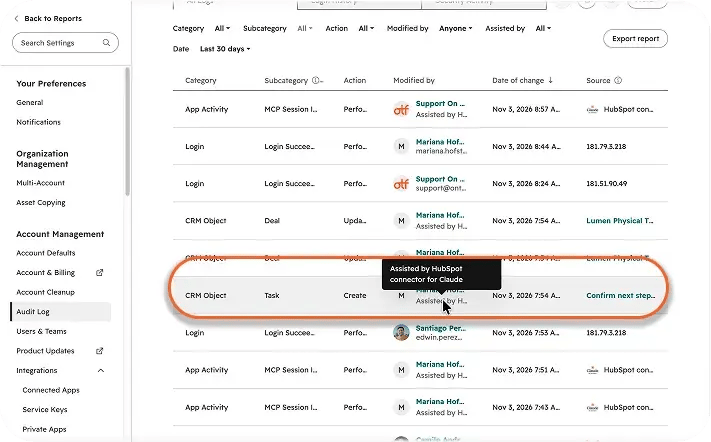
Every create and update made through the connector is recorded in HubSpot's Audit Logs (Settings → Account Management → Audit Logs), credited to both the person who asked and the Claude connector. Super Admins can also see who connected the connector, and when.
🏆 Elite Partner Tip: If you're the Owner on a Claude Team or Enterprise plan, set approval once in Claude's organization settings, so it applies to everyone and nobody can switch it back. Do it before rollout, not after the first surprise.
How Do Sales Teams Use the HubSpot Claude Connector?
Sales teams use it to find stalled deals, prepare for calls, and log the call afterward, all without building a report or opening five tabs. The best requests say three things: which records you mean, the timeframe, and how you want the answer laid out.
Find the deals that need attention
"Show me all my open deals sorted by close date, and flag any with no activity in the last 14 days."
Claude returns a sorted table with the stale deals flagged, built from HubSpot's Last Activity Date. Follow up with "turn that into a bar chart by deal stage" if you want a picture. That's a report you'd normally build by hand, from one sentence.
Prepare for a call
"Give me a brief about [company] with the relationship history, the deal stage, the last activity, any open issues, plus what I should know before the call."
Claude reads the emails, calls, meetings, notes and tasks on that record and hands back a short brief. Your rep walks into the call knowing everything the CRM knows.
Log the call and update the deal
Right after a call is where most CRM updates get skipped, which is why pipeline reports rarely match reality. Debrief Claude the way you'd debrief your sales manager:
"I just finished a call with [company]. [One line on what happened]. Log the call with that summary, move the deal to [stage], and create a follow-up task for me in one week."
With approval on, Claude shows the changes first. Two habits from our testing make this reliable:
- Give Claude the summary. If you don't say what happened, it has nothing real to log.
- Use unambiguous dates. "Next Friday" can mean two different Fridays. "In one week" or an actual date can't.
Use HubSpot's Sales plugin for the requests reps repeat
HubSpot also publishes a free HubSpot Sales plugin for Claude that turns common requests into short commands. Install it from Settings → Plugins, search for "HubSpot Sales," and click Add. Then type "/" in any chat:
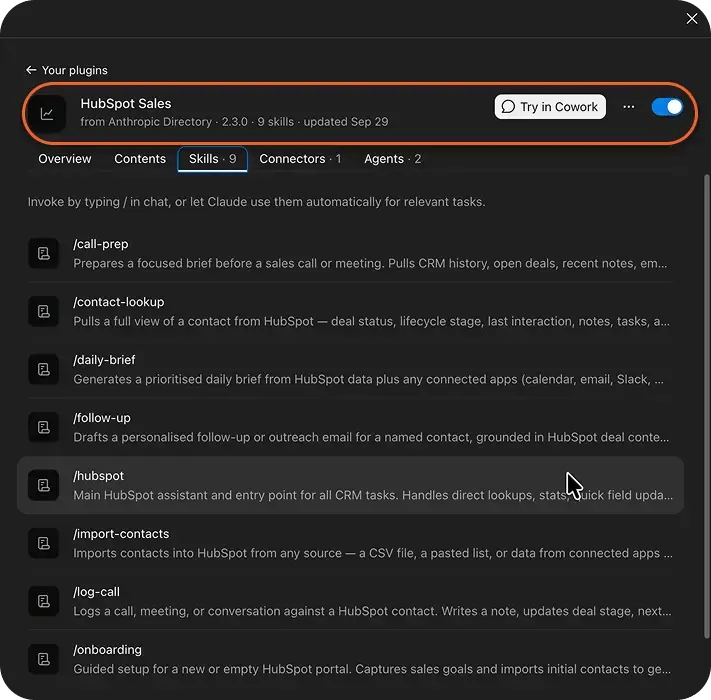
| Command | What it does |
|---|---|
| /daily-brief | Lays out the day: meetings, tasks and what's urgent |
| /call-prep | Builds a brief before a call or meeting from the CRM history |
| /log-call | Logs a call, updates the deal and creates the follow-up task |
| /follow-up | Drafts a follow-up email from the deal context and notes |
| /pipeline-pulse | Gives a pipeline snapshot: stages, stalled deals, missing next steps |
| /contact-lookup | Pulls everything about one contact into one summary |
| /import-contacts | Brings contacts in from a CSV or a pasted list |
Can Claude AI Help With Marketing?
Yes. With the HubSpot connector, Claude can find which campaigns bring in revenue, build segments, and draft marketing emails directly in HubSpot. It reads your campaign attribution, email performance and page analytics, then helps you act on them in the same chat.
Find what's working
"Which campaign generated the most revenue in the last 90 days? Show the top 5 with the number of deals."
Always give Claude a date range so it knows what to compare. Campaign revenue comes from HubSpot's campaign attribution, which needs Marketing Hub Professional or Enterprise and the campaign revenue permission approved for the connector.
Turn results into a segment
"Create a segment called [name] with every contact in the [lifecycle stage] lifecycle stage. Make it dynamic."
Claude proposes the filter and asks whether you want the segment dynamic (it updates as contacts enter or leave the stage) or static (frozen as it is today). Pick dynamic for anything ongoing. Then open the segment in HubSpot and check who's in it before you email anyone.
Draft the follow-up email in HubSpot
"Write a marketing email for the [segment] segment offering [offer]: [link]. End with one clear call to action. Save it in HubSpot as a draft marketing email. Don't send or schedule it."
From our testing, three details matter:
- Say "save it in HubSpot as a draft." Without it, Claude writes the email in the chat only.
- Expect setup questions. Claude asks for the subscription type, the sender, the template and any missing links before it creates the draft. The template can't be changed after the email is created.
- Nothing gets sent. Sending and scheduling happen in HubSpot, after someone on your team reviews the draft.
What about workflows, blog posts and landing pages?
- Workflows: Claude drafts the trigger, the actions and the email copy. You build the workflow in HubSpot's workflow editor.
- Blog posts, landing pages and website pages: Claude can create and update them. To publish a blog post, HubSpot requires an author, featured image, meta description, slug and title.
Which Claude Model Is Best for Marketing Strategy?
We recommend Claude Opus 5.5 for marketing strategy and analysis, and Claude Sonnet 5.5 for quick content. Anthropic doesn't name a "best model for marketing," so this is our recommendation from working with both.
- Opus 5.5 for strategy work: reading your pipeline, comparing campaign results, planning a campaign or a nurture sequence. Anthropic describes it as a "daily driver for serious coding and knowledge work," and it's available on every paid plan.
- Sonnet 5.5 for speed: subject line ideas, a first draft of a follow-up email, or rewriting copy for a different audience.
You pick the model in the menu next to the send button, and you can switch mid-project. HubSpot's own best practices also suggest using the latest Claude models and turning on extended thinking for harder questions.
How Do You Put a Weekly Pipeline Review on Autopilot?
Use a scheduled task in Claude Cowork: describe the report and when it should run, and Claude delivers it every week, even with your laptop closed. It's the closest thing to a pipeline review nobody has to build.
- Open a new chat in Claude Cowork with HubSpot switched on.
- Describe the report and the schedule:
"Every Monday at 8 AM, review my open deals in HubSpot. List what moved stages last week, flag any deal with no activity in 14 days, and give me the 3 deals to focus on this week."
- Check the task card Claude proposes: the name, the schedule, the instructions, and that it runs in the Cloud, not on This computer.
- Click Schedule.
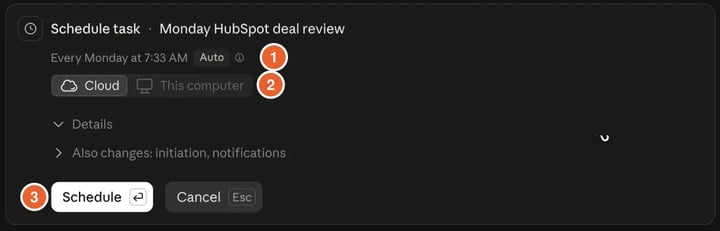
Everything you've scheduled lives under Scheduled in Claude, where you can pause a task, edit it or run it right now. When the first report arrives, open two or three of the flagged deals in HubSpot and check that Claude got them right.
🏆 Elite Partner Tip: Keep scheduled tasks read-only. A scheduled run goes ahead without asking for approval, so let it flag what needs to change, and make the changes yourself with approval on. The same pattern works for marketing, like a weekly campaign readout every Friday.
Is Your HubSpot Data Safe With Claude?
The connector respects your HubSpot permissions, never deletes data, and logs every change, but how Anthropic handles data depends on your Claude plan's terms. Here's what HubSpot documents:
- Permissions: users only see in Claude the CRM data they can already access in HubSpot.
- Training: Anthropic doesn't use data shared through HubSpot to train its models, except in certain cases, such as when a customer gives feedback or opts in. Check the terms for your plan.
- Sensitive Data: the connector can't access custom Sensitive Data properties. If Sensitive Data is turned on, it can't read engagement data at all.
- Data location: requests are routed through your HubSpot data center (for example, the EU data center for EU-hosted accounts). Once data reaches Anthropic, your Anthropic terms govern where it's processed.
- Accuracy: Claude can make mistakes. Review its output, ask for record links, and never let it make an important decision unchecked.
What Mistakes Should You Avoid?
The expensive mistakes are setup decisions, not bad requests.
1. Leaving write tools on "Always allow"
This is the one that breaks forecasts. Set Write/delete tools to Needs approval before anyone uses the connector.
2. Clicking "Allow for this task"
It approves every change for the rest of the chat. Use Allow once until your team trusts the pattern.
3. Rolling out on top of bad permissions
Claude shows people what HubSpot lets them see. Over-shared permissions become over-shared answers.
4. Expecting good answers from bad data
Claude answers from whatever is in your CRM. Out-of-date stages and duplicate contacts produce confident answers built on bad data. HubSpot's State of AI in 2026 research found that 74% of companies that say they use AI and have excellent data also beat revenue targets.
5. Asking for big cleanups
The connector can't delete, and it changes up to 10 records at a time. Mass merges and deletions still happen in HubSpot.
6. Vague dates and missing context
"Recently" and "next Friday" invite guesses. Give date ranges and real dates, and tell Claude what happened before you ask it to log anything.
7. Letting scheduled tasks change records
Scheduled runs skip approval. Keep them to reading and reporting.
How Do You Fix Common Connector Problems?
| What you see | Why | Fix |
|---|---|---|
| HubSpot isn't in Claude's connector list | Free Claude plan, or your Team Owner hasn't added it | Use a paid plan; the Owner clicks Connect for your team |
| A permission shows a lock icon | Your Super Admin hasn't approved it | Super Admin approves it in Connected Apps, then you reconnect and tick it |
| "Forbidden" when Claude creates a segment | The segments permission wasn't selected when you connected | Disconnect, reconnect and tick the segments permission |
| Campaign revenue comes back as $0 | Attribution needs Marketing Hub Pro or Enterprise, the campaign revenue permission and closed-won deals tied to campaigns | Approve the permission; meanwhile, ask which deals a campaign brought in |
| Claude can't see a record's emails or calls | Sensitive Data is on in HubSpot | Claude can't read engagement history while it's on |
| The email stayed in the chat | The request didn't ask for a saved draft | Add "save it in HubSpot as a draft marketing email" |
| Data from the wrong HubSpot account | One HubSpot account per Claude account | Disconnect and reconnect to the right one |
| A bulk change stopped partway | 10 records per change | Ask in batches of 10 |
Frequently Asked Questions
What is the HubSpot connector for Claude?
It's a free integration built by HubSpot that lets Claude read, create and update your HubSpot records from the chat window. It's an MCP connector, available on Claude's web, desktop and mobile apps.
Can Claude AI integrate with HubSpot?
Yes. You need a paid Claude plan (Pro, Max, Team or Enterprise) and either Super Admin or App Marketplace Access permissions in HubSpot, or a Super Admin's approval.
What is the Claude HubSpot integration?
It's HubSpot's official connector for Claude. Once connected, Claude can answer questions from your live HubSpot data and, with approval, create and update records, log activities and draft marketing emails in HubSpot.
Do I need Claude Cowork to use HubSpot with Claude?
No. The connector works in regular Claude chats. Claude Cowork is useful when you want longer tasks, saved files or scheduled reports, like a Monday pipeline review that runs on its own.
Is the HubSpot Claude connector free?
The connector is free to install. You need a paid Claude plan and an active HubSpot account.
Can Claude delete HubSpot records?
No. The connector supports view, create and update actions only. It can't delete records or clear a field. Deletions happen in HubSpot.
Can Claude AI help with marketing?
Yes. It can rank campaigns by attributed revenue, compare email performance, build segments, and draft marketing emails, landing pages and blog posts in HubSpot. It plans workflows, but you build them in HubSpot.
Which Claude model is best for marketing strategy?
We recommend Claude Opus 5.5 for strategy and analysis, and Claude Sonnet 5.5 for quick content. Anthropic doesn't name a single best model for marketing.
Does Claude follow my HubSpot permissions?
Yes. Each user only sees in Claude the data they can access in HubSpot. Pipeline stage validations and conditional property rules also apply when Claude creates or updates records.
Is my HubSpot data used to train Claude?
According to HubSpot, Anthropic doesn't use data shared through HubSpot to train its models, except in certain cases, such as feedback or opting in. Review the terms of your Claude plan.
Can I connect more than one HubSpot account to Claude?
Not at the same time. One HubSpot account connects to one Claude account. To switch, disconnect and reconnect.
Do I need Claude Code for HubSpot?
Only if you're a developer building on HubSpot. Sales and marketing teams use Claude and Claude Cowork.
Can Claude send marketing emails?
In our testing, Claude saved emails as drafts in HubSpot and reported that sending and scheduling weren't available from Claude. Someone on your team reviews and sends from HubSpot.
How do I see what Claude changed in HubSpot?
Check HubSpot's Audit Logs (Settings → Account Management → Audit Logs). Every change made through the connector is credited to both the user and the Claude connector.
Key Takeaways
- The HubSpot connector for Claude is free, built by HubSpot, and works on Claude's paid plans. It reads, creates and updates your records, and never deletes.
- Approval is the first setting, not the last. Set Write/delete tools to Needs approval and click Allow once until your team trusts the pattern.
- Permissions and data quality decide the answers. Claude shows each user what HubSpot allows and answers from whatever is in your CRM.
- Sales teams win back time on pipeline reviews, call prep and call logging. HubSpot's Sales plugin turns the most common requests into commands.
- Marketing teams act on results in one place: find the campaign that brought in revenue, build a segment, and draft the follow-up email in HubSpot.
- Opus 5.5 for strategy, Sonnet 5.5 for quick content.
- Scheduled tasks put recurring reports on autopilot. Keep them read-only.
- Review the setup as your business changes, so the connector keeps matching how your team actually sells and markets.

On The Fuze is a Top 1% HubSpot Elite Partner with 10+ years of experience and 3,000+ CRM setups optimized across North America. We help small and medium-sized businesses leverage the full potential of HubSpot to scale their businesses.