
Get The Payment Link Launch Kit
With five places to put your link today, the one that quietly drops Apple Pay, and the three numbers that tell you what is converting.
Download Now
Most businesses lose money in the gap between "yes" and "paid."
The client agrees to the price on a call. Then someone has to build a quote, or raise an invoice, or wait for accounts payable to process it. By the time the money moves, weeks have passed. And if the same client buys the same thing again next quarter, the whole process starts over.
HubSpot payment links and subscription billing close that gap. A payment link turns a price into a single checkout page you can send in the reply you are already writing. A billing subscription turns that one sale into recurring payments that arrive every month without anyone chasing it.
This guide covers the technical setup: how to build and distribute a HubSpot payment link, how to set up recurring payments, what the subscriptions object actually is, how to manage a subscription record after it goes live, and the configuration mistakes that quietly cost growing companies real money.
One clarification before we start. This article is about billing subscriptions, the Revenue Hub object that charges your customers on a schedule. It is not about email subscription types, which control which marketing emails your contacts opt into. It is also not about your own HubSpot plan. If you came here for either of those, this is the wrong place.
What Are Subscriptions in HubSpot?
In HubSpot, a subscription is a native CRM object that manages recurring billing for a single buyer. It is not a setting or a report. It is a record, the same way a deal or a contact is a record, and it lives under Revenue > Subscriptions with its own index page, properties, and associations.
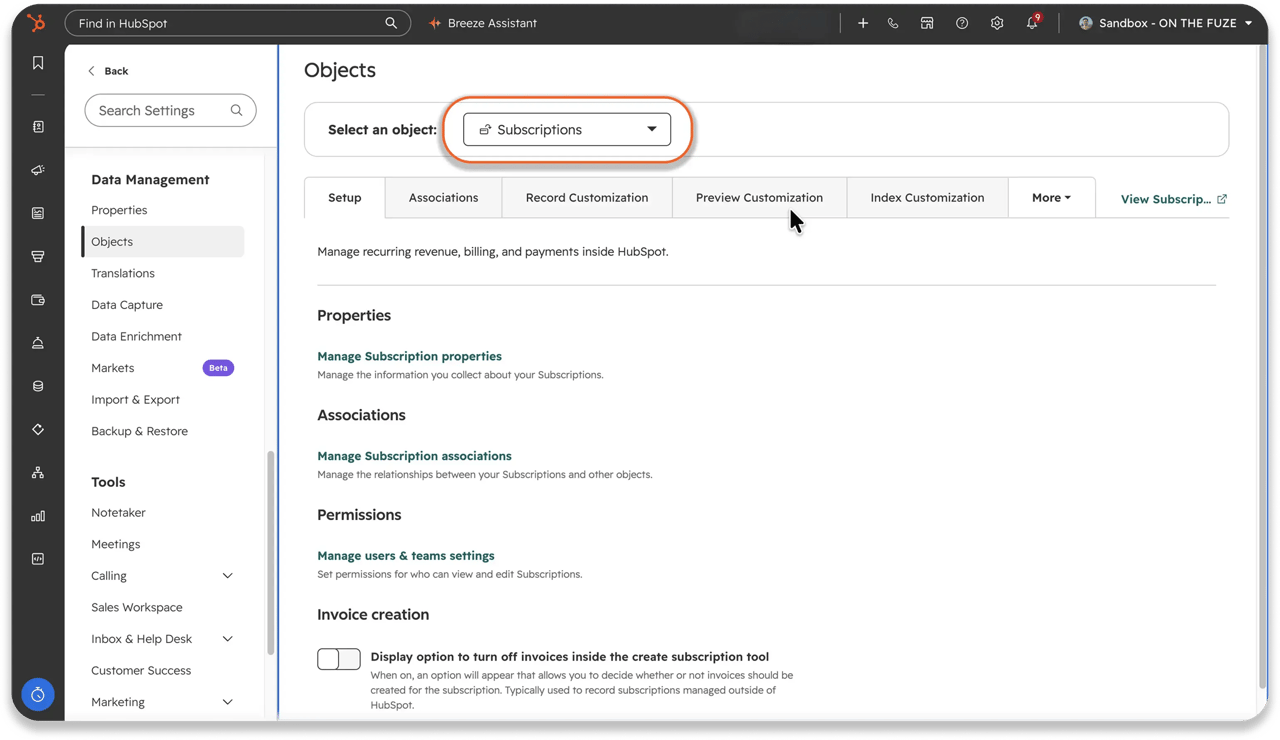
The word does triple duty inside HubSpot, so it is worth separating the three meanings once:
| Term | What it means | Where it lives |
|---|---|---|
| Subscription (billing) | A record that charges a customer on a recurring schedule. This article. | Revenue > Subscriptions |
| Subscription type (email) | A legal basis for emailing a contact, and what they opted into | Settings > Marketing > Email |
| Your HubSpot subscription | The plan your company pays HubSpot for | Account settings |
Each subscription record holds the customer, the products they subscribe to, the billing frequency, the next billing date, and the current status. It appears as a card on the contact, company, deal, ticket, and invoice records it relates to.
Here is the part most teams miss: you usually do not create a subscription yourself. When a buyer pays for a recurring line item through a payment link, a quote, or a legacy quote, HubSpot creates the subscription record automatically on the first successful payment and associates it to the contact who paid and any deals tied to that checkout.
You can also create one deliberately, from the subscriptions index page, from the Subscriptions card on a CRM record, by converting a published quote that has recurring line items, or by converting a deal.
What can a subscription do?
- Charge a stored payment method automatically on every billing date
- Generate a recurring invoice on every billing date instead, with your own net payment terms
- Track monthly recurring revenue and annual recurring revenue as properties on the record
- Trigger workflows, feed segments, and power custom reports
- Pause, resume, upgrade, downgrade, or cancel without recreating anything
Subscriptions are available on all HubSpot products and plans. Collecting money through them requires a connected payment processor, which we cover below. Workflows, custom reports, and the revenue analytics suite require Professional or Enterprise.
🏆 Elite Partner Tip: Line items with the same billing frequency, billing terms, billing start date, and number of payments are tracked on one subscription record. Line items that differ on any of those are split onto separate subscription records. Sell a monthly retainer and an annual license on the same payment link and you get two subscriptions, not one. That is correct behaviour, but it surprises finance teams reading an MRR report for the first time.
What Is a HubSpot Payment Link, and How Is It Different From a Subscription?
A payment link is a checkout page. A subscription is the billing engine that a recurring checkout creates. They are different objects that do different jobs, and confusing them is the most common setup error we see.
A payment link is a URL that opens a hosted, mobile-optimized checkout page showing the line items you chose, the price, and the payment methods you allow. It never requires a quote, a deal, or a contract. It is the fastest route from a price to a payment on the entire platform.
| Payment Link | Quote | Invoice | Subscription | |
|---|---|---|---|---|
| Primary job | One-page checkout | Formal proposal | Request for payment | Recurring billing |
| Needs a deal? | No | Usually | No | No |
| E-signature | No | Yes | No | No |
| Approvals | No | Yes | No | No |
| Discount codes | Yes | No | No | No |
| Reusable by many buyers | Yes | No | No | No |
| QR code | Yes | No | No | No |
| Creates recurring billing | Yes, via recurring line items | Yes, via recurring line items | No | Itself |
| Best for | Fast, repeatable, low-friction sales | Negotiated, signed deals | Net terms and AP processes | Retainers, memberships, SaaS |
Use a payment link when the buyer has already decided and you want the shortest possible path to money. Use a quote when you need a signature, approvals, or negotiated terms. Use an invoice when the buyer's finance team needs a document with payment terms on it.
What Do You Need Before You Can Accept Payments in HubSpot?
Two things: a connected payment processor and a populated product library. Without the first, a payment link has no way to take money. Without the second, your pricing drifts across every quote, invoice, and link you create.
You also need the right permissions. Creating and managing payment links requires Super Admin or Manage Payment Links permissions. Creating subscriptions requires Super Admin or Edit permissions for subscriptions.
HubSpot payments or Stripe: which processor should you choose?
| HubSpot payments | Stripe through HubSpot | |
|---|---|---|
| Platform fee | 0.5% | 0.75% |
| Plan availability | Starter, Professional, Enterprise | Free, Starter, Professional, Enterprise |
| Country availability | US, UK, Canada | Globally, where Stripe is supported |
| Cards | Yes | Yes |
| Apple Pay and Google Pay | Yes | Not listed among supported methods |
| Bank debit | ACH, PADs, SEPA Direct Debit | ACH, PADs, SEPA Direct Debit |
| Currencies | 130+ | 130+ |
| Fraud detection and chargeback support | Included at no extra cost | Handled through Stripe |
| Sandbox testing | Not supported | Supported (Enterprise sandbox) |
For a US or Canadian SMB on Starter or above, HubSpot payments is usually the cheaper and simpler choice. Stripe is the answer if you are outside the supported countries, on a Free plan, or already have negotiated Stripe rates you do not want to give up.
Note the digital wallet row. HubSpot's own payment processing lists Apple Pay and Google Pay among its accepted methods. Stripe processing through HubSpot does not. If a meaningful share of your buyers pay on a phone, that row is not a detail.
🏆 Elite Partner Tip: Put anything you sell more than once into the product library before you build your first link. You can create a custom line item on the fly, and that is right for a genuine one-off, but a custom line item lives and dies with that single link. A library product keeps one price across quotes, invoices, links, and subscriptions, and it is the only way your revenue reporting stays coherent as you add SKUs.
How Do You Create a Payment Link in HubSpot?
You build it in six steps, and the whole thing takes under five minutes once your product library is in place.
Step 1: Open the builder
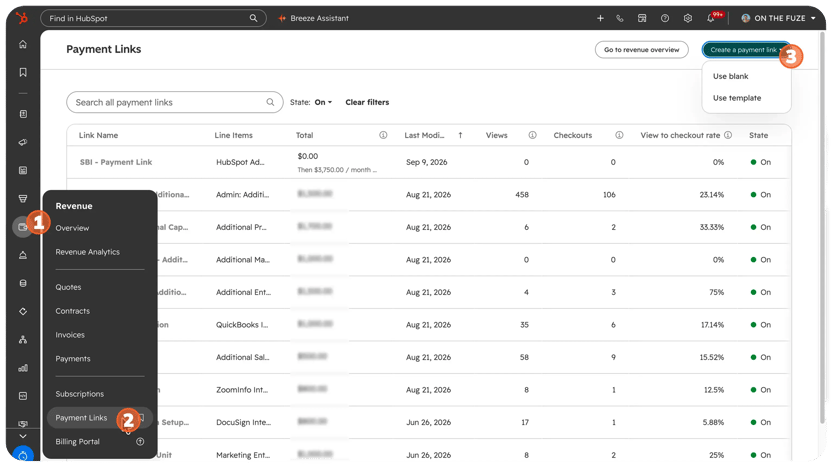
Navigate to Revenue > Payment Links and click Create payment link in the upper right. Choose Use blank to start from nothing, or Use template to start from one of HubSpot's templates for professional services, subscriptions, paid content, projects, physical goods, or donations.
You can also create a link directly from a contact, company, or deal record using the Payment Links card in the right sidebar, or ask Breeze Assistant to build one from a prompt.
Step 2: Name it the way you will search for it later
The name is internal only, and your buyers never see it. Name it for the offer and the moment, not just the product. "October workshop, early bird" beats "Workshop." Once you have thirty links and you are hunting for the one that converted, the name is all you have.
Step 3: Add what you are selling
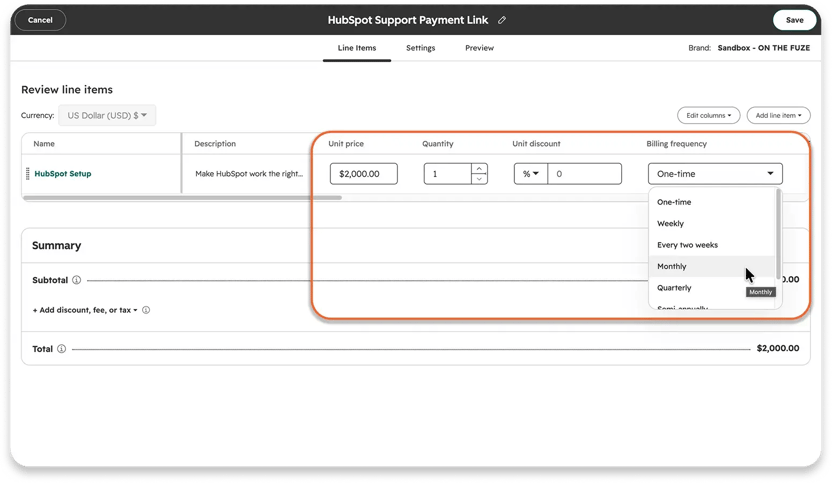
Click Add line item, then either Select from product library or Create custom line item. Set the currency first, since it governs the whole link.
On each line item you can also:
- Set a pricing model, unit price, and quantity
- Allow customers to edit quantity, with a minimum and maximum
- Make the line item optional at checkout
- Let the customer set their own price, which is how donation and pay-what-you-want links work
- Save a custom line item back to the product library
Step 4: Set the billing frequency
This is the step that decides everything, and it gets its own section below.
Step 5: Configure the settings tab
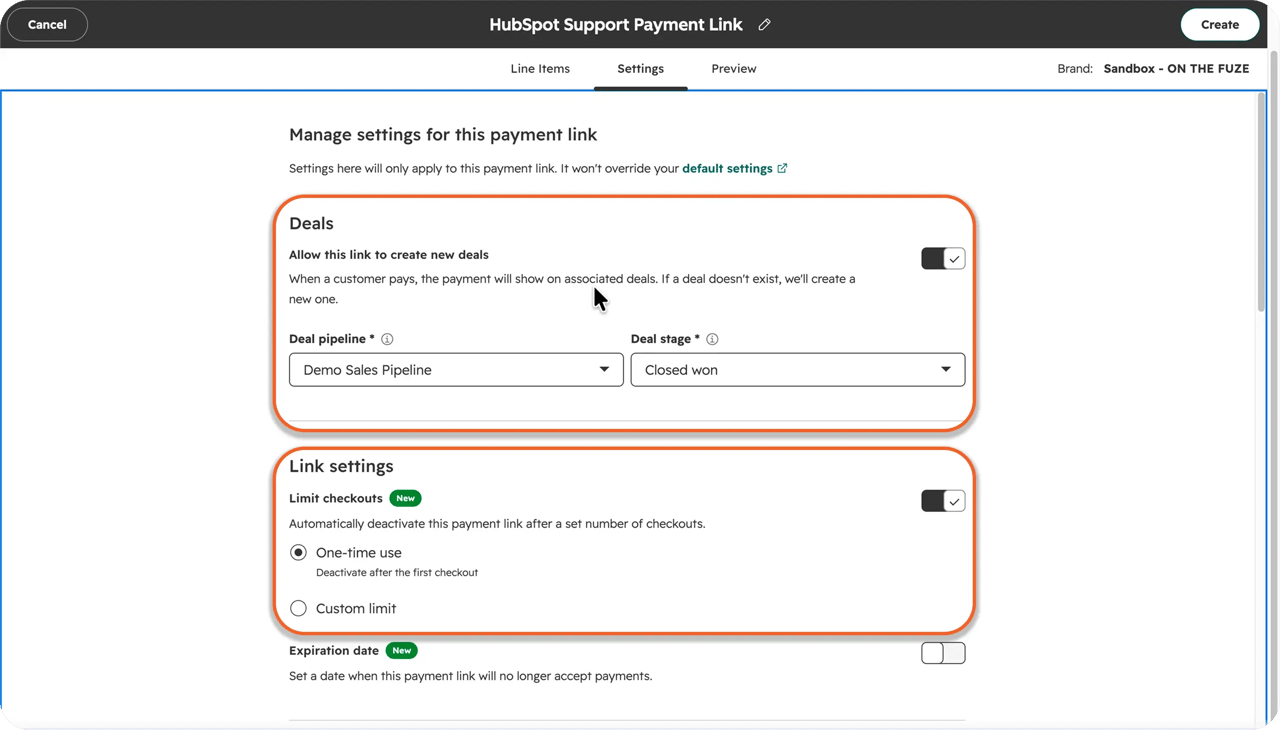
The Settings tab controls deal creation and checkout behaviour. The three that matter most for an SMB:
- Allow this link to create new deals. Off by default. Turn it on for a high-ticket offer your team should see in the pipeline.
- Limit checkouts. Choose One-time use or a Custom limit with a specific number. Any promotional link should have one of these on it.
- Expiration date. Switches the link off on a date you choose.
You can also collect extra contact and company properties at checkout, set a custom confirmation page or redirect, collect a billing address to reduce fraud, and store the buyer's payment method for future charges.
Step 6: Preview, create, and share
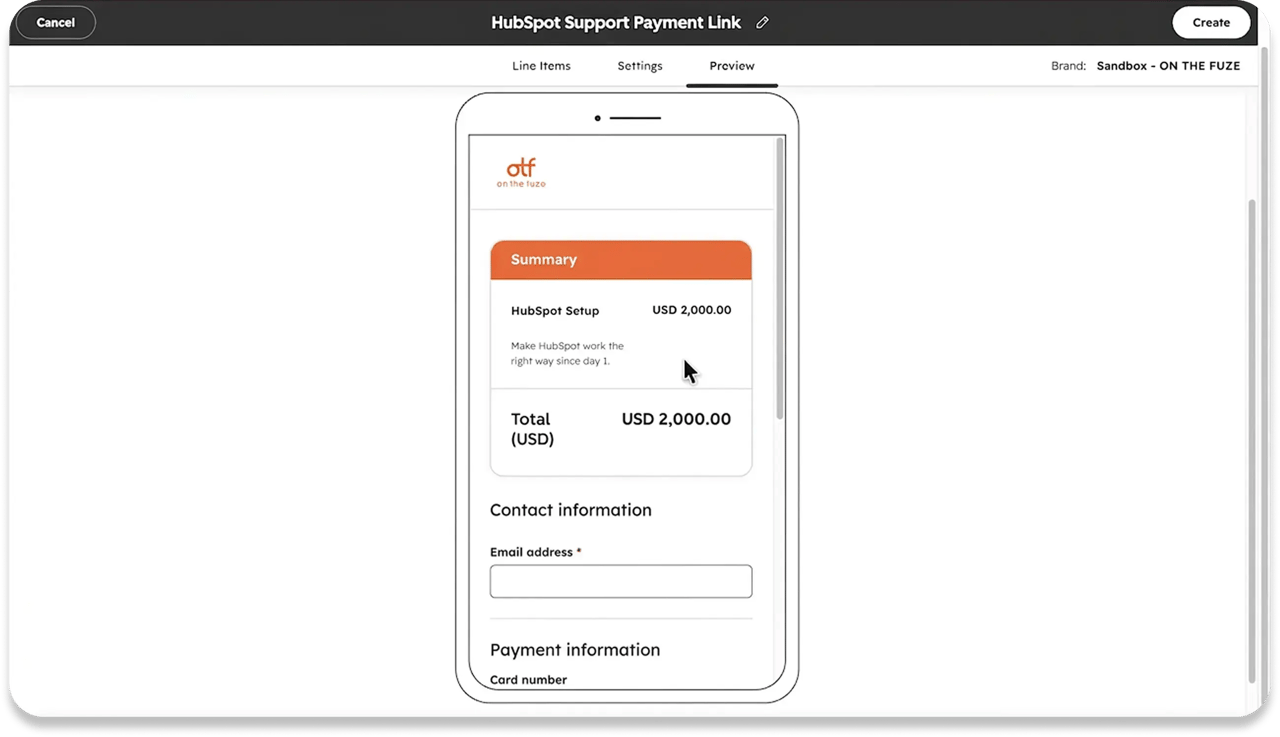
Click the Preview tab and check the link on desktop and mobile before anyone else sees it. Then click Create. The dialog that appears gives you three sharing options: Copy link, Get QR code, and Copy embed code.
🏆 Elite Partner Tip: Copy the link from that dialog or from the Copy link button on the index page. Do not open your own link in a browser and copy the URL out of the address bar. When you open a payment link, the URL changes to reflect a unique checkout session, and each session can only be used once. Send that URL to fifty prospects and one person pays while forty nine hit an error. This is the single most common self-inflicted payment link failure we see, and it is invisible until someone complains.
How Do You Set Up Recurring Payments in HubSpot?
To set up recurring payments in HubSpot, add a product as a line item to a payment link, a quote, or a subscription record, then set that line item's Billing frequency to a recurring cadence such as Monthly instead of One-time. When the buyer completes the first payment, HubSpot automatically creates a subscription record and continues charging them on that schedule.
You need a connected payment processor first, either HubSpot payments or Stripe, and the product should live in your product library so the price stays consistent everywhere else.
That one dropdown is the whole decision. Choose One-time and you get a single charge. Choose Monthly, or any other recurring cadence, and HubSpot creates the subscription record on its own when that first payment clears, associates it to the buyer's contact and any related deal, and keeps billing on that schedule. You never open the Subscriptions tool to make it happen.
Alongside frequency, set Billing terms. You can specify a fixed number of payments, or choose Automatically renew until canceled, which leaves the subscription with no end date.
How Does HubSpot Charge a Recurring Payment?
- HubSpot charges the payment method the buyer originally used, or a stored payment method if you configured one
- The buyer receives a receipt by email
- The subscription record's properties update, including monthly and annual recurring revenue
- Account admins get a notification for a successful or failed payment
- If the payment fails, HubSpot retries automatically on a set schedule and emails the buyer a link to update their card
You can also turn on a reminder email that notifies the buyer 14 days before their next subscription payment. For B2B retainers, this single setting prevents most surprise-charge disputes.
🏆 Elite Partner Tip: There is a stored-payment-method trap that breaks automatic billing silently. If a buyer agrees to store their card while paying for the subscription you are setting up, future charges on that subscription will not be taken automatically against it. A subscription can only auto-charge a buyer who agreed to store their payment method before the subscription was created. To fix an existing subscription, you have to recreate it with Automatically charge the subscription selected, then cancel the old one. Check this before you assume a retainer is on autopilot.
Where Can You Share a HubSpot Payment Link?
You can share a HubSpot payment link in five places: pasted straight into an email or message, as a QR code for print and in-person use, embedded on your own website, attached to a meeting scheduling page, or handed out by Breeze Customer Agent in live chat. Get the URL, the QR code, or the embed code from the sharing dialog when you create the link, or from Revenue > Payment Links afterwards.
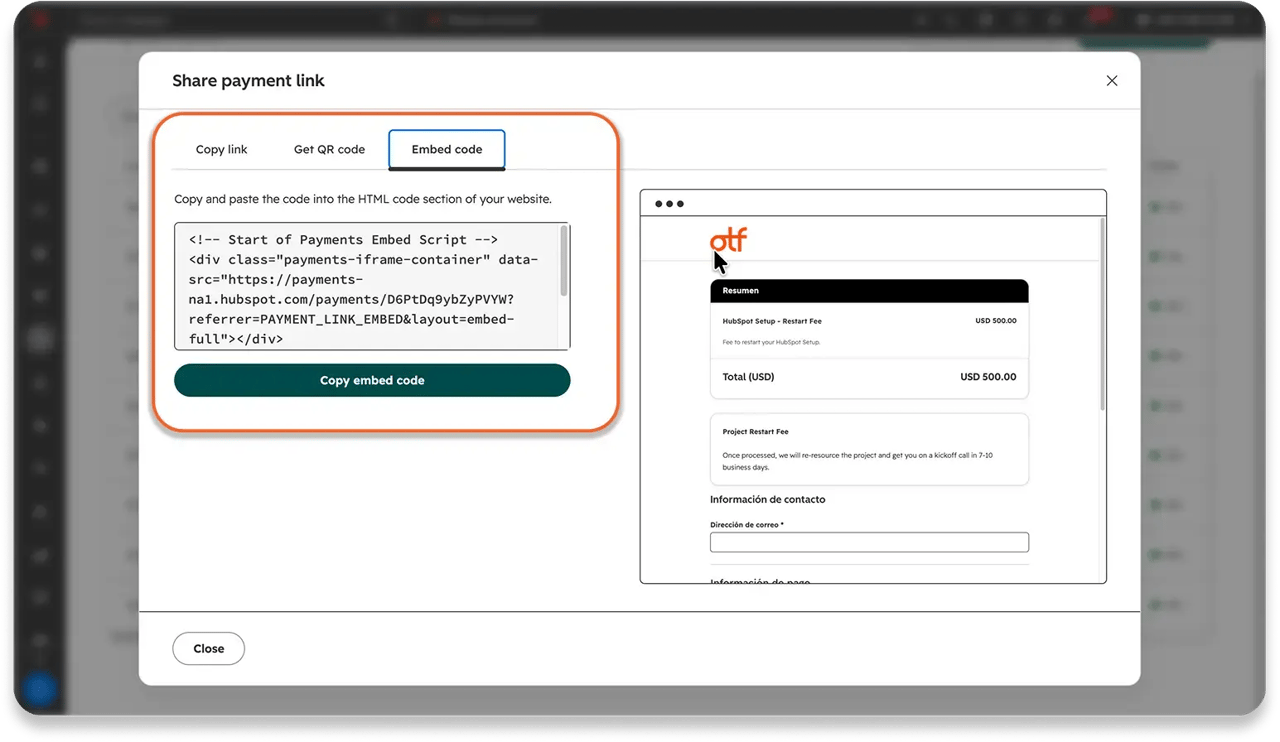
A link nobody sees collects nothing. The build is the easy part. Distribution is where the link either earns its keep or sits in a tab.
1. The reply you are already writing
Copy the link and drop it into the email or message where the price just came up. This is the one that turns "sure, send me the details" into a payment the same afternoon, while the buyer still wants it.
2. A QR code, for anything printed or in person
Booth signage, a flyer, the last slide of your talk, and the back of a business card. The QR code opens the same checkout page the URL does. Note that the QR option will not appear until you have a payment processor connected.
3. Embedded on your own website
Drop the embed code on a pricing or landing page so people buy without leaving your site. Convenient and expensive. See the warning below.
4. A meeting scheduling page
Attach the link to a HubSpot scheduling page so payment happens at the moment someone books. Paid consultations, strategy sessions, and anything with a no-show problem stop being a two-step chase.
If you use a redirect on both the payment link and the meeting, the meeting's redirect wins. Set the page you actually want on the meeting.
5. Breeze Customer Agent
Your customer agent can hand out a payment link on its own, in live chat, while you are asleep. A buyer asks about a product at 11pm, the agent surfaces the right link, and the sale closes with nobody on your side involved.
Two constraints worth knowing: one-time-use payment links cannot be used with a customer agent, and you choose an action protection level of None, Match email, or Verify email to control identity checking before the agent acts.
What Does an Embedded Checkout Switch Off?
Two things stop working the moment a payment link is embedded on an outside site.
- Apple Pay disappears from checkout. HubSpot states this plainly: if you use the payments module or an embedded checkout on your website, Apple Pay will not be available.
- Discount codes cannot be used on that link at all.
Both work normally on HubSpot's standalone checkout page. So if you are running a promo code or selling to an audience that pays on a phone, send the direct link and keep the embed for browsing.
How Do You Track Payment Link Performance in HubSpot?
Three columns on the Payment Links index page answer the question without building a report. Views, Checkouts, and View to checkout rate sit right there in the table.
Read them like this:
- Views but no checkouts is a price, trust, or page problem. The buyer arrived and decided against it.
- No views at all is a distribution problem, and that one is on you, not the buyer.
- A healthy view-to-checkout rate on a low-volume link means you have something worth putting in front of more people.
For anything deeper, payment links and subscription properties are available in workflows, segments, and custom reports on Professional and Enterprise.
Two segments worth building
Segment buyers by which link they used. Create a contact segment filtered on Payment Links > Link name. If you sold a standard pass and a VIP pass through two links, you can now communicate with each group correctly instead of blasting both.
Re-engage churned subscribers. Create a subscription segment filtered on Status is any of Canceled, Expired and Churn date is less than 60 days ago, then enroll it in a win-back campaign.
Read more: HubSpot Lists Are Now HubSpot Segments: One of The Best Audience Segmentation Tools
Validate before you share
HubSpot's own recommended test is worth following. Create a link with a $1 line item, complete a real checkout with a card you control, confirm the payment record, contact, and deal are created as expected, check the confirmation page and receipt, then refund it.
One caveat: HubSpot does not charge you to process the refund, but you do not get the original transaction fee back.
How Do You Manage a HubSpot Subscription After It Goes Live?
Every subscription sits in one of six statuses, and what you are allowed to do depends on which one.
| Status | What it means |
|---|---|
| Active | All scheduled payments processed; billing continues on schedule |
| Unpaid | The current cycle's payment failed; the customer has been emailed to update their details |
| Scheduled | Billing has been delayed to start on a future date |
| Paused | Billing and collection halted; can be resumed |
| Canceled | Ended before the term; no further charges |
| Expired | Billed out its full term; no further charges expected |
When Can You Edit a HubSpot Subscription?
- You can only edit subscriptions with a status of Active or Scheduled
- You cannot edit a subscription within two days of its next payment due date, so the customer always gets notice
- You cannot edit a subscription that has invoice creation turned off
- Changes made directly to the CRM line item records do not affect billing. You have to edit the subscription itself
How Does Proration Work on a HubSpot Subscription?
By default, changes apply from the next billing cycle. Toggle Prorate changes on and they apply immediately.
- Upgrading (adding line items or raising prices) charges the payment method on file for the prorated amount right away
- Downgrading (removing line items or cutting prices) refunds the previous payment method right away
- Monthly subscriptions prorate on a 30-day billing cycle. Annual subscriptions multiply that 30-day cycle by 12
- Only subscriptions with an automated collection process can be prorated
- Scheduled subscriptions cannot be prorated because the billing period has not started
Pause, resume, cancel, delete
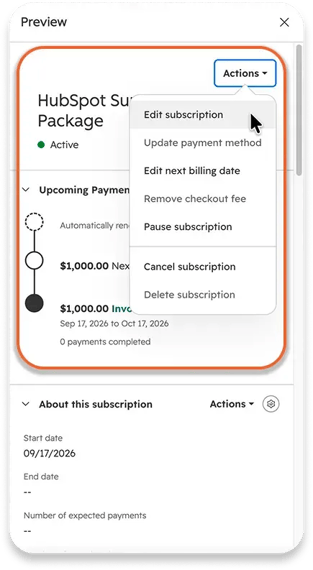
Pausing sets the status to Paused, notifies the customer, and halts all billing and collection. Resuming requires you to set a new next billing date, and the customer is notified either way.
Canceling takes effect immediately, and the customer is never charged again. If there is a pending bank debit payment, such as ACH, at the moment you cancel, that payment will not be automatically canceled and refunded. You have to issue the refund yourself.
Deleting is only possible on canceled or expired subscriptions, and it cannot be undone. Export first.
🏆 Elite Partner Tip: When you add a line item to an existing subscription, it inherits the subscription's billing frequency, not the frequency set on the product in your library. Add an annual product to a monthly subscription and HubSpot will bill it monthly. It will also bill only for the remaining term length. Check the summary before you save, every time.
How Do Discount Codes Work on HubSpot Payment Links?
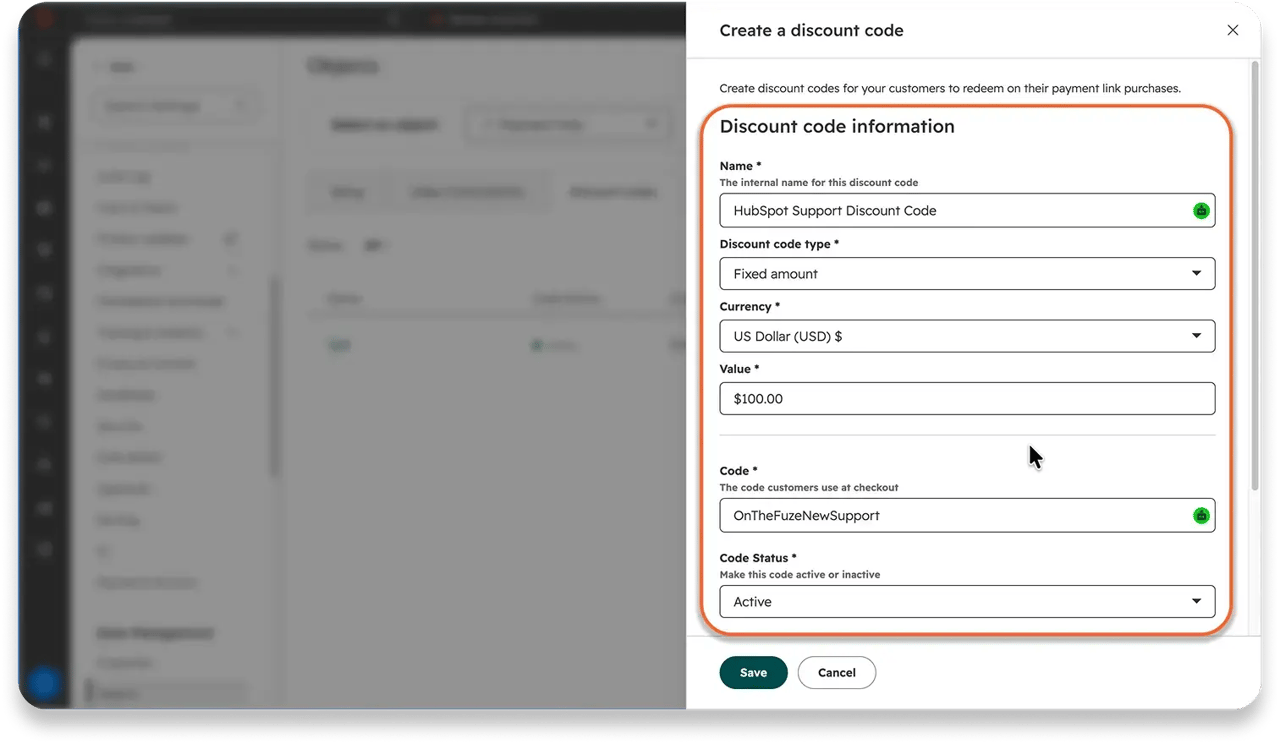
HubSpot has two ways to take money off a payment link, and only one of them is a code. One question tells you which you need: does the buyer have to type something to get the discount?
No, they don't. Use a one-time discount on the link itself. Take a flat amount or a percentage off, it shows on the checkout page automatically, and the buyer does nothing. This is right for a price you already agreed in a conversation.
Yes, they do. Use a discount code. Create it under Settings > Objects > Payment Links > Discount codes, then open your link's Settings tab and toggle Discount codes on under Checkout. At checkout, buyers click + Add discount code and type it in.
What Are the Limits of HubSpot Discount Codes?
- They do not work anywhere except payment links. Invoices, quotes, legacy quotes, and subscriptions do not accept them.
- They cannot take 100% off. The percentage has to be below 100.
- They do not work on a link with automated sales tax. You also have to turn discount codes off in order to use tax rates from your tax library.
- They do not work on a link with a one-time discount already applied, or on a link you have embedded.
Set an expiry and a cap when you create the code
In the Options section, set a Maximum discount usage and a Code expiration date. Expiry lands at 23:59 on the date you pick, in your account's time zone. Deactivation is immediate, and anyone trying the code afterwards gets an error at checkout.
🏆 Elite Partner Tip: Your redemption cap can be exceeded. Usage is only counted after a payment finishes processing. A card takes seconds; an ACH bank payment can take days. In that window, more people can redeem a capped code than the cap allows. If the offer is genuinely limited, set the cap below your real limit and check the discount codes table rather than trusting the number to hold.
Why Is My HubSpot Payment Link Not Working?
Almost every "broken" payment link is one of four configuration problems, and none of them produce a useful error message. Here is how to tell which one you have, starting from what the buyer is seeing.
Buyers get an error when they open the link
The most likely cause is that you shared a checkout session URL instead of the payment link. When you open a payment link to test it, the address in your browser changes to a unique checkout session, and each session can only be used once.
So if you copied the URL out of the address bar and sent it to a list, the first person through pays and everyone after them hits an expired session. The link itself is fine.
The fix: go to Revenue > Payment Links, hover over the link, and use the Copy link button. Never copy from the address bar. If you already sent the wrong URL, the shareable link still works, so you only need to resend it.
Two other things that produce the same symptom: the link has been turned off on the index page, or it hit its Limit checkouts cap or Expiration date and deactivated itself. Both show in the State column.
The discount code is rejected at checkout
A code that fails at checkout is almost always hitting one of four restrictions, not a typo. In rough order of how often we see them:
- Discount codes are not switched on for that link. They are off by default. Open the link's Settings tab and toggle Discount codes on under Checkout.
- The link is embedded. Discount codes cannot be entered on an embedded checkout at all.
- The link has automated sales tax, or a one-time discount already applied. Either one blocks codes.
- The code is inactive, expired, or capped out. Deactivation takes effect immediately, and expiry lands at 23:59 in your account's time zone.
Check the discount codes table under Settings > Objects > Payment Links > Discount codes for status, value, and redemptions in one place.
Apple Pay is missing from checkout
There are two separate causes, and they need different fixes.
The checkout is embedded. HubSpot states it plainly: if you use the payments module or an embedded checkout on your website, Apple Pay will not be available. Send the direct link instead and keep the embed for browsing.
Your processor is Stripe. HubSpot payments lists Apple Pay and Google Pay among its accepted methods. Stripe processing through HubSpot does not. If wallets matter to your buyers and you are eligible for HubSpot payments, that is a reason to switch.
If neither applies, check that Credit or debit card is selected under Accepted forms of payment, because on HubSpot payments that is what enables the wallet options.
The payment did not create a deal
The deal creation toggle does not behave the way most people expect. With Allow this link to create new deals turned on, HubSpot will still not create a new deal if there is already an open deal associated with that link. Payments attach to the open deal instead.
With the toggle off, payments associate to an existing deal as long as that deal is linked to the payment link, is not in a Closed Won stage, and the paying contact is associated with it.
And recurring payments never create new deals regardless of the setting. They are recorded on the subscription record, which is associated to the original deal.
🏆 Elite Partner Tip: Before you send any link to more than one person, run HubSpot's own validation: build a link with a $1 line item, pay it with a card you control, confirm the payment record, contact, and deal appear as expected, check the receipt and confirmation page, then refund it. Three of the four failures above would have surfaced in that two-minute test. Worth knowing that HubSpot does not charge you to process the refund, but the original transaction fee is not returned.
What Mistakes To Avoid With HubSpot Payment Links?
The expensive mistakes here are configuration mistakes, not strategy mistakes. They fail silently, and you find out when the money does not arrive.
Editing the line item record and expecting the billing to change
It will not. Changes made directly to the CRM line item records associated with a subscription do not affect what gets billed. To change what the customer pays, you have to edit the subscription itself and save it there.
Letting every recurring line item renew until canceled by default
Automatically renew until canceled leaves the subscription with no end date, which is right for a retainer and wrong for a twelve-month programme. You can set an end date when you add the line item. Decide the billing term deliberately rather than inheriting it.
Expecting subscription invoices to use your default net terms
They do not. Default net payment terms configured in invoice settings apply only to invoices you create manually. Invoices generated by a subscription use the terms set on that subscription.
Leaving promotional links with no cap and no expiry
A link with twelve seats available and no Limit checkouts setting will sell the thirteenth. A launch price with no Expiration date is a launch price forever.
Turning on automated sales tax without checking what it disables
With automated sales tax on, you cannot add one-time discounts, fees, or taxes to the link, and discount codes will not work. Decide which you need before you build the link, not after a customer reports a code failing.
Never auditing links after they are built
Prices change. Products get renamed. Promotions end. A payment link built eighteen months ago is still live, still taking money at the old price, and nobody has looked at it. Filter the index page by State: On once a quarter and ask whether each link should still exist.
Frequently Asked Questions
What are subscriptions in HubSpot?
In HubSpot billing, a subscription is a native CRM object that manages recurring payments for a buyer. This is different from an email subscription type, which governs marketing email opt-ins, and from your own HubSpot plan. Each record holds the customer, products, billing frequency, next billing date, and status and appears on the associated contact, company, deal, and invoice records. They are created automatically when a buyer pays for a recurring line item or manually from Revenue > Subscriptions.
How do I create a payment link in HubSpot?
Go to Revenue > Payment Links, click Create payment link, choose blank or a template, name the link, add line items from your product library, set the billing frequency, configure the Settings tab, preview the checkout, and click Create. You need Super Admin or Manage Payment Links permissions.
Do I need a paid HubSpot plan to use payment links?
You need a connected payment processor. HubSpot payments requires a Starter, Professional, or Enterprise subscription and is available in the US, UK, and Canada. Stripe payment processing through HubSpot is available on all plans, including Free, anywhere Stripe is supported.
How do payment links create subscriptions?
When a buyer purchases a line item with a recurring billing frequency, HubSpot automatically creates a subscription record on the first successful payment. It is associated to the contact who paid and to any deals tied to that payment link. You do not create the subscription yourself.
Can I use discount codes on any HubSpot payment?
No. Discount codes work on payment links only. They are not supported on invoices, quotes, legacy quotes, or subscriptions. They also will not work on a link that has automated sales tax, a one-time discount, or that has been embedded on an external site.
Why is my HubSpot payment link not working?
The most common cause is sharing a checkout session URL instead of the payment link. Opening a link rewrites the URL into a single-use session, so if you copy it from the address bar, only the first buyer can pay. Copy from the Copy link button instead. The other causes are a link that was turned off or one that hit its checkout limit or expiration date.
Why is my HubSpot discount code not working at checkout?
Check four things in order: discount codes are switched on in that link's Settings tab, the link is not embedded, the link has no automated sales tax or one-time discount applied, and the code itself is active, unexpired, and under its redemption cap. Any one of those will cause the code to be rejected.
Why is Apple Pay missing from my HubSpot checkout?
Most likely because the checkout is embedded. HubSpot states that if you use the payments module or an embedded checkout on your website, Apple Pay will not be available. It works normally on the standalone checkout page. The other possibility is your processor: Stripe processing through HubSpot does not list Apple Pay or Google Pay among its supported methods.
Can I edit a HubSpot subscription after it starts?
Yes, with three limits. The subscription must be Active or Scheduled, it must have invoice creation turned on, and you cannot edit it within two days of the next payment due date. Editing the CRM line item records directly does not change what gets billed.
What is the difference between pausing and canceling a HubSpot subscription?
Pausing halts billing and collection and can be resumed later, with a new billing date you set. Canceling takes effect immediately and permanently; the customer is never charged again and receives a cancellation email. Only canceled or expired subscriptions can be deleted.
How does proration work on a HubSpot subscription?
Toggle Prorate changes on when editing. Upgrades charge the payment method on file immediately for the prorated amount; downgrades refund it immediately. Monthly subscriptions prorate on a 30-day cycle, and annual subscriptions use that 30-day cycle multiplied by 12. Only subscriptions with automated payment collection can be prorated.
Can I send the same HubSpot payment link to multiple buyers?
Yes, as long as you copy it from the sharing dialog or the Copy link button, and the link is not set to one-time use. Do not copy the URL out of your browser's address bar after opening the link, because that URL is a single-use checkout session.
Key Takeaways
- A billing subscription is an object, not a setting. It is created automatically the first time someone pays for a recurring line item, and it owns the billing schedule from that point forward.
- The Billing frequency dropdown is the highest-leverage field on the page. One-time gives you a sale. Monthly gives you revenue that returns without anyone chasing it.
- Line items with different frequencies or terms split into separate subscription records. Expect this before you read your first MRR report.
- Copy the link from the sharing dialog, never from the address bar. The URL changes to a single-use checkout session the moment you open it.
- A stored payment method must pre-date the subscription for automatic charging to work. Collecting it during the first subscription payment does not count.
- Embedding the checkout switches off Apple Pay and discount codes. Both work normally on HubSpot's standalone checkout page.
- Discount codes only work on payment links, never above 100%, never with automated sales tax, and never on an embedded link or one that already has a one-time discount.
- Your redemption cap can be exceeded because usage counts only after processing completes, and ACH takes days.
- Cap and date every promotional link. Limit checkouts and Expiration date exist for exactly this, and a link without them runs forever.
- Most "broken" payment links are one of four config problems: a shared checkout session URL, discount codes switched off or blocked, an embed hiding Apple Pay, or the deal toggle behaving differently than expected.
- Audit your live links quarterly. Old prices keep collecting money until somebody turns them off.
HubSpot reports a 29% increase in deals closed 12 months after enrolling in payments and a 1.5x higher deal close rate for customers using payments. Those are HubSpot's own figures for businesses that turned payments on, not for any one feature. But the direction is consistent with what we see on client accounts: removing steps between agreement and payment gets more deals over the line.

On The Fuze is a Top 1% HubSpot Elite Partner with 10+ years of experience and 3,000+ CRM setups optimized across North America. We help small and medium-sized businesses leverage the full potential of HubSpot to scale their businesses.