HubSpot Sales Hub Blueprint
Every tool, every setting, and every hand-off, step by step, plus a 30-minute weekly review. 100% Free.
Download Now
According to HubSpot's 2024 Sales Trends Report, 45% of sales pros are overwhelmed by the number of tools in their tech stack. One app for follow-ups, another for scheduling, a call recorder, and a spreadsheet for the forecast. None of them talk to each other, so reps retype the same data and deals slip through the cracks.
HubSpot Sales Hub replaces that stack with one connected system. If you're on Sales Hub Professional or Enterprise, you most likely already pay for every tool you need to book more meetings and close more deals, without adding headcount. The hard part isn't the tools. It's getting them to hand off to each other.
This post covers what Sales Hub is, what it costs in 2026, what you need before you start, and how to use HubSpot Sales Hub's tools in the order a real deal moves through them: from finding the right company to forecasting the deal and coaching your team on the call that won it. Think of it as a HubSpot Sales Hub demo you can follow along with in your own account.
What Is HubSpot Sales Hub?
HubSpot Sales Hub is HubSpot's paid sales software. It sits on top of the free HubSpot CRM and adds the tools your team uses to find buyers, follow up, book meetings, manage deals, and forecast revenue.
Your contacts, companies, and deals live in the CRM. Sales Hub is what puts that data to work. Its core features are pipelines for your leads and deals, follow-up automation, reporting, and AI agents.
How is Sales Hub different from the CRM and Revenue Hub?
These three names get mixed up all the time, and the difference matters when you're deciding what to buy.
| Product | What it is | Cost |
|---|---|---|
| HubSpot CRM | The database: contacts, companies, deals, and their activity | Free |
| Sales Hub | The sales tools on top of the CRM: sequences, meetings, forecasting, sales analytics, and more | Paid, per seat |
| Revenue Hub | Quotes, billing, and payments | Paid, separate |
Where did quotes go?
Quotes and CPQ now live in Revenue Hub, and you need a Revenue Hub seat to create them. HubSpot renamed Commerce Hub to Revenue Hub in June 2026. Accounts that had Sales Hub before September 3, 2025, keep their legacy quotes, which is why older tutorials still show quotes inside Sales Hub. We cover quotes, billing, and payments in our Revenue Hub Masterclass.
Where do you find the Sales Hub tools?
In the left sidebar, hover over Sales. That menu holds every tool in this guide. Your Leads, Deals and pipelines live one menu up, under CRM.
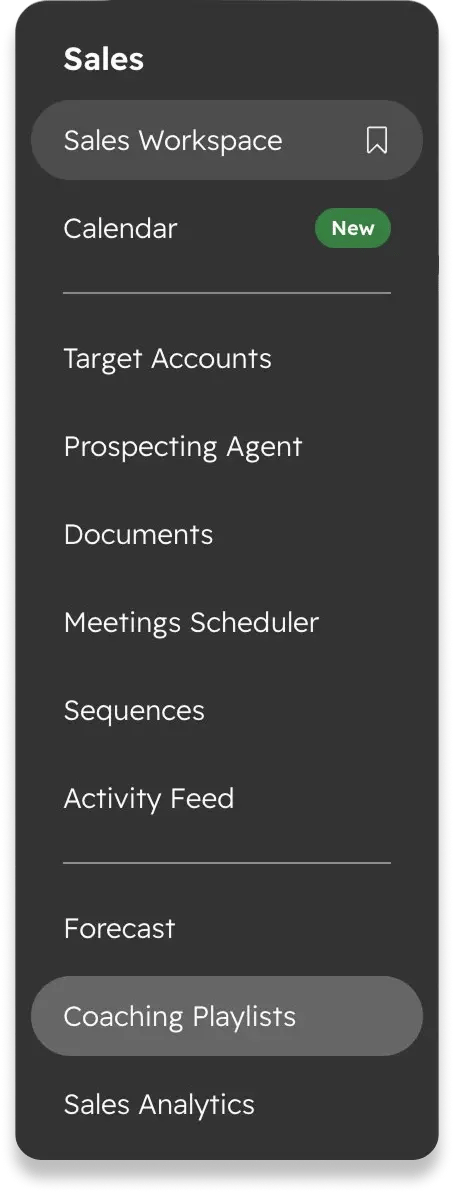 Hover over Sales in the left sidebar to see every Sales Hub tool.
How Much Does HubSpot Sales Hub Cost?
Sales Hub comes in four tiers: Free at $0, Starter at $20 per seat per month, Professional at $100 per seat per month, and Enterprise at $150 per seat per month. Professional and Enterprise also carry a required one-time onboarding fee.
| Tier | Price per seat, per month | One-time onboarding | Who it fits |
|---|---|---|---|
| Free | $0 | None | Trying the CRM and the basic meetings tool |
| Starter | $20 (HubSpot often runs a new-customer discount) | None | Small teams that need Documents and basic sales analytics |
| Professional | $100 ($90 billed annually) | $1,500, required | Teams that want sequences, the Sales Workspace, the Forecast and the Prospecting Agent |
| Enterprise | $150, annual commitment | $3,500, required | Larger teams that need higher limits and advanced controls |
Prices checked on HubSpot's product page and Product & Services Catalog in November 2026. HubSpot changes pricing often, so confirm on its pricing page before you buy.
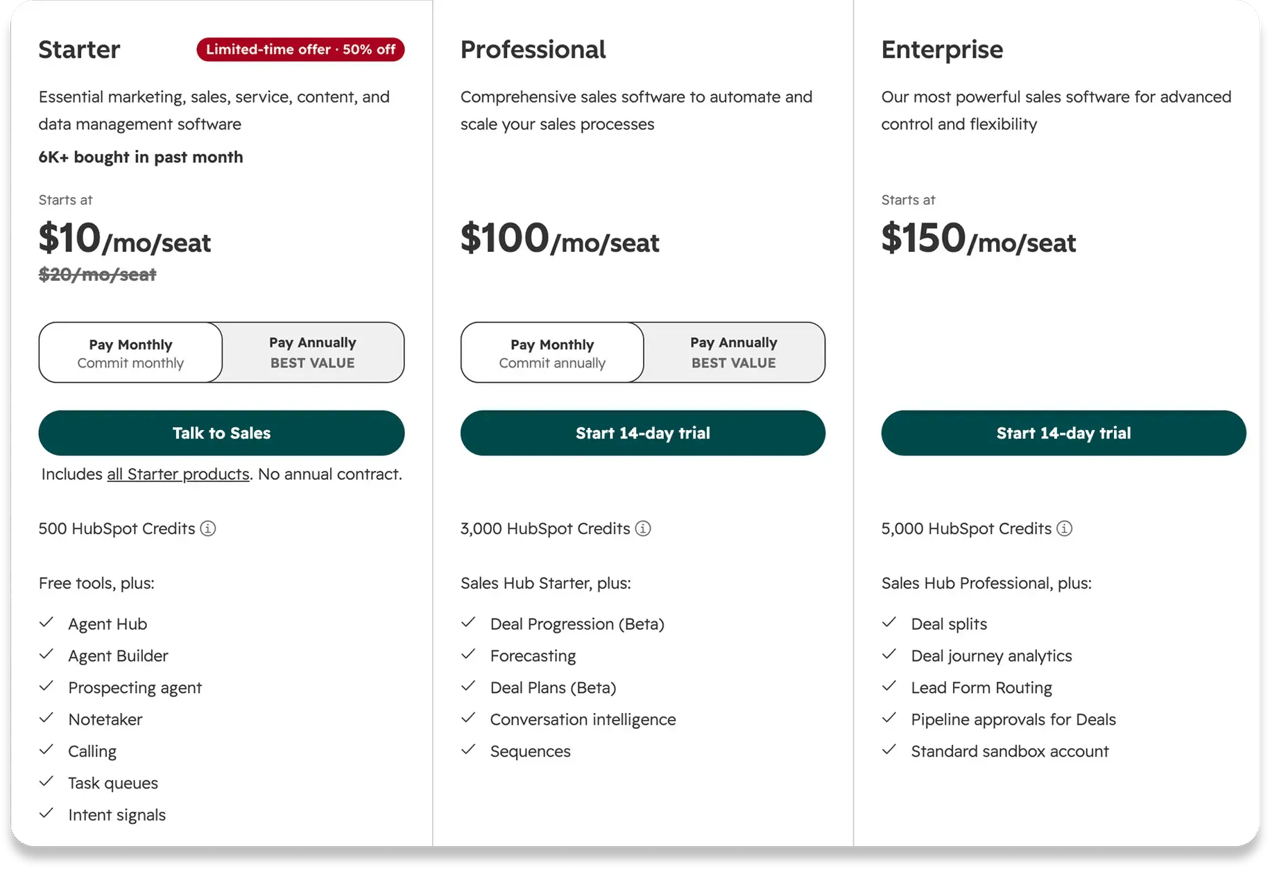 HubSpot's Sales Hub pricing page in October 2026, with the Starter new-customer discount.
Three things the price doesn't tell you:
- Prices are per seat. A Sales seat gives a user the full sales toolkit. Core and View-only seats do not get sequences, the Forecast or the Sales Workspace.
- Onboarding is required on Professional and Enterprise. You can pay HubSpot for its do-it-yourself onboarding, or, for the same price, work with a partner like us for a done-for-you setup.
- New EMEA customers buy differently. Since October 1, 2026, new customers in Europe, the Middle East and Africa buy one HubSpot platform edition (Starter, Professional or Enterprise) and pay per seat, with a monthly allowance of HubSpot Credits. As of November 2026, customers in North and South America stay on the hub-and-seat model shown above.
Is HubSpot Sales Hub worth it?
HubSpot's own data shows that after 6 months, customers close 94% more deals. That figure is based on aggregated data from 268,000+ HubSpot customers, and HubSpot notes that individual results may differ. In our experience, the gap between teams that see that kind of result and teams that don't is the setup: whether the tools are connected or just switched on.
Is Sales Hub Professional worth it over Starter?
Professional is where the connected system starts. Sequences, the Sales Workspace, the Forecast, Target Accounts, Coaching Playlists and the lead pipeline are all Professional and Enterprise features. Starter gives you Documents, the Meetings Scheduler and sales analytics, but most of the hand-offs in this guide need Professional or above.
What does HubSpot Sales Hub Enterprise add?
HubSpot Sales Hub Enterprise adds higher limits and more control for larger sales teams. Every tool in this guide works on Professional. Here's what changes when you move up:
|
Professional |
Enterprise |
|
|---|---|---|
|
Sequence emails per user per day |
500 |
1,000 |
|
Calling minutes per account, per month |
3,000 |
12,000 |
|
Custom pipelines (shared across objects) |
100 |
350 |
|
Playbooks |
5 |
5,000 |
|
Power dialer |
No |
Yes |
|
Tracked terms in call transcripts |
No |
Yes |
What Do You Need Before You Start?
Four things: a Sales Hub Professional or Enterprise subscription, an assigned Sales seat, the Sales Access permission, and each rep's inbox and calendar connected to HubSpot. Miss one and the tools in this guide either won't appear or won't work.
| Requirement | Why it matters | Who sets it up |
|---|---|---|
| Professional or Enterprise | A few tools work on Starter, but the full system needs Professional or above | Account owner |
| A Sales seat | Core and View-only seats don't include the sales tools | Super Admin, or a user with Modify billing |
| Sales Access | If Meetings Scheduler doesn't show up under Sales, this is usually why | Super Admin, or a user with Add and edit users |
| Connected inbox and calendar | Sequences send from the rep's own inbox, and meetings book straight into their calendar | Each rep, in their own settings |
Helpful, but not required: HubSpot Credits for the Prospecting Agent and a revenue goal for each rep for the Forecast.
How Do You Use HubSpot for Sales? The Tools in Order
You use Sales Hub best by following one deal through the tools in order: find the buyer, reach them, book the meeting, turn it into a deal, forecast it, and then measure and coach. Each tool hands something to the next one. When a hand-off breaks, the tool after it looks broken too.
| # | Tool | The job | What it hands to the next tool |
|---|---|---|---|
| 1 | Target Accounts | Find | Your short list of companies, with the buyers inside each one |
| 2 | Prospecting Agent | Find | Researched, personalized first emails for your cold buyers |
| 3 | Documents | Reach | Your one-pager, as a tracked link |
| 4 | Meetings Scheduler | Reach | Your booking link |
| 5 | Sequences | Reach | Follow-ups for warm buyers. The first email moves the lead to Attempting |
| 6 | Activity Feed | Deal | Who opened what, so you call at the right moment. The call moves the lead to Connected |
| 7 | Calendar and Notetaker | Deal | The meeting, recorded, with follow-up tasks created for you |
| 8 | Sales Workspace | Deal | The qualified lead, turned into a deal |
| 9 | Forecast | Forecast | The deal, weighted by its stage, next to your goal |
| 10 | Sales Analytics | Measure | The stage where your deals stall |
| 11 | Coaching Playlists | Coach | The calls that get deals past that stage, as training |
1: How Do You Find the Right Buyers in HubSpot?
Target Accounts
Target Accounts is your team's agreed short list of companies to go after, with everything about each account in one panel. Instead of sorting through the whole CRM every morning, reps work one list. It's included with Sales Hub Professional and Enterprise.
The only requirement: the company must already be in your CRM, with its Company domain name filled in. Without a domain, it won't come up in the search.
- Click Sales in the left sidebar, then Target Accounts.
- Click Choose target accounts in the upper right.
- On the In CRM tab, under Source, select All companies in CRM, and click Find companies.
- Check the companies you want, click Select accounts, then Close. Give it a few minutes and refresh.
- Click a company's name, open the Buying Group tab, click + Add, and add the people you'll sell to.
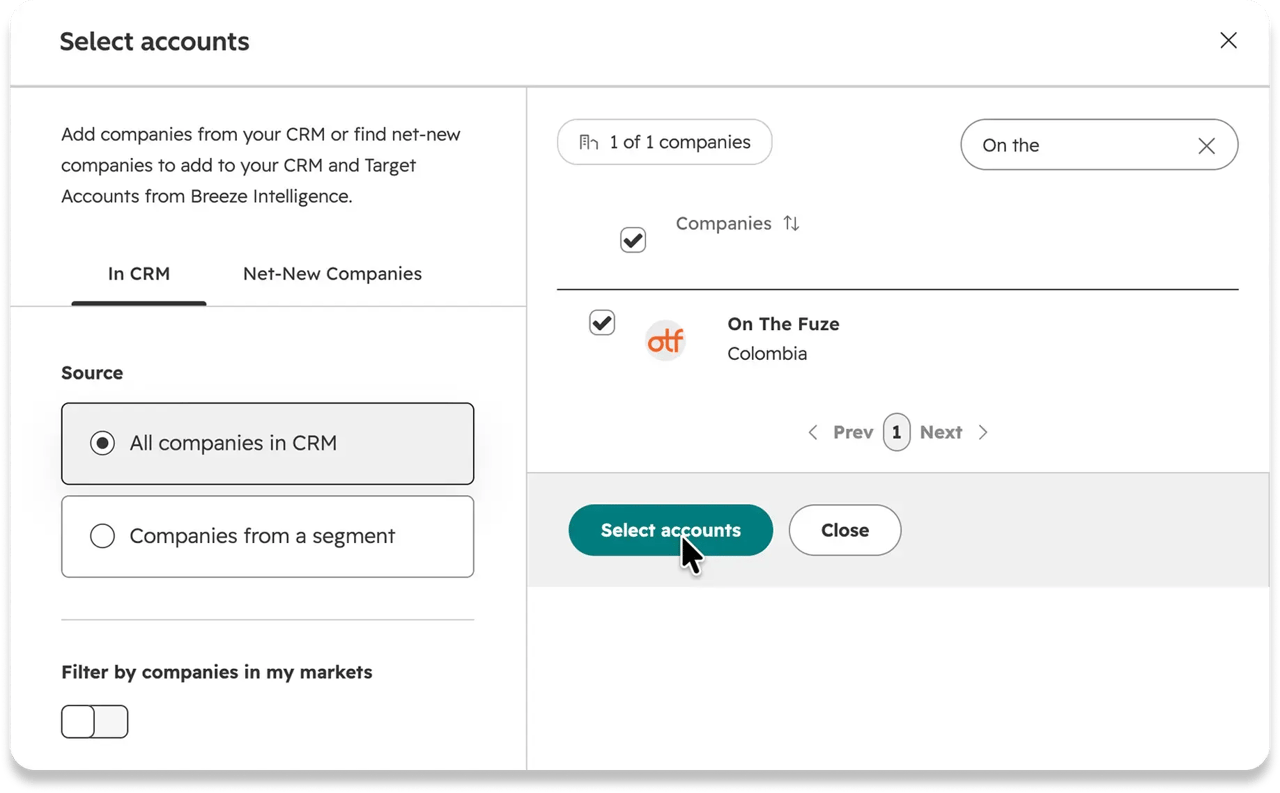 Choose target accounts: pick All companies in CRM, check the company, then click Select accounts.
Then create a lead for each buyer, so HubSpot can track them before there's a real deal:
- Click CRM, then Leads, then Create Lead, then Contact.
- Pick the buyer, name the lead, set Lead Pipeline Stage to New, and click Create Lead.
From here, HubSpot moves the lead on its own: to Attempting when the lead's owner sends or logs an email, call or message, and to Connected when the buyer replies, a meeting is completed, or a call is logged as Connected.
🏆 Elite Partner Tip: Create every lead in your default lead pipeline. It's the only pipeline where HubSpot moves leads forward automatically. And if someone moves a lead backward by hand, HubSpot stops moving it on its own.
Prospecting Agent
The Prospecting Agent is HubSpot's AI agent that researches each buyer, finds the right contacts, and drafts personalized outreach for your rep to review. It's the Start research button on each target account's Insights tab. It runs on HubSpot Credits and needs a Super Admin or the Access prospecting agent permission. We have a full video on the Prospecting Agent, so here are the essentials.
The agent writes from a selling profile, which tells it what you sell and who to sell it to:
- Click Sales, then Prospecting Agent. Click Agent setup, then Create new selling profile on the Selling profiles tab.
- Name it, type your website into Analyze from website, and click Analyze website. Check what it fills in, pick your product, and click Next.
- On Select identity, leave Send from contact owner, so emails go out from the rep's own inbox.
- On Call to actions, choose your booking link and attach your one-pager. (You'll build both in Job 2. Come back and add them before you launch.)
- On Outreach options, choose Review before sending and pick a tone.
- On Review, click Show preview, read the sample email, then click Create selling profile.
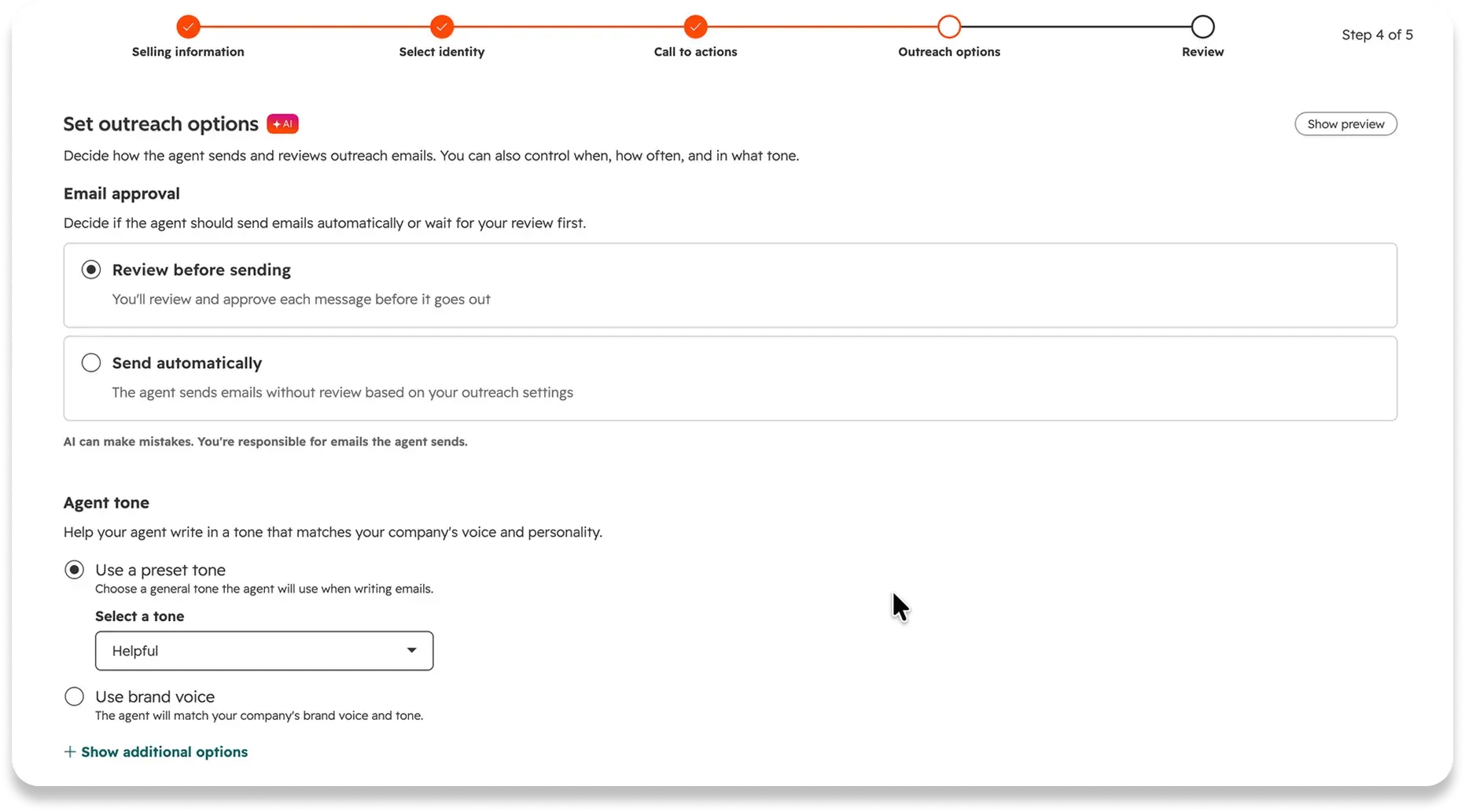 The selling profile's Outreach options: keep Review before sending on, so a person reads every email first.
When you're ready, click Enroll on the agent's Overview page and enroll contacts or whole companies, up to 25 contacts at a time. Like a sequence, the agent stops as soon as the buyer replies or books a meeting.
🏆 Elite Partner Tip: Keep Review before sending on for your first few weeks. HubSpot itself warns that AI can make mistakes and that you're responsible for what the agent sends. And don't skip the preview: every email the agent writes pulls from this profile, so if the sample sounds off, every email after it will too.
2: How Do You Reach Buyers and Book the Meeting?
Documents
A HubSpot Document turns your PDF into a trackable link, so you see who opened it and when. A normal attachment disappears into the buyer's inbox. Documents are included from Sales Hub Starter.
- Click Sales, then Documents, and click Upload document to add your one-pager.
- Hover over the document, click Actions, and choose Create link.
- Enter the buyer's email, turn on Require email address to view document, then click Create link and Copy.
Keep that switch on. When you add a document to an email template, HubSpot only tracks the link if it's checked, and that tracking is what tells you when to call.
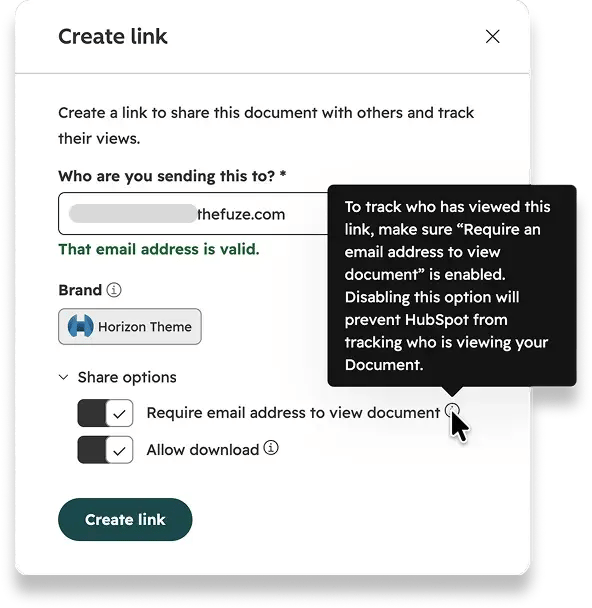
Meetings Scheduler
The Meetings Scheduler gives each rep one booking link, so buyers pick a time without the back and forth. The meeting lands in the rep's calendar, and the buyer gets an invite with a video link and automatic reminders. Every plan includes it; the free version carries HubSpot branding.
- Click Sales, then Meetings Scheduler. Click Create scheduling page and choose One-on-One.
- Fill in the Internal name and Event title, add a Location or video link, and click Next.
- Set your page URL. Choose it carefully: you can't edit it once the link is created.
- On the Scheduling tab, set your Duration options, Availability window and some Buffer time, then click Create scheduling page and Copy share link.
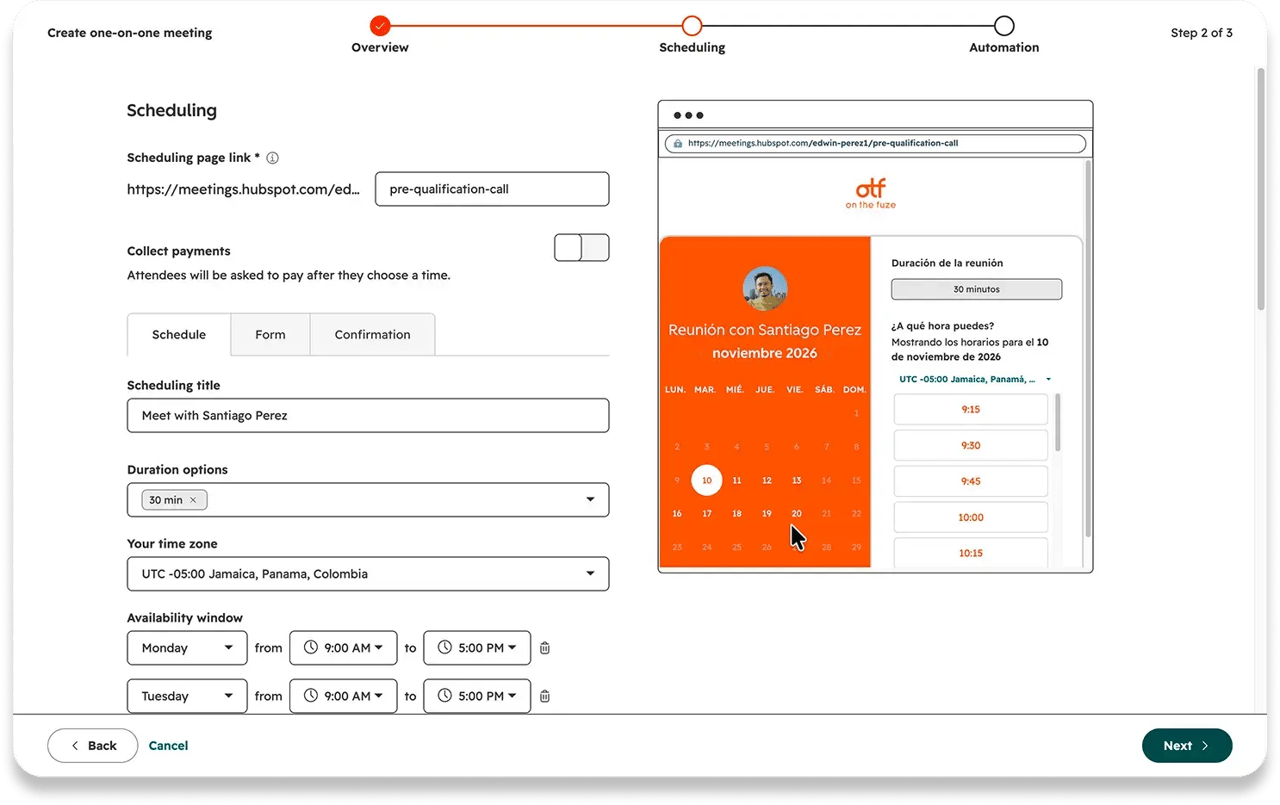
Now go back to your Prospecting Agent's selling profile and add both on Call to actions: this booking link under Request contact to book a meeting, and your one-pager under Attach a HubSpot document.
Sequences
A sequence is a series of automated emails and tasks that look like they were sent straight from your Gmail or Outlook, and stop the moment the buyer replies or books a meeting. Because they don't look like a newsletter, they typically get better delivery, opens and replies than marketing emails. Sequences need Sales Hub Professional or Enterprise.
Agent or sequence? The Prospecting Agent goes after new prospects at scale. Sequences are best for warm leads and for following up opportunities so they don't slip through the cracks. Give each buyer one route, so nobody gets two sets of emails. We have a full sequences tutorial too.
- Click Sales, then Sequences. Click the arrow next to Create sequence, and choose Start from scratch.
- Under Step 1, choose Automated email, pick a template or click Create new, and use Insert to add your one-pager and booking link.
- Click the + icon, choose Call task, click Add, and set the delay to 2 business days. By default, the sequence waits until the rep makes that call.
- Add another Automated email, choose Reply so it lands in the same thread, and set the delay to 3 business days.
- On the Automate tab, check both switches are on: When a contact replies to any email and When a contact books a meeting.
- Click Save, name the sequence, choose who can see it, and click Save again.
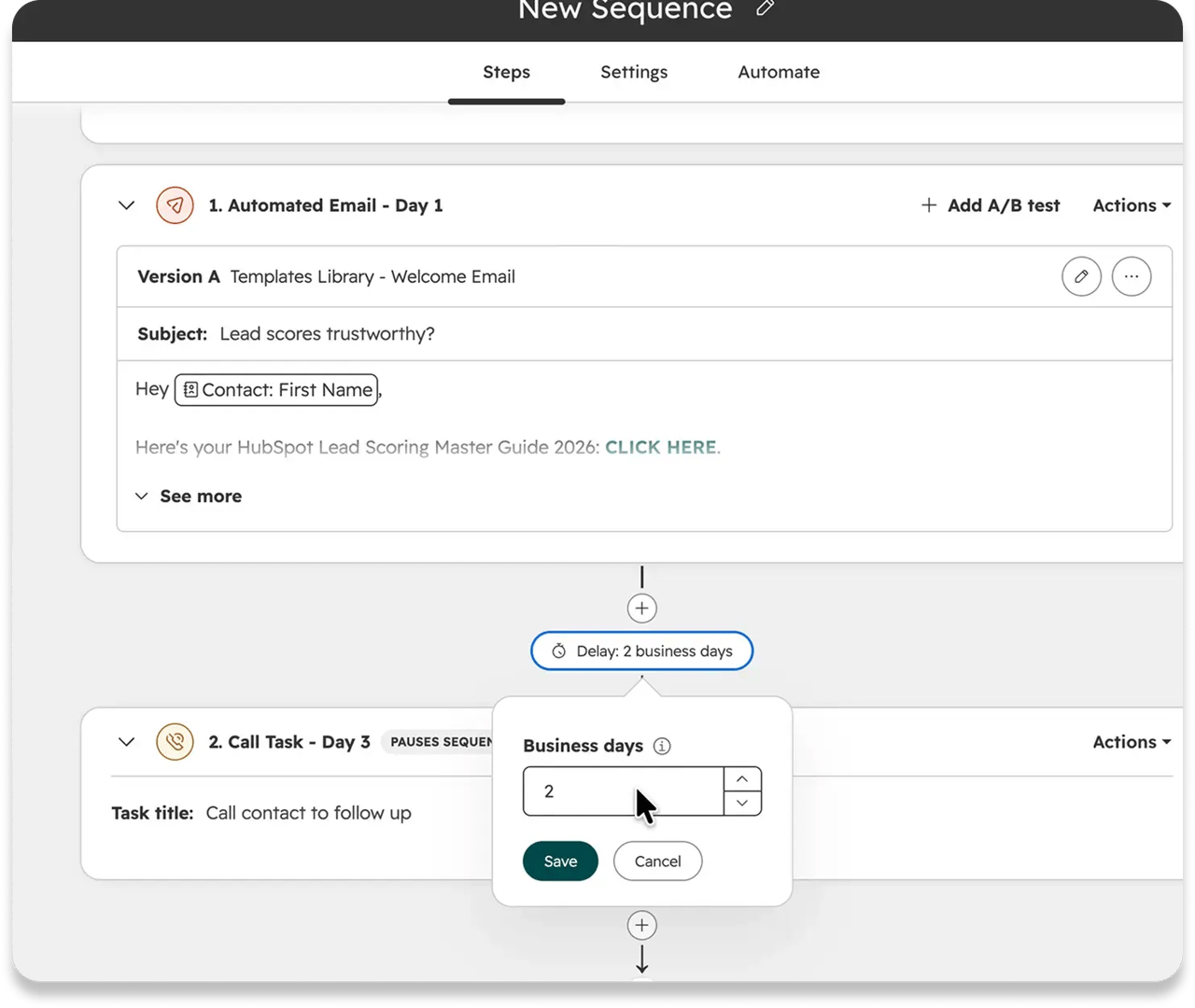 Step 1 is an automated email; the call task waits 2 business days.
To enroll buyers, click Enroll contacts, pick them, check the preview and click Start sequence. The daily sequence email limit is 500 per Professional seat and 1,000 per Enterprise seat.
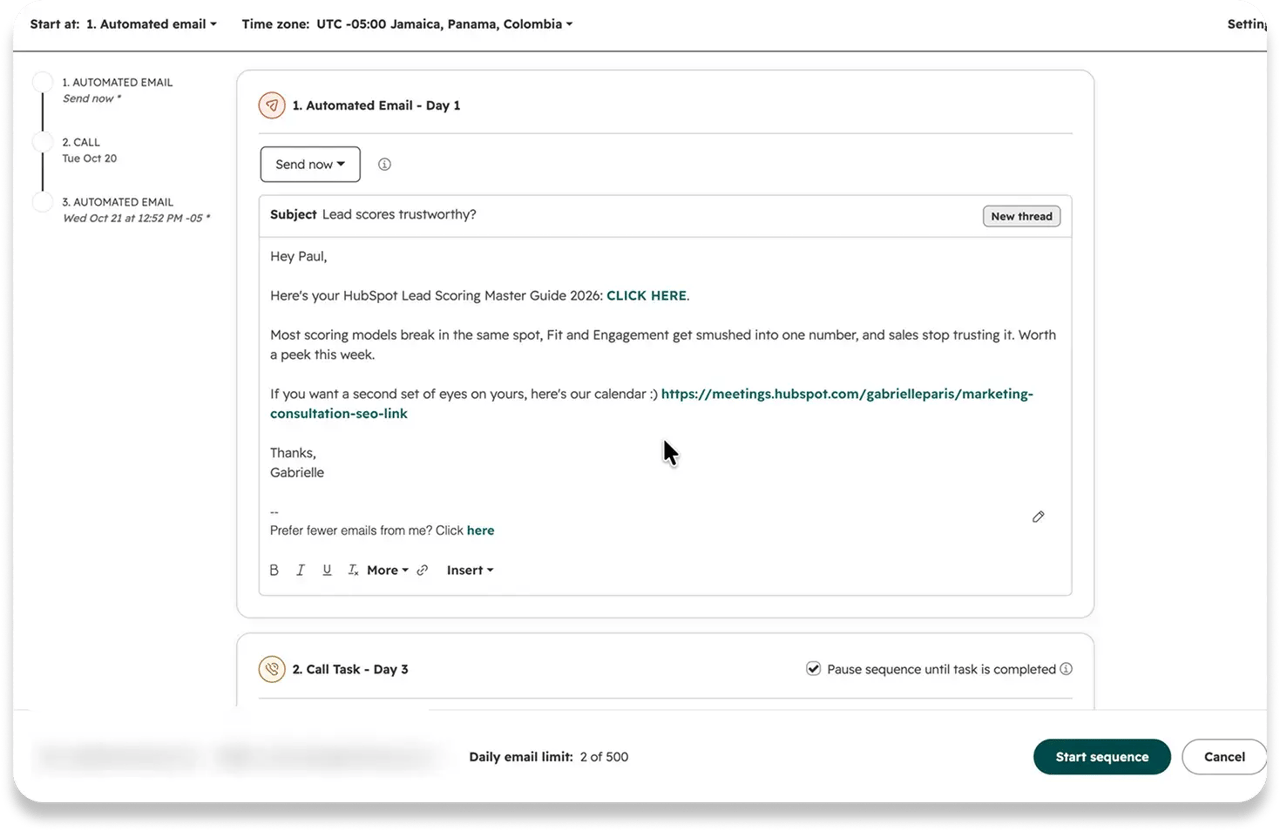 The enrollment preview shows when each step goes out, and your daily email limit at the bottom.
🏆 Elite Partner Tip: Enroll yourself before any buyer, and read every step in your own inbox. A broken link is a lot cheaper to catch on yourself than on a buyer. If you enroll several people from the same target account, set the meeting switch to All contacts at the company, so one booking stops the emails to the whole buying group.
3: How Do You Turn Interest Into a Deal?
Activity Feed
The Activity Feed shows who opened your emails and viewed your documents in real time, so you follow up while they're still reading. Every plan has it. Users without a paid seat get 200 notifications a month, and only emails sent with tracking on show up.
- Click Sales, then Activity Feed.
- Open the activity type dropdown and choose Document views.
- Expand a buyer's card. The Target account tag marks the companies from your list.
- Hover over the item and click Call. The call starts right in your browser.
- When it ends, pick an outcome from Select outcome, add your notes, and click Done.
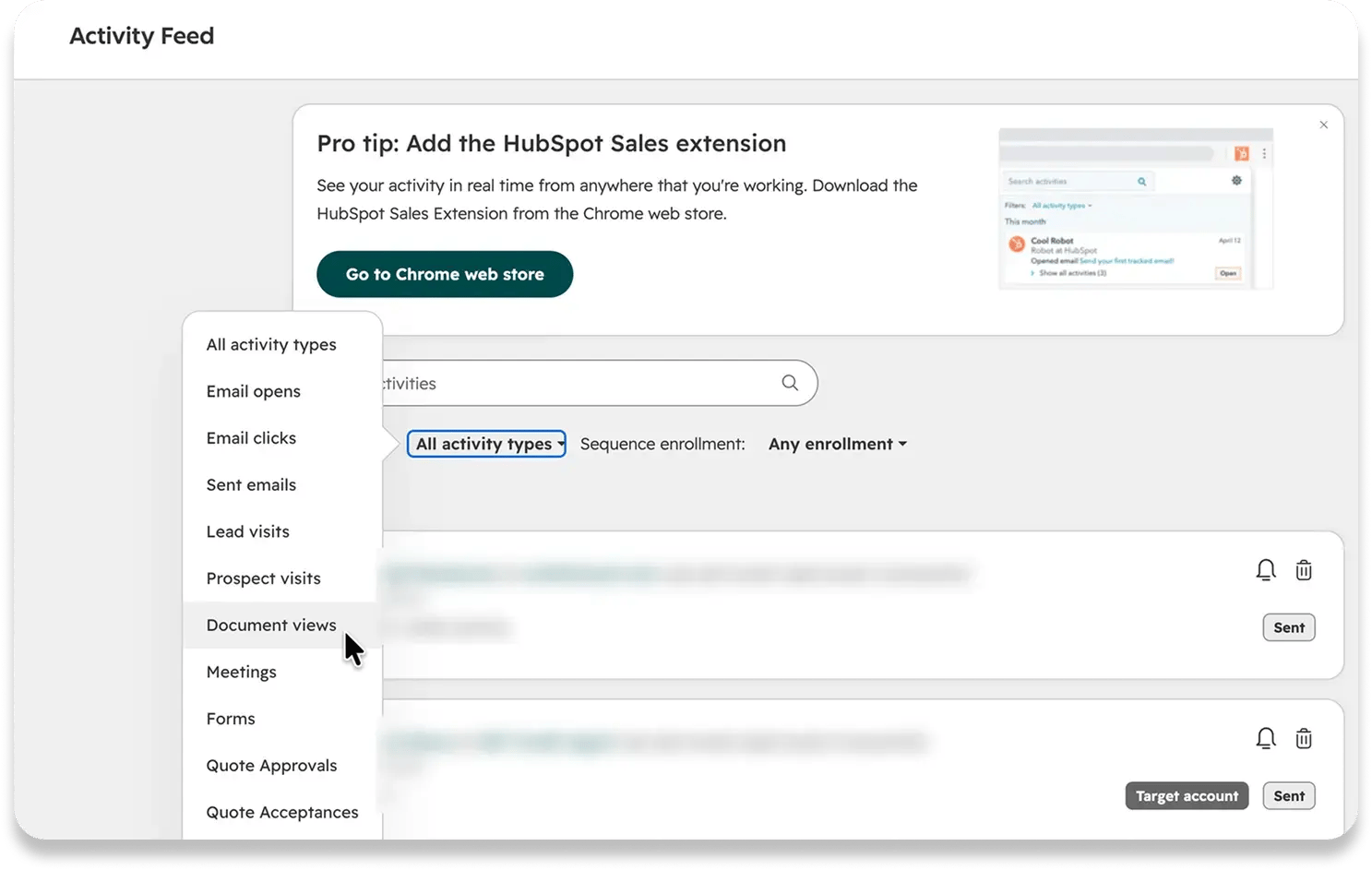 Filter the Activity Feed to Document views to see who opened your one-pager.
Logging the call as Connected moves the lead to Connected. Called from your phone instead? Log it on the contact with the Connected outcome, and the lead moves the same way. Calling minutes are 3,000 per account per month on Professional and 12,000 on Enterprise.
On the call, ask for the meeting and have the buyer book through the link in your email. Because they booked through a link in the sequence, HubSpot takes them out of it automatically: no awkward "just following up" email the next morning.
Calendar and Notetaker
Calendar shows every HubSpot meeting, past and upcoming, in one view, and Notetaker records, transcribes and summarizes the call for you. HubSpot added Calendar to the Sales menu in August 2026, and it's on every plan. Notetaker joins Zoom, Teams and Google Meet calls, then suggests notes, CRM updates and a follow-up email for you to approve.
- Click Sales, then Calendar, and set the view dropdown to Week.
- Click Upcoming meetings, then the meeting your buyer booked.
- In the top right, turn on Invite notetaker bot.
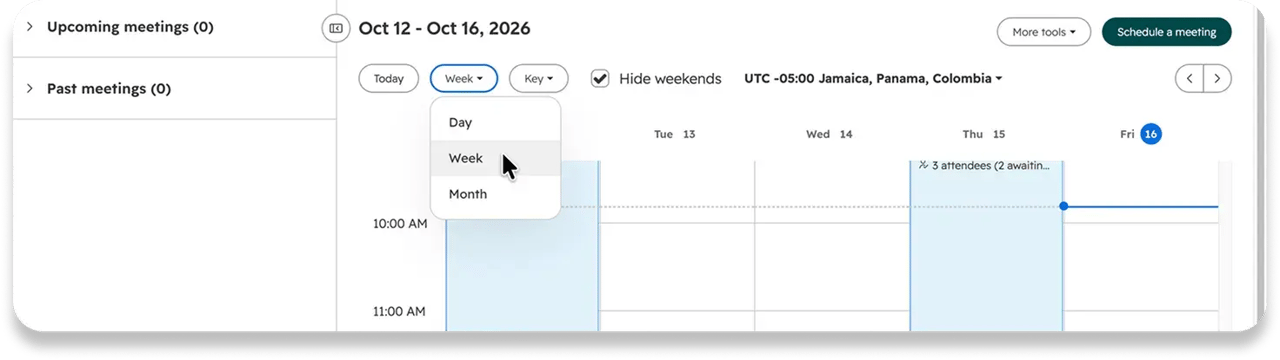 The Calendar's view dropdown, set to Week.
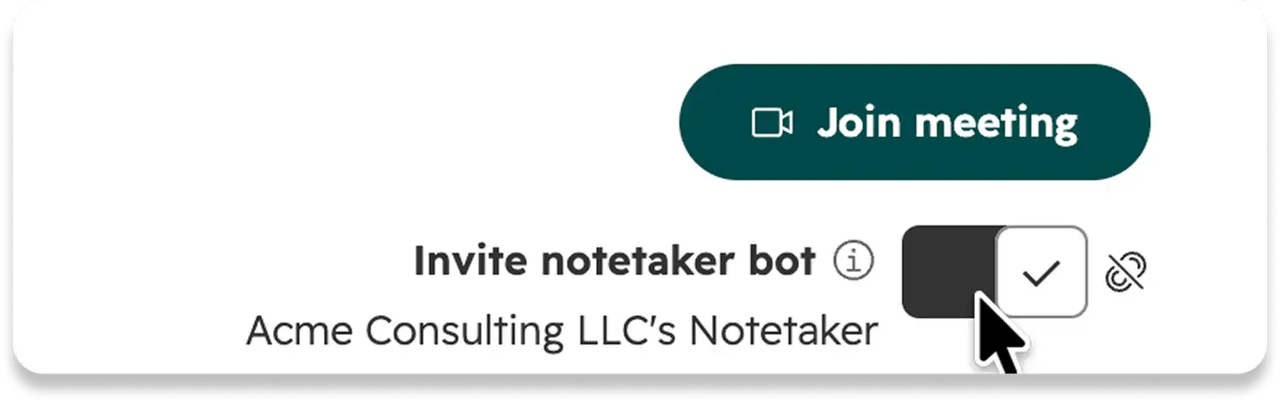 Turn on Invite notetaker bot from the meeting's page.
After the meeting, open it from Past meetings and click the Review tab. Approve the CRM updates you want to keep, turn each action item into a task with Create task, then generate the follow-up email, read it and send it.
🏆 Elite Partner Tip: A Super Admin has to switch Notetaker on in settings first, and it only joins meetings with at least one contact from outside your company's email domain. So don't test it with a colleague: an internal meeting makes it look broken.
Sales Workspace
The Sales Workspace puts each rep's tasks, leads, deals and meetings on one screen, and it's where a qualified lead becomes a deal. It needs Sales Hub Professional or Enterprise, a Sales seat and Sales Access. We have a full Sales Workspace guide, so here's how it fits this deal.
- Click Sales, then Sales Workspace. On the Tasks card, click Start tasks. The task Notetaker created is already waiting.
- Open the Leads tab. HubSpot already moved your buyer's lead to Connected.
- If the buyer is a real fit, move the lead to Qualified yourself. It's the one step HubSpot leaves to a human, and it should.
- Click CRM, then Contacts, open the buyer, and on the Deals card click + Add.
- Name the deal, choose your pipeline, set the stage, enter the Amount, pick a Close date, and click Create. HubSpot copies over every email, call and meeting logged so far.
- Back in the Workspace's Deals tab, move the deal to the stage it's really in.
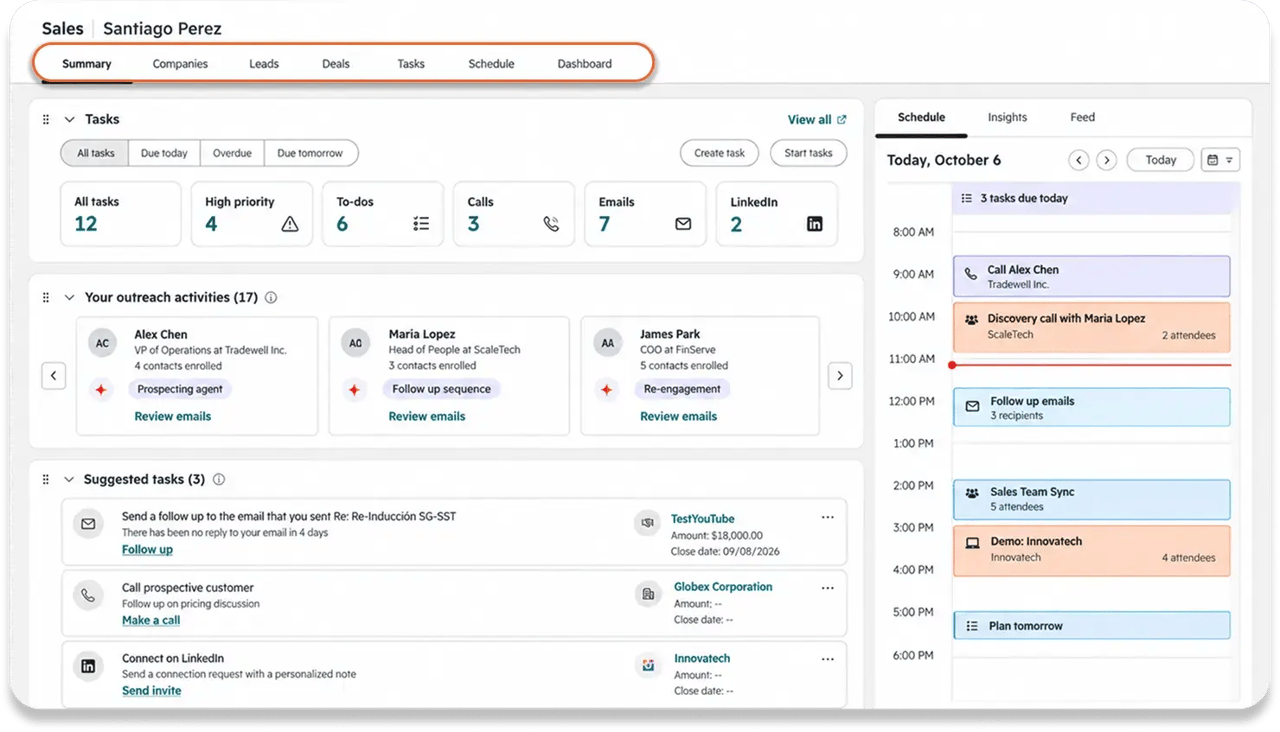
In our example, the HubSpot Pro Package deal goes in at $1,700 and moves to Presentation scheduled once the demo is booked.
4: How Does the HubSpot Forecast Work?
Forecast
The Forecast reads your real pipeline, weighs every deal by how close it is to closing, and shows each rep's number next to their goal. No more Friday spreadsheet rebuilt from memory. It needs one thing most teams skip: a revenue goal for each rep. Without one, the Goal and Gap columns stay empty.
- Click Sales, then Forecast.
- Click Create goal. HubSpot picks the Forecastable Revenue template; set your reps, their targets, the dates and the pipeline, and click Done.
- Read the team table: Goal, Closed Won, Gap and Forecast Submission.
- Click a rep's name to see their deals and what each one counts for.
- In Forecast Submission, click Submit, pick the pipeline and period, enter what you're confident you'll close, and click Submit forecast.
How a deal is weighted: the deal amount times its stage's win probability. Our $1,700 deal sits in Presentation scheduled, which carries a 60% win probability, so the Forecast counts it as $1,020, not the full $1,700.
🏆 Elite Partner Tip: The goal's dates and pipeline have to match what you're viewing in the Forecast, or the goal won't show up. And check your stage win probabilities against your real close rates. If they're still HubSpot's defaults, your forecast runs on someone else's numbers. Setting up deal stages the right way is the subject of our sales pipeline video.
5: How Do You Measure and Coach Your Sales Team?
Sales Analytics
Sales Analytics gives you ready-made sales reports, so you can see where deals stall while there's still time to fix it. No report building required, and it's included from Sales Hub Starter.
- Click Sales, then Sales Analytics.
- In the left sidebar, open Deals and click Deal funnel. HubSpot opens it as Deal journey progress.
- Set your date range. To see one pipeline, click Advanced filters, then Add filter, search for Pipeline, and choose yours.
- Read how many deals reach each stage and how many move on, so you know where they drop off.
- Click Save report and add it to a dashboard.
🏆 Elite Partner Tip: Add the Time spent in deal stage report to your team's dashboard too. It shows exactly which stage your deals get stuck in.
Coaching Playlists
Coaching Playlists turn real recorded calls into training your whole team can watch, clipped to the moment that matters. They need a call or meeting recorded in HubSpot, like the one Notetaker recorded, and Sales Hub Professional or Enterprise.
- Click Sales, then Coaching Playlists. Click Create playlist, name it, choose who can see it, and click Create.
- Click Recordings in the top right and choose Meetings. Open the call you want and click + Add to playlist.
- Pick your playlist, add a note on what to listen for, set the Start and End to clip the best moment, and click Add.
 Open Recordings in the top right, then choose Meetings.
This is where the loop closes. The call that moved this deal forward becomes training for your next rep, who goes back to Target Accounts and starts the next deal a little sharper than the last.
What Mistakes Should You Avoid With Sales Hub?
Most Sales Hub problems are hand-off problems, not software problems. These are the ones we see most often when we audit accounts.
- Companies with no domain. They never come up in Target Accounts, so nothing after it gets triggered.
- Leads outside the default lead pipeline. HubSpot only moves leads automatically in the default pipeline. Everywhere else, reps move every stage by hand.
- Launching before the one-pager and booking link exist. The agent and your sequences can only send what you've already built.
- Document tracking left off. Views come in without a name, so the Activity Feed has nothing to show and the follow-up call never happens.
- The same buyer in the agent and a sequence. Two sets of emails to one person. One route per buyer.
- Calls logged without an outcome. The lead never reaches Connected, and your pipeline looks emptier than it is.
- Deals without a close date or with the wrong stage. They're invisible in this period's Forecast, or counted at the wrong weight.
- No revenue goal per rep. The Forecast's Goal and Gap columns stay empty.
- Treating the setup as finished. New hires, new stages and new products all change what each tool should do. Review the setup whenever your team or your pipeline changes. That recurring review is exactly what our $1,000 HubSpot Support Package covers for teams that don't want to own it internally.
Frequently Asked Questions
What is HubSpot Sales Hub?
HubSpot Sales Hub is HubSpot's paid sales software. It sits on top of the free HubSpot CRM and adds tools to find buyers, follow up, book meetings, manage deals and forecast revenue, including sequences, the Meetings Scheduler, the Sales Workspace, the Forecast and AI agents.
How much does HubSpot Sales Hub cost?
Sales Hub has four tiers: Free at $0, Starter at $20 per seat per month, Professional at $100 per seat per month, and Enterprise at $150 per seat per month. Professional and Enterprise also require a one-time onboarding fee of $1,500 and $3,500. Prices were checked in November 2026 and change often.
What's the difference between the free HubSpot CRM and Sales Hub?
The free CRM is the database for your contacts, companies and deals. Sales Hub is the paid layer on top of it with the sales tools: sequences, the Sales Workspace, the Forecast, Target Accounts, Coaching Playlists and more, depending on the tier.
Which Sales Hub features need Professional?
Sequences, the Sales Workspace, the Forecast, Target Accounts, Coaching Playlists and the Prospecting Agent's selling profiles all need Sales Hub Professional or Enterprise, plus a Sales seat for each user.
What does HubSpot Sales Hub Enterprise add over Professional?
Higher limits and more control: 1,000 sequence emails per user per day instead of 500, 12,000 calling minutes per account per month instead of 3,000, 350 custom pipelines instead of 100, plus the power dialer and tracked terms in call transcripts.
Can I see a HubSpot Sales Hub demo before I buy?
Yes. Our video walks through every Sales Hub tool on one real deal, from the first target account to the forecast, and HubSpot offers a free product demo on its website.
Can I create quotes in Sales Hub?
Not anymore, for most accounts. Quotes and CPQ now need a Revenue Hub seat. Accounts that had Sales Hub before September 3, 2025 keep legacy quotes.
Do I need a Sales seat for every user?
For every user who needs the sales tools, yes. Core and View-only seats don't include sequences, the Forecast or the Sales Workspace. View-only seats are free and unlimited on Starter, Professional and Enterprise, for people who only need to see the data.
How many emails can a sequence send per day?
Up to 500 per user per day with a Sales Professional seat, and up to 1,000 with a Sales Enterprise seat.
How does HubSpot move leads through stages automatically?
In your default lead pipeline, a lead moves to Attempting when its owner sends or logs an email, call or message, and to Connected when the buyer replies, a meeting is marked Completed, or a call is logged as Connected. Moving a lead to Qualified is always manual.
Is the HubSpot pricing different in Europe?
Since October 1, 2026, new customers in Europe, the Middle East and Africa buy one HubSpot platform edition and pay per seat, with a monthly allowance of HubSpot Credits. Existing customers keep their current pricing, and as of November 2026 the Americas stay on the hub-and-seat model.
Key Takeaways
- HubSpot Sales Hub is the paid sales layer on top of the free CRM. Quotes now live in Revenue Hub.
- Pricing starts at $20 per seat on Starter, $100 on Professional and $150 on Enterprise, with required onboarding on Professional and Enterprise. Pay for Sales seats, not Core seats, for anyone who sells.
- The full connected system needs Professional or above, a Sales seat, Sales Access, and each rep's inbox and calendar connected.
- Use the 11 tools in the order a deal meets them: Target Accounts, Prospecting Agent, Documents, Meetings Scheduler, Sequences, Activity Feed, Calendar and Notetaker, Sales Workspace, Forecast, Sales Analytics and Coaching Playlists.
- The hand-offs are what make it work. Most problems trace back to one missed setting: a missing domain, document tracking left off, a call with no outcome, or a deal with no close date.
- Review the setup as your team changes, so Sales Hub keeps matching how you actually sell.

On The Fuze is a Top 1% HubSpot Elite Partner with 10+ years of experience and 3,000+ CRM setups optimized across North America. We help small and medium-sized businesses leverage the full potential of HubSpot to scale their businesses.